> ## Documentation Index
> Fetch the complete documentation index at: https://docs.ale.run/llms.txt
> Use this file to discover all available pages before exploring further.
# Multi-Cluster
> You can register additional clusters to ale and manage them.
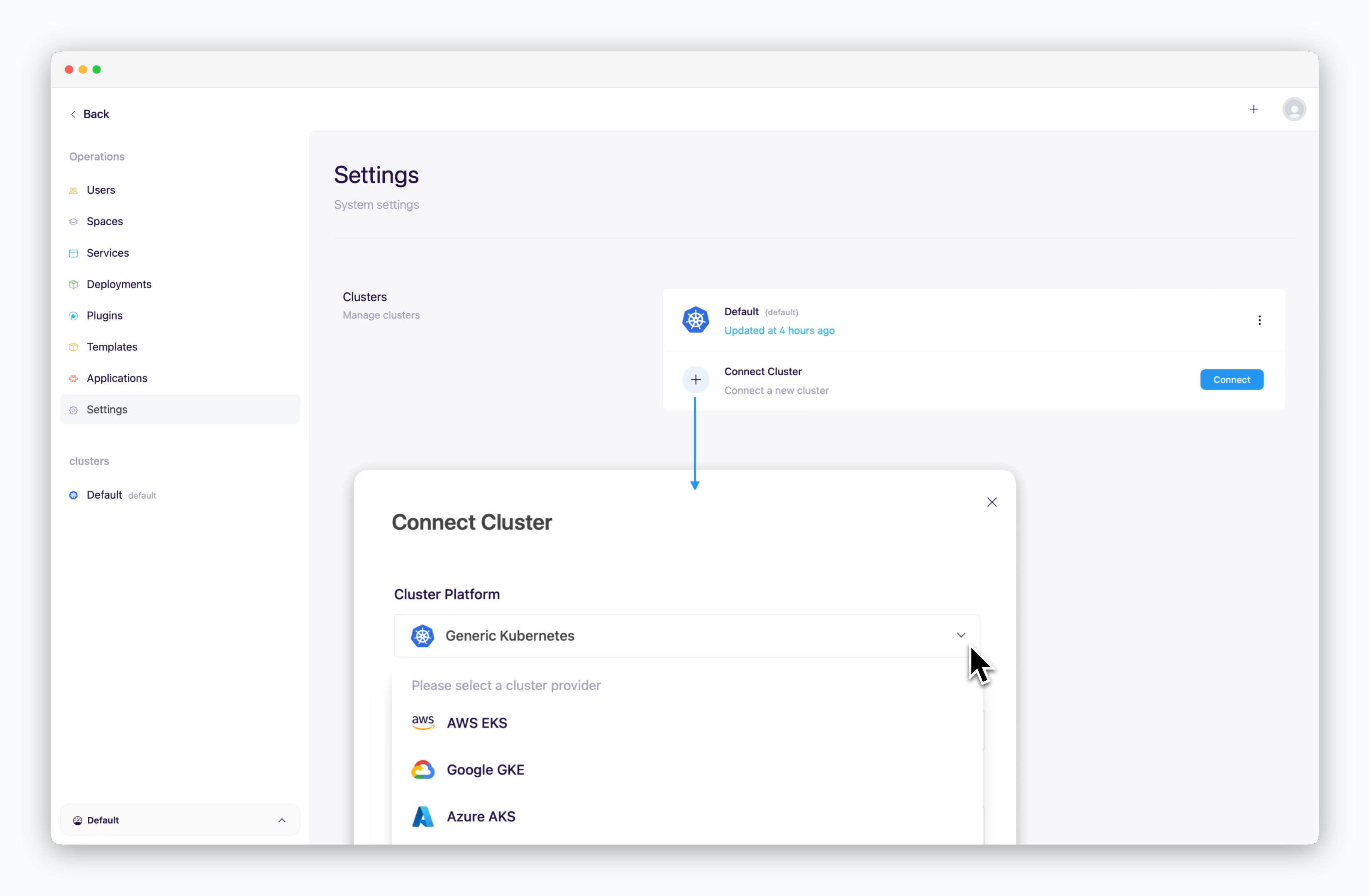 > `ale` supports connecting not only Kubernetes clusters from major CSPs but also Generic Kubernetes clusters. Depending on how the agent is executed, you can register and manage clusters using the following steps.
## Running on Node
If you're running ale on AWS EC2, follow the steps below up to the point of installing the `ale-run` package.
* [Install ale on AWS EC2](/en/setup/ec2/01_ec2-prerequisite)
```bash theme={null}
mkdir ale-run
cd ale-run
```
```bash theme={null}
npm i @ale-run/runtime@latest
```
```bash theme={null}
pm2 start "npx aled agent -c [Kubernetes cluster name]" --name "ale-agent" --watch
```
```bash theme={null}
pm2 log ale-agent
```
```bash theme={null}
...
0|ale-agent | [INFO] [runtime:init] using embedded mongodb "mongodb://127.0.0.1:27017/ale" at "/home/ubuntu/.ale/mongodb"
0|ale-agent | [INFO] [runtime:init] using cluster: default
0|ale-agent | [INFO] [k8s] KubernetesClusterDriver initialized with agent {"connection":{"context":"default","namespace":"ale"},"stat":{"db":{"url":"mongodb://127.0.0.1:27017/","dbName":"ale"}}}
0|ale-agent | [INFO] [k8s] ConfigContext initialized with {"connection":{"context":"default","namespace":"ale"},"stat":{"db":{"url":"mongodb://127.0.0.1:27017/","dbName":"ale"}}}
0|ale-agent | [INFO] [k8s] connect k8s to "default"
0|ale-agent | [INFO] [k8s] [agent] cluster agent initialized
0|ale-agent | [INFO] [runtime:agent] Ale Agent is initialized with config
0|ale-agent | [INFO] [agent-server] token loaded from secret "ale/agent-secrets"
0|ale-agent | [INFO] [runtime:init] agent httpsd is listening at 0.0.0.0:9801
0|ale-agent | [INFO] [runtime:init] agent token is cat-c5a7cea7b25709a0863ac64a80155d46.930d450e5893040b54820c83
0|ale-agent | [INFO] [k8s] config loaded from cluster from "ale/agent-config"
0|ale-agent | [INFO] [stat] stat controller init {"collector":{"prefix":"ale"},"db":{"url":"mongodb://127.0.0.1:27017/","dbName":"ale"},"connection":{"context":"default","namespace":"ale"}}
0|ale-agent | [INFO] [stat] connect k8s to "default"
0|ale-agent | [INFO] [stat] stat watcher started
```
If database conflicts occur during execution or you need to reset the configuration, run the following command to delete existing ale data and restart.
```bash theme={null}
rm -r ~/.ale
```
> `ale` supports connecting not only Kubernetes clusters from major CSPs but also Generic Kubernetes clusters. Depending on how the agent is executed, you can register and manage clusters using the following steps.
## Running on Node
If you're running ale on AWS EC2, follow the steps below up to the point of installing the `ale-run` package.
* [Install ale on AWS EC2](/en/setup/ec2/01_ec2-prerequisite)
```bash theme={null}
mkdir ale-run
cd ale-run
```
```bash theme={null}
npm i @ale-run/runtime@latest
```
```bash theme={null}
pm2 start "npx aled agent -c [Kubernetes cluster name]" --name "ale-agent" --watch
```
```bash theme={null}
pm2 log ale-agent
```
```bash theme={null}
...
0|ale-agent | [INFO] [runtime:init] using embedded mongodb "mongodb://127.0.0.1:27017/ale" at "/home/ubuntu/.ale/mongodb"
0|ale-agent | [INFO] [runtime:init] using cluster: default
0|ale-agent | [INFO] [k8s] KubernetesClusterDriver initialized with agent {"connection":{"context":"default","namespace":"ale"},"stat":{"db":{"url":"mongodb://127.0.0.1:27017/","dbName":"ale"}}}
0|ale-agent | [INFO] [k8s] ConfigContext initialized with {"connection":{"context":"default","namespace":"ale"},"stat":{"db":{"url":"mongodb://127.0.0.1:27017/","dbName":"ale"}}}
0|ale-agent | [INFO] [k8s] connect k8s to "default"
0|ale-agent | [INFO] [k8s] [agent] cluster agent initialized
0|ale-agent | [INFO] [runtime:agent] Ale Agent is initialized with config
0|ale-agent | [INFO] [agent-server] token loaded from secret "ale/agent-secrets"
0|ale-agent | [INFO] [runtime:init] agent httpsd is listening at 0.0.0.0:9801
0|ale-agent | [INFO] [runtime:init] agent token is cat-c5a7cea7b25709a0863ac64a80155d46.930d450e5893040b54820c83
0|ale-agent | [INFO] [k8s] config loaded from cluster from "ale/agent-config"
0|ale-agent | [INFO] [stat] stat controller init {"collector":{"prefix":"ale"},"db":{"url":"mongodb://127.0.0.1:27017/","dbName":"ale"},"connection":{"context":"default","namespace":"ale"}}
0|ale-agent | [INFO] [stat] connect k8s to "default"
0|ale-agent | [INFO] [stat] stat watcher started
```
If database conflicts occur during execution or you need to reset the configuration, run the following command to delete existing ale data and restart.
```bash theme={null}
rm -r ~/.ale
```
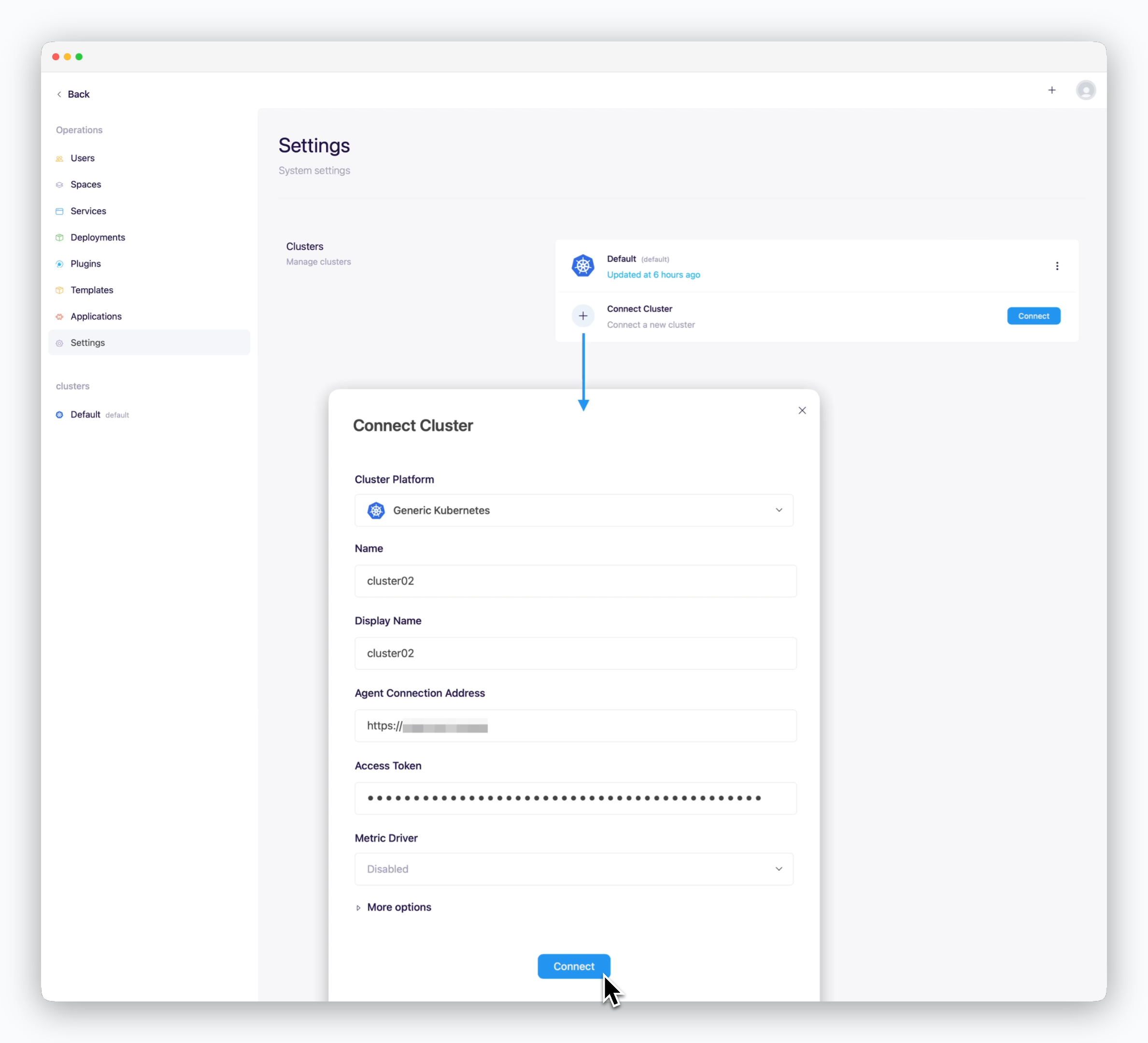 * **Cluster Platform**: Generic Kubernetes
* **Name, Display Name**: Name to be displayed on the dashboard
* **Agent Connection Address**
* **Access Token**: Token retrieved from the logs in the previous step
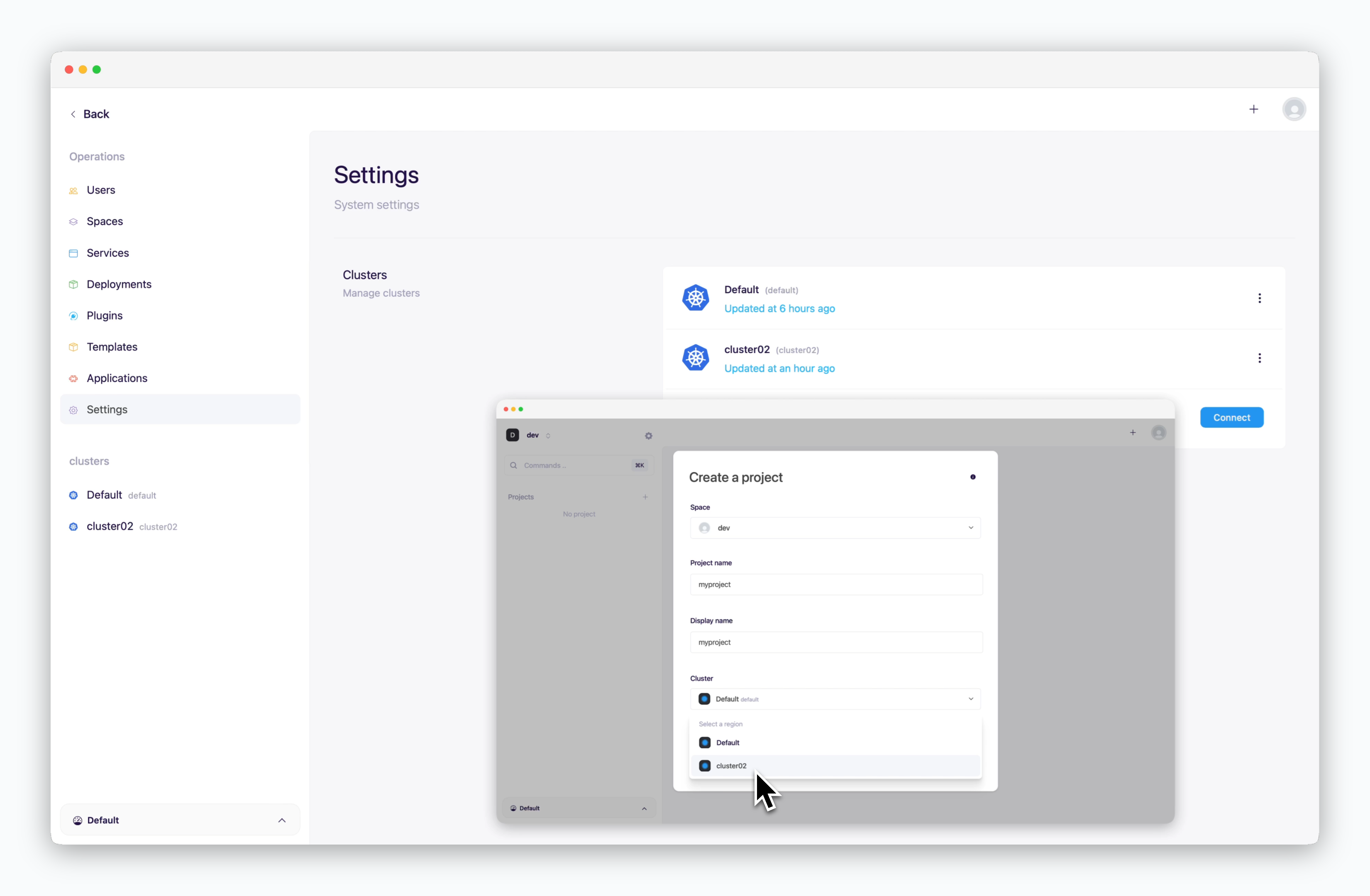
Connected clusters can be selected as the target deployment cluster when creating projects or deployment environments for service deployment in the dashboard.
* **Cluster Platform**: Generic Kubernetes
* **Name, Display Name**: Name to be displayed on the dashboard
* **Agent Connection Address**
* **Access Token**: Token retrieved from the logs in the previous step
Connected clusters can be selected as the target deployment cluster when creating projects or deployment environments for service deployment in the dashboard.
 ## Running on Kubernetes Pod
To install Ale on a Kubernetes cluster, refer to the following pages:
* [AWS EKS](/en/setup/eks-eksctl/01_aws-prerequisite)
* [GCP GKE](/en/setup/gke/01_gke-prerequisite)
```bash AWS EKS - hostname theme={null}
kubectl get svc \
-n ale \
ale-agent-lb \
-o jsonpath='{.status.loadBalancer.ingress[0].hostname}' \
| xargs -I{} echo "https://{}"
```
```bash GKE, AKE - ip theme={null}
kubectl get svc \
-n ale \
ale-agent-lb \
-o jsonpath='{.status.loadBalancer.ingress[0].ip}' \
| xargs -I{} echo "https://{}"
```
```bash theme={null}
kubectl get secrets agent-secrets -n ale -o jsonpath='{.data.AGENT_TOKEN}' | base64 --decode
```
* **Cluster Platform**: Select the provider of the cluster to connect
* **Name, Display Name**: Name to be displayed on the dashboard
* **Agent Connection Address**
* **Access Token**: Token retrieved from the logs in the previous step
Connected clusters can be selected as the target deployment cluster when creating projects or deployment environments for service deployment in the dashboard.
## Running on Kubernetes Pod
To install Ale on a Kubernetes cluster, refer to the following pages:
* [AWS EKS](/en/setup/eks-eksctl/01_aws-prerequisite)
* [GCP GKE](/en/setup/gke/01_gke-prerequisite)
```bash AWS EKS - hostname theme={null}
kubectl get svc \
-n ale \
ale-agent-lb \
-o jsonpath='{.status.loadBalancer.ingress[0].hostname}' \
| xargs -I{} echo "https://{}"
```
```bash GKE, AKE - ip theme={null}
kubectl get svc \
-n ale \
ale-agent-lb \
-o jsonpath='{.status.loadBalancer.ingress[0].ip}' \
| xargs -I{} echo "https://{}"
```
```bash theme={null}
kubectl get secrets agent-secrets -n ale -o jsonpath='{.data.AGENT_TOKEN}' | base64 --decode
```
* **Cluster Platform**: Select the provider of the cluster to connect
* **Name, Display Name**: Name to be displayed on the dashboard
* **Agent Connection Address**
* **Access Token**: Token retrieved from the logs in the previous step
Connected clusters can be selected as the target deployment cluster when creating projects or deployment environments for service deployment in the dashboard.