> ## Documentation Index
> Fetch the complete documentation index at: https://docs.ale.run/llms.txt
> Use this file to discover all available pages before exploring further.
# Service Connections
> `ale` provides the hostnames and ports for connecting services with other services. These connections can be set up for internal communication within the same environment or for external access.
## Service Endpoints
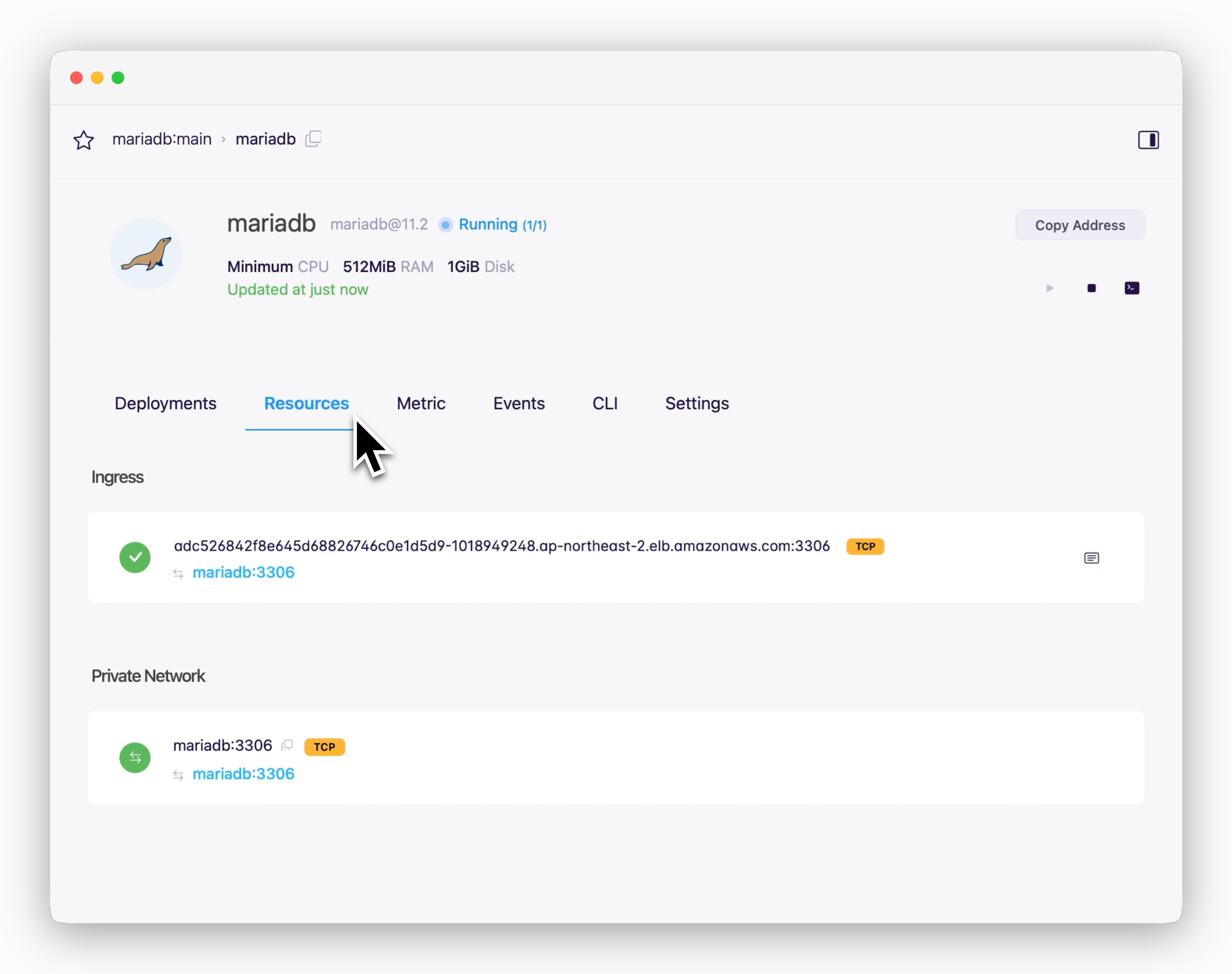 > In the resource tab of the service page, you can find two types of endpoints:
* **Ingress**: \[hostname:port] for external service connections
* **Private network**: \[hostname:port] for connections within the same environment
Services within the same environment can connect using the service name as the hostname.
## Internal Service Connection
> In the resource tab of the service page, you can find two types of endpoints:
* **Ingress**: \[hostname:port] for external service connections
* **Private network**: \[hostname:port] for connections within the same environment
Services within the same environment can connect using the service name as the hostname.
## Internal Service Connection
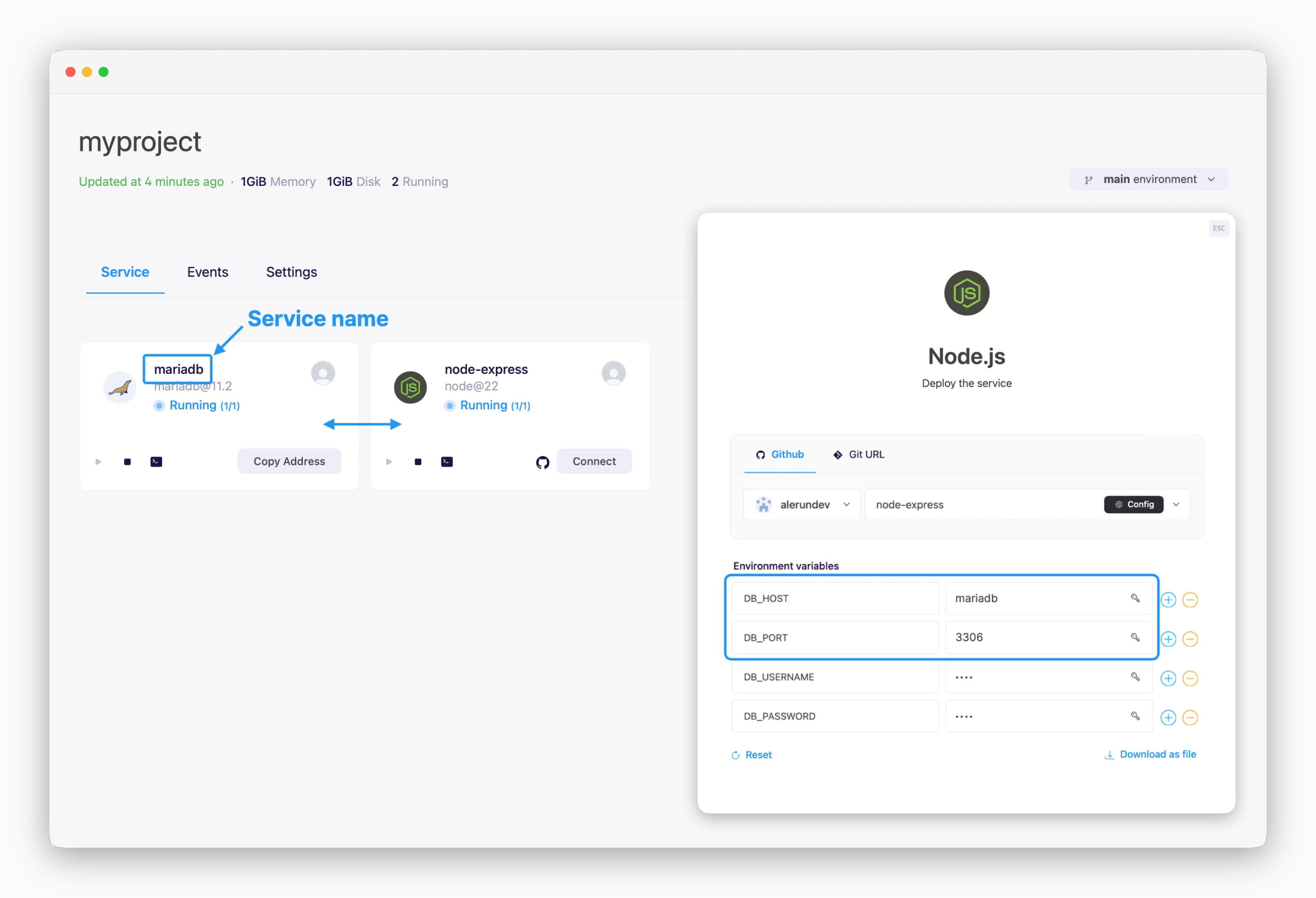 > Services displayed on the same screen can communicate using the private network address, **service name and port number.**
Services shown together belong to the same environment (namespace). Since each environment is isolated within its own network, there's no need for firewall rules, minimizing communication latency.
For more details on ale's workspace structure, see [the Environments page.](/en/developers/environment)
## External and Cross-env Services
> Services displayed on the same screen can communicate using the private network address, **service name and port number.**
Services shown together belong to the same environment (namespace). Since each environment is isolated within its own network, there's no need for firewall rules, minimizing communication latency.
For more details on ale's workspace structure, see [the Environments page.](/en/developers/environment)
## External and Cross-env Services
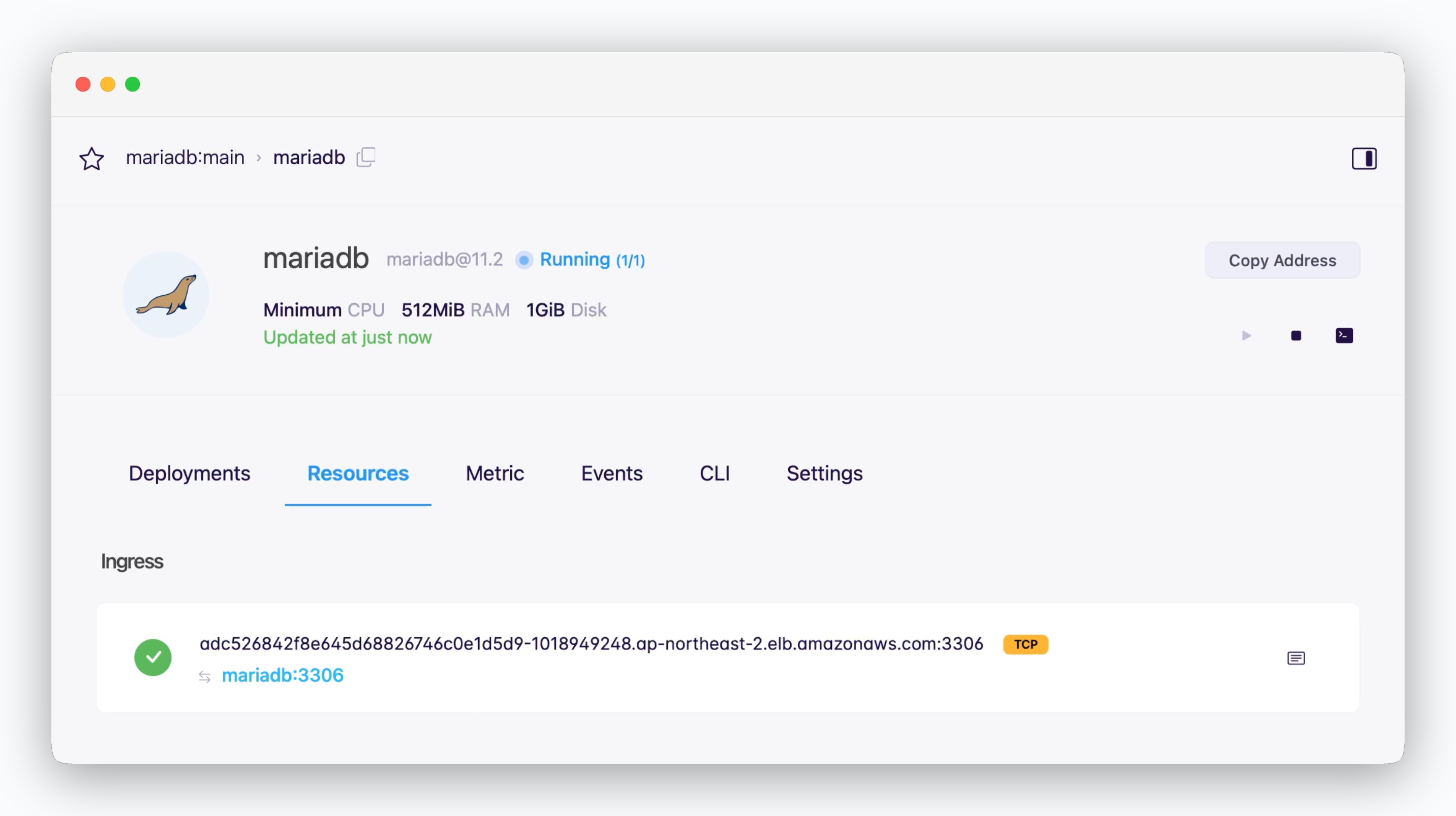 > **Services not in the same environment or external services can connect using ingress address** shown at the top of the resource tab in the service page. For this type of connection, you should **allow TCP external access** in the settings tab of the environment where the database is located.
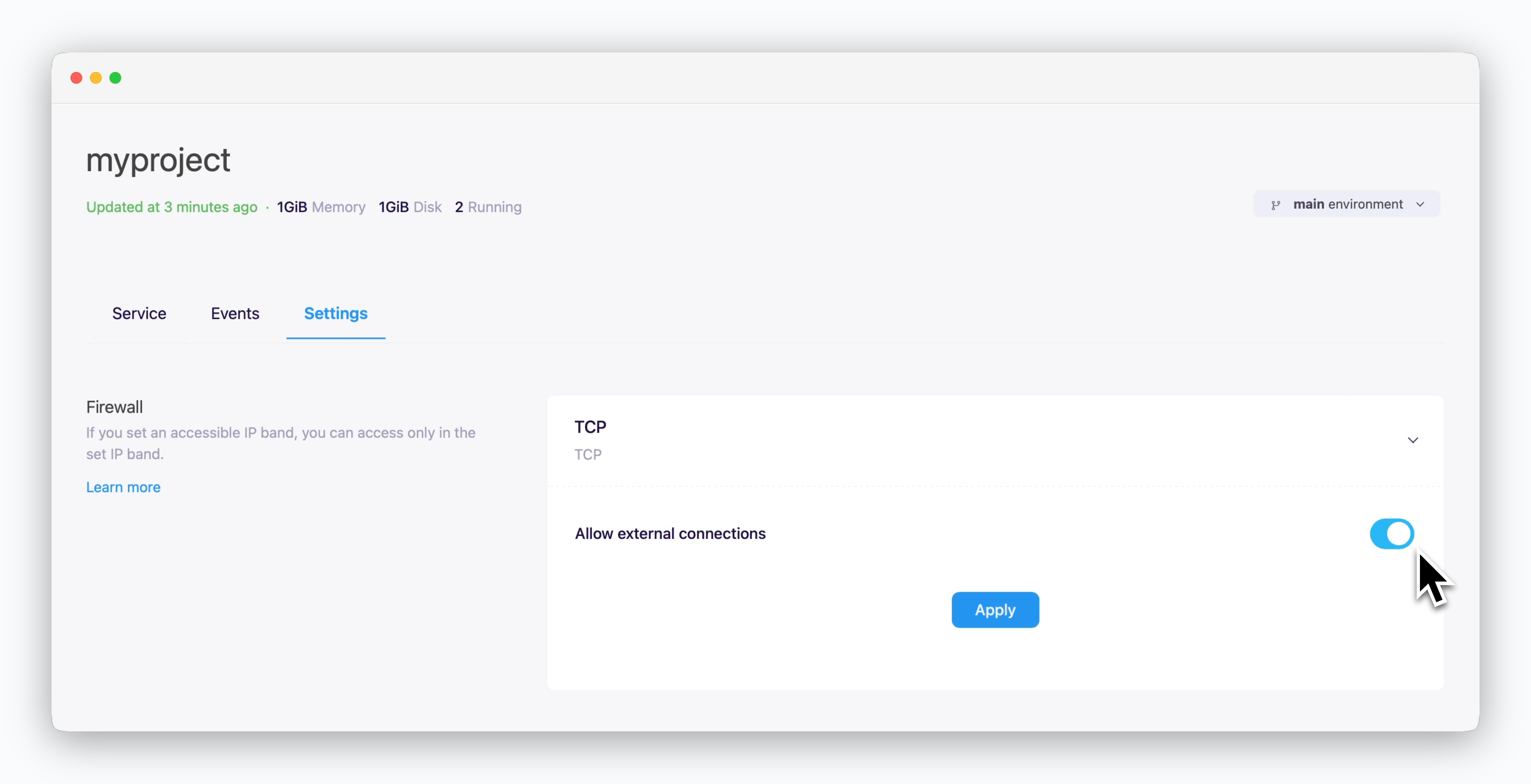 TCP external access is controlled at the environment level and affects all services in that environment. You cannot configure this setting for individual services.
You can connect to your databases from DB client tools via TCP.
TCP external access is controlled at the environment level and affects all services in that environment. You cannot configure this setting for individual services.
You can connect to your databases from DB client tools via TCP.
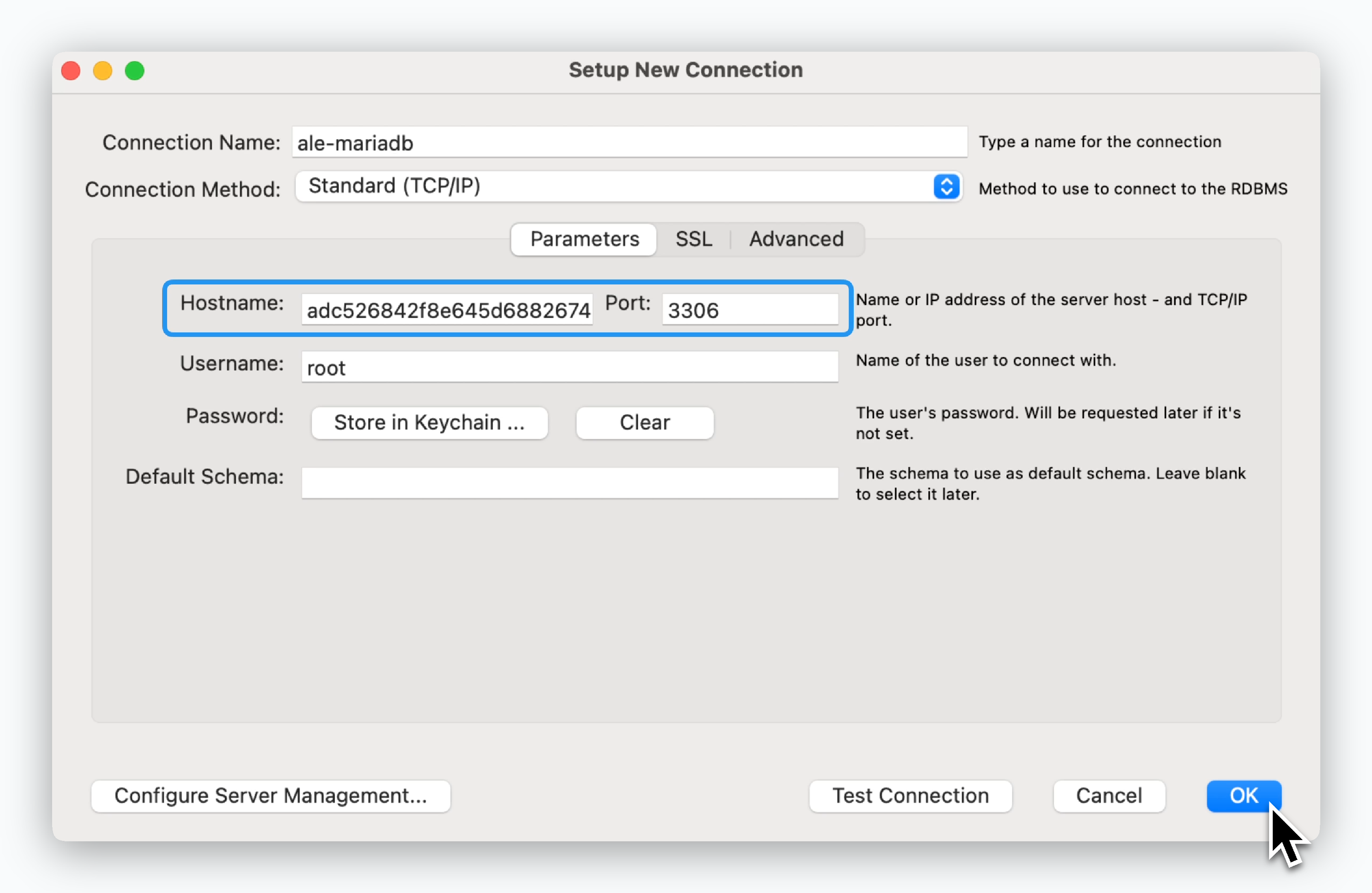 > Enter the ingress address, then in the next screen, enter [the Root Password](/en/developers/database#root-password) you set during deployment.
[MySQL Workbench Download](https://dev.mysql.com/downloads/workbench/)
> Enter the ingress address, then in the next screen, enter [the Root Password](/en/developers/database#root-password) you set during deployment.
[MySQL Workbench Download](https://dev.mysql.com/downloads/workbench/)
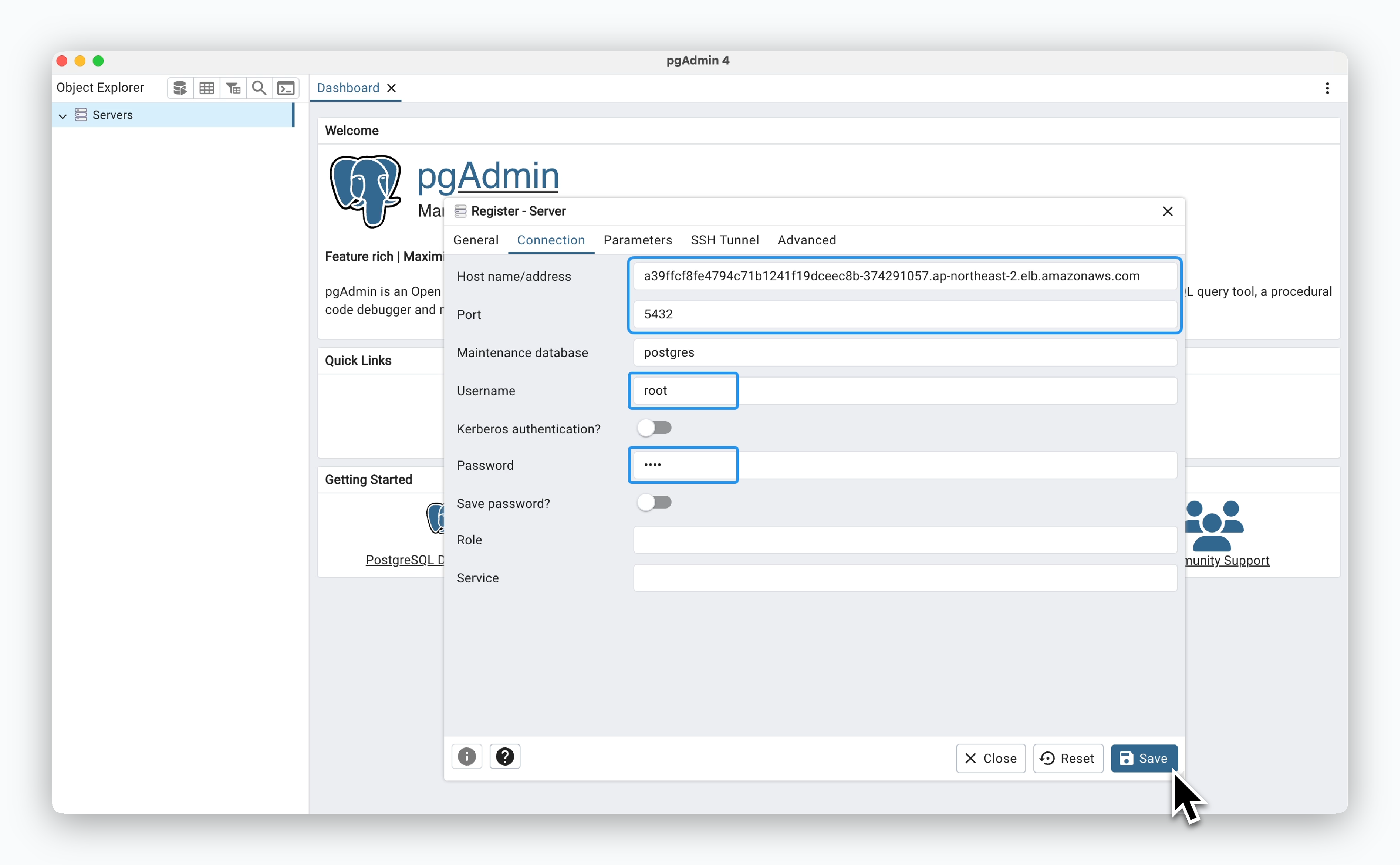 > In the Connection tab, enter the ingress address, the Username (default is **root**), and [the Root Password](/en/developers/database#root-password) you set during deployment.
[pgAdmin Download](https://www.pgadmin.org/download/)
> In the Connection tab, enter the ingress address, the Username (default is **root**), and [the Root Password](/en/developers/database#root-password) you set during deployment.
[pgAdmin Download](https://www.pgadmin.org/download/)
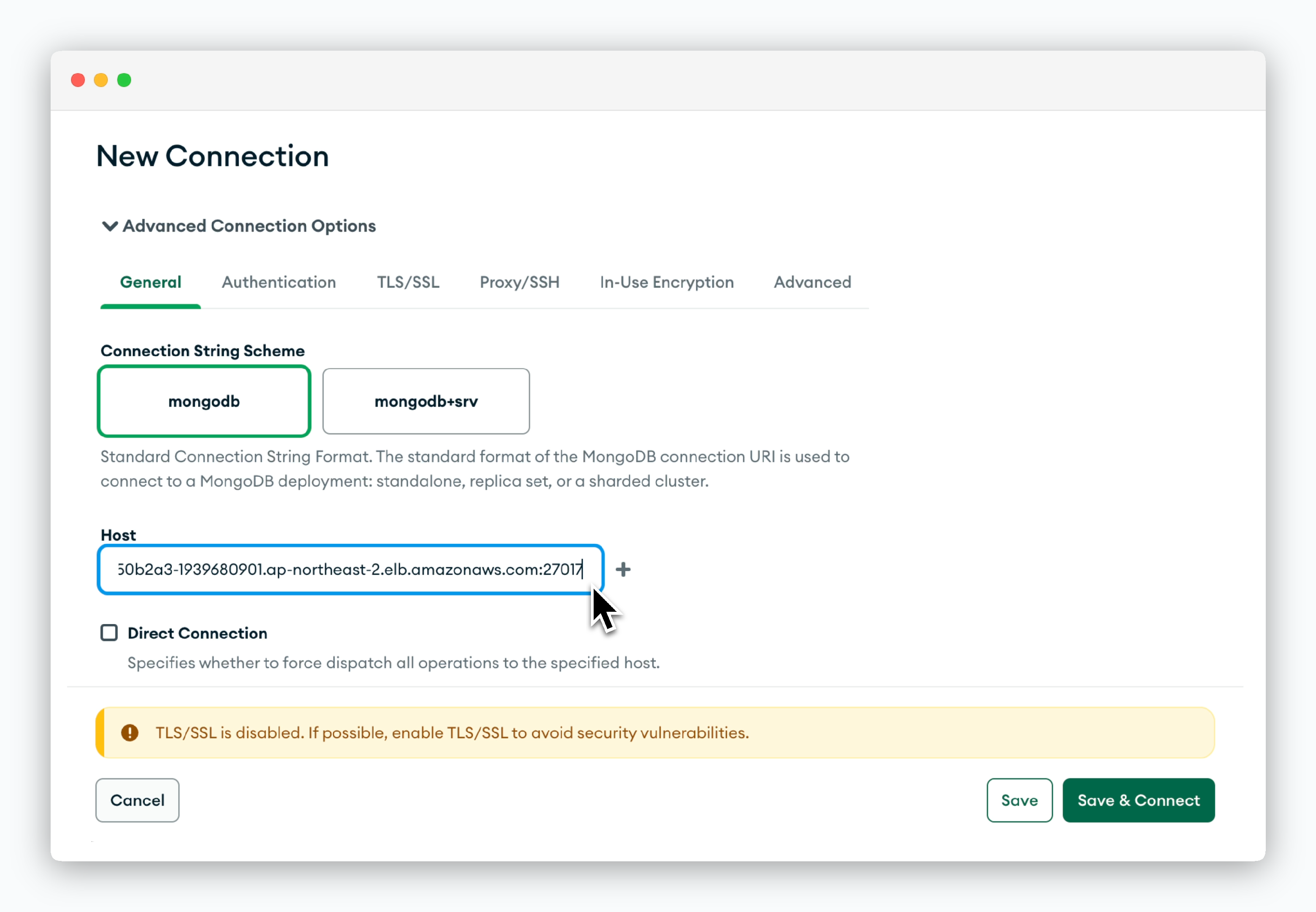 > Click `New Connection`, then in the **Advanced Connection Options** section, enter the **hostname including the port number** in the Host field.
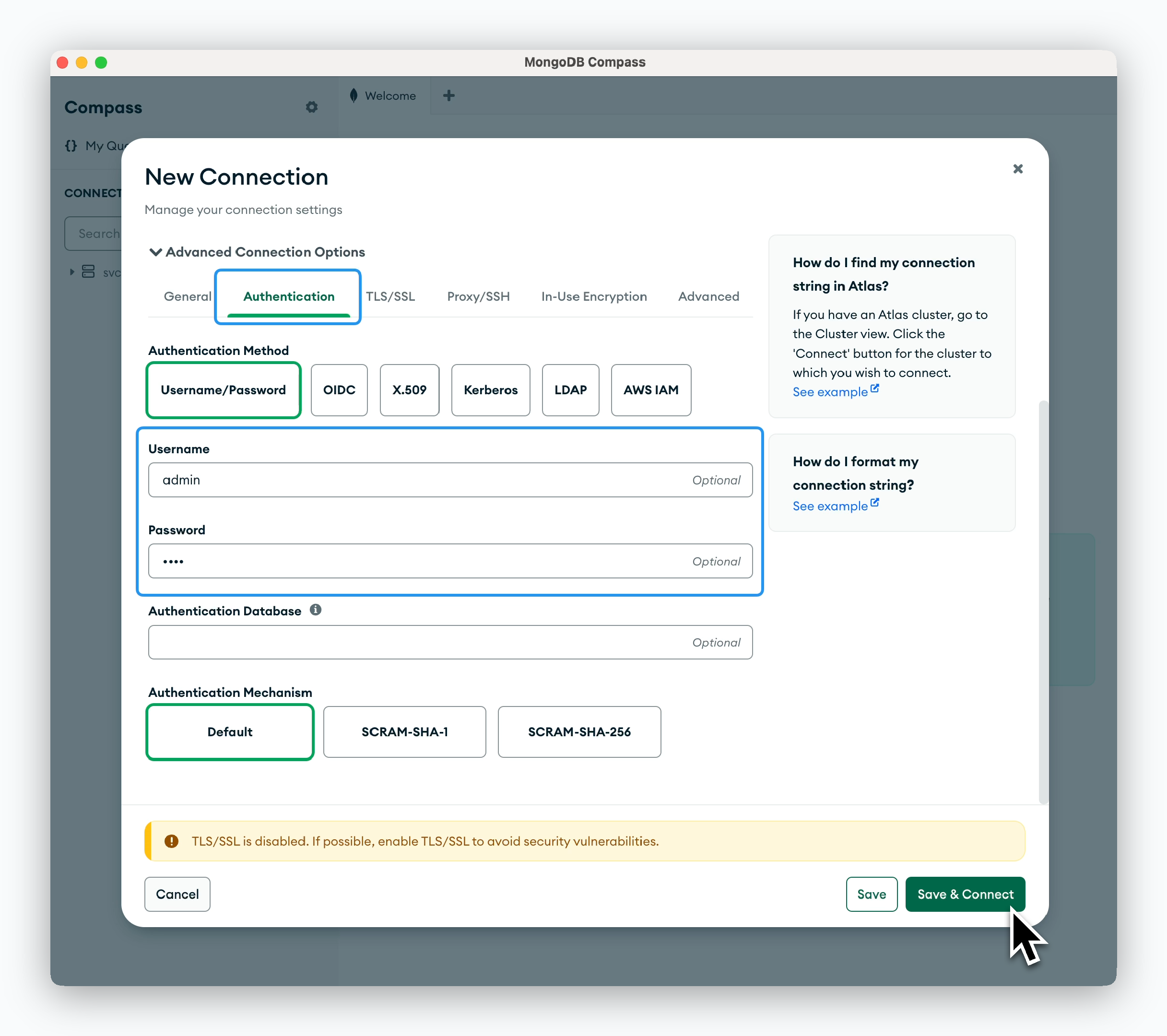 > In the Authentication tab, enter the Username (default is **admin**) and [the Root Password](/en/developers/database#root-password) you set during deployment.
[MongoDB CompassDownload](https://www.mongodb.com/try/download/compass)
> In the Authentication tab, enter the Username (default is **admin**) and [the Root Password](/en/developers/database#root-password) you set during deployment.
[MongoDB CompassDownload](https://www.mongodb.com/try/download/compass)
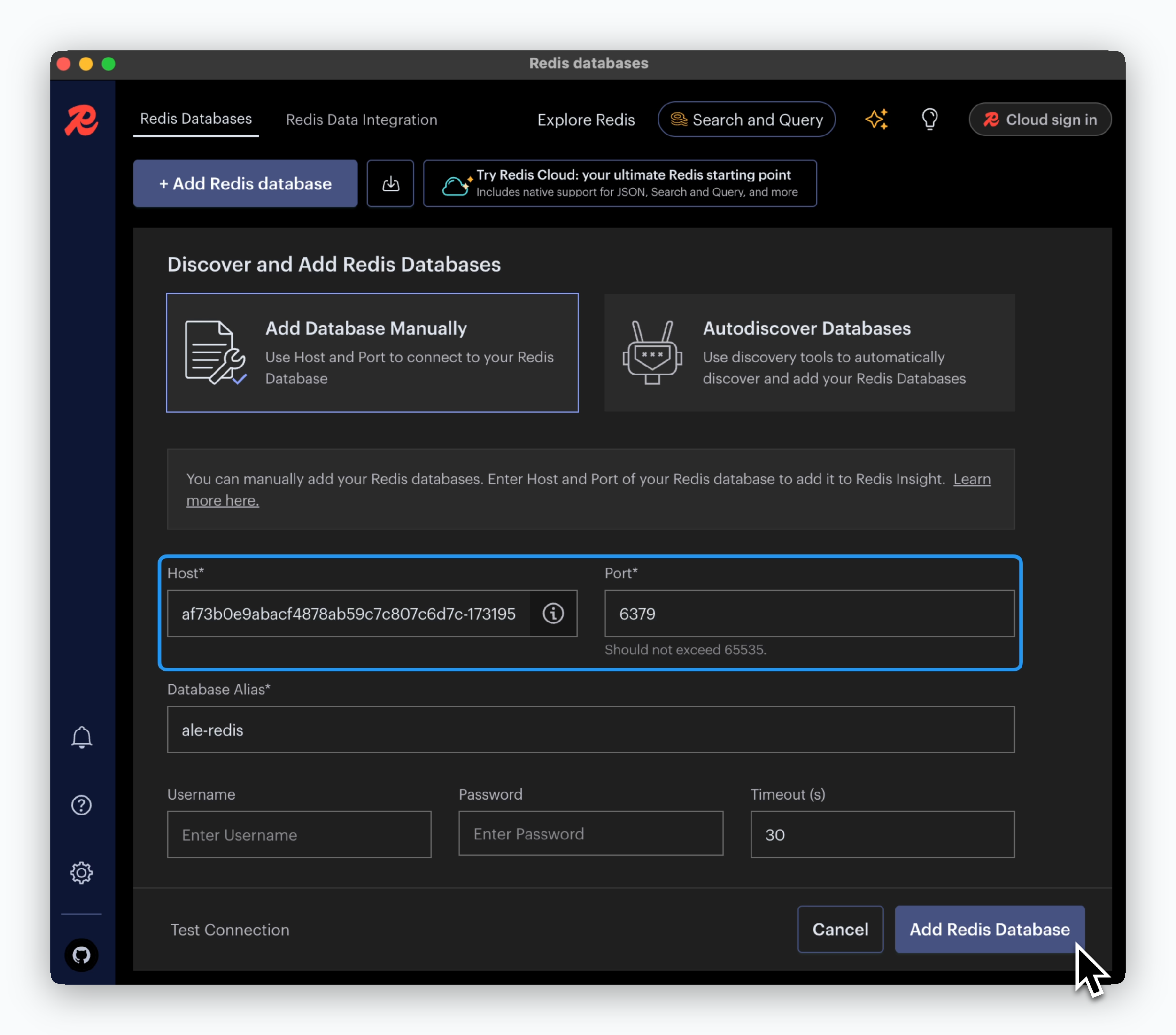 > Click `Add Redis Database` and enter the ingress address.
[Redis Insight Download](https://redis.io/insight/)
To connect to databases using management tools via TCP, you should **enable TCP external access** in the settings tab of the environment where the database is located.
> Click `Add Redis Database` and enter the ingress address.
[Redis Insight Download](https://redis.io/insight/)
To connect to databases using management tools via TCP, you should **enable TCP external access** in the settings tab of the environment where the database is located.