> ## Documentation Index
> Fetch the complete documentation index at: https://docs.ale.run/llms.txt
> Use this file to discover all available pages before exploring further.
# Deploying with ale
> The deployment process starts through the deployment modal, which can be opened via the button in the dashboard or by `⌘ + K`.
Templates provided by `ale` have different default modules and libraries. If you need to use libraries that aren't provided by default, such as Windows or Chrome libraries, use [Dockerfile Template](/en/developers/dockerfile).
***
## Select Deployment source
#### Select a Repository to Deploy
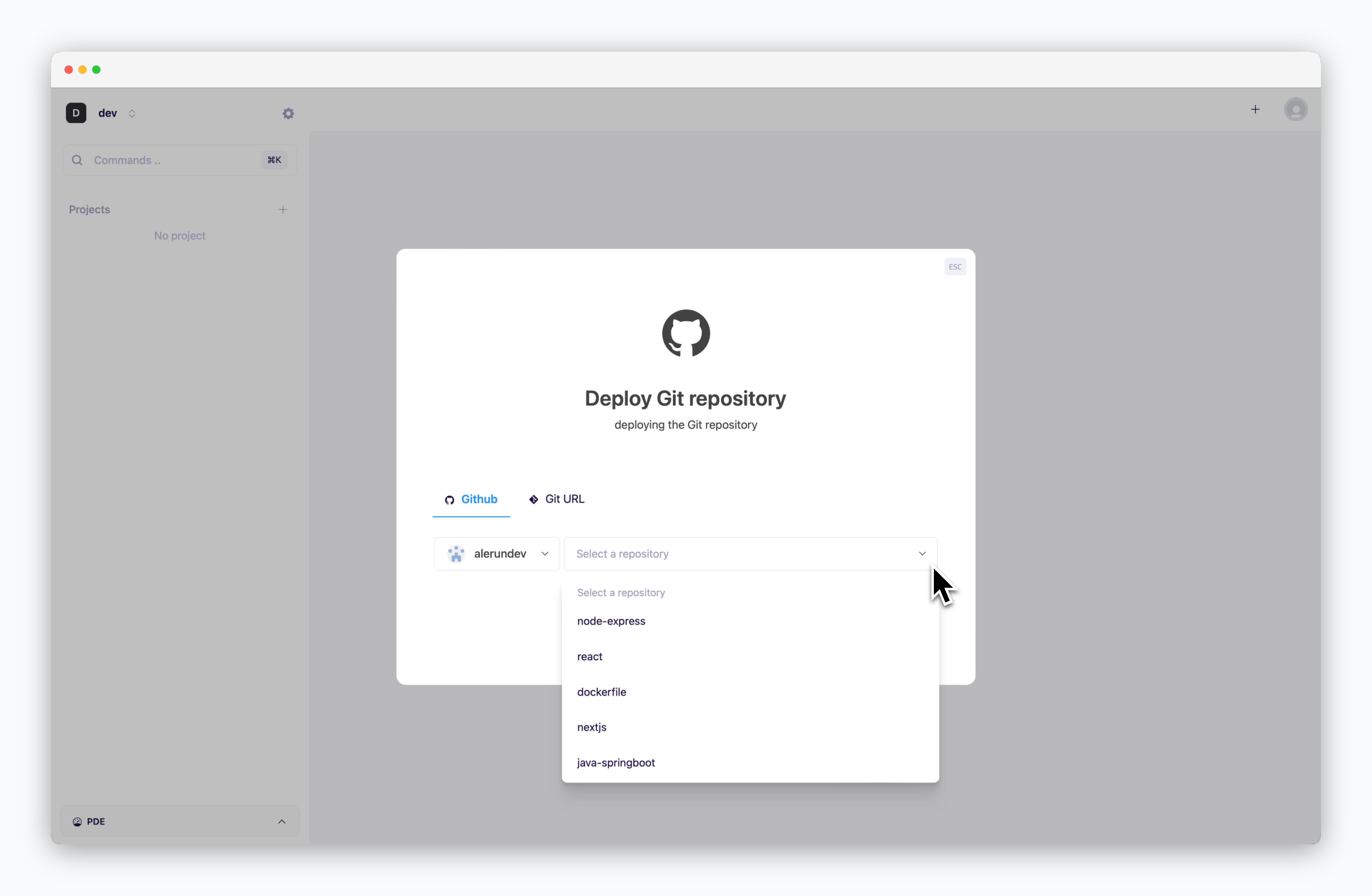 > Click **Deploy Git Repository** in the deployment modal, then select a repository.
#### Select a Preset
> Click **Deploy Git Repository** in the deployment modal, then select a repository.
#### Select a Preset
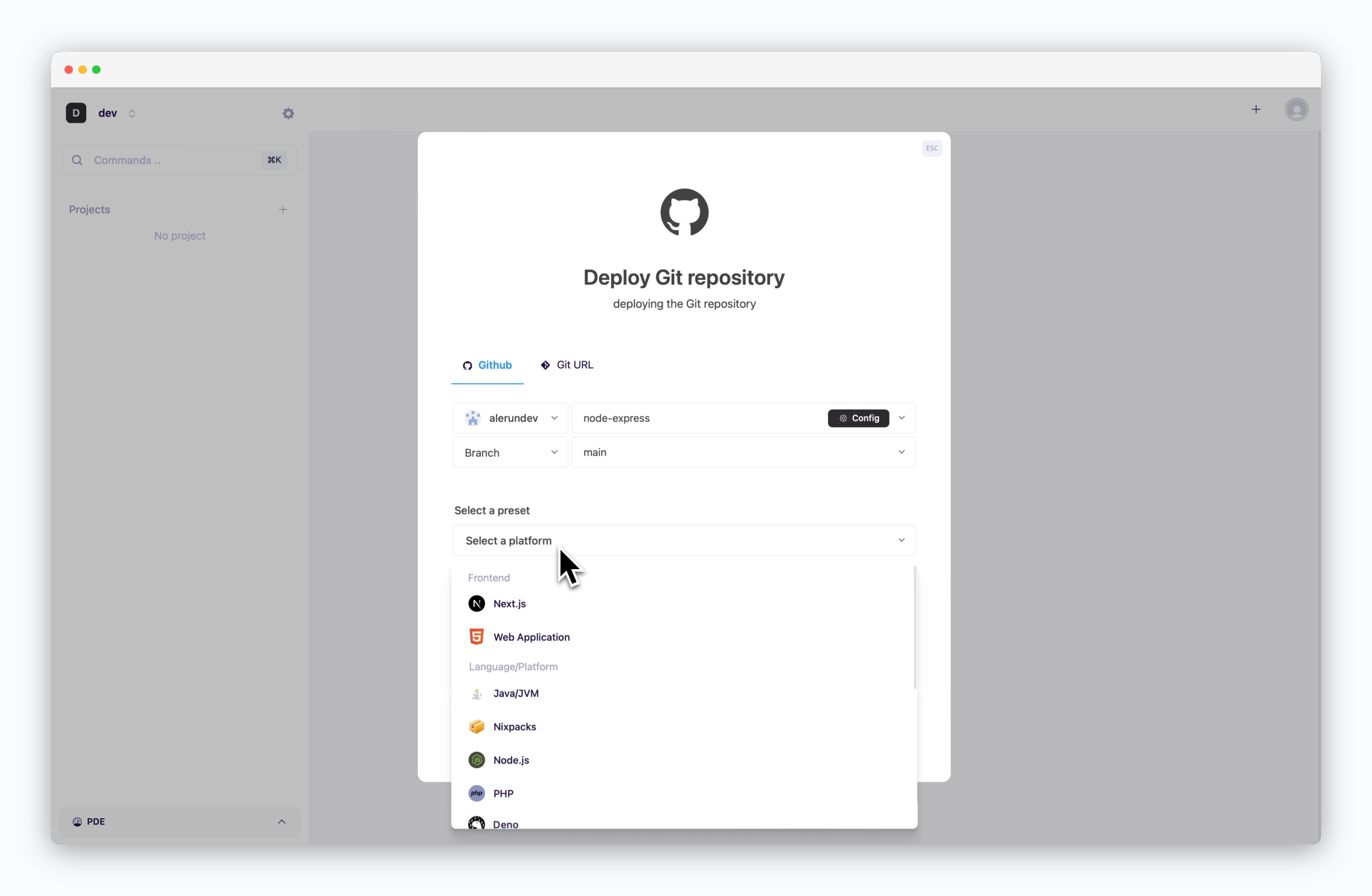 > Choose the preset that matches the repository.
For static sites like React or Vue, select **Web Application**.
#### Add Deploy Key
> Choose the preset that matches the repository.
For static sites like React or Vue, select **Web Application**.
#### Add Deploy Key
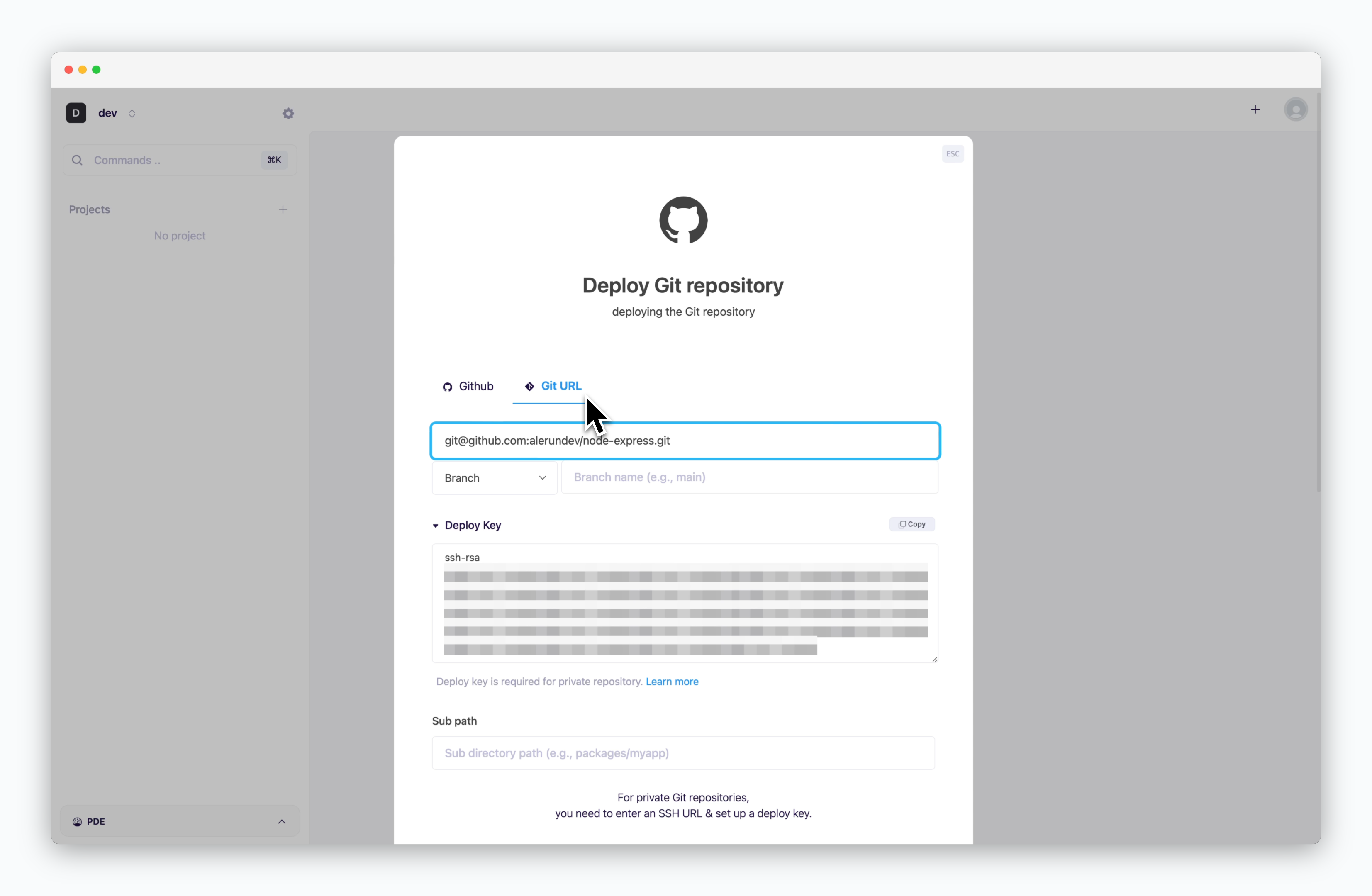 > After selecting 'Deploy Git Repository' and navigating to the 'Git URL' tab, input the SSH Git URL of your repository. A Deploy Key will be generated automatically.
`ale` supports SSH authentication for deploying private repositories from GitHub, GitLab, Bitbucket, and other git providers. See below for platform-specific deploy key setup.
> After selecting 'Deploy Git Repository' and navigating to the 'Git URL' tab, input the SSH Git URL of your repository. A Deploy Key will be generated automatically.
`ale` supports SSH authentication for deploying private repositories from GitHub, GitLab, Bitbucket, and other git providers. See below for platform-specific deploy key setup.
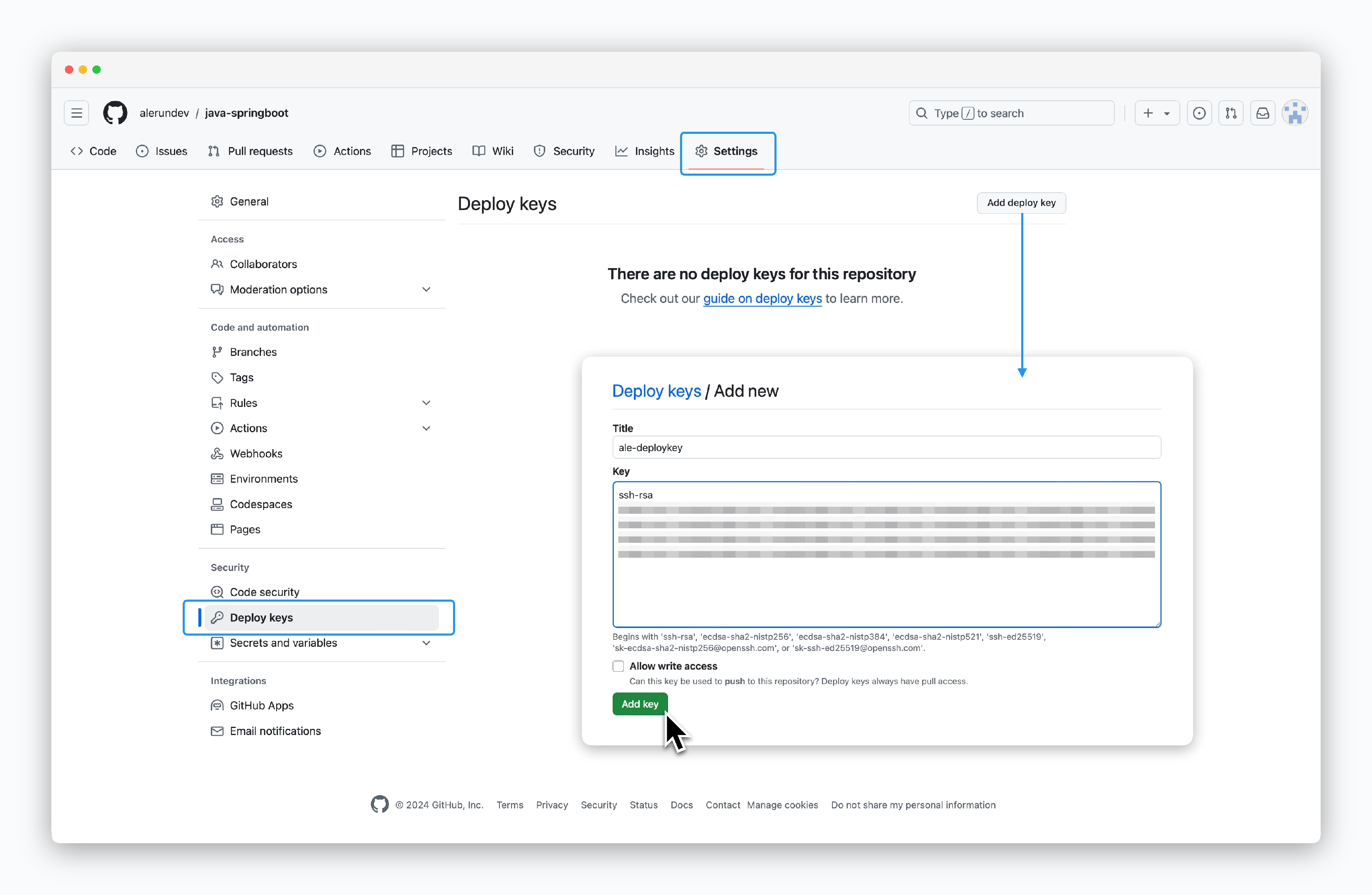 > Go to **Settings > Deploy keys** in your repository. Then click `Add deploy key` in the top right corner and paste the deploy key from `ale`.
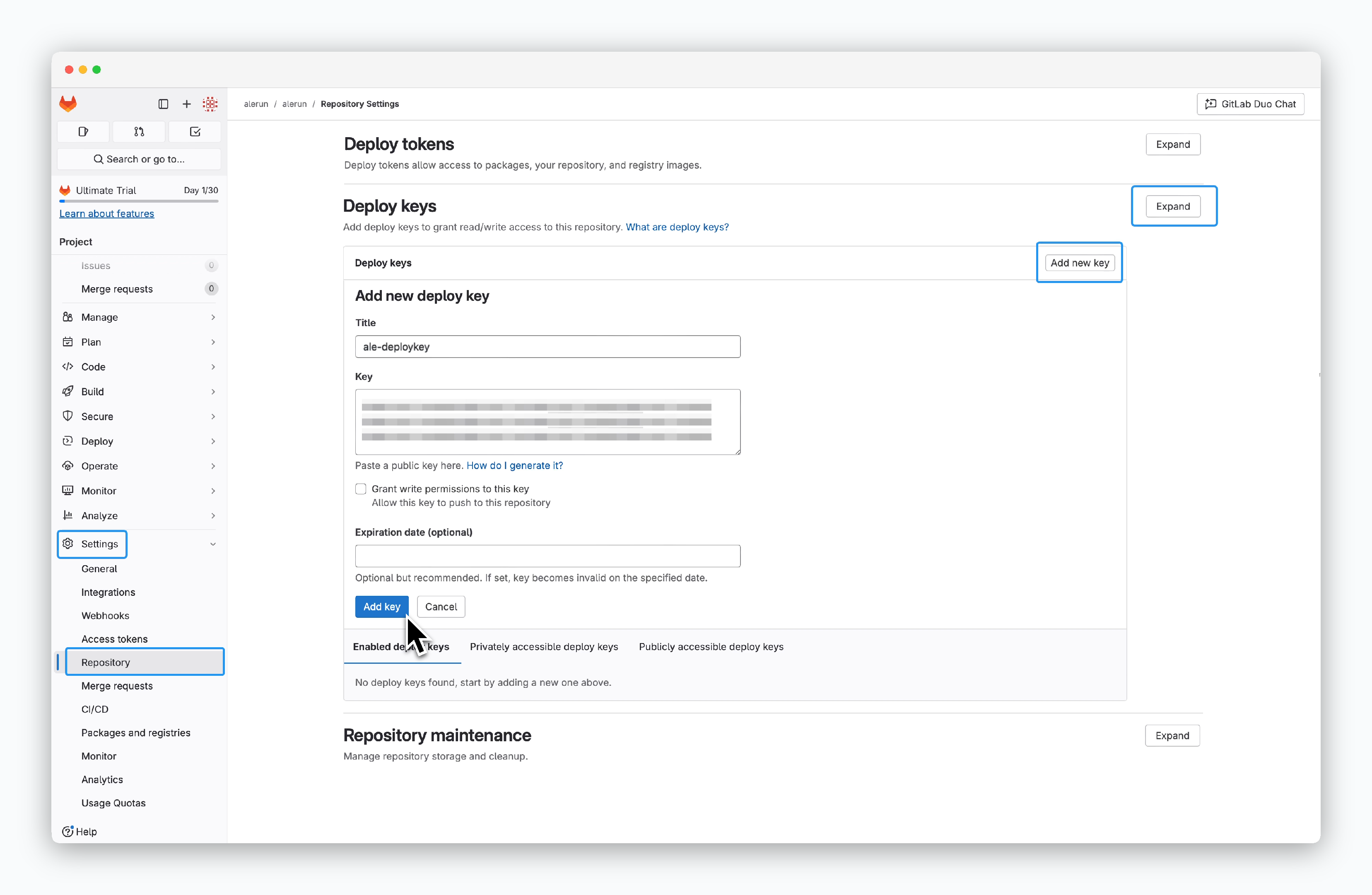 > Go to **Settings > Repository** in your repository. Under the **Deploy keys** section, click `Expand`, then `Add new key`, and paste the deploy key from `ale`.
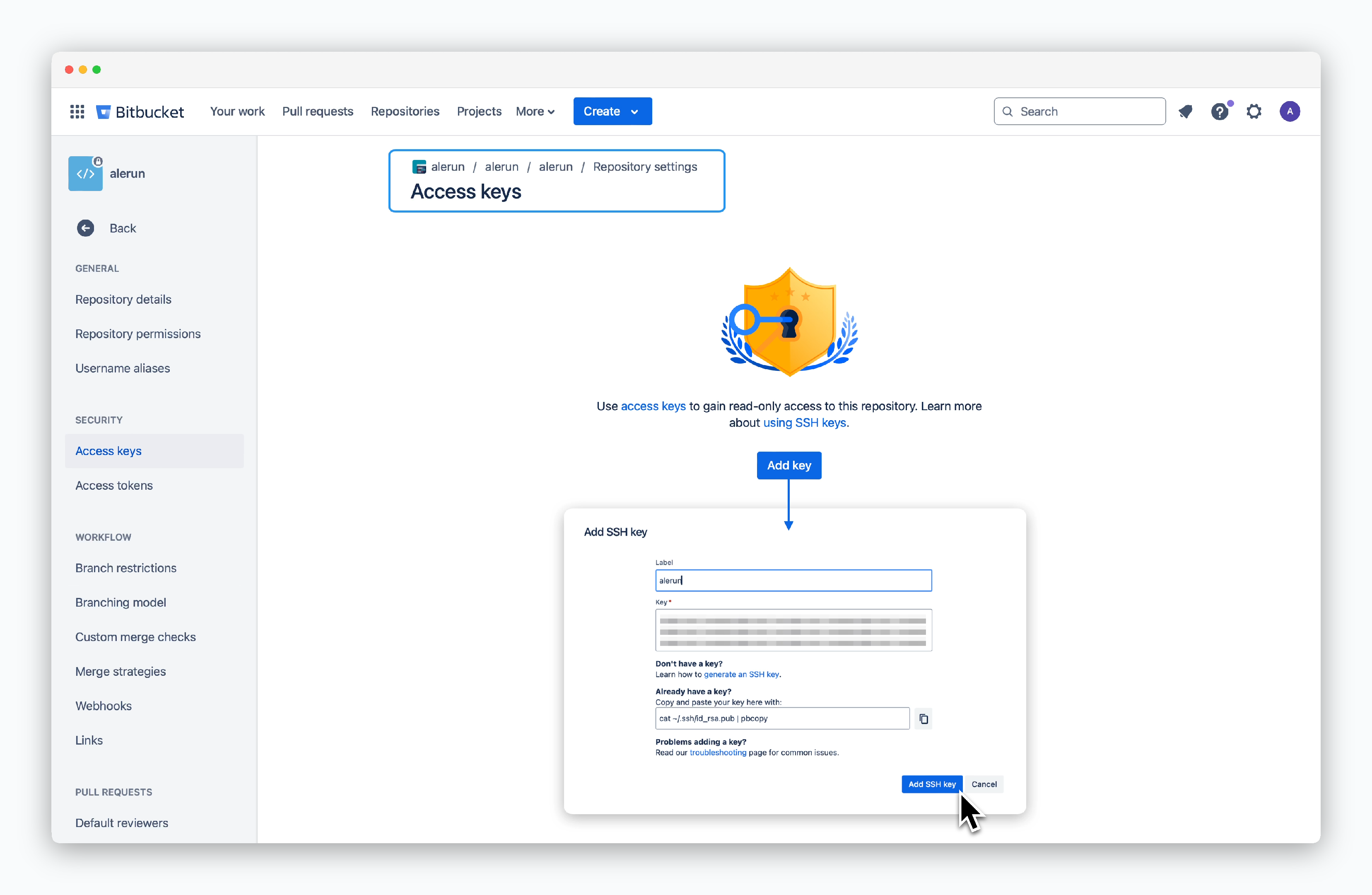 > Go to **Repository settings > Access keys** in your repository. Click `Add key` and paste the deploy key from `ale`.
#### Select a Preset
> Go to **Repository settings > Access keys** in your repository. Click `Add key` and paste the deploy key from `ale`.
#### Select a Preset
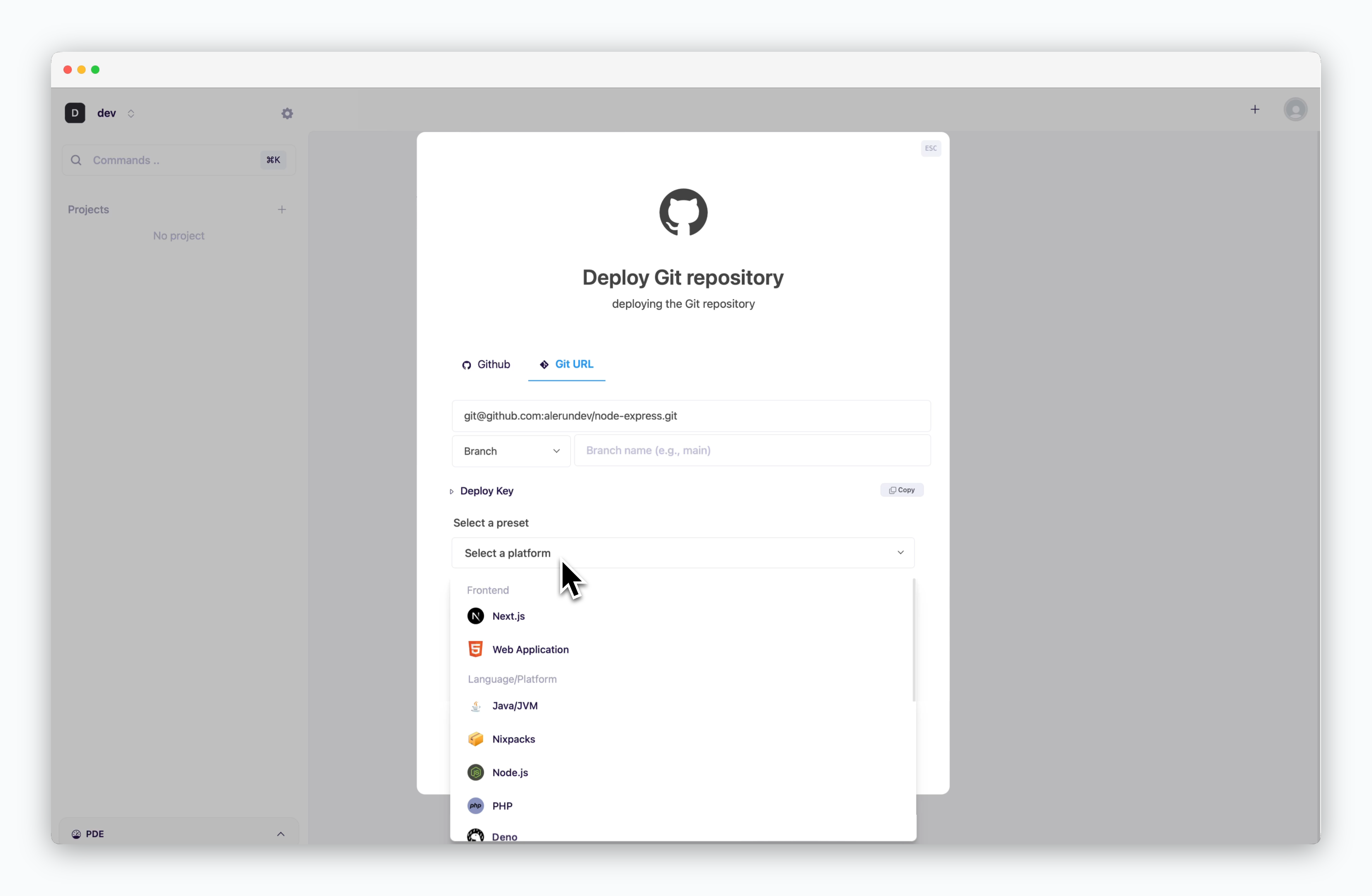 > Choose the preset that matches the repository.
For static sites like React or Vue, select **Web Application**.
> Choose the preset that matches the repository.
For static sites like React or Vue, select **Web Application**.
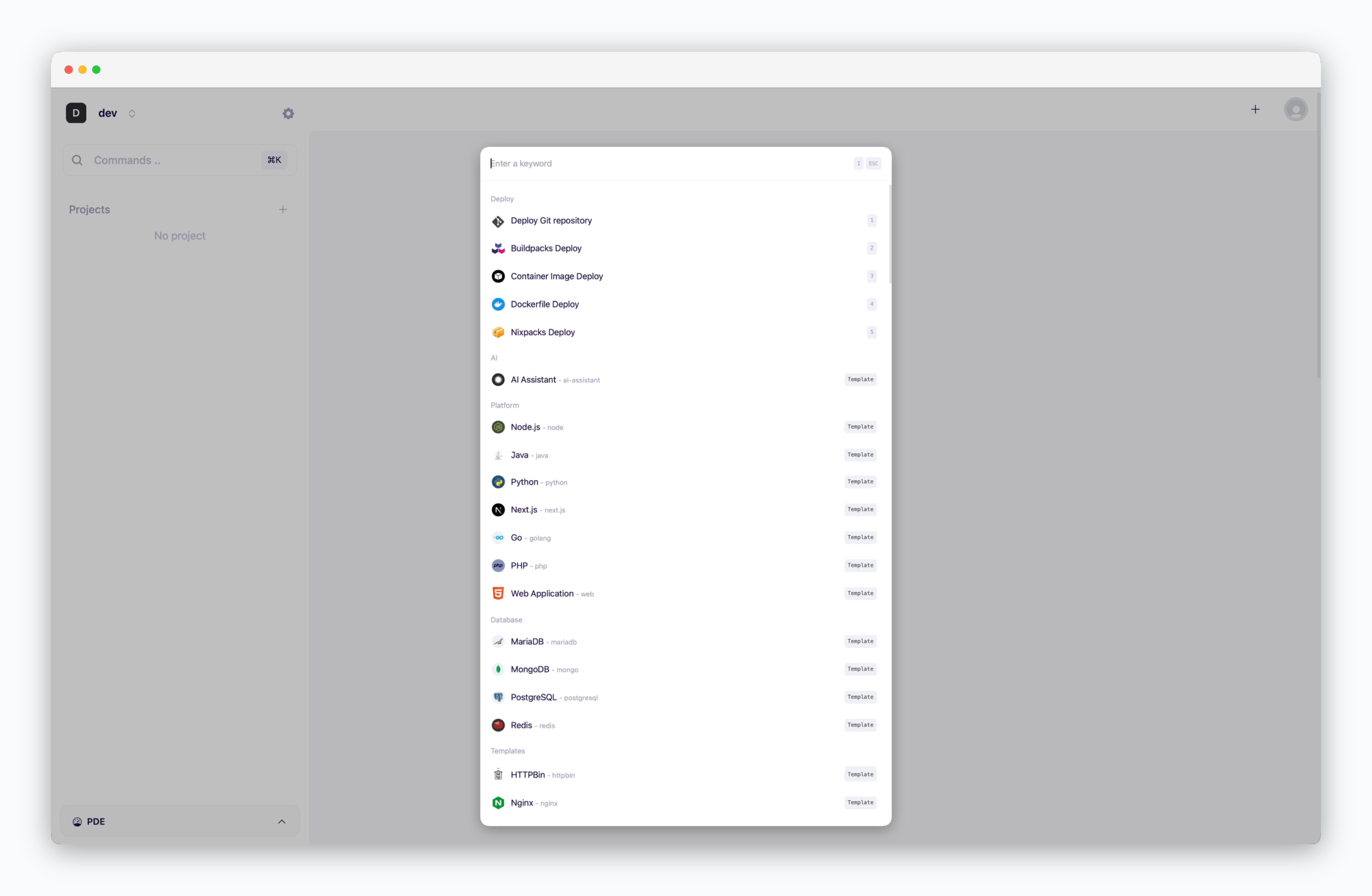 Select a template for your service and choose a GitHub repository or input a Git URL.
For static sites like React or Vue, select **Web Application**.
## Configure and Deploy
> After selecting the source and preset, configure the deployment settings below and deploy.
Select a template for your service and choose a GitHub repository or input a Git URL.
For static sites like React or Vue, select **Web Application**.
## Configure and Deploy
> After selecting the source and preset, configure the deployment settings below and deploy.
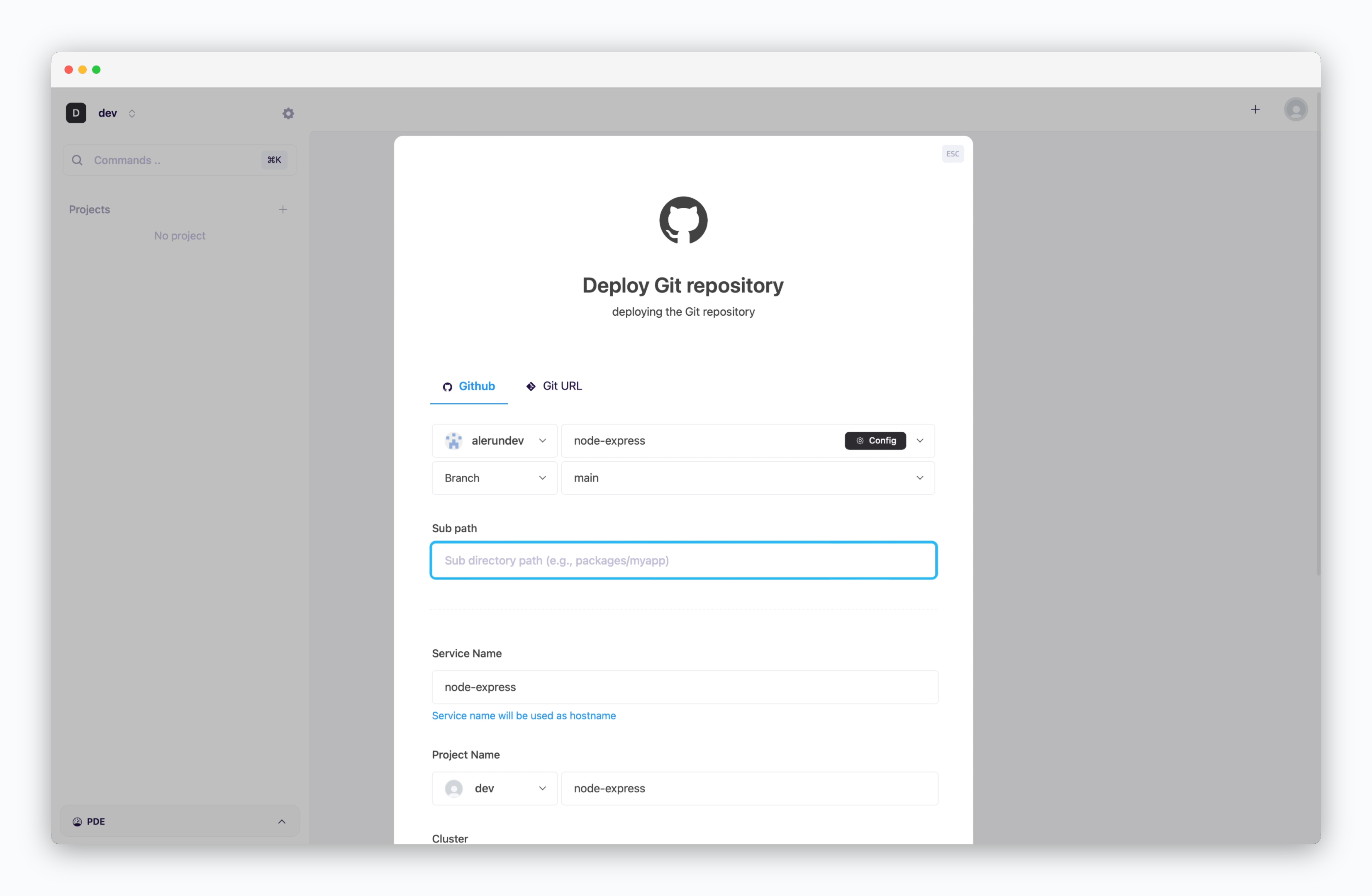 > After selecting a repository, fields for configuring the branch and subdirectory will appear. If your service is located in a subfolder instead of the root directory—such as when managing multiple services in one repository—enter the subfolder path in the Subdirectory field.
If this field is left blank, the root directory will be used for build and deployment by default.
For more details, see the [Deploy from Subdir page](/en/developers/subdir).
> After selecting a repository, fields for configuring the branch and subdirectory will appear. If your service is located in a subfolder instead of the root directory—such as when managing multiple services in one repository—enter the subfolder path in the Subdirectory field.
If this field is left blank, the root directory will be used for build and deployment by default.
For more details, see the [Deploy from Subdir page](/en/developers/subdir).
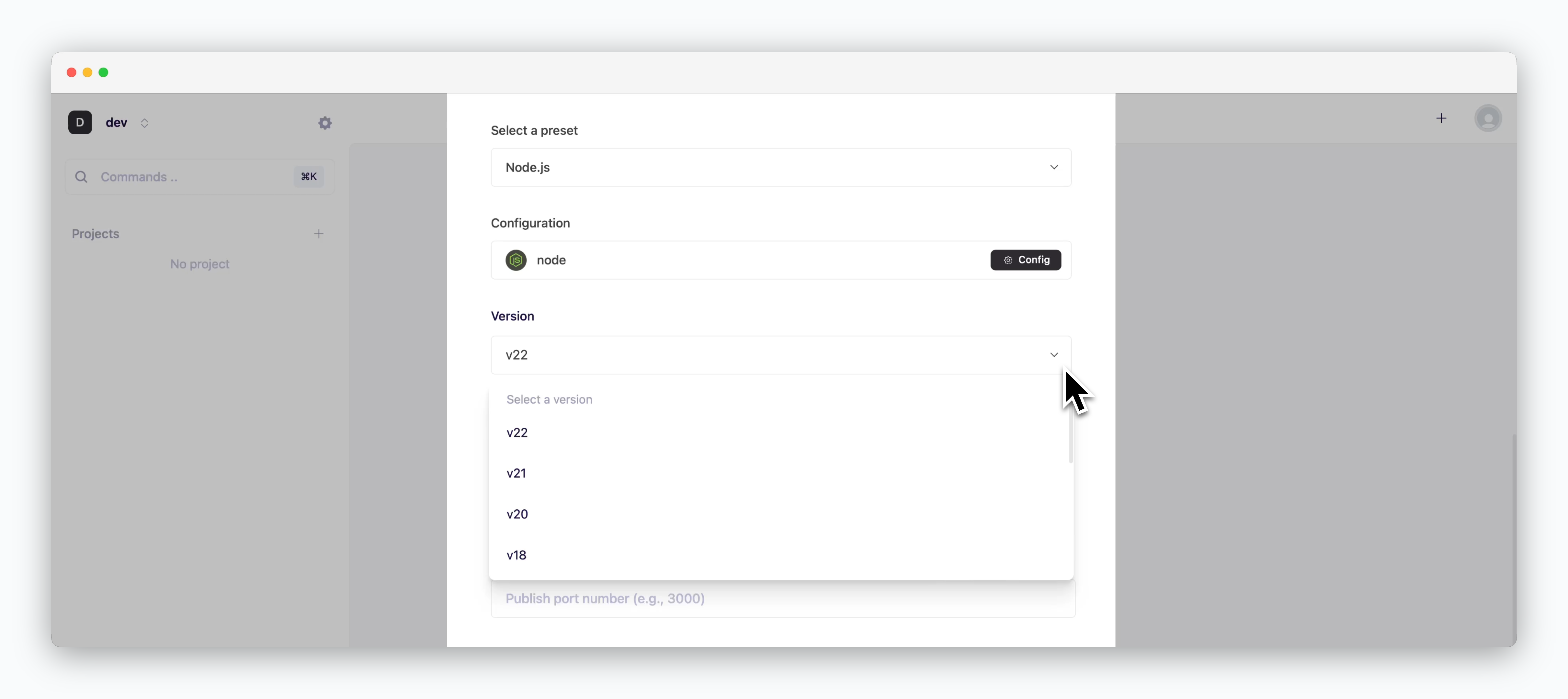 > Select the preset version that matches the repository.
Build or runtime failures may occur if the version specified in the project configuration files (build.gradle, package.json, requirement.txt, etc.) doesn't match the version selected.
> Select the preset version that matches the repository.
Build or runtime failures may occur if the version specified in the project configuration files (build.gradle, package.json, requirement.txt, etc.) doesn't match the version selected.
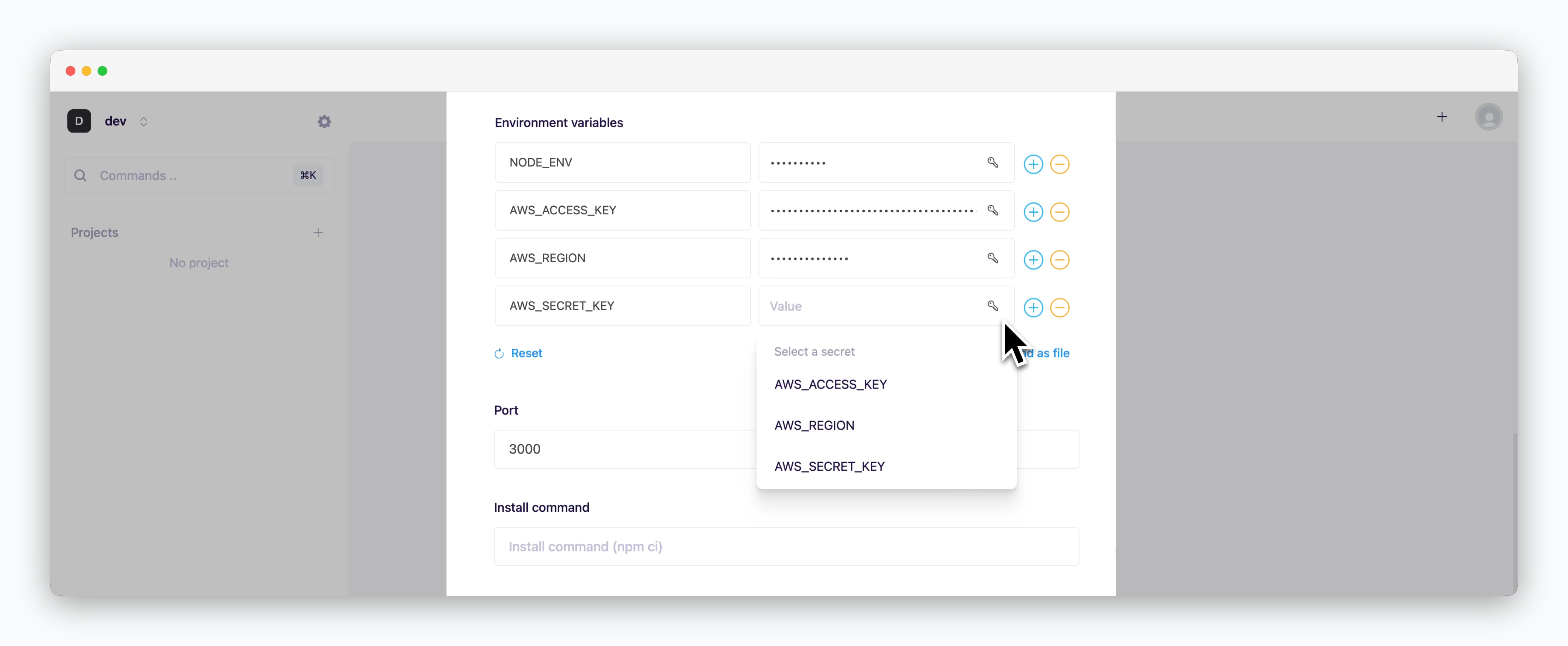 > Environment variables can be added using any combination of the following methods:
* **Drag and Drop** ENV files
* **Directly add variables** using the
* **Select from saved secrets** using the
For more information about managing environment variables and secrets, see the [Environment Variables page.](/en/developers/env)
> The port number must match the value specified in your source code or environment variables. If the port number is missing or incorrect, the service will fail to start.
If this field is left blank, the service will be deployed without a port.
> Environment variables can be added using any combination of the following methods:
* **Drag and Drop** ENV files
* **Directly add variables** using the
* **Select from saved secrets** using the
For more information about managing environment variables and secrets, see the [Environment Variables page.](/en/developers/env)
> The port number must match the value specified in your source code or environment variables. If the port number is missing or incorrect, the service will fail to start.
If this field is left blank, the service will be deployed without a port.
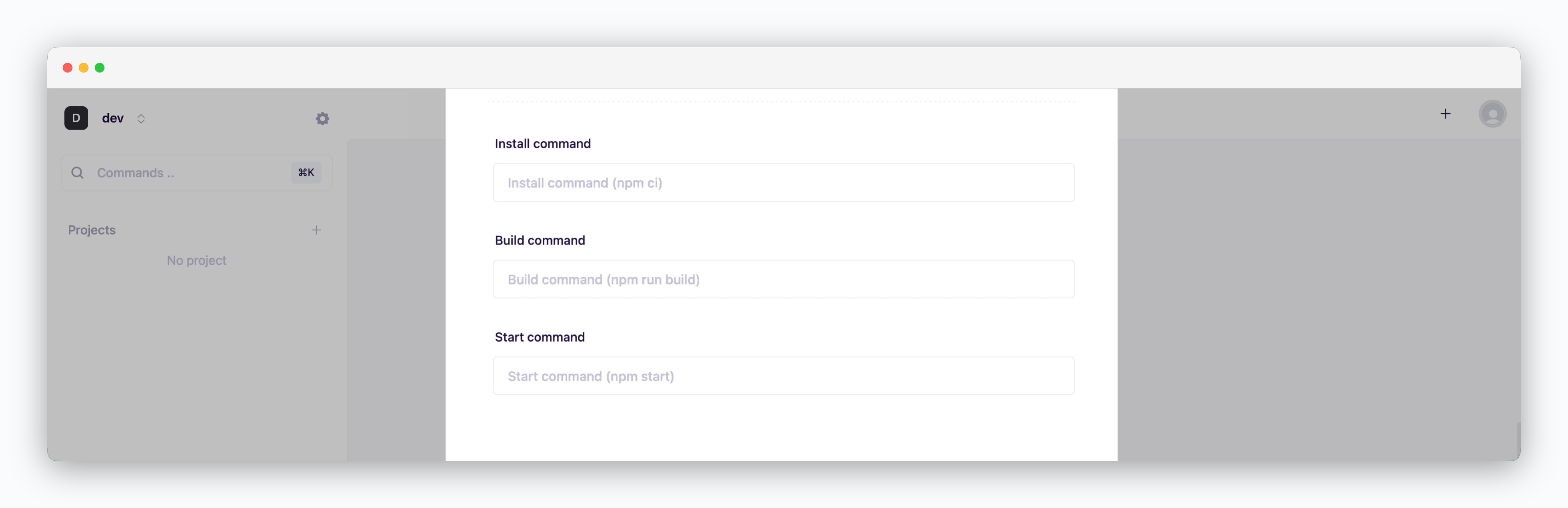 > Configure the lifecycle commands for your service.
* **Install Command**: Enter the command to install dependencies (e.g., `npm install`, `pip install -r requirements.txt`)
* **Build Command**: Enter the command to build your application (e.g., `npm run build`, `gradle build`)
* **Start Command**: Enter the command to run your service (e.g., `npm start`, `python app.py`)
If left empty, the default command shown in the placeholder will be used.
> Configure the lifecycle commands for your service.
* **Install Command**: Enter the command to install dependencies (e.g., `npm install`, `pip install -r requirements.txt`)
* **Build Command**: Enter the command to build your application (e.g., `npm run build`, `gradle build`)
* **Start Command**: Enter the command to run your service (e.g., `npm start`, `python app.py`)
If left empty, the default command shown in the placeholder will be used.
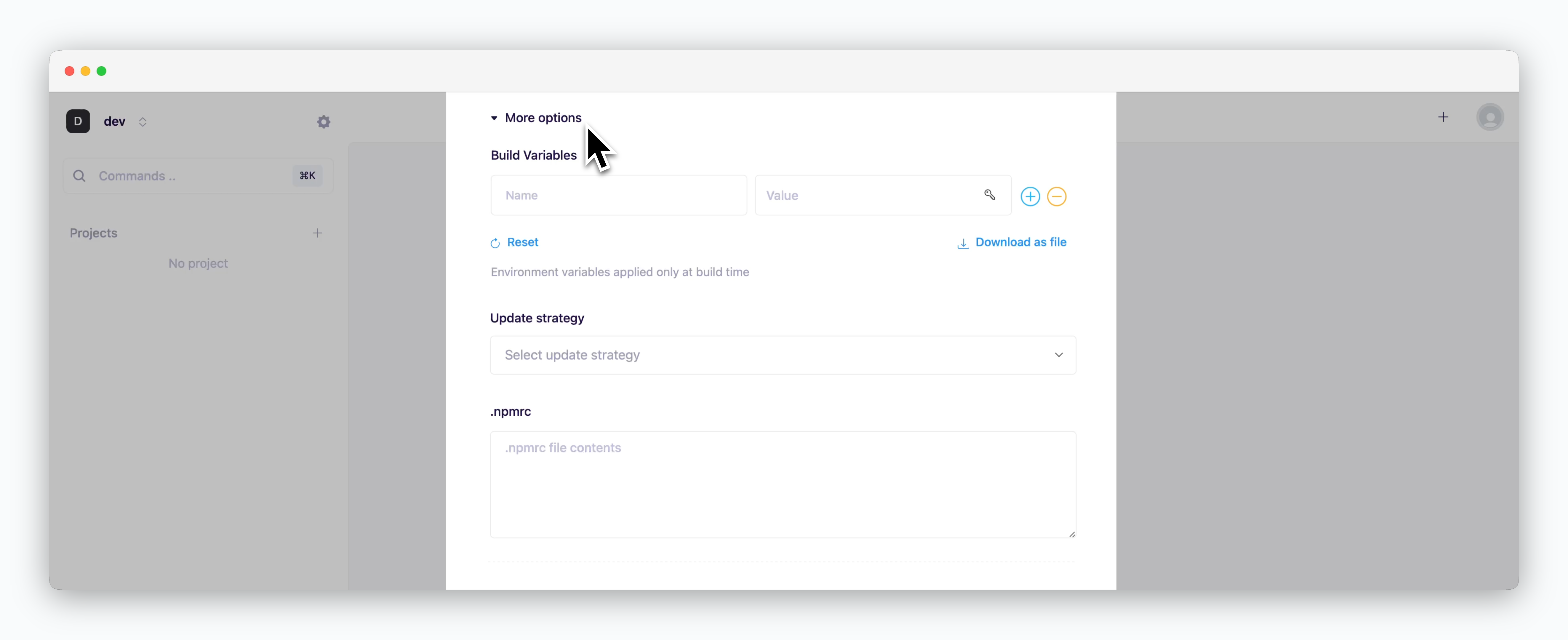 > Configure additional deployment settings.
Available configuration fields will vary based on your selected template/preset. See below for language-specific settings.
> Configure additional deployment settings.
Available configuration fields will vary based on your selected template/preset. See below for language-specific settings.
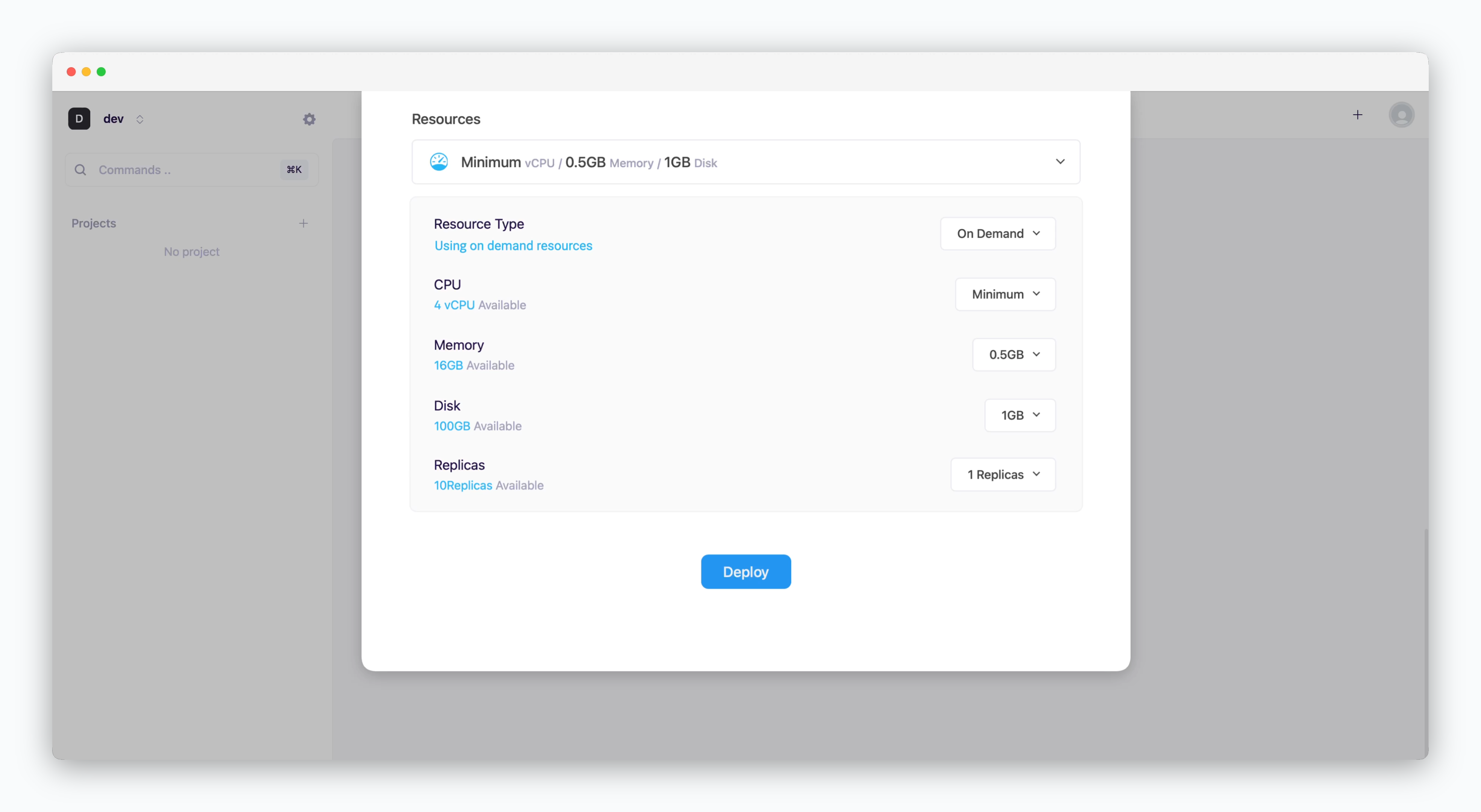 * **Resource Type**: Select between [On-demand or Spot instance types](/en/developers/resource#on-demand-spot)
* **CPU**: Maximum vCPU resource for the service. Minimum vCPU means 0.1 vCPU
* **Memory**: Maximum memory size the service can use
* **Disk**: Database disk capacity (Available for database services only)
* [Replica](/en/developers/replica): Number of service replicas for high availability and load balancing
* **Deploy**: Click `Deploy`
If deployment fails due to resource limitations, see the [Space and Resource Management page](/en/operations/spaces#allocate-resources) to add resources to the space.
Available configuration fields will vary based on your selected template/preset. See below for language-specific settings.
## Logs & Terminal
* **Resource Type**: Select between [On-demand or Spot instance types](/en/developers/resource#on-demand-spot)
* **CPU**: Maximum vCPU resource for the service. Minimum vCPU means 0.1 vCPU
* **Memory**: Maximum memory size the service can use
* **Disk**: Database disk capacity (Available for database services only)
* [Replica](/en/developers/replica): Number of service replicas for high availability and load balancing
* **Deploy**: Click `Deploy`
If deployment fails due to resource limitations, see the [Space and Resource Management page](/en/operations/spaces#allocate-resources) to add resources to the space.
Available configuration fields will vary based on your selected template/preset. See below for language-specific settings.
## Logs & Terminal
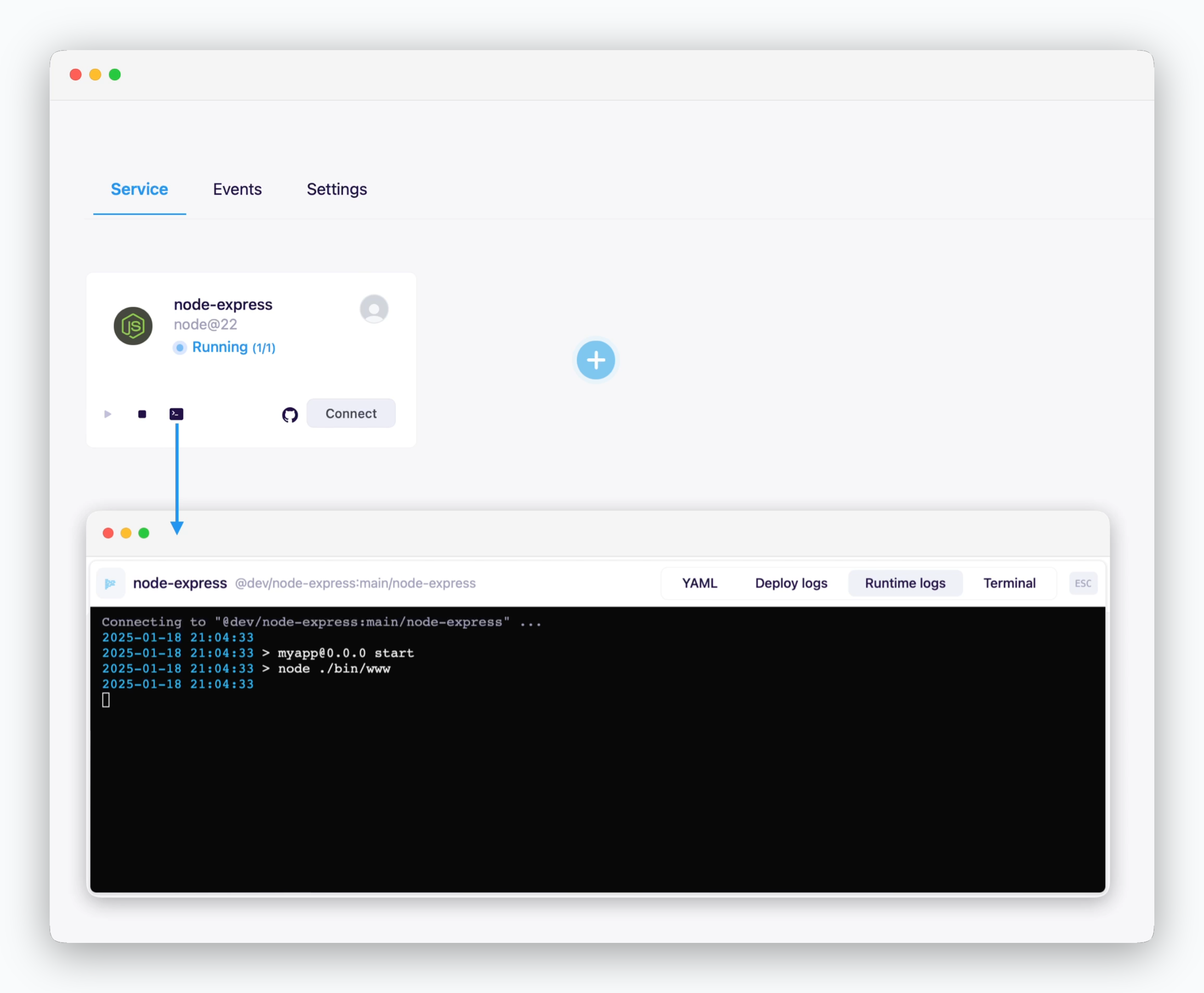 > Click the ** icon** in the service card or service page to check deployment/runtime logs or access the terminal.
## Metrics
> Click the ** icon** in the service card or service page to check deployment/runtime logs or access the terminal.
## Metrics
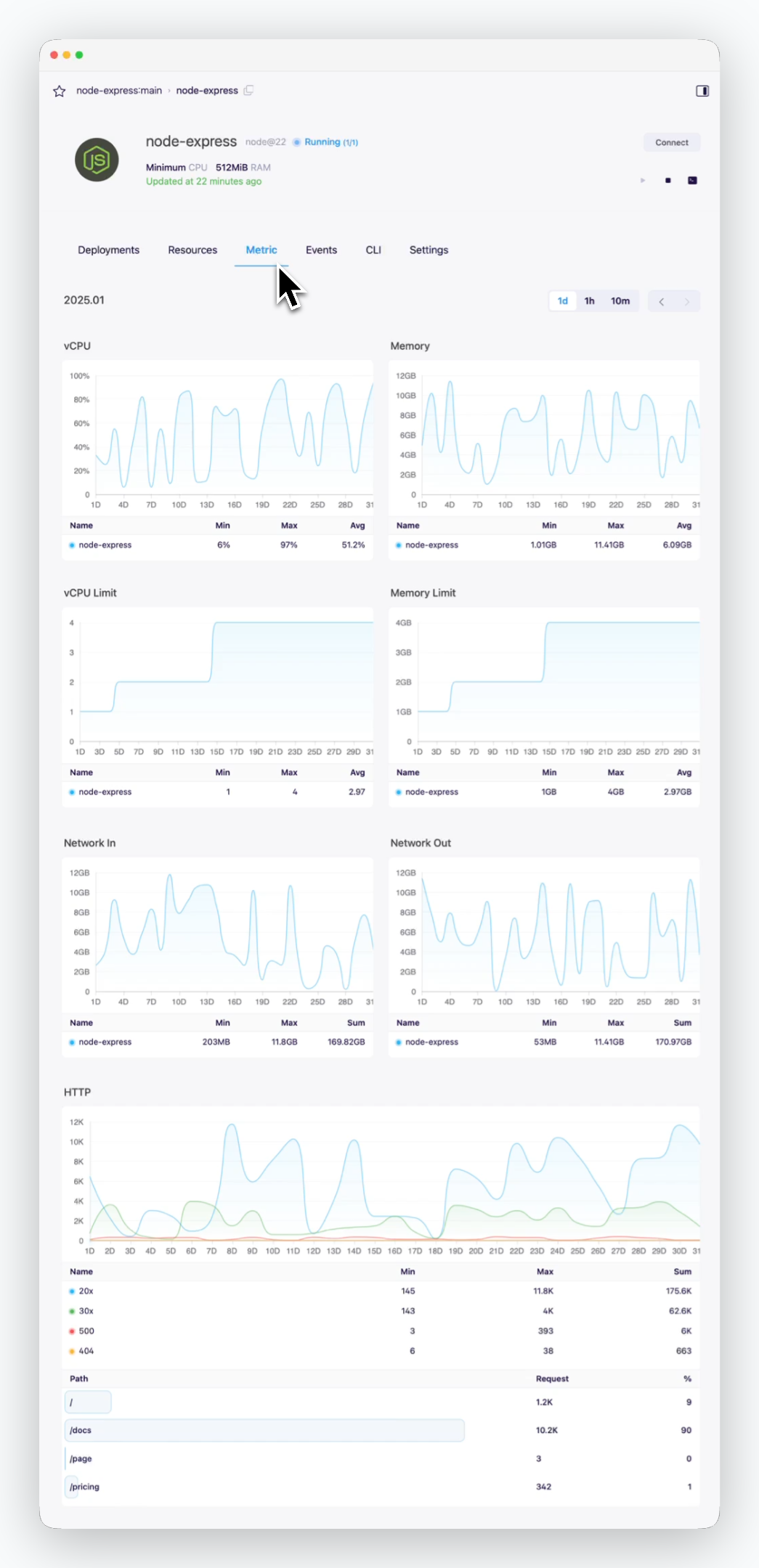 > You can view service metrics in the Metrics tab of the service page.
## Update
> You can view service metrics in the Metrics tab of the service page.
## Update
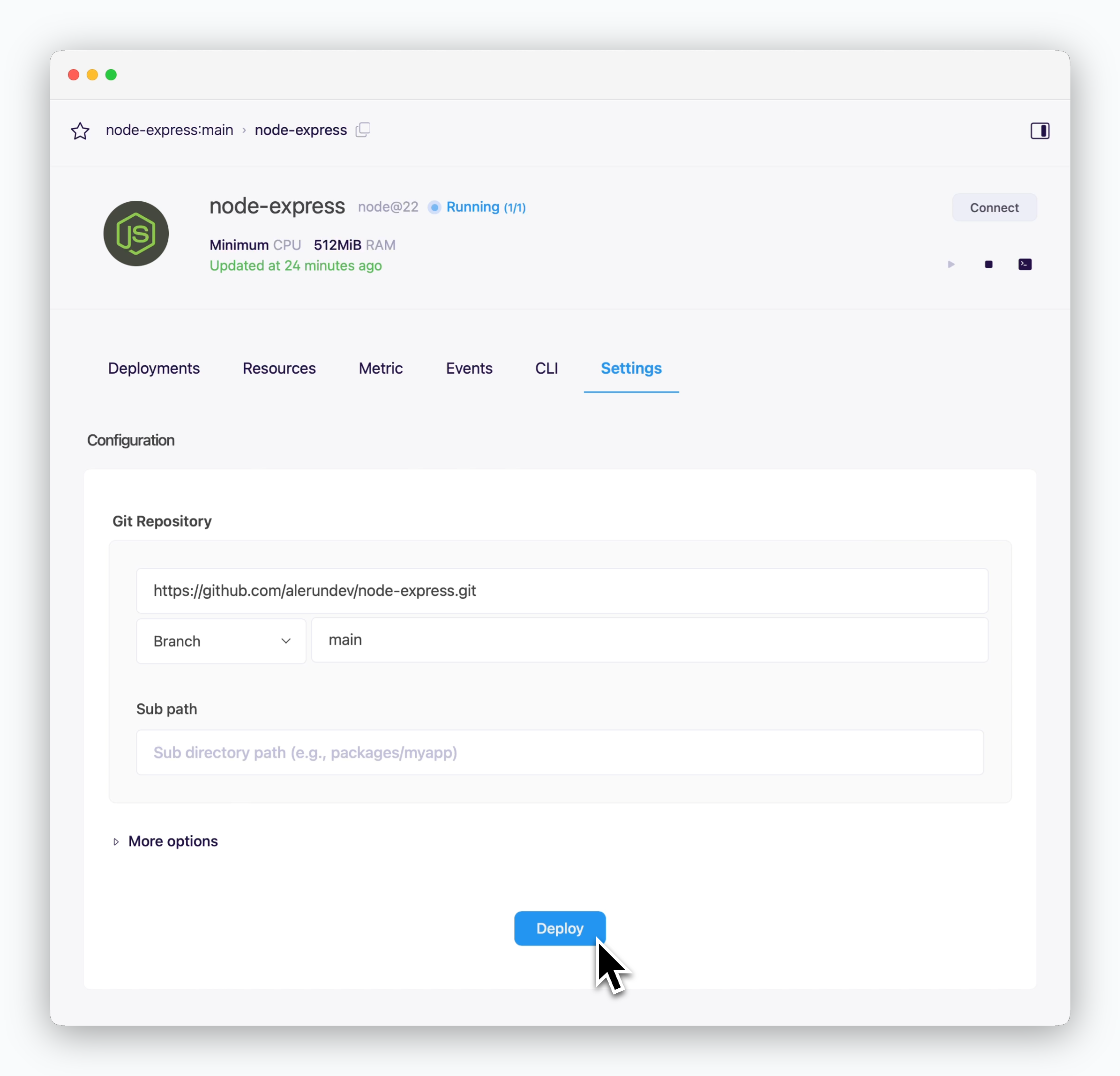 > When you update your code or modify resource settings, click `Deploy` at the bottom of the service settings page to apply these changes with a new deployment.
To set up automated deployments using GitHub Actions, see the [GitHub Actions page](/en/developers/githubactions).
## Rollback
> When you update your code or modify resource settings, click `Deploy` at the bottom of the service settings page to apply these changes with a new deployment.
To set up automated deployments using GitHub Actions, see the [GitHub Actions page](/en/developers/githubactions).
## Rollback
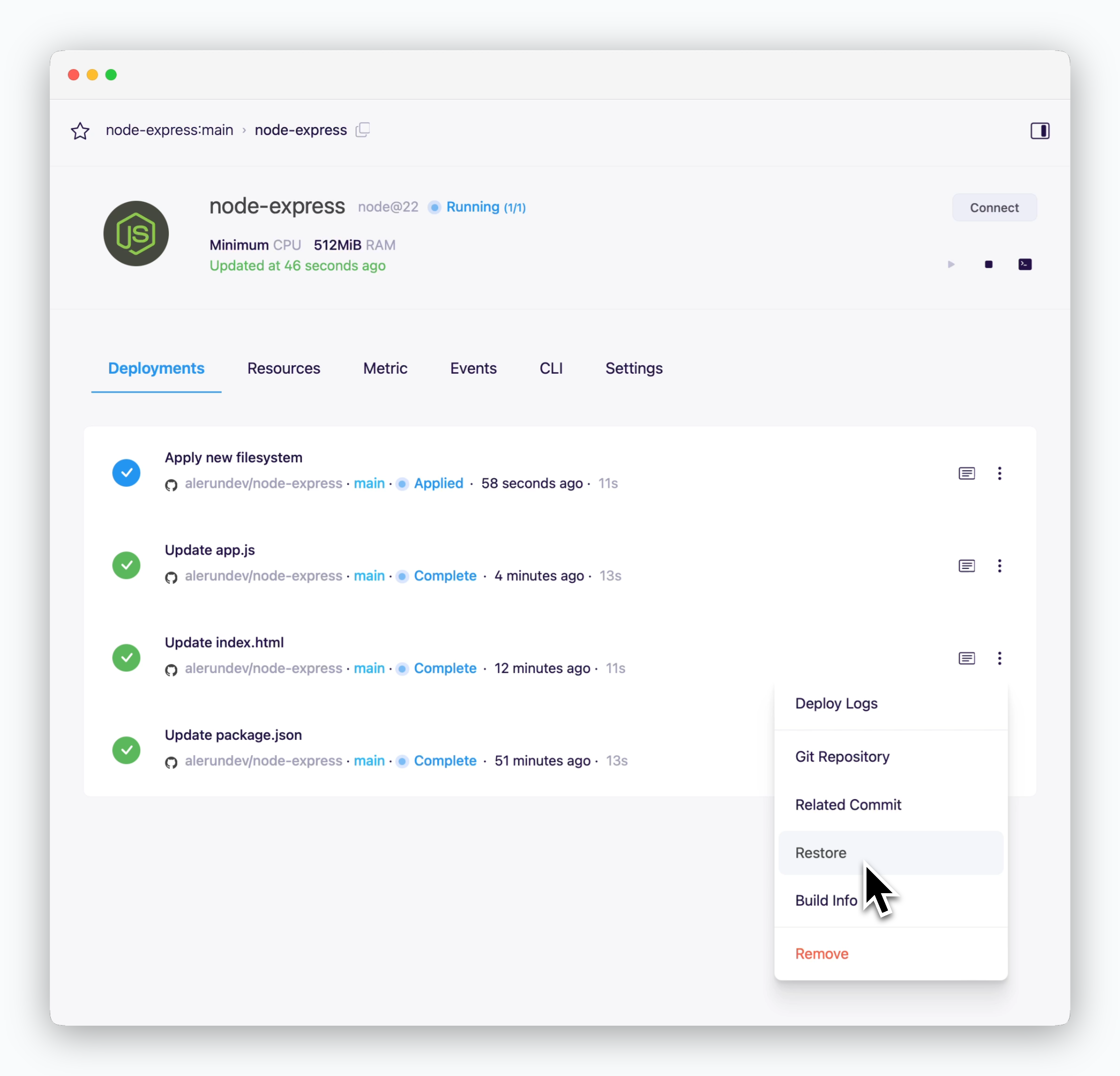 > To restore your service to a previous version, navigate to **the deployment history tab in the service page.**
Check the commit messages in the deployment history to ensure you're rolling back to the intended version.
## Troubleshooting
> Builds are executed from the root directory during deployment. If your application source code is located in a subdirectory rather than the root directory of the repository, you need to configure the subdirectory path in your settings.
> Build or runtime failures may occur if the version specified in the project configuration files (build.gradle, package.json, requirement.txt, etc.) doesn't match the version selected. [Set the appropriate versions according to your project and deploy again.](/en/developers/deploy#update)
* To avoid runtime issues, ensure that the correct port numbers are set in your deployment settings for applications that require specific ports. **If your application assigns ports dynamically, leave the port number field blank in the deployment settings.**
* Templates provided by `ale` have different default modules and libraries. If you need to use libraries that aren't provided by default, such as Windows or Chrome libraries, you'll need to deploy using a [Dockerfile](/en/developers/dockerfile).
You can either install plugins that support the required libraries, or add them directly through plugin development.
> To restore your service to a previous version, navigate to **the deployment history tab in the service page.**
Check the commit messages in the deployment history to ensure you're rolling back to the intended version.
## Troubleshooting
> Builds are executed from the root directory during deployment. If your application source code is located in a subdirectory rather than the root directory of the repository, you need to configure the subdirectory path in your settings.
> Build or runtime failures may occur if the version specified in the project configuration files (build.gradle, package.json, requirement.txt, etc.) doesn't match the version selected. [Set the appropriate versions according to your project and deploy again.](/en/developers/deploy#update)
* To avoid runtime issues, ensure that the correct port numbers are set in your deployment settings for applications that require specific ports. **If your application assigns ports dynamically, leave the port number field blank in the deployment settings.**
* Templates provided by `ale` have different default modules and libraries. If you need to use libraries that aren't provided by default, such as Windows or Chrome libraries, you'll need to deploy using a [Dockerfile](/en/developers/dockerfile).
You can either install plugins that support the required libraries, or add them directly through plugin development.
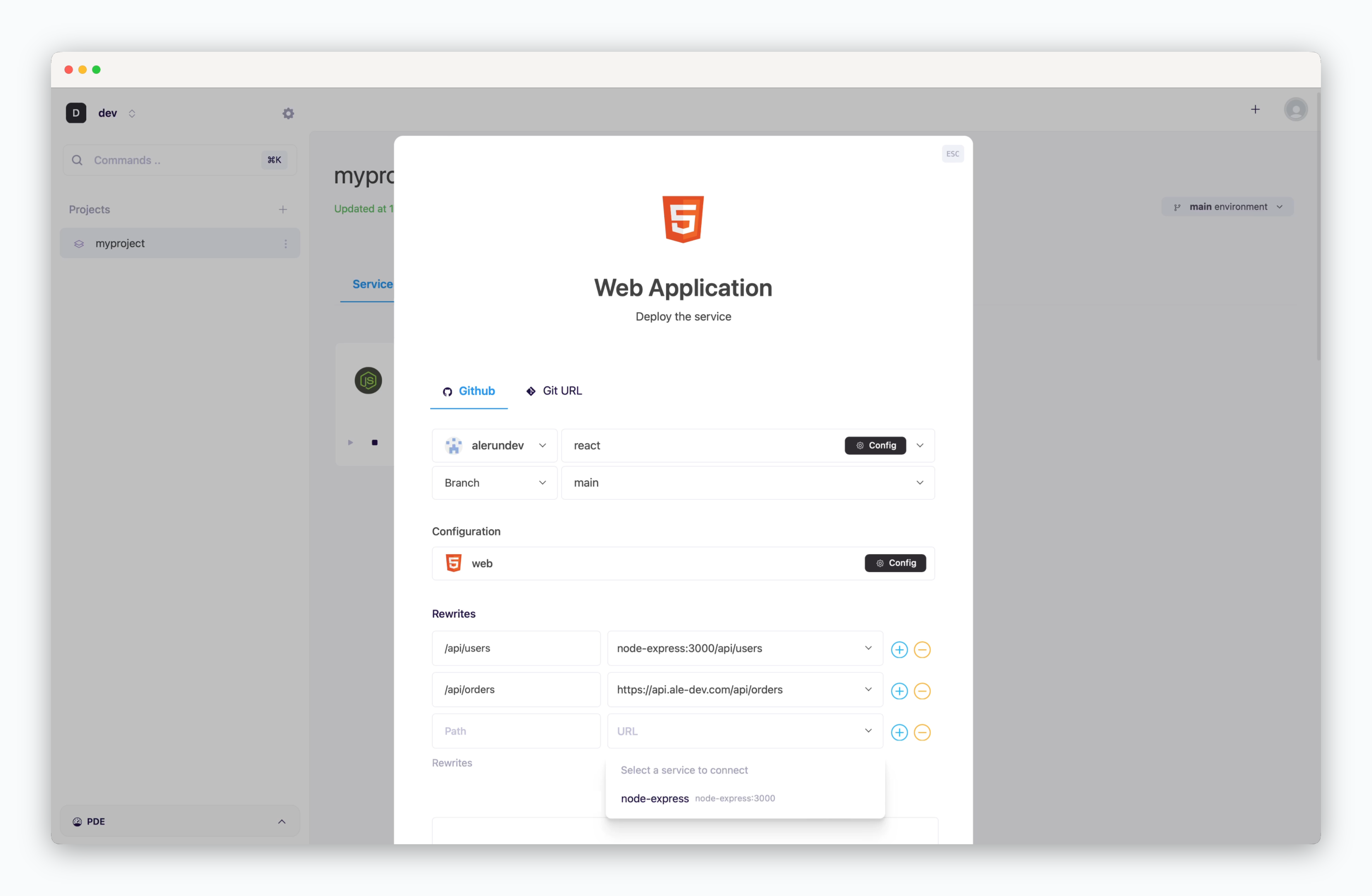 > CORS solutions vary by framework, and issues can be resolved using framework-specific libraries or modules. While frameworks like Next.js offer built-in reverse proxy solutions through their Rewrites feature, you can use **Rewrites configuration** to set up reverse proxying when deploying web applications like React or Vue. See the [reverse proxy page](/en/developers/reverseproxy) for detailed configuration guidelines.
* Click the `play` button on the service card to restart the service and check the runtime logs. If logs are still not visible, check the Events tab on the service page to troubleshoot the issue.
> CORS solutions vary by framework, and issues can be resolved using framework-specific libraries or modules. While frameworks like Next.js offer built-in reverse proxy solutions through their Rewrites feature, you can use **Rewrites configuration** to set up reverse proxying when deploying web applications like React or Vue. See the [reverse proxy page](/en/developers/reverseproxy) for detailed configuration guidelines.
* Click the `play` button on the service card to restart the service and check the runtime logs. If logs are still not visible, check the Events tab on the service page to troubleshoot the issue.
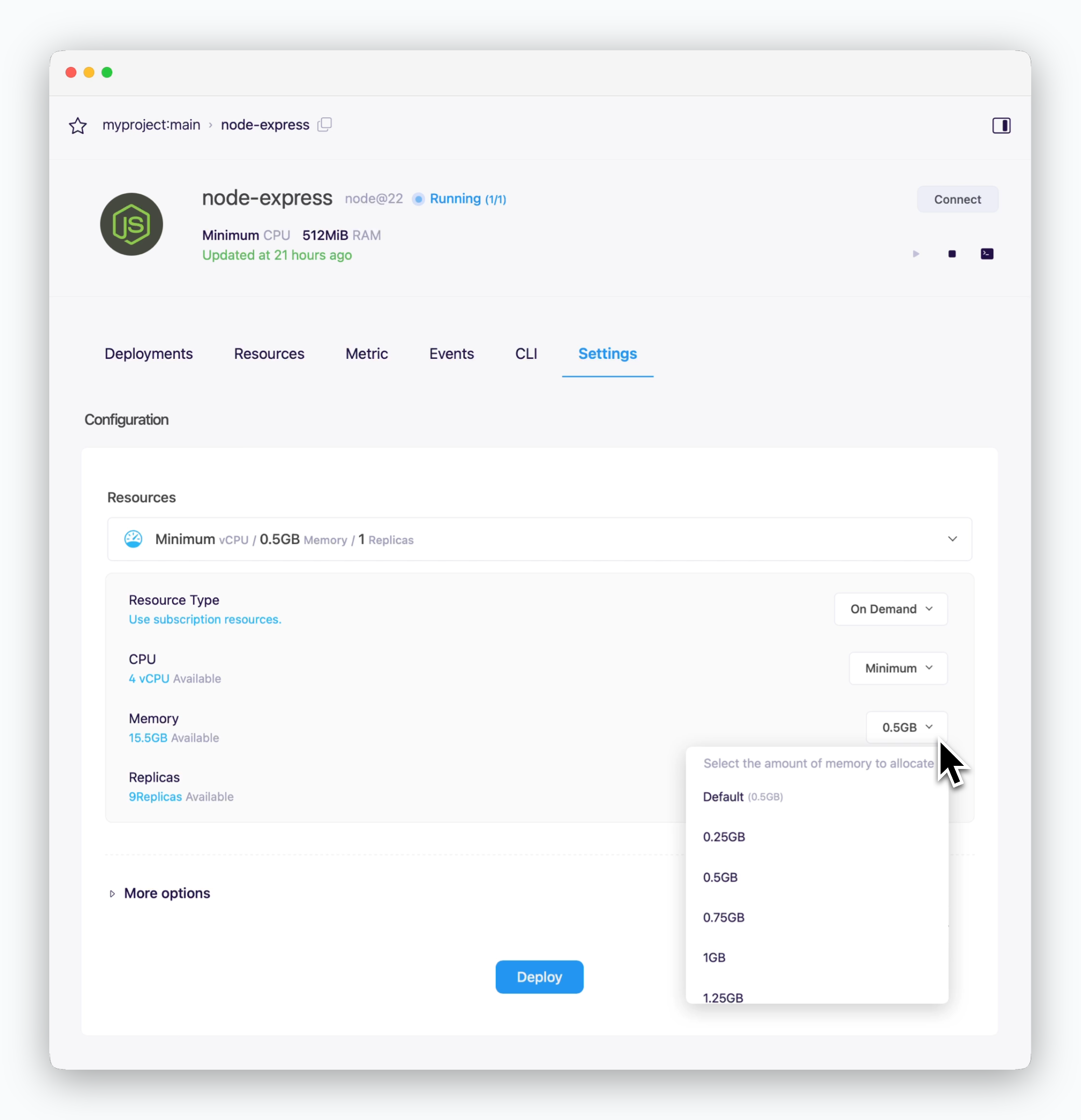 * JVM applications may experience Out of Memory (OOM) errors when memory usage exceeds allocated resources. Node.js applications can similarly face heap memory limitations. To resolve this, either configure memory settings in your application or [deploy with increased resource limits.](/en/developers/resource#resource-scaling)
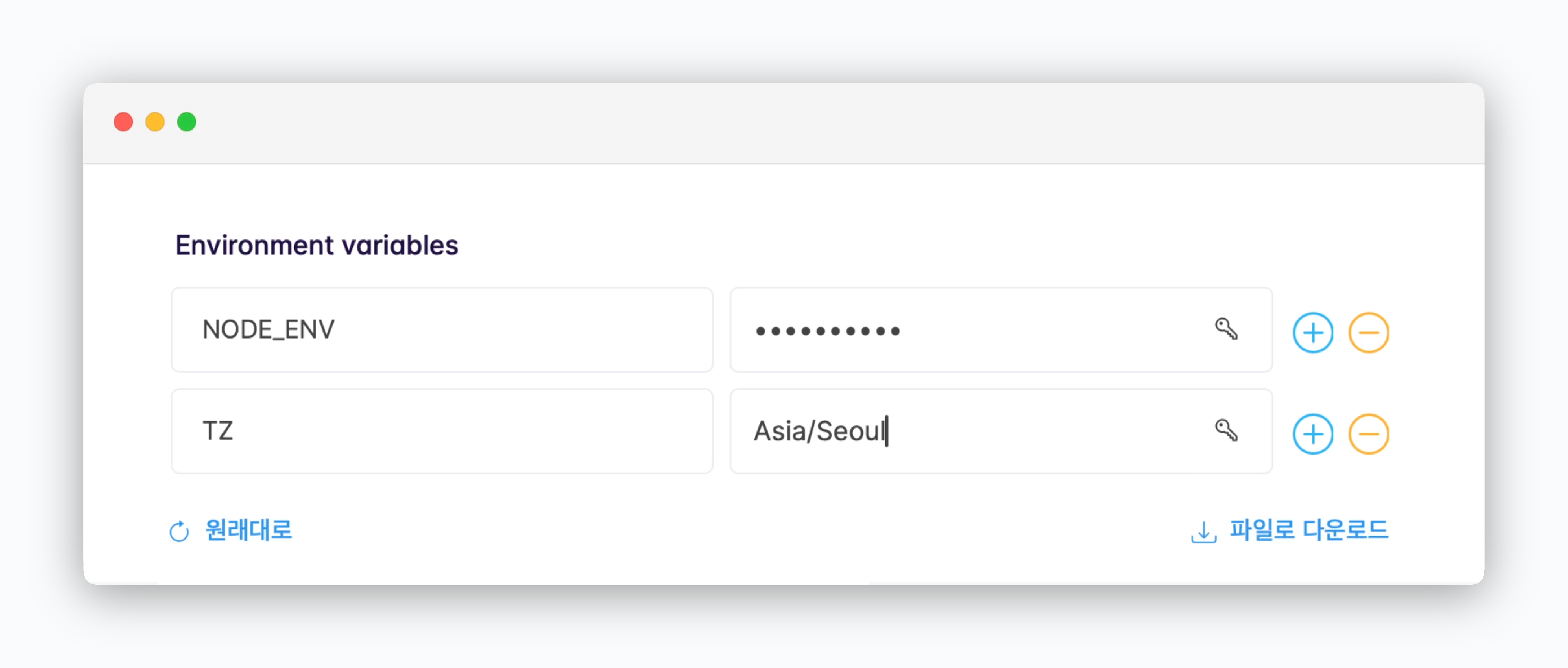 > Set the timezone using the TZ environment variable. You can find the list of supported timezone formats [here](https://en.wikipedia.org/wiki/List_of_tz_database_time_zones). For framework-specific configuration options, consult your framework's documentation.
## Reference
* [GitHub Actions](/en/developers/githubactions)
* [Dockerfile](/en/developers/dockerfile)
* [Adding Resources](/en/operations/spaces#allocate-resources)
> Set the timezone using the TZ environment variable. You can find the list of supported timezone formats [here](https://en.wikipedia.org/wiki/List_of_tz_database_time_zones). For framework-specific configuration options, consult your framework's documentation.
## Reference
* [GitHub Actions](/en/developers/githubactions)
* [Dockerfile](/en/developers/dockerfile)
* [Adding Resources](/en/operations/spaces#allocate-resources)