> ## Documentation Index
> Fetch the complete documentation index at: https://docs.ale.run/llms.txt
> Use this file to discover all available pages before exploring further.
# Domain Connection
> `ale` supports both CNAME and APEX domain records for connecting custom domains. Configuration steps vary based on your domain provider — this guide covers domains managed via [AWS Route 53](https://aws.amazon.com/route53/) and [Cloudflare](https://www.cloudflare.com).
For other DNS providers, check their record registration process under **DNS Settings > CNAME** Configuration.
Services deployed on ale come with SSL certificates automatically - both for preview URLs (provided by default) and your custom domains. **No additional SSL configuration is required.**
***
## DNS Records
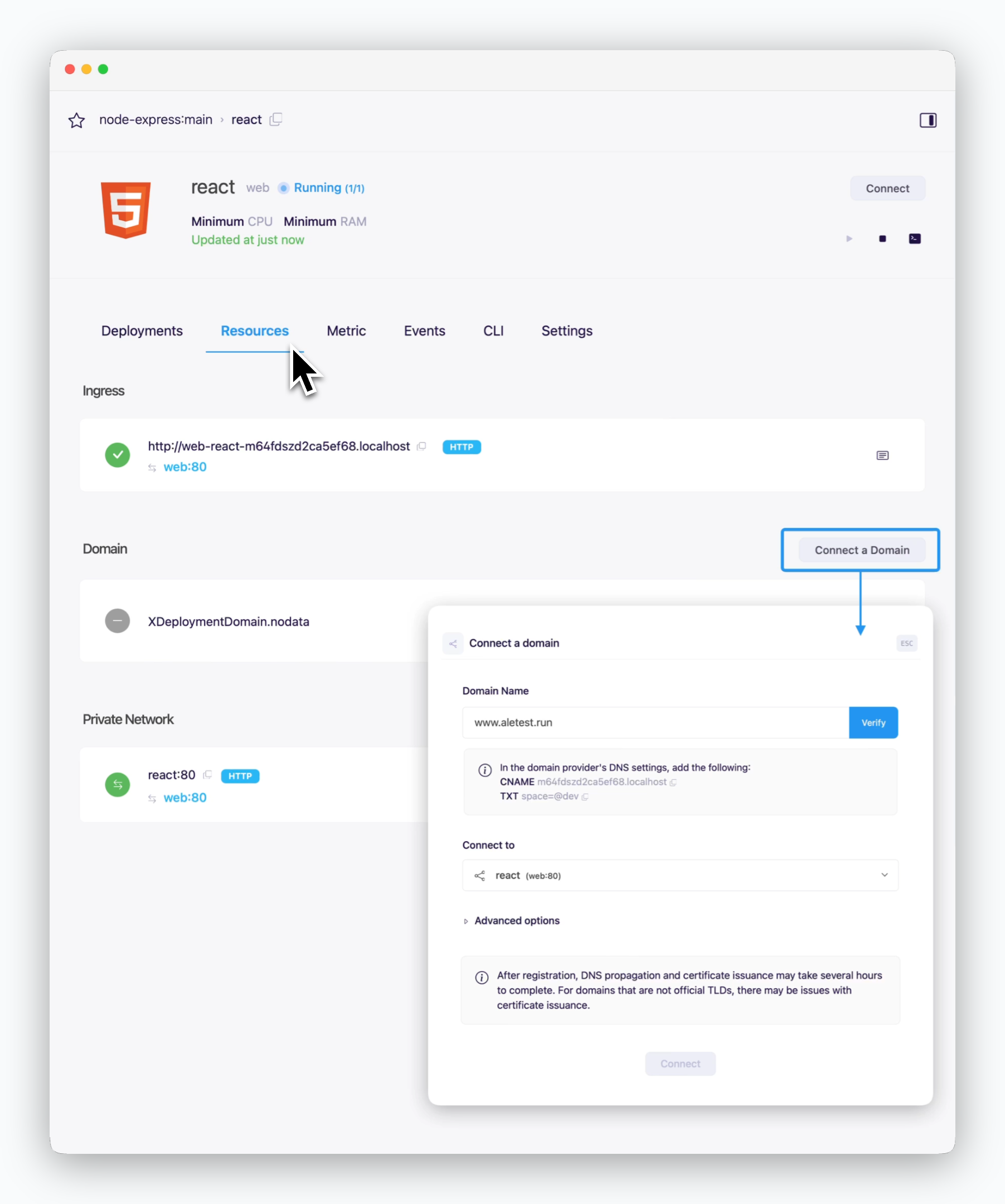 > Click the `Connect Domain` button in the Resource tab of the service page. Enter your domain (e.g., `example.com` or `www.example.com`) to view the CNAME and TXT record values for DNS configuration.
## AWS Route 53
> Click the `Connect Domain` button in the Resource tab of the service page. Enter your domain (e.g., `example.com` or `www.example.com`) to view the CNAME and TXT record values for DNS configuration.
## AWS Route 53
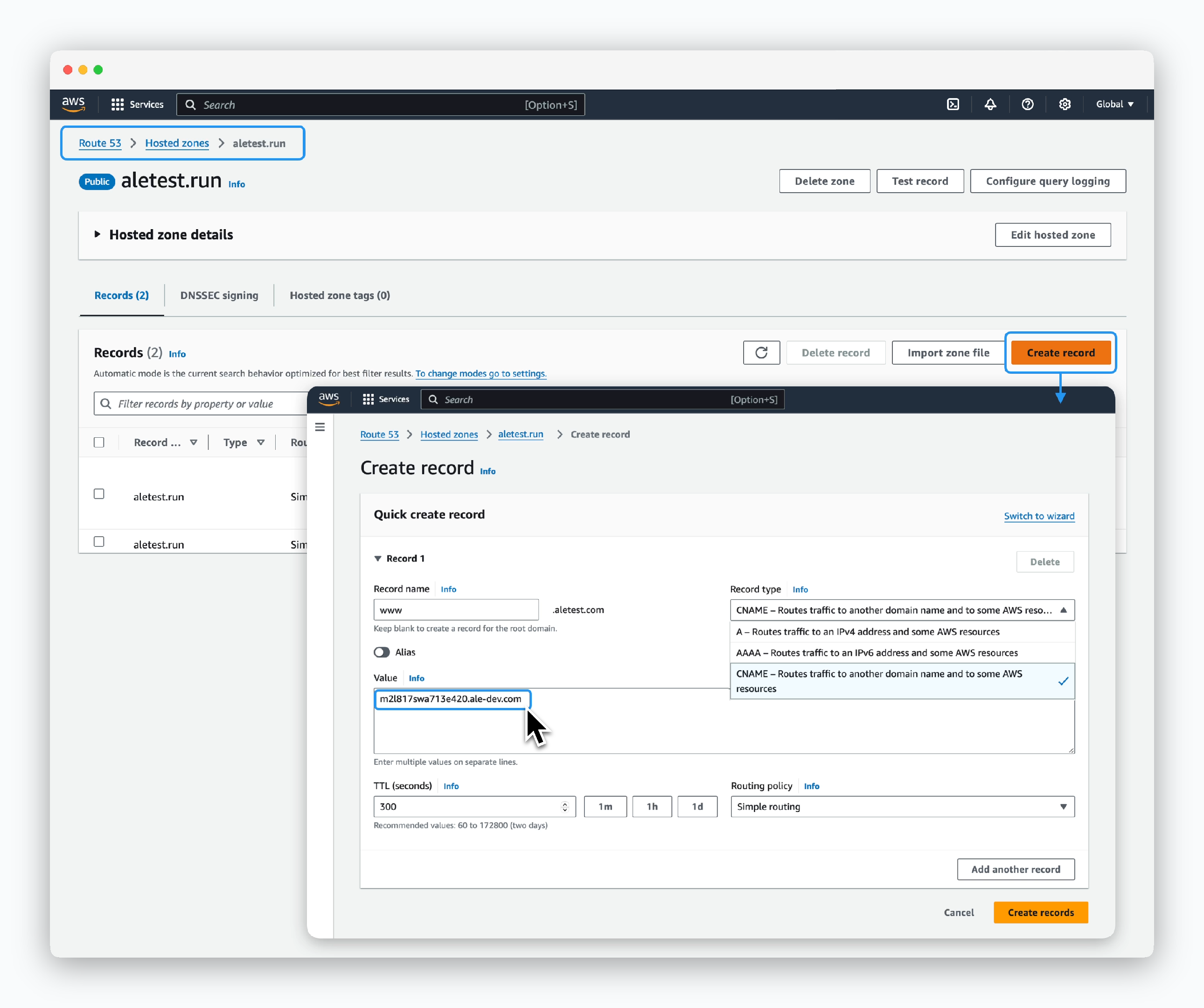 > Navigate to the Hosted Zones section in your Route 53 dashboard and click `Create record` to configure the following DNS record values:
* **Record Name**: The prefix (e.g., www) from your domain (e.g., [www.example.com](http://www.example.com)) configured in `ale`
* **Record Type**: CNAME
* **Value**: CNAME record value from `ale`
> Navigate to the Hosted Zones section in your Route 53 dashboard and click `Create record` to configure the following DNS record values:
* **Record Name**: The prefix (e.g., www) from your domain (e.g., [www.example.com](http://www.example.com)) configured in `ale`
* **Record Type**: CNAME
* **Value**: CNAME record value from `ale`
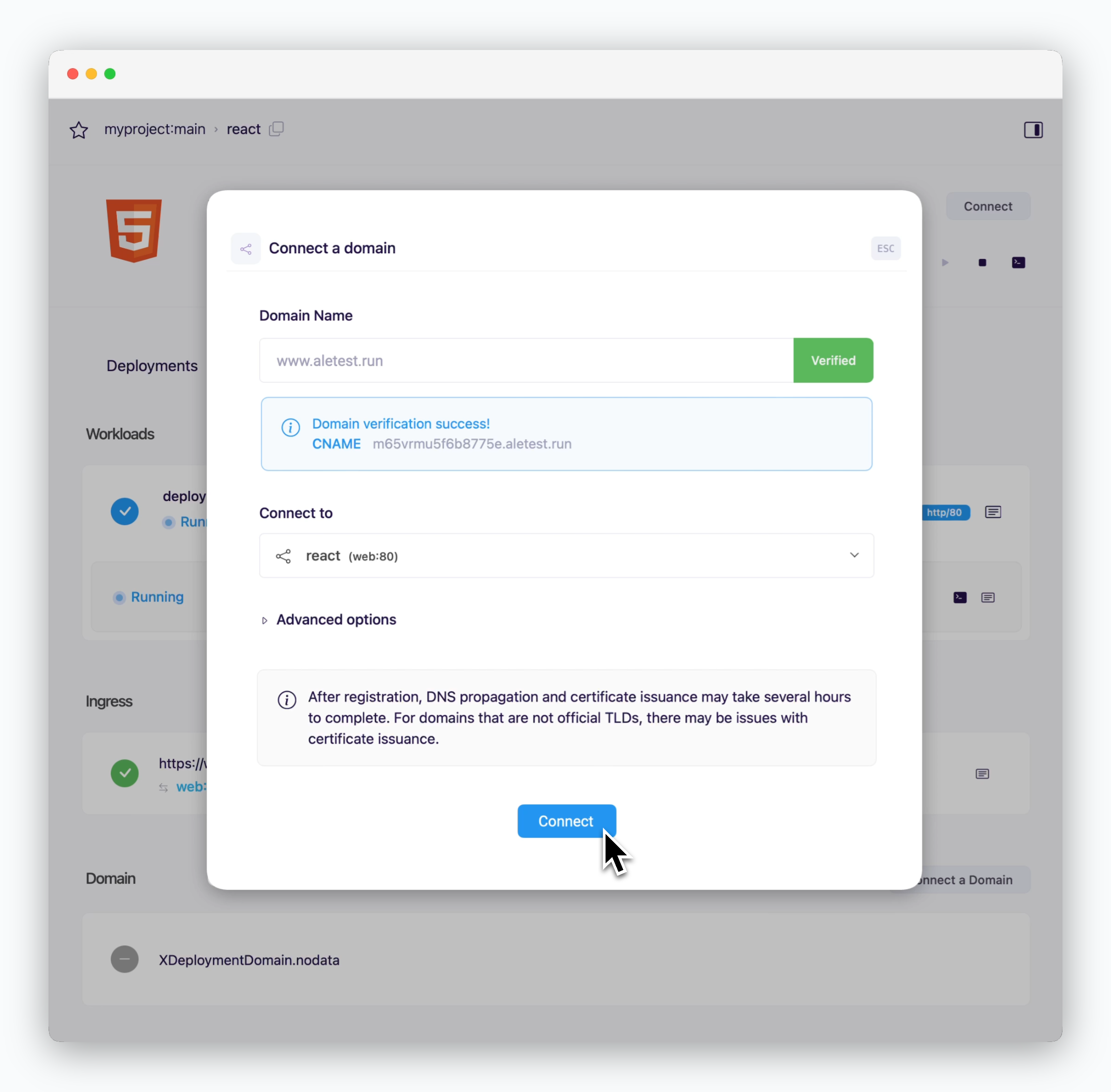 > After configuring the DNS records, switch back to `ale` and click `Verify`. Once domain verification is complete, click `Connect` to complete the domain connection.
SSL certificates are automatically issued for connected domains. Domain access may be temporarily limited or SSL security warnings may appear while DNS record propagation and SSL certificate validation are in progress.
The message "Current DNS settings are incorrect. CNAME not found" may appear due to DNS propagation delay. Please wait a few moments and try verification again.
If you see 'domain connection limit exceeded' when clicking `Connect`, it means your space has insufficient resources for custom domain connections. In this case, refer to the [the Space and Resource Management page](/en/operations/spaces#general-settings-domain-connections%2C-team-size%2C-etc) to adjust the number of domain connections.
## Cloudflare
### Subdomains
> After configuring the DNS records, switch back to `ale` and click `Verify`. Once domain verification is complete, click `Connect` to complete the domain connection.
SSL certificates are automatically issued for connected domains. Domain access may be temporarily limited or SSL security warnings may appear while DNS record propagation and SSL certificate validation are in progress.
The message "Current DNS settings are incorrect. CNAME not found" may appear due to DNS propagation delay. Please wait a few moments and try verification again.
If you see 'domain connection limit exceeded' when clicking `Connect`, it means your space has insufficient resources for custom domain connections. In this case, refer to the [the Space and Resource Management page](/en/operations/spaces#general-settings-domain-connections%2C-team-size%2C-etc) to adjust the number of domain connections.
## Cloudflare
### Subdomains
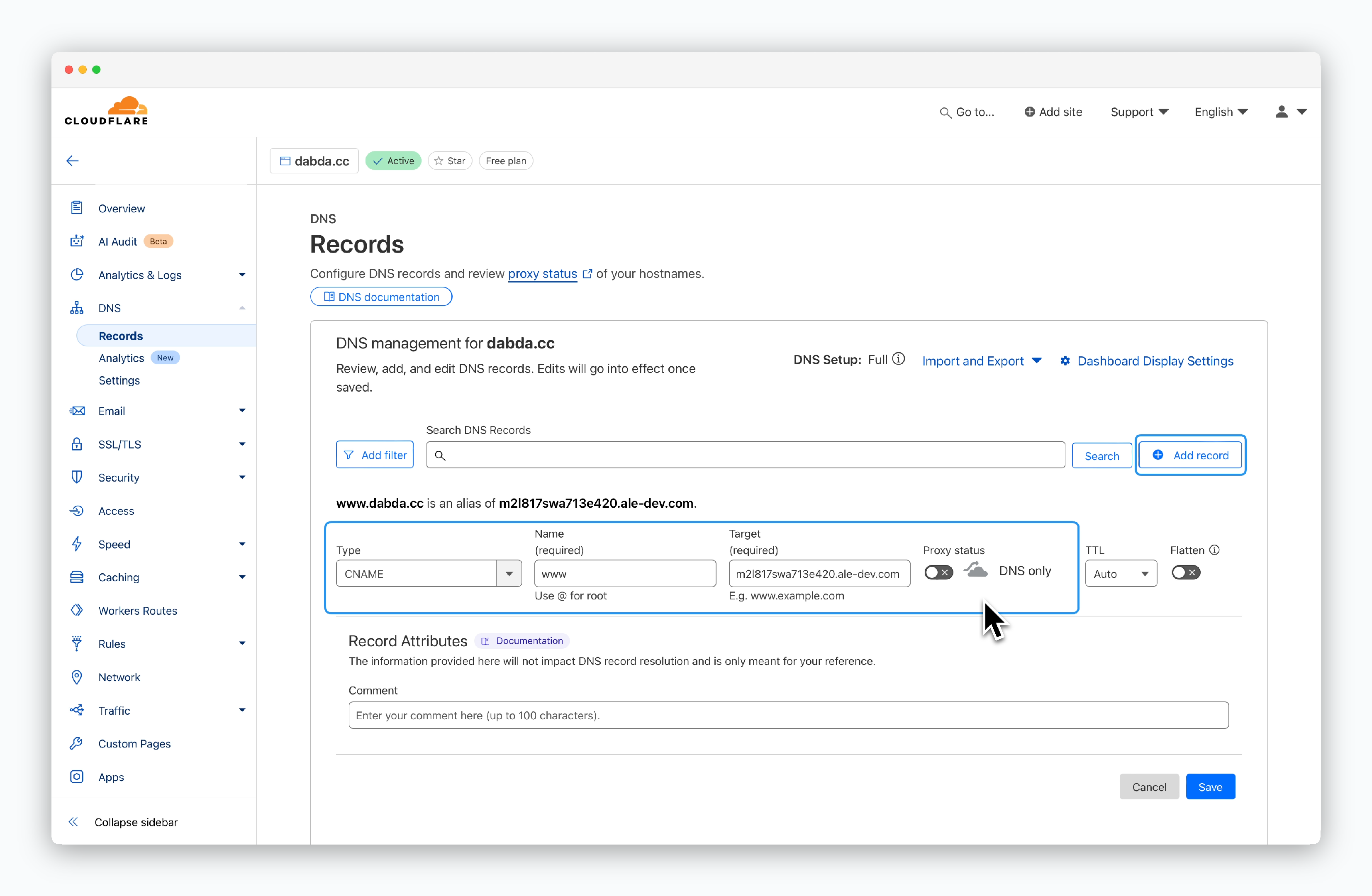 > Go to your domain's DNS Records page in Cloudflare and click "Add record" to configure the following DNS record values:
* **Type**: CNAME
* **Name**: The prefix (e.g., www) from your domain (e.g., [www.example.com](http://www.example.com)) configured in `ale`
* **Target**: CNAME record value from `ale`
* **Proxy status**: DNS only (disabled)
If Proxy status is **Proxied**, `ale`'s automated SSL certificate issuance and domain rules won't apply. **Ensure it's set to DNS only (disabled)**.
> Go to your domain's DNS Records page in Cloudflare and click "Add record" to configure the following DNS record values:
* **Type**: CNAME
* **Name**: The prefix (e.g., www) from your domain (e.g., [www.example.com](http://www.example.com)) configured in `ale`
* **Target**: CNAME record value from `ale`
* **Proxy status**: DNS only (disabled)
If Proxy status is **Proxied**, `ale`'s automated SSL certificate issuance and domain rules won't apply. **Ensure it's set to DNS only (disabled)**.
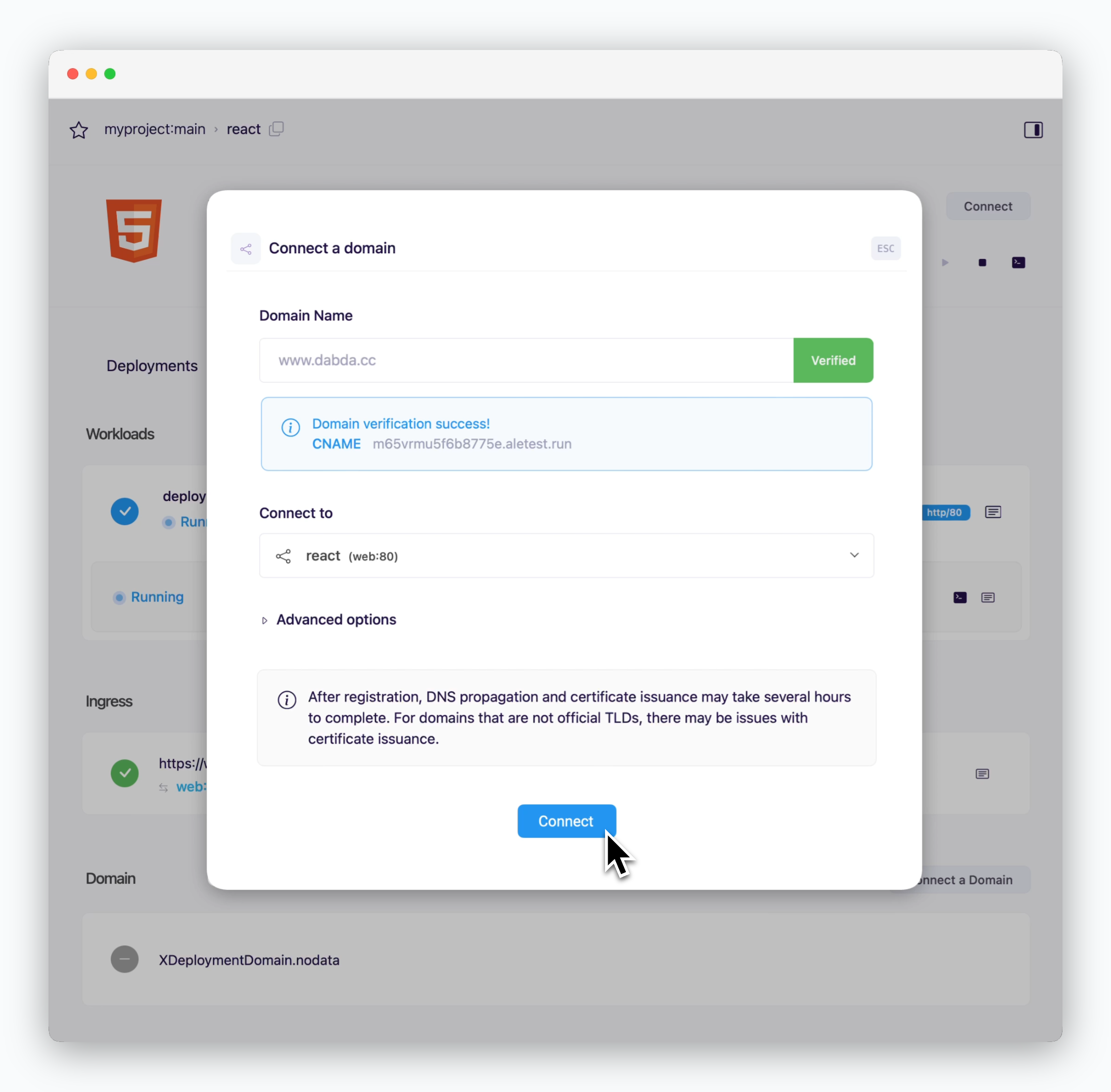 > After configuring the DNS records, switch back to `ale` and click `Verify`. Once domain verification is complete, click `Connect` to complete the domain connection.
SSL certificates are automatically issued for connected domains. Domain access may be temporarily limited or SSL security warnings may appear while DNS record propagation and SSL certificate validation are in progress.
The message "Current DNS settings are incorrect. CNAME not found" may appear due to DNS propagation delay. Please wait a few moments and try verification again.
If you see 'domain connection limit exceeded' when clicking `Connect`, it means your space has insufficient resources for custom domain connections. In this case, refer to the [the Space and Resource Management page](/en/operations/spaces#general-settings-domain-connections%2C-team-size%2C-etc) to adjust the number of domain connections.
### Root Domain
> After configuring the DNS records, switch back to `ale` and click `Verify`. Once domain verification is complete, click `Connect` to complete the domain connection.
SSL certificates are automatically issued for connected domains. Domain access may be temporarily limited or SSL security warnings may appear while DNS record propagation and SSL certificate validation are in progress.
The message "Current DNS settings are incorrect. CNAME not found" may appear due to DNS propagation delay. Please wait a few moments and try verification again.
If you see 'domain connection limit exceeded' when clicking `Connect`, it means your space has insufficient resources for custom domain connections. In this case, refer to the [the Space and Resource Management page](/en/operations/spaces#general-settings-domain-connections%2C-team-size%2C-etc) to adjust the number of domain connections.
### Root Domain
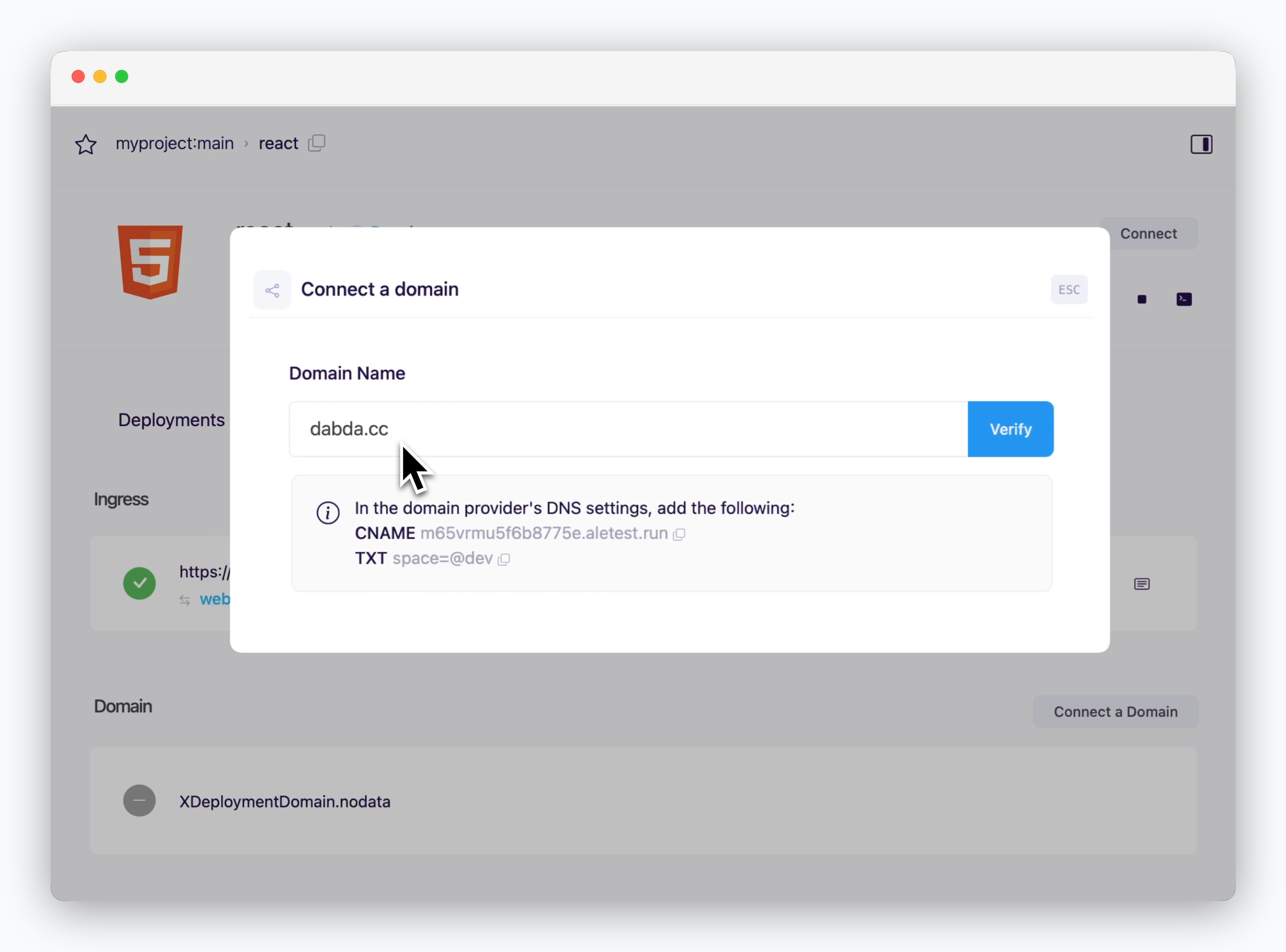 > Click the `Connect Domain` button in the Connections tab of the service page. Enter the root domain to view the CNAME and TXT record values for DNS configuration.
Both records need to be registered to connect a root domain in Cloudflare. See each section to add these record values in Cloudflare.
> Click the `Connect Domain` button in the Connections tab of the service page. Enter the root domain to view the CNAME and TXT record values for DNS configuration.
Both records need to be registered to connect a root domain in Cloudflare. See each section to add these record values in Cloudflare.
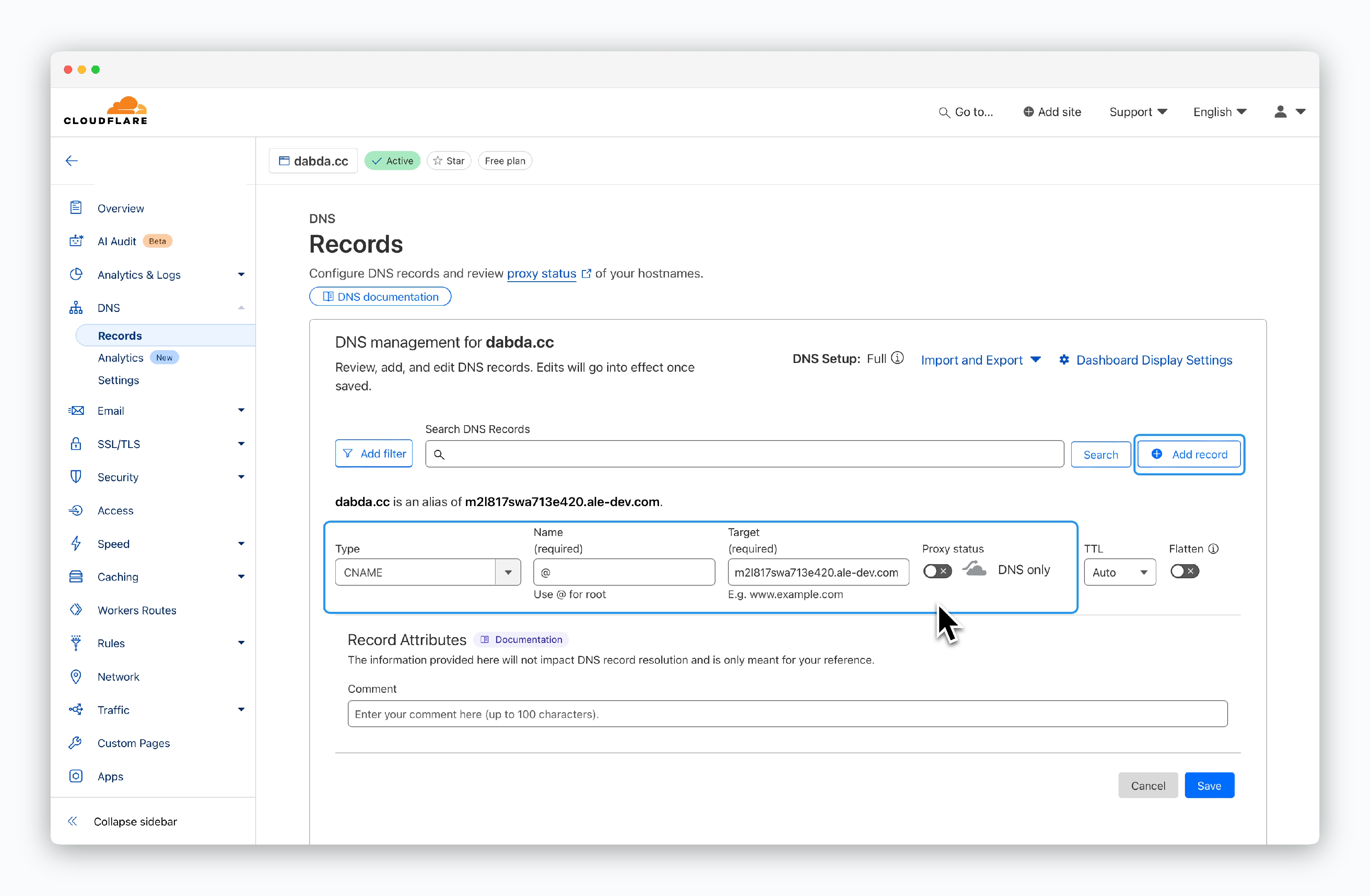 > Go to your domain's DNS Records page in Cloudflare and click `Add record` to configure the following CNAME record values:
* **Type**: CNAME
* **Name**: @
* **Target**: CNAME record value from `ale`
* **Proxy status**: DNS only (disabled)
The @ in the Name field represents your root domain. Leaving it blank will not work.
If Proxy status is **Proxied**, `ale`'s automated SSL certificate issuance and domain rules won't apply. **Ensure it's set to DNS only (disabled)**.
> Go to your domain's DNS Records page in Cloudflare and click `Add record` to configure the following CNAME record values:
* **Type**: CNAME
* **Name**: @
* **Target**: CNAME record value from `ale`
* **Proxy status**: DNS only (disabled)
The @ in the Name field represents your root domain. Leaving it blank will not work.
If Proxy status is **Proxied**, `ale`'s automated SSL certificate issuance and domain rules won't apply. **Ensure it's set to DNS only (disabled)**.
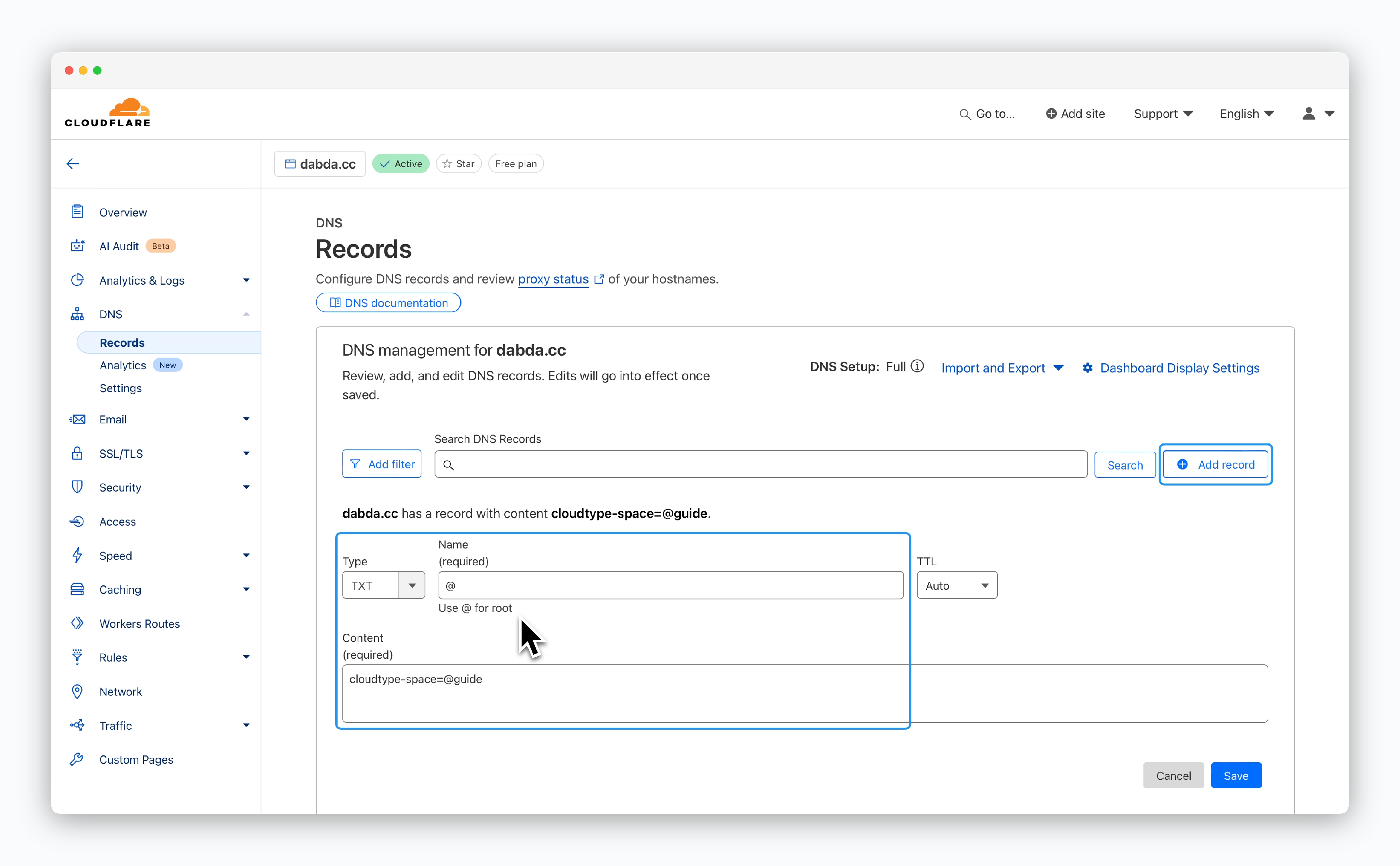 > In your Cloudflare DNS Records page, click `Add record` to configure the following TXT record values:
* **Type**: TXT
* **Name**: @
* **Content**: TXT record value from `ale`
The @ in the Name field represents your root domain. Leaving it blank will not work.
> In your Cloudflare DNS Records page, click `Add record` to configure the following TXT record values:
* **Type**: TXT
* **Name**: @
* **Content**: TXT record value from `ale`
The @ in the Name field represents your root domain. Leaving it blank will not work.
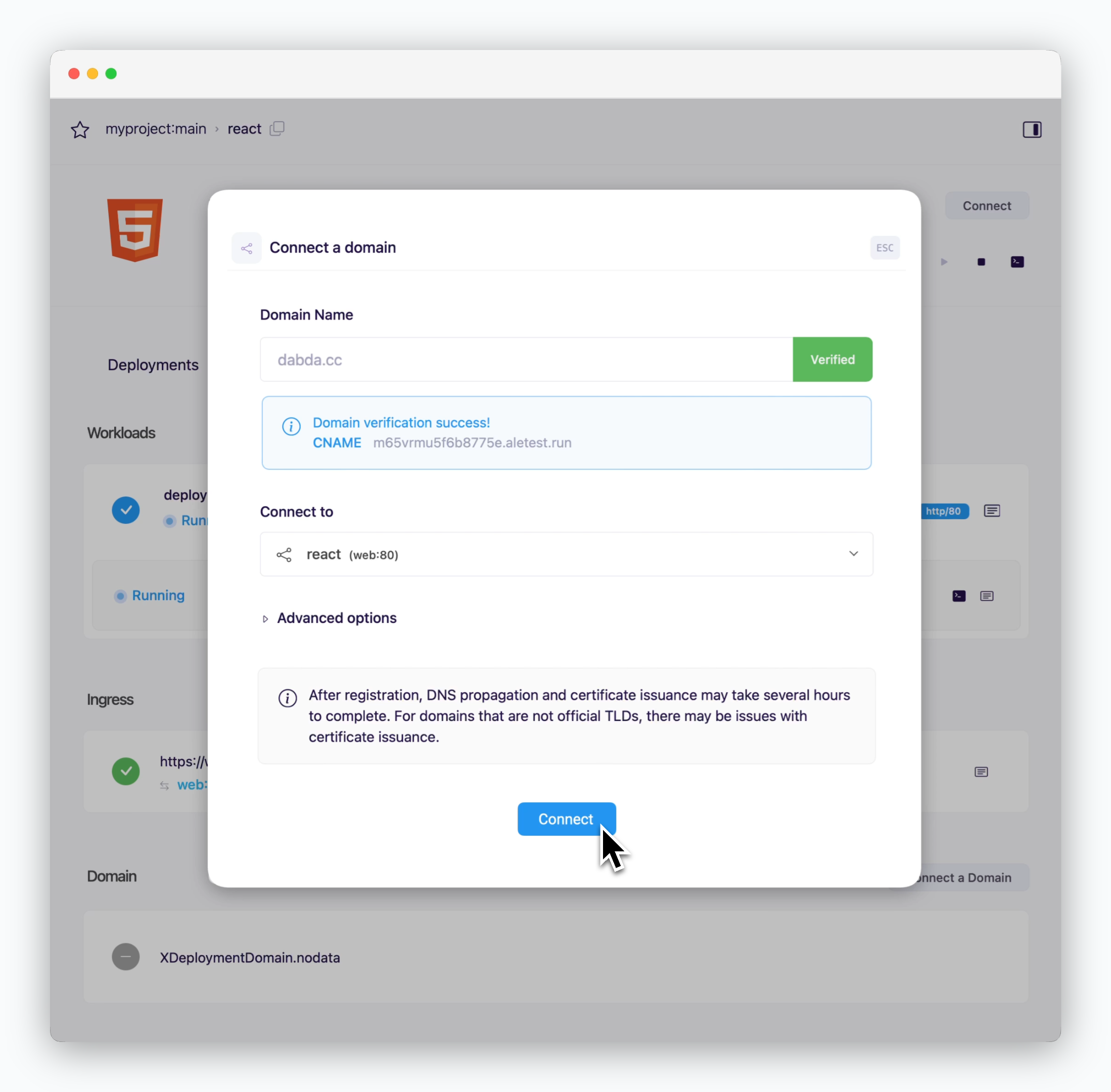 > After configuring the DNS records, switch back to `ale` and click `Verify`. Once domain verification is complete, click `Connect` to complete the domain connection.
SSL certificates are automatically issued for connected domains. Domain access may be temporarily limited or SSL security warnings may appear while DNS record propagation and SSL certificate validation are in progress.
The message "Current DNS settings are incorrect. CNAME not found" may appear due to DNS propagation delay. Please wait a few moments and try verification again.
If you see 'domain connection limit exceeded' when clicking `Connect`, it means your space has insufficient resources for custom domain connections. In this case, refer to the [the Space and Resource Management page](/en/operations/spaces#general-settings-domain-connections%2C-team-size%2C-etc) to adjust the number of domain connections.
> After configuring the DNS records, switch back to `ale` and click `Verify`. Once domain verification is complete, click `Connect` to complete the domain connection.
SSL certificates are automatically issued for connected domains. Domain access may be temporarily limited or SSL security warnings may appear while DNS record propagation and SSL certificate validation are in progress.
The message "Current DNS settings are incorrect. CNAME not found" may appear due to DNS propagation delay. Please wait a few moments and try verification again.
If you see 'domain connection limit exceeded' when clicking `Connect`, it means your space has insufficient resources for custom domain connections. In this case, refer to the [the Space and Resource Management page](/en/operations/spaces#general-settings-domain-connections%2C-team-size%2C-etc) to adjust the number of domain connections.