> ## Documentation Index
> Fetch the complete documentation index at: https://docs.ale.run/llms.txt
> Use this file to discover all available pages before exploring further.
# Projects
> **A project is a display name that represents a collection of environments.** It is designed for the management convenience of dashboard users, allowing them to manage one or more work-related environments (Dev, QA, Staging, Prod, and others) within a single project. All information except the project name displays information for the selected environment.
This guide only covers project creation and deletion. In the Settings tab, you can configure the selected environment. For more details, see the [Environment Management page.](/en/developers/environment)
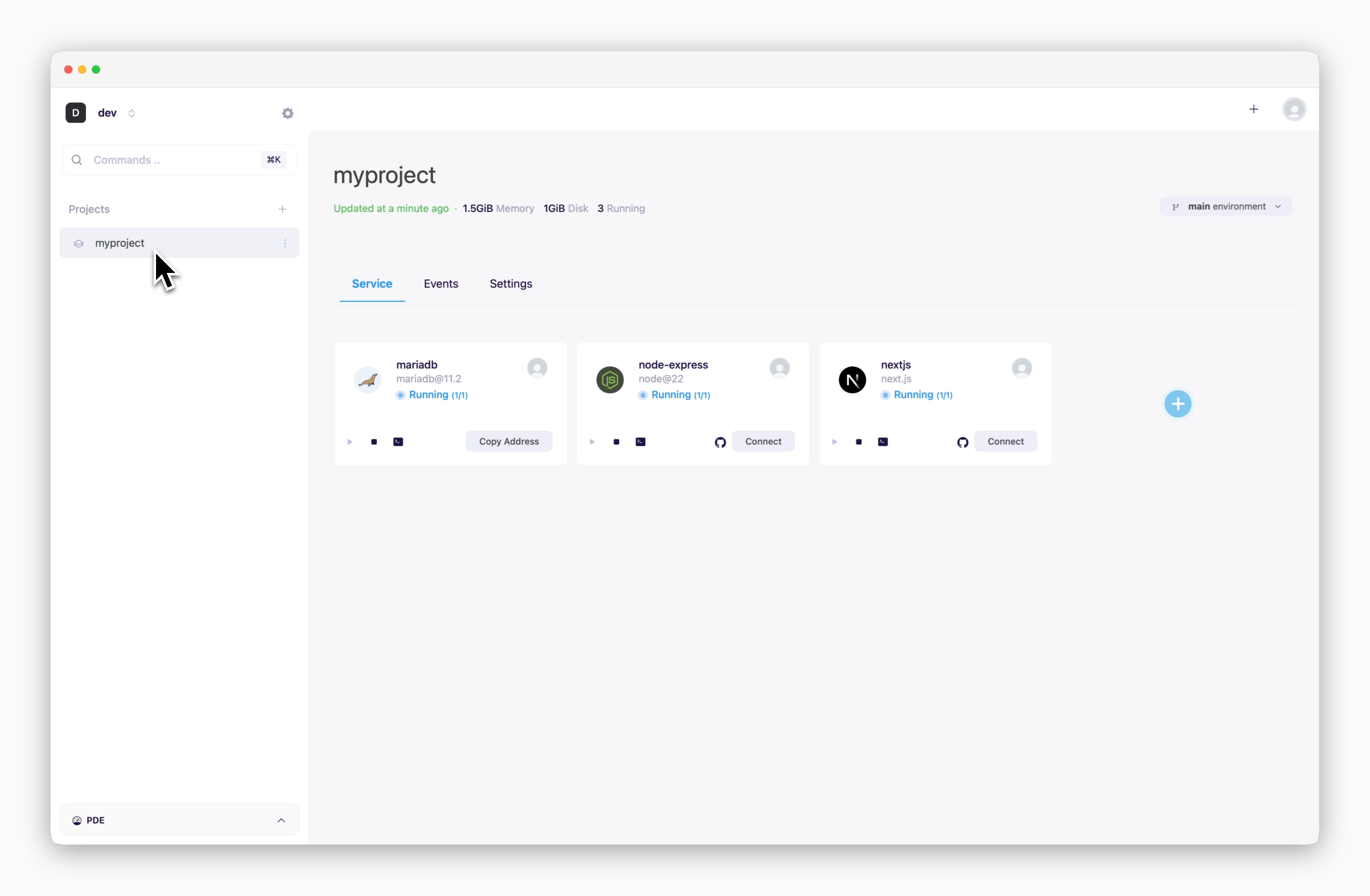 When creating a project, an environment named `main` is created simultaneously, and the image above shows services deployed in the `main` environment within the project. For more information about `ale`'s work unit hierarchy, from spaces to services, see the following section.

> A space is the top-level unit of the workspace hierarchy. [Space owners can invite team members](/en/developers/space#team-management) to collaborate on projects within the resources allocated by the operations system. Members can create and manage projects in a self-service manner.
> **A project is a display name that represents a collection of environments.** It is designed for the management convenience of dashboard users, allowing them to manage one or more work-related environments (Dev, QA, Staging, Prod, and others) within a single project.
> **An environment corresponds to a namespace in a Kubernetes cluster.** Network isolation is configured on a per-namespace basis, and [services within the same environment (namespace) can communicate by referencing service names as hostnames.](/en/developers/connect#internal-service-connection) Frequently used [environment variables can be stored as secrets at the environment level](/en/developers/env) for management and application.
> **A service corresponds to a Deployment in Kubernetes.** Each service can be [accessed via terminal](/en/developers/log) and [connected to custom domains.](/en/developers/domain) For more details on deploying services, see the [Deploying with ale page.](/en/developers/deploy)
***
## Create a Project
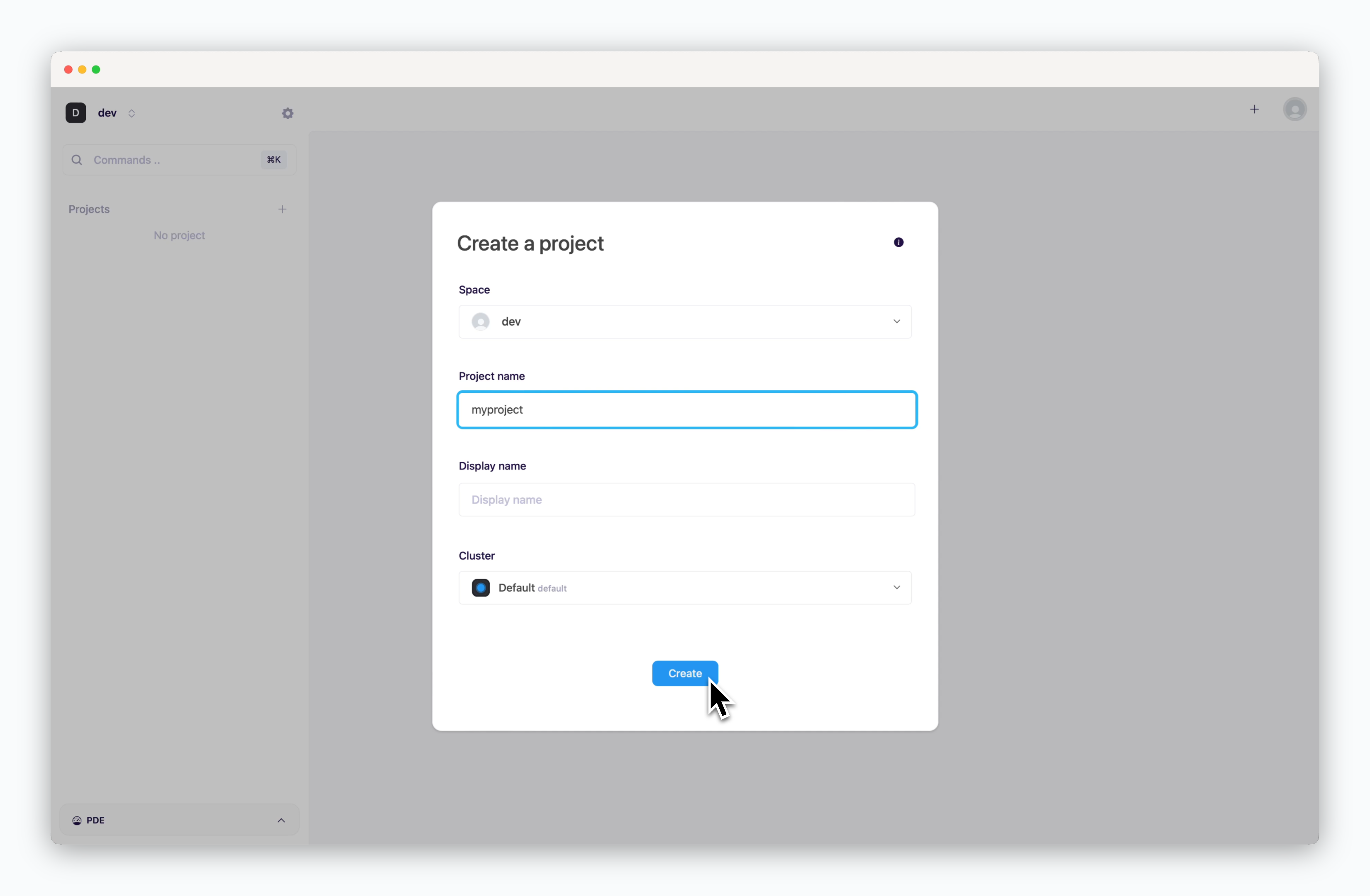 > In the Projects section of the sidebar, click the button and enter the appropriate project information in each field.
* **Space**: Select the space where the project will belong.
* **Project Name**: lowercase English letters and numbers, between 2 and 20 characters.
* **Display Name**: Name used for user identification of projects; can include characters from other languages and special characters.
* **Cluster**: Select the cluster where services will be deployed within the project.
When creating a project, an environment named "main" is created at the same time.
## Delete a Project
> In the Projects section of the sidebar, click the button and enter the appropriate project information in each field.
* **Space**: Select the space where the project will belong.
* **Project Name**: lowercase English letters and numbers, between 2 and 20 characters.
* **Display Name**: Name used for user identification of projects; can include characters from other languages and special characters.
* **Cluster**: Select the cluster where services will be deployed within the project.
When creating a project, an environment named "main" is created at the same time.
## Delete a Project
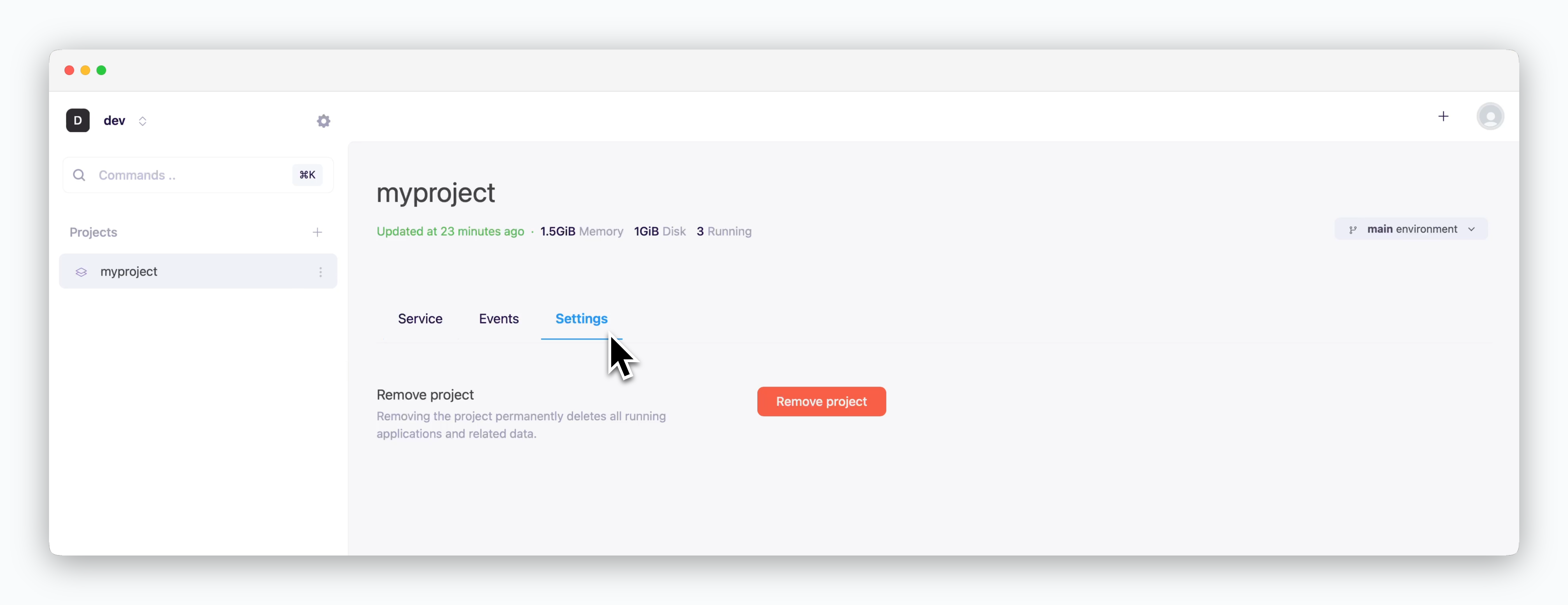 > You can delete a project or environment by `Delete a Project` button at the bottom of the settings tab. All running applications and related data will be permanently deleted.
If a project has multiple environments, this menu will be displayed as **Delete a Environment**. Project deletion is possible when only one environment remains in the project.
> You can delete a project or environment by `Delete a Project` button at the bottom of the settings tab. All running applications and related data will be permanently deleted.
If a project has multiple environments, this menu will be displayed as **Delete a Environment**. Project deletion is possible when only one environment remains in the project.