> ## Documentation Index
> Fetch the complete documentation index at: https://docs.ale.run/llms.txt
> Use this file to discover all available pages before exploring further.
# Connect Container Registry
> By connecting a private container registry, you can deploy custom images using the Container template. This guide covers connecting to **GitHub Container Registry, GCP Artifact Registry, and Docker Hub**.
***
## Connect Registry
### Generate Personal Access Token
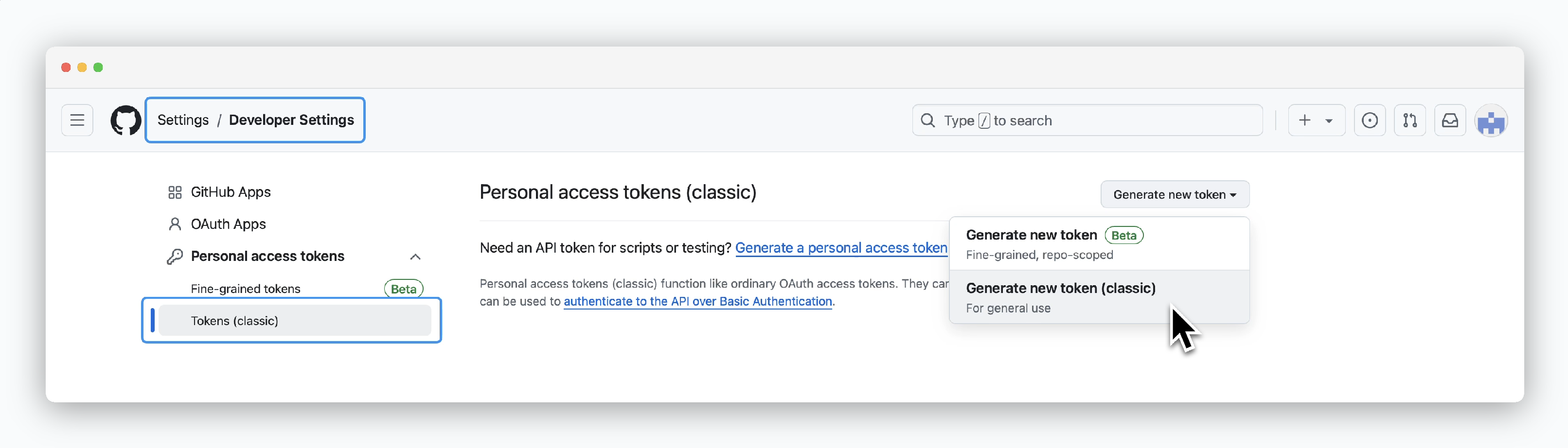 > Go to your GitHub account **Settings**, then navigate to [Developer settings > Personal access tokens (classic) page](https://github.com/settings/tokens) and click `Generate new token > Generate new token(classic)` to create a token.
### Grant Permissions and Generate Token
> Go to your GitHub account **Settings**, then navigate to [Developer settings > Personal access tokens (classic) page](https://github.com/settings/tokens) and click `Generate new token > Generate new token(classic)` to create a token.
### Grant Permissions and Generate Token
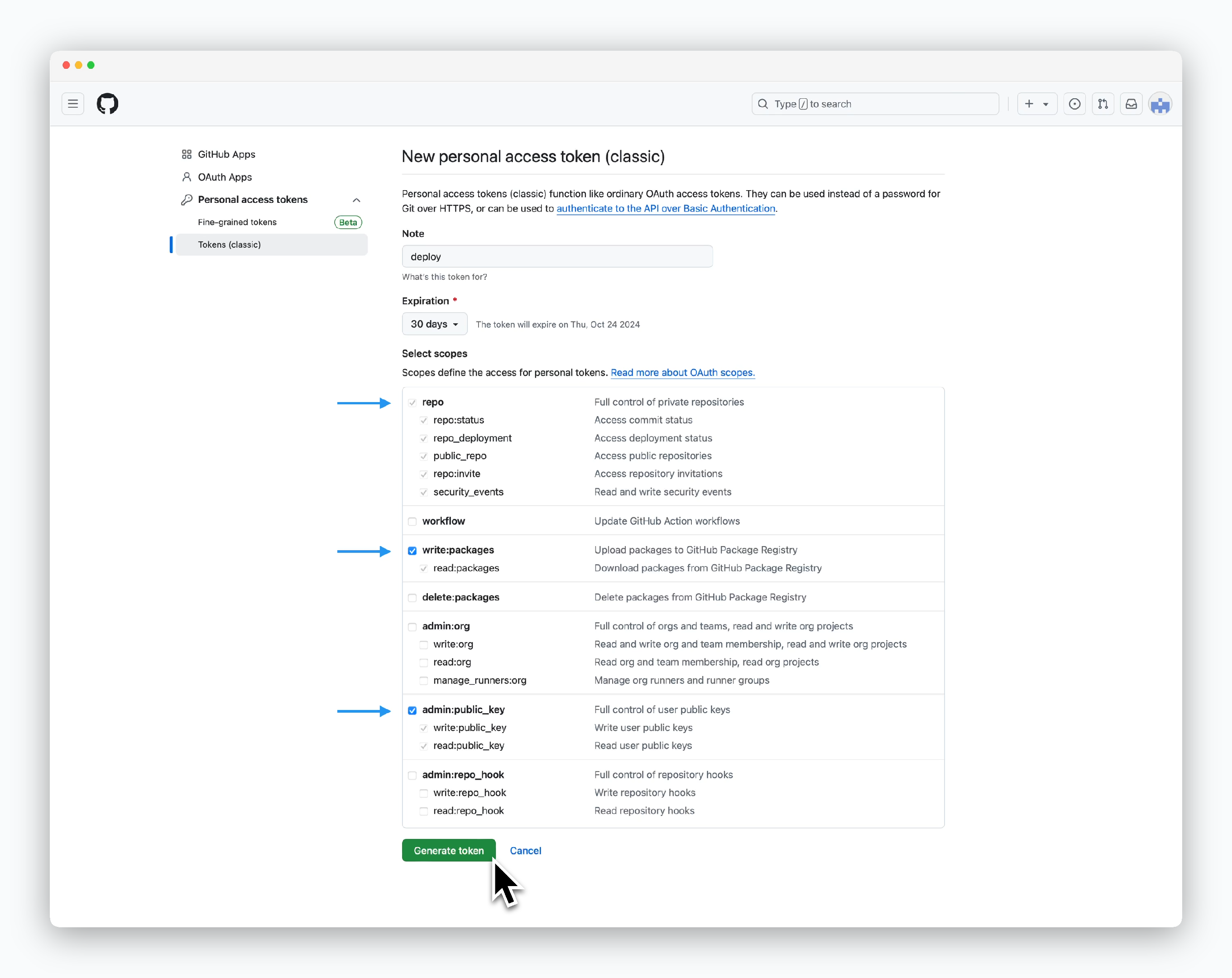 > Grant the following permissions and click `Generate token`:
* **repo**
* **write:packages**
* **admin:public\_key**
> Grant the following permissions and click `Generate token`:
* **repo**
* **write:packages**
* **admin:public\_key**
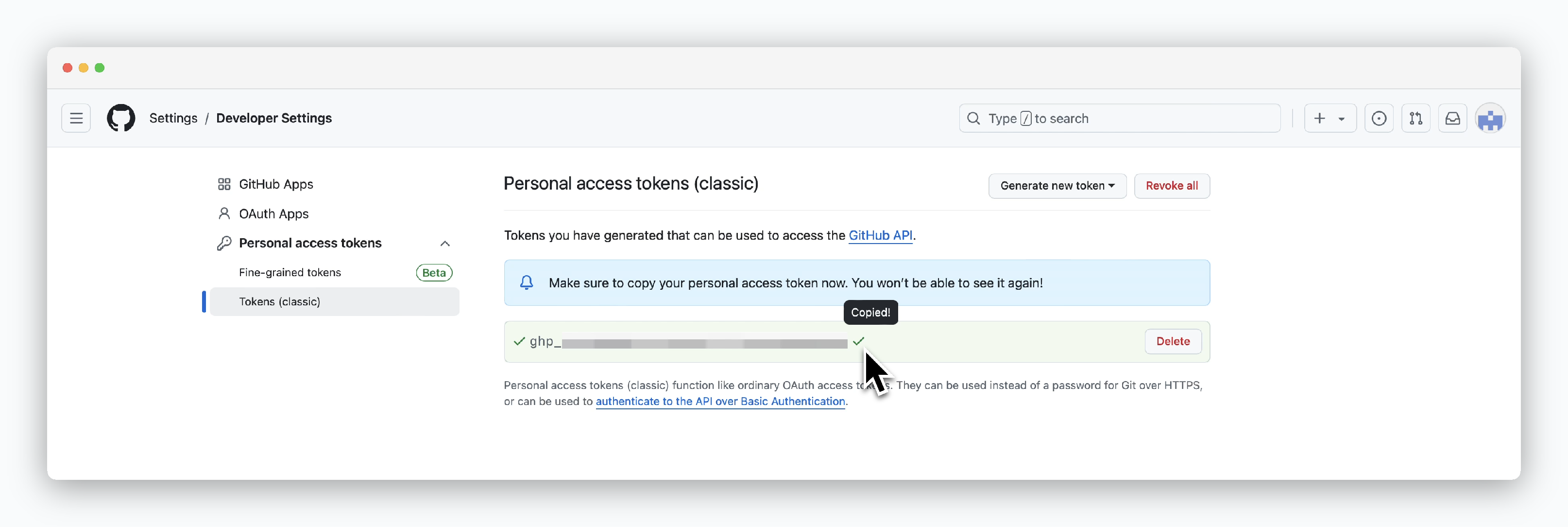 > Once generated, the token will be displayed. Note that you can only view the token value once during creation.
### Connect to ale
> Once generated, the token will be displayed. Note that you can only view the token value once during creation.
### Connect to ale
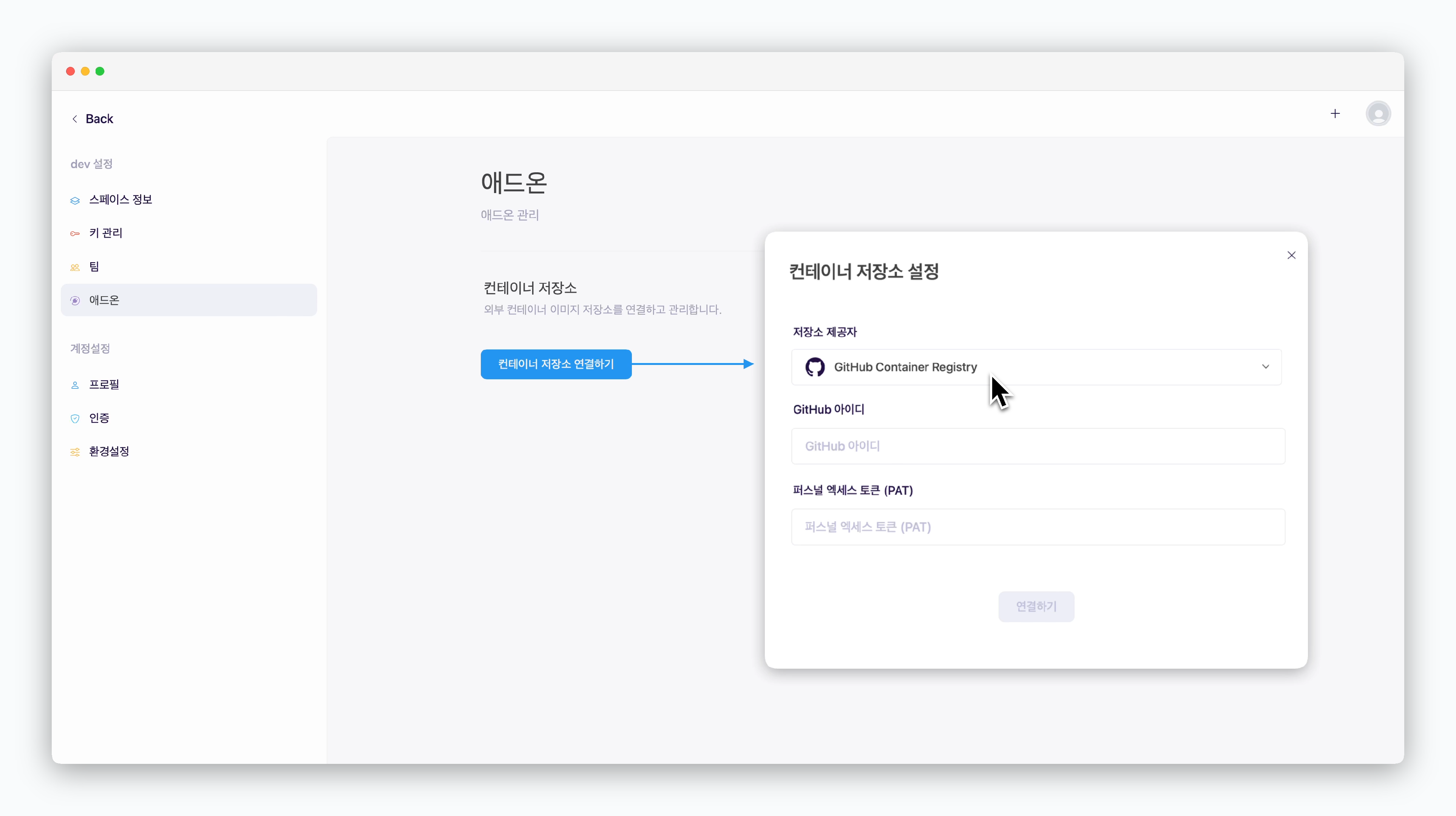 > In the space settings' add-on page, click `Connect Container Registry`. In the **Container Registry Settings** modal, enter the following values and click `Connect` to establish connection with **GitHub Container Registry**:
* **Registry Provider**: GitHub Container Registry
* **GitHub ID**: Your GitHub ID
* **Personal Access Token(PAT)**: Personal Access Token generated from GitHub
### Create a GCP Artifact Registry
> In the space settings' add-on page, click `Connect Container Registry`. In the **Container Registry Settings** modal, enter the following values and click `Connect` to establish connection with **GitHub Container Registry**:
* **Registry Provider**: GitHub Container Registry
* **GitHub ID**: Your GitHub ID
* **Personal Access Token(PAT)**: Personal Access Token generated from GitHub
### Create a GCP Artifact Registry
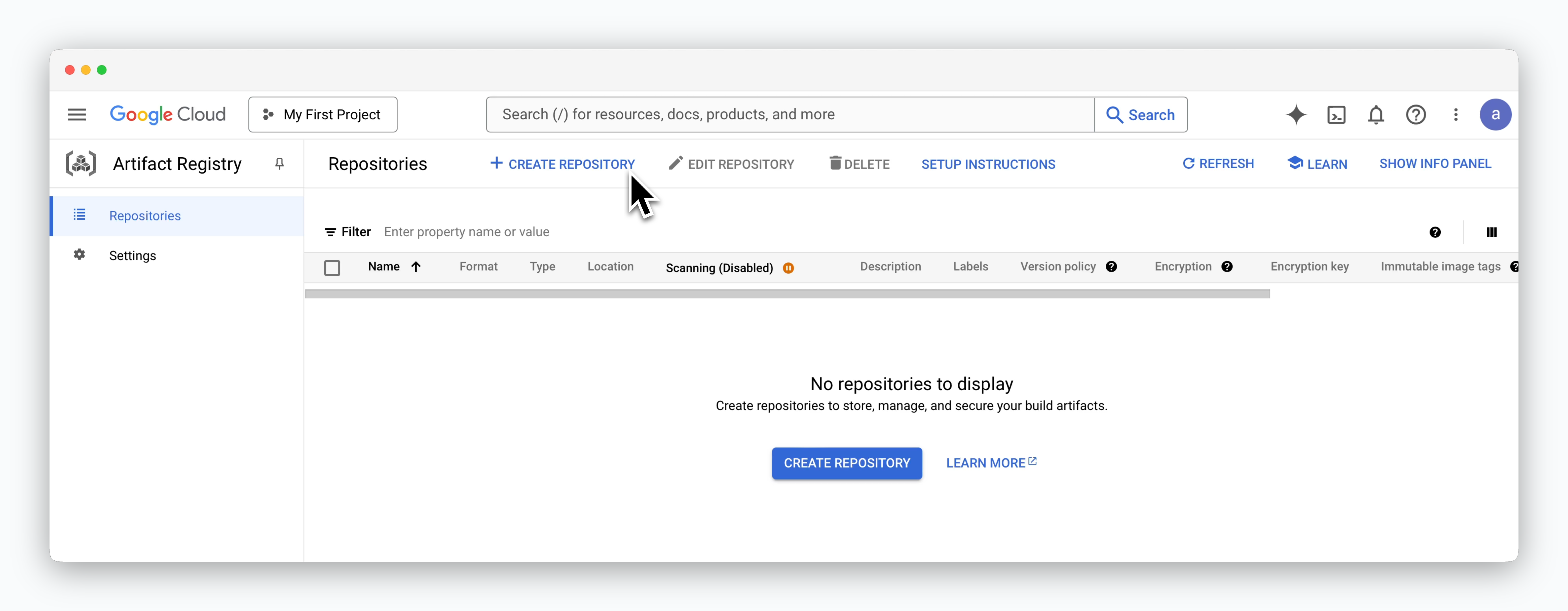 > Access the **Artifact Registry** service in the Google Cloud Console and click `CREATE REPOSITORY`.
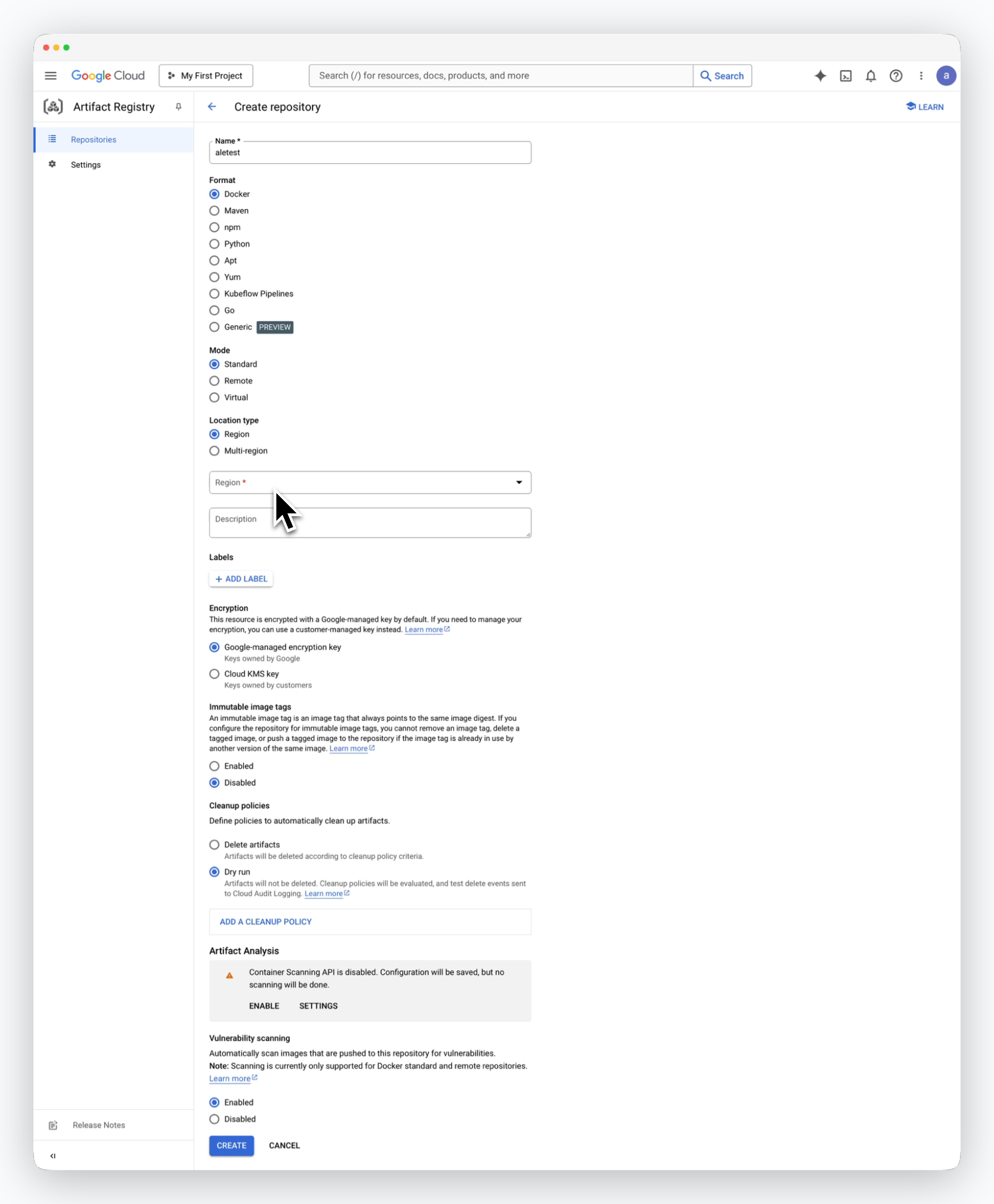 > Enter a name for the repository and fill in the following values, then click `CREATE` to create the repository.
Use the default values except for the Region.
* **Format** : Docker
* **Mode** : Standard
* **Location type** : Region
* **Region** : Select a region that suits your needs
* **Encryption** : Google-managed encryption key
### Retrieve the Repository Access URL
> Enter a name for the repository and fill in the following values, then click `CREATE` to create the repository.
Use the default values except for the Region.
* **Format** : Docker
* **Mode** : Standard
* **Location type** : Region
* **Region** : Select a region that suits your needs
* **Encryption** : Google-managed encryption key
### Retrieve the Repository Access URL
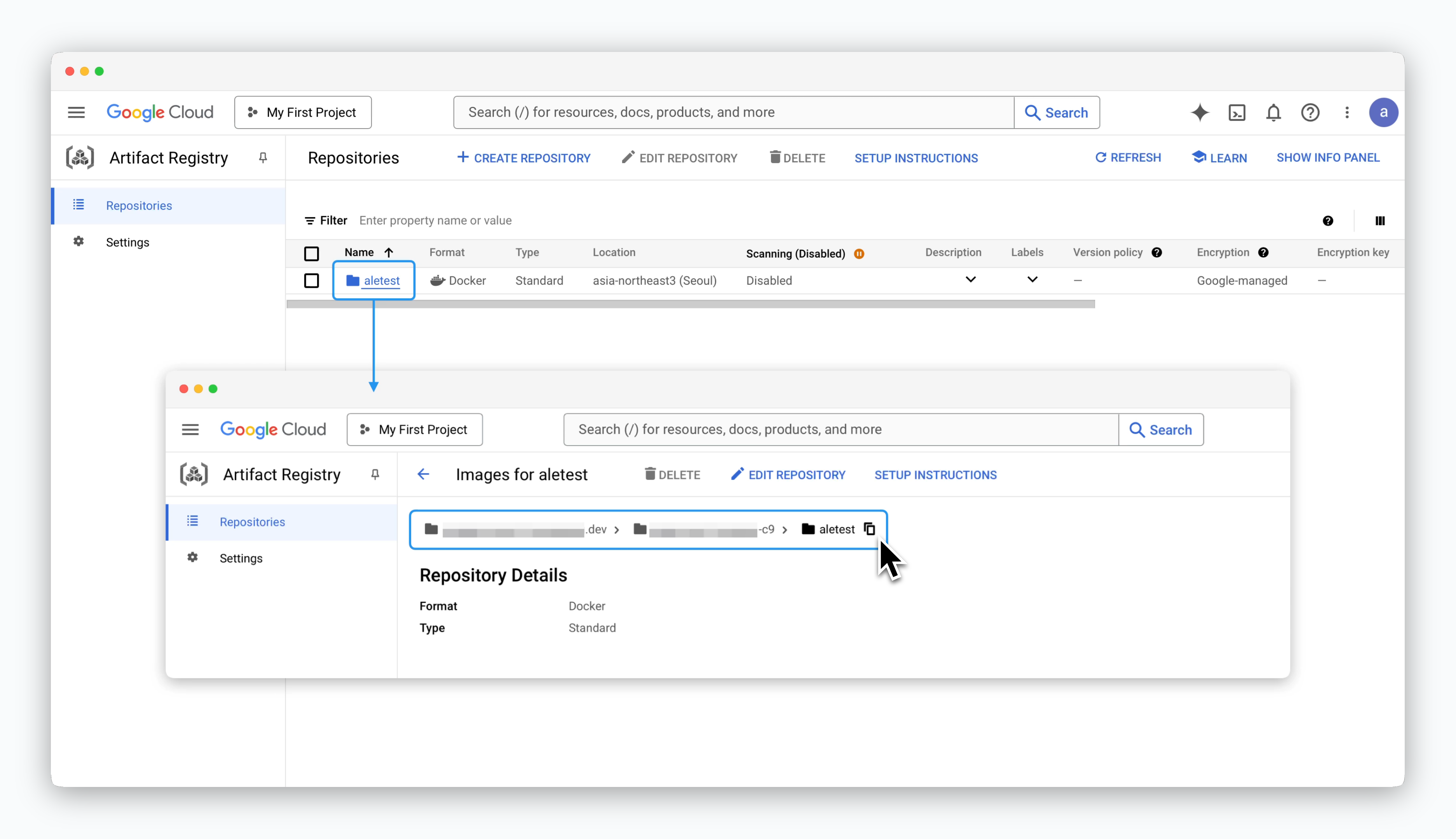 > Click on the created repository to retrieve the access URL in the format `[region]-docker.pkg.dev/[GCP Project ID]/[Repository Name]`.
This access URL will be used to connect the repository to `ale`.
### Service Account and Permissions
> Click on the created repository to retrieve the access URL in the format `[region]-docker.pkg.dev/[GCP Project ID]/[Repository Name]`.
This access URL will be used to connect the repository to `ale`.
### Service Account and Permissions
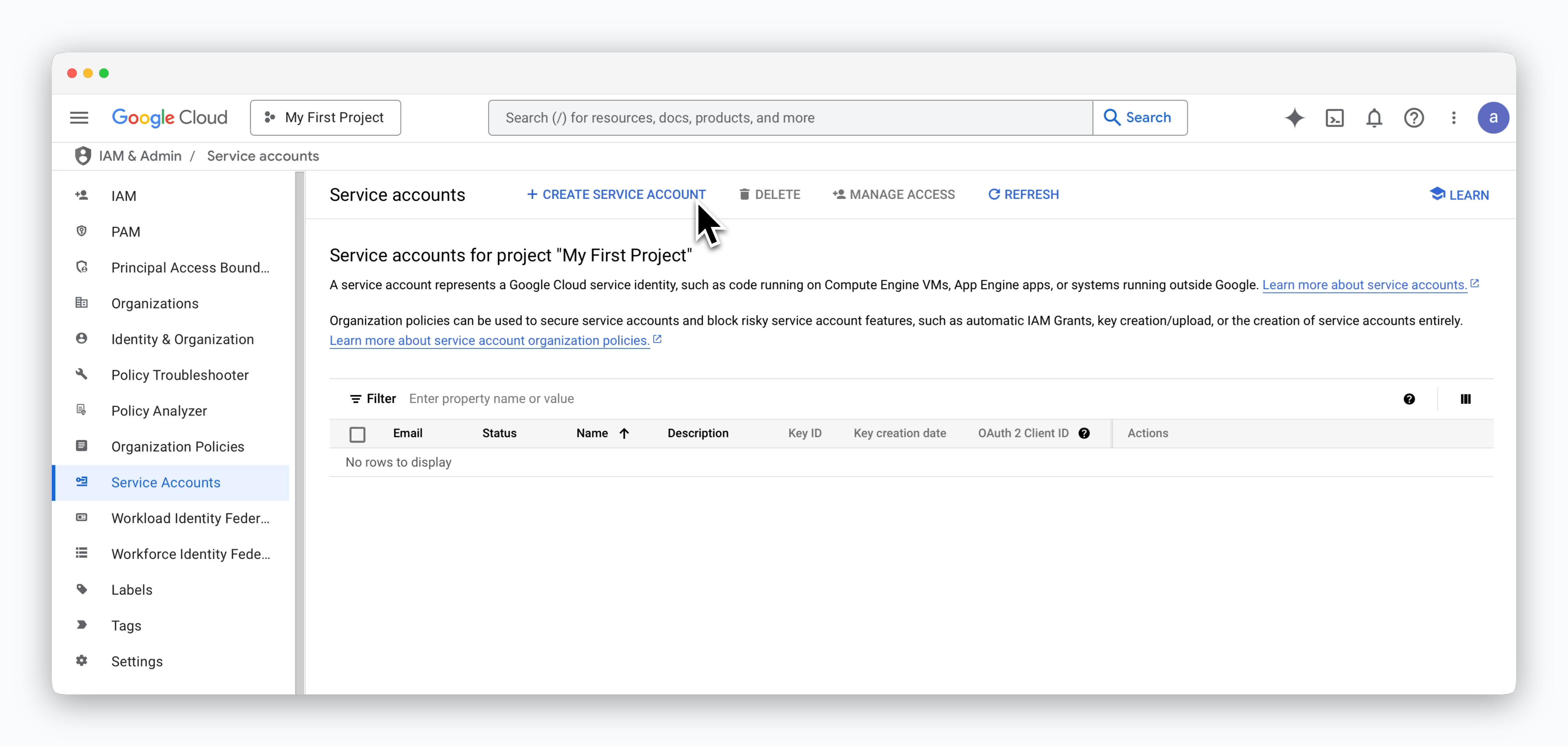 > Go to the **IAM & Admin > Service Accounts** page and click `CREATE SERVICE ACCOUNT`.
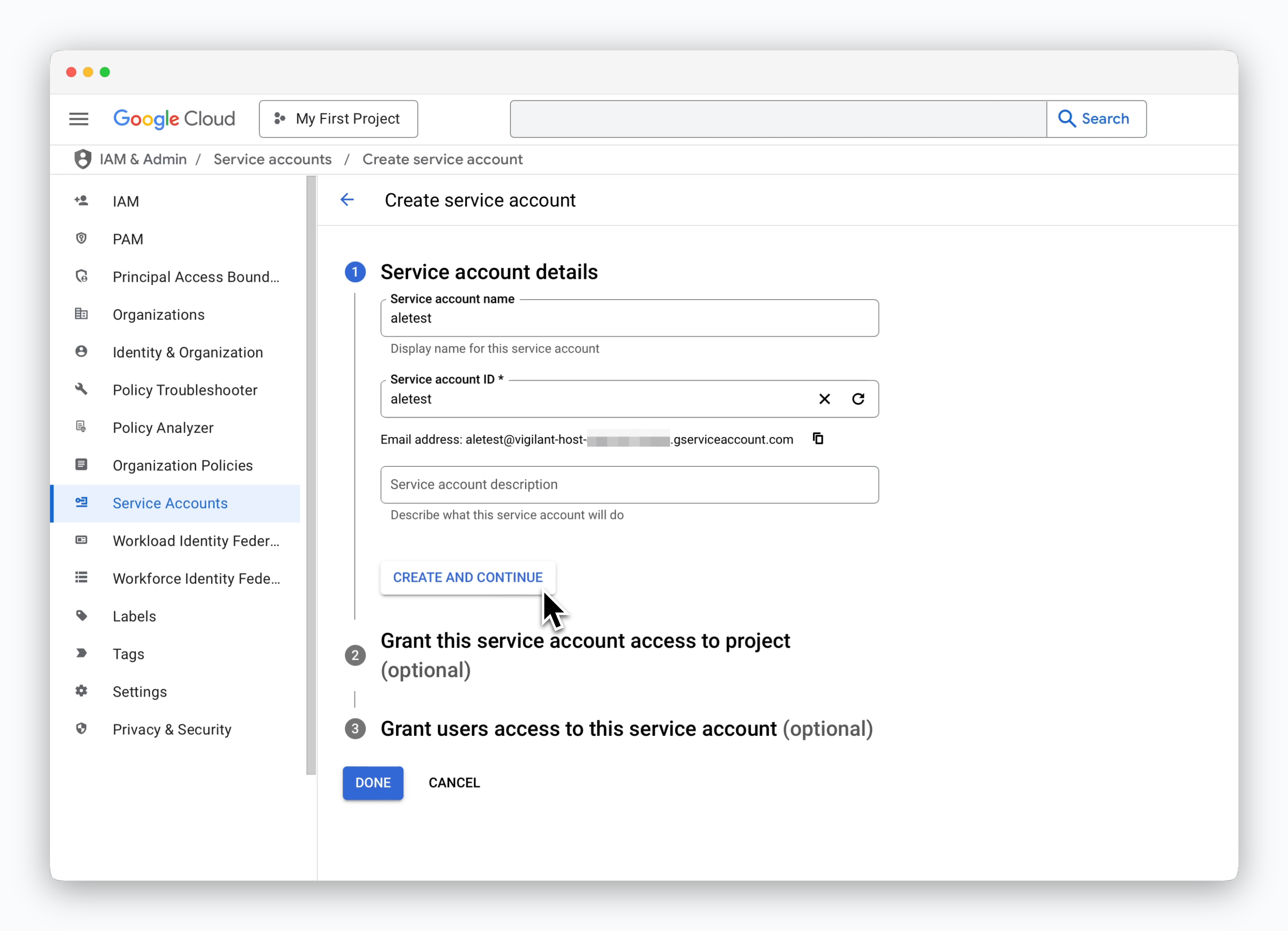 > Enter a recognizable **Service Account Name** and click `CREATE AND CONTINUE`.
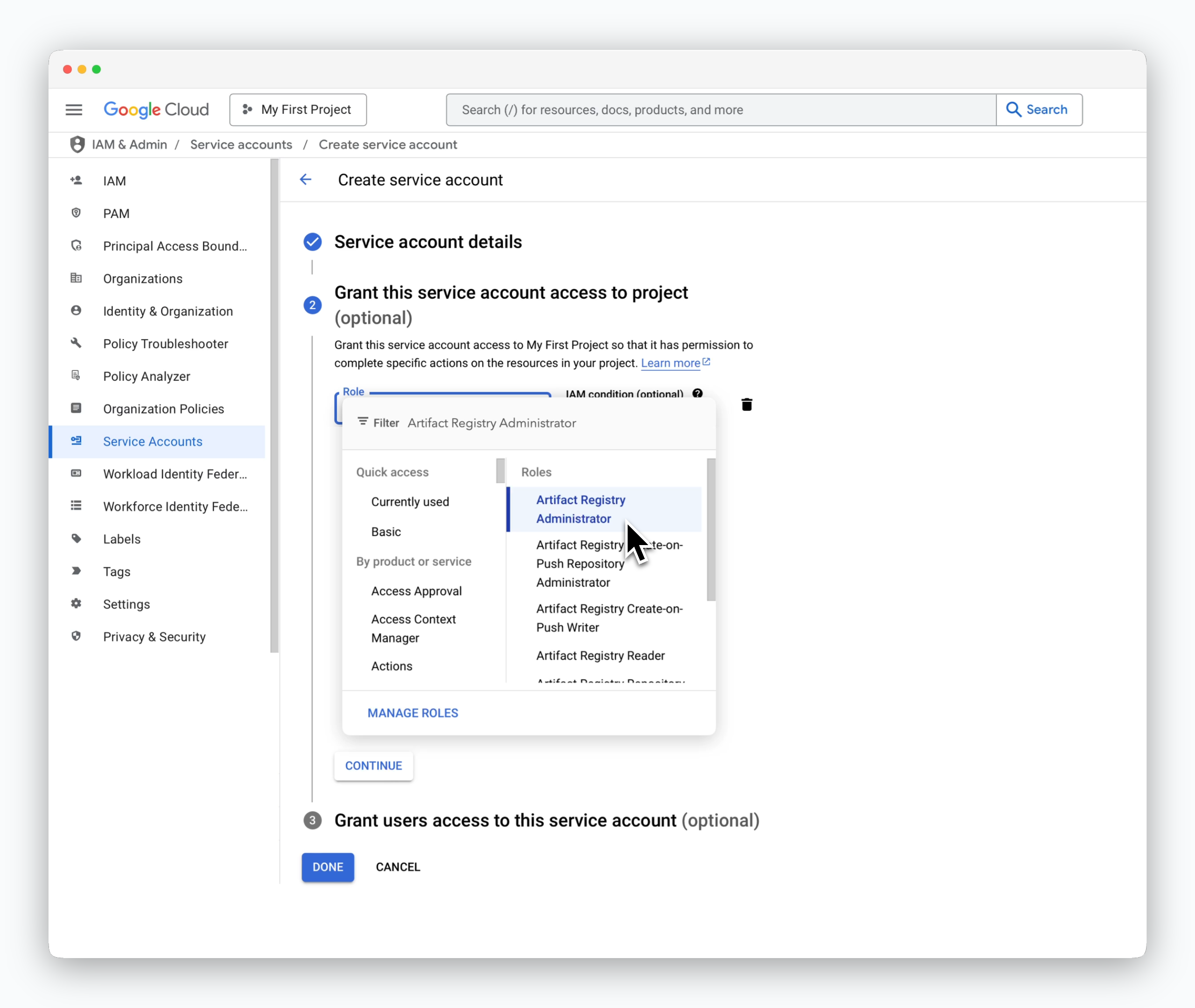 > In the role selector, choose **Artifact Registry Administrator** and click `DONE` to create the service account.
### Create a JSON Key
> In the role selector, choose **Artifact Registry Administrator** and click `DONE` to create the service account.
### Create a JSON Key
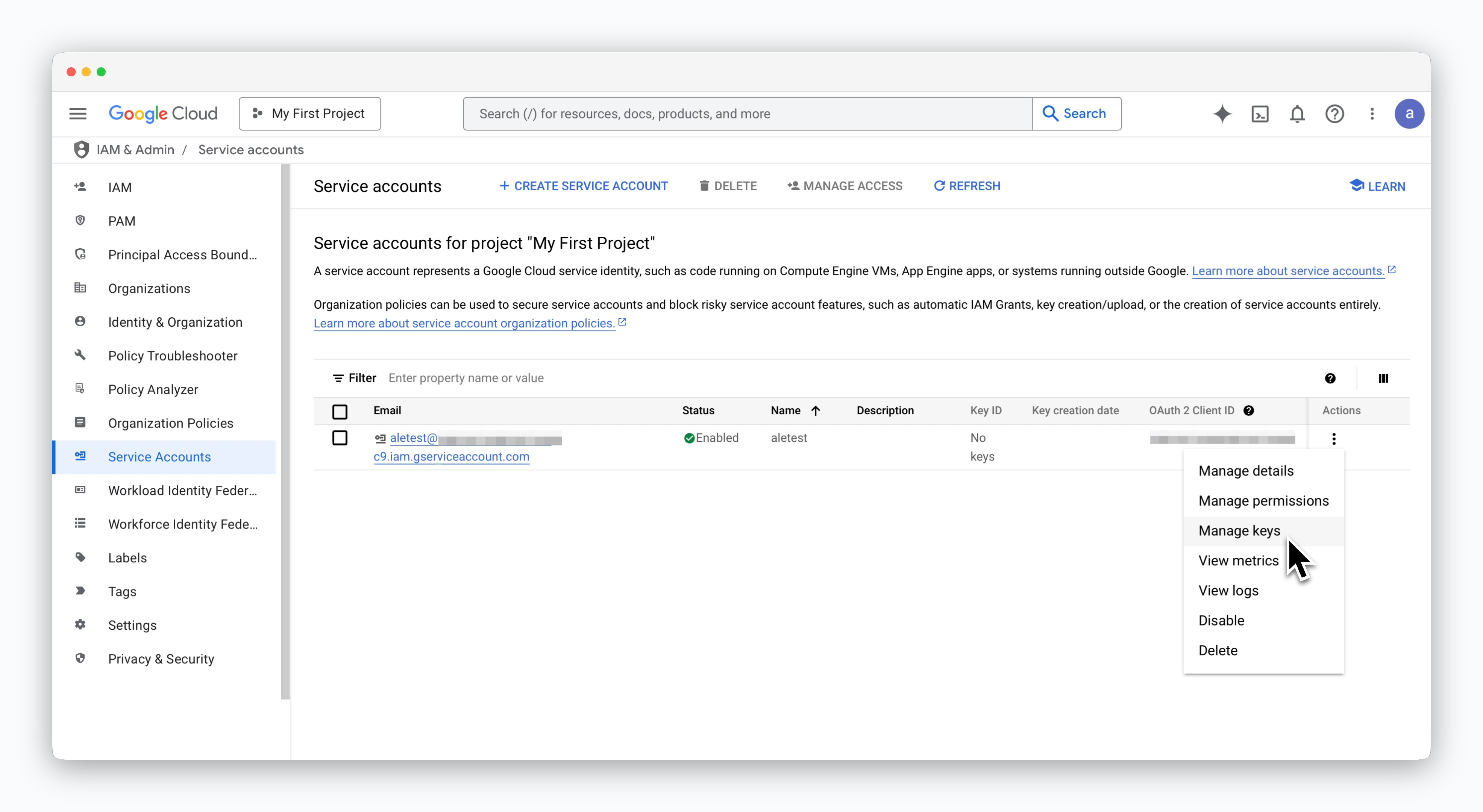 > Click the icon on the right side of the service account and select **Manage keys**.
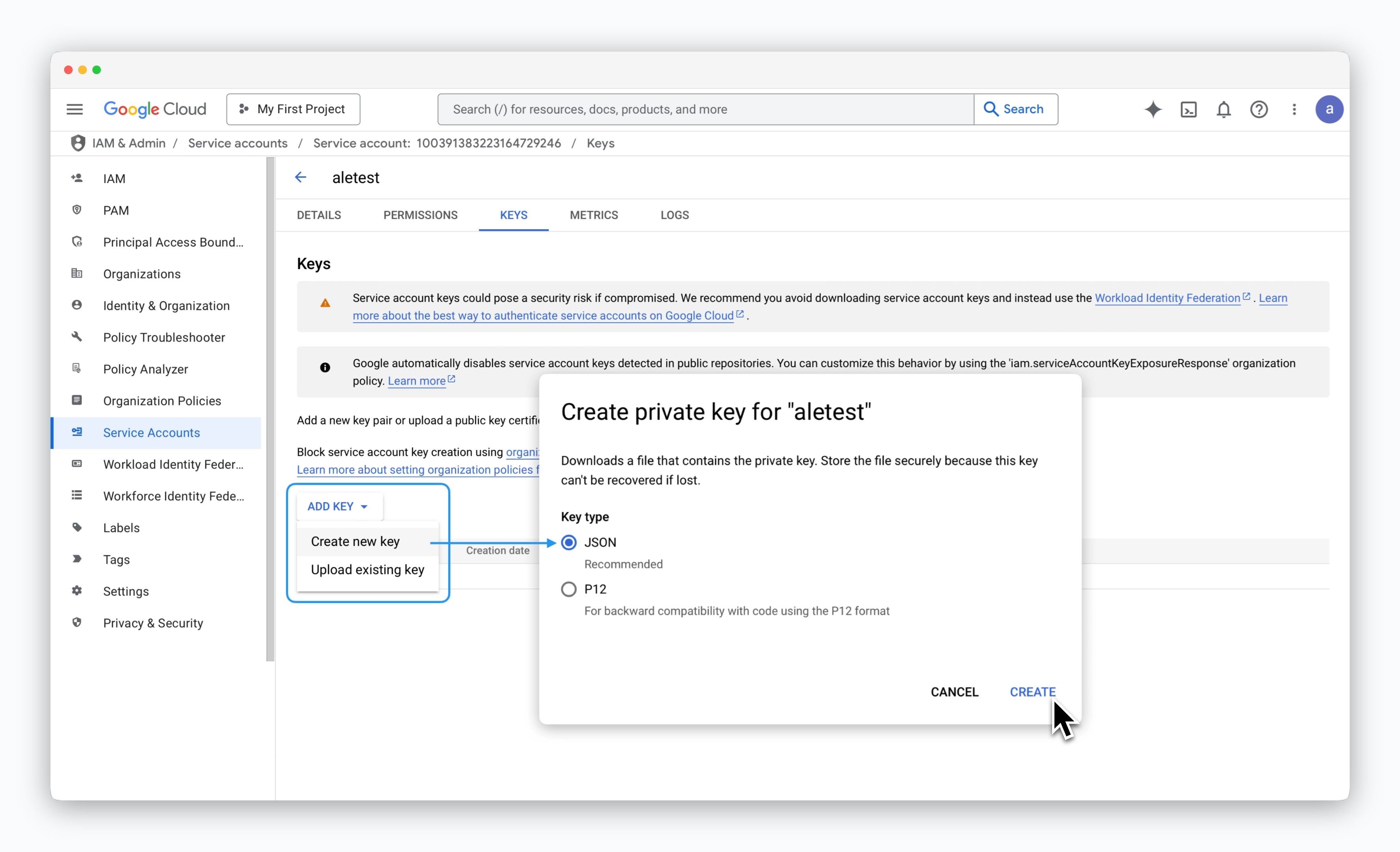 > On the service account key management page, click **ADD KEY > Create new key**. In the modal, select **JSON** as the key type and click `CREATE` to download the JSON key file.
### Connect to ale
> On the service account key management page, click **ADD KEY > Create new key**. In the modal, select **JSON** as the key type and click `CREATE` to download the JSON key file.
### Connect to ale
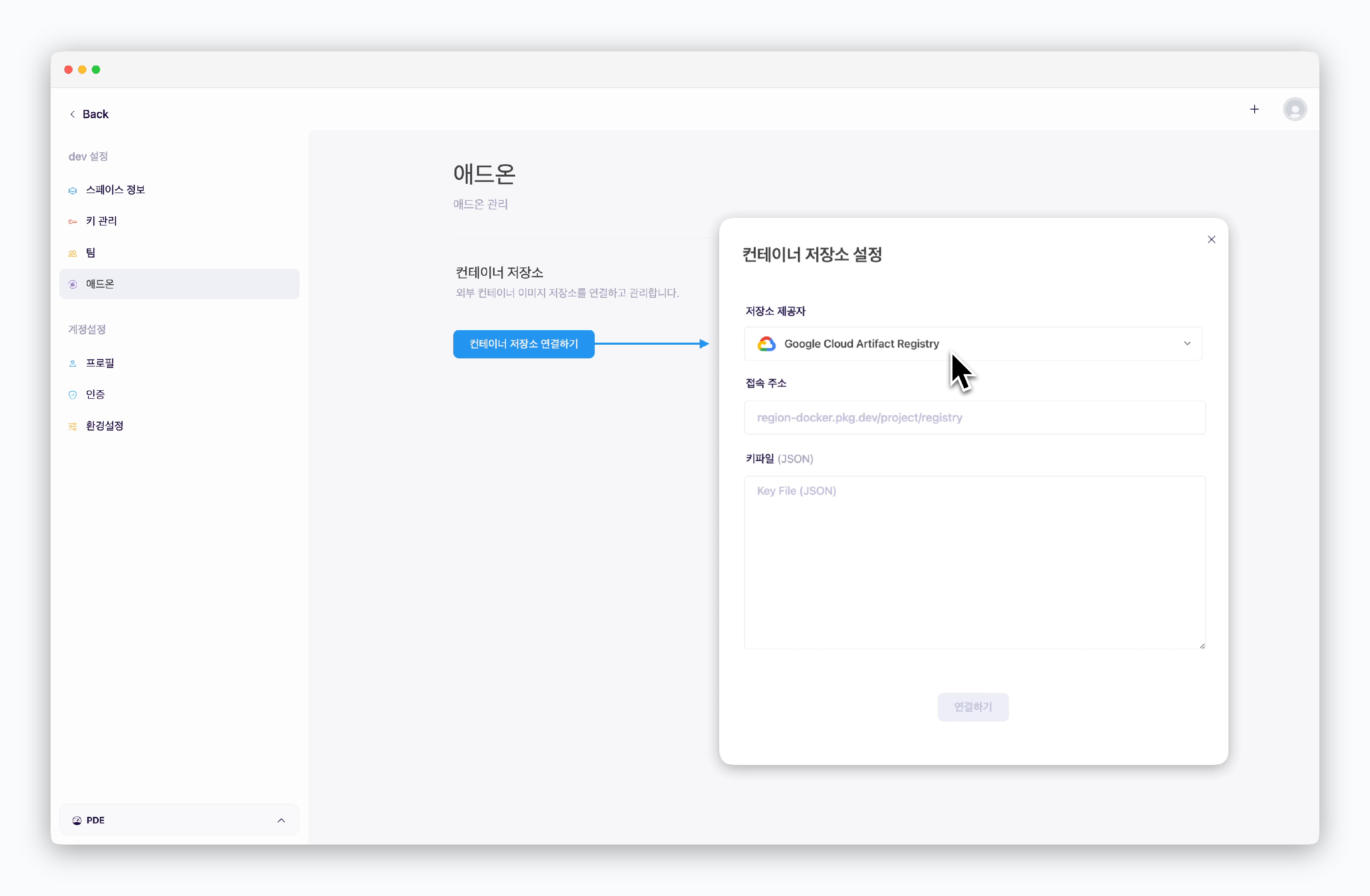 > In the space settings' add-on page, click `Connect Container Registry`. In the **Container Registry Settings** modal, enter the following values and click `Connect` to establish connection with **Google Cloud Artifact Registry**:
* **Registry Provider**: Google Cloud Artifact Registry
* **Registry URL**: The URL obtained after creating the repository
* **Key File(JSON)**: Contents of the JSON key file
### Generate Docker Hub Access Token
> In the space settings' add-on page, click `Connect Container Registry`. In the **Container Registry Settings** modal, enter the following values and click `Connect` to establish connection with **Google Cloud Artifact Registry**:
* **Registry Provider**: Google Cloud Artifact Registry
* **Registry URL**: The URL obtained after creating the repository
* **Key File(JSON)**: Contents of the JSON key file
### Generate Docker Hub Access Token
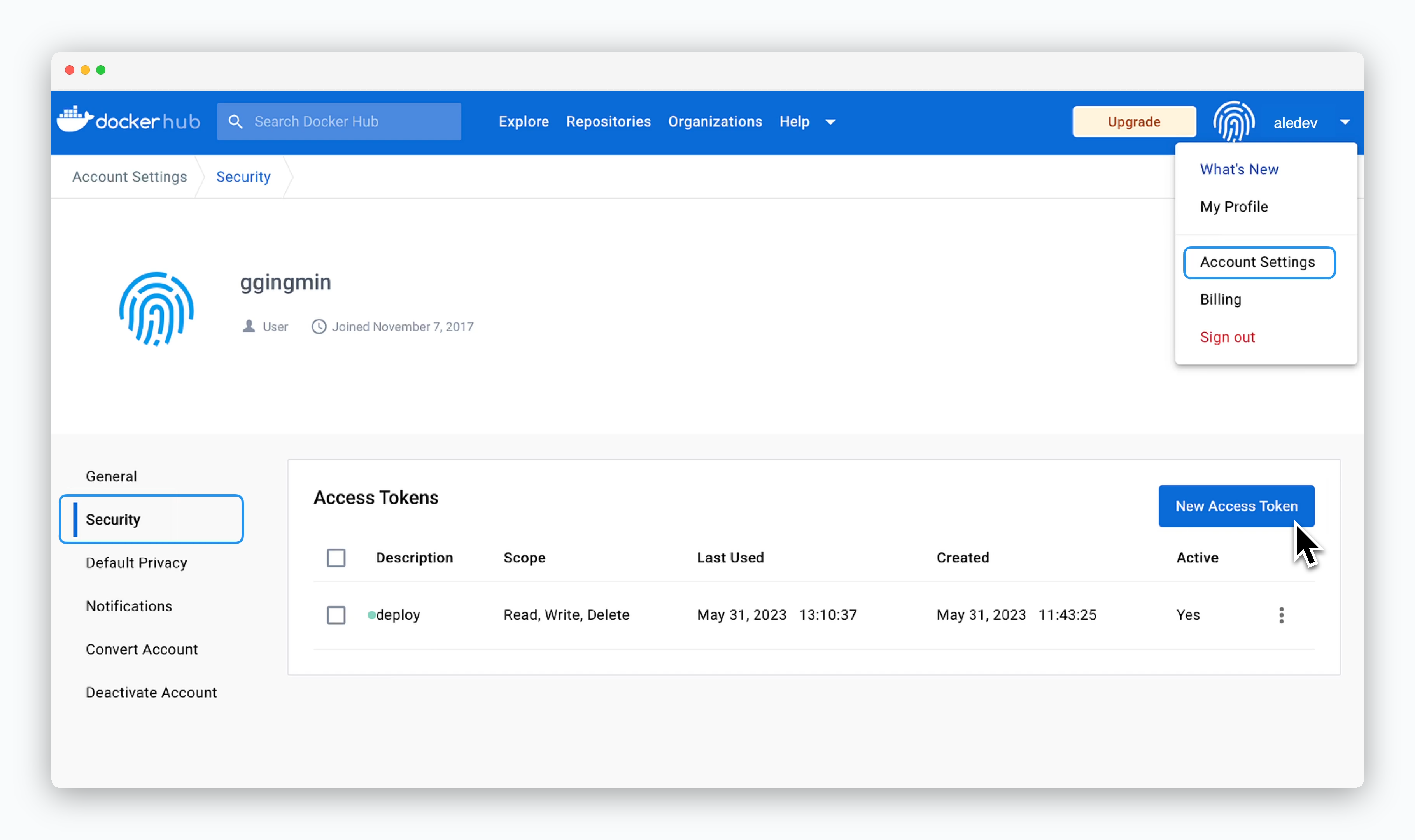 > Create a Docker Hub account, then click your account name in the top right corner.
> Navigate to **Account Settings > Security** and click `New Access Token`.
### Grant Permissions and Generate Token
> Create a Docker Hub account, then click your account name in the top right corner.
> Navigate to **Account Settings > Security** and click `New Access Token`.
### Grant Permissions and Generate Token
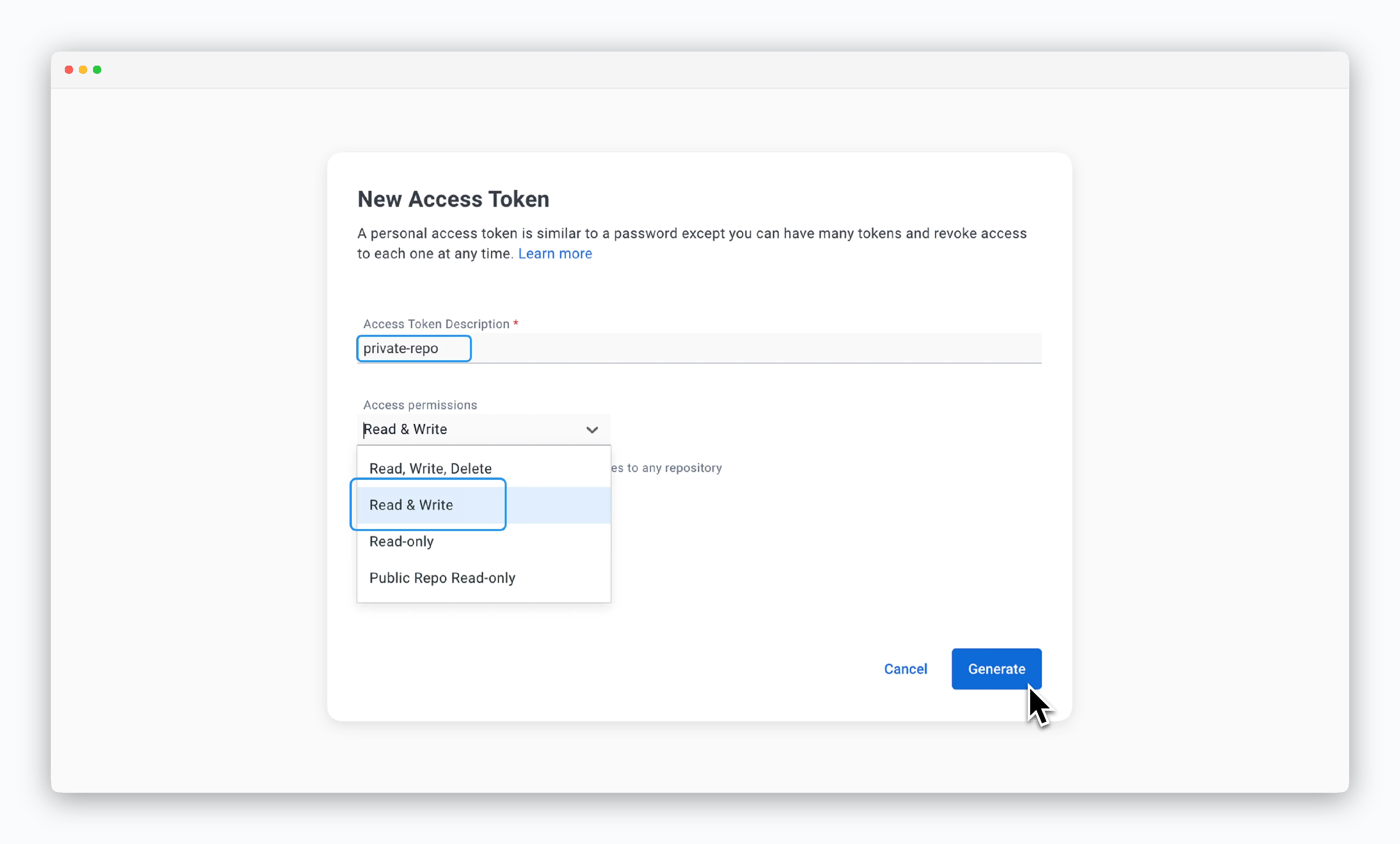 > Enter a descriptive name in the Access Token Description field to identify the token's purpose or role, and select **Read & Write** for Access permissions.
> Note that the generated token can only be viewed once upon creation.
### Connect to ale
> Enter a descriptive name in the Access Token Description field to identify the token's purpose or role, and select **Read & Write** for Access permissions.
> Note that the generated token can only be viewed once upon creation.
### Connect to ale
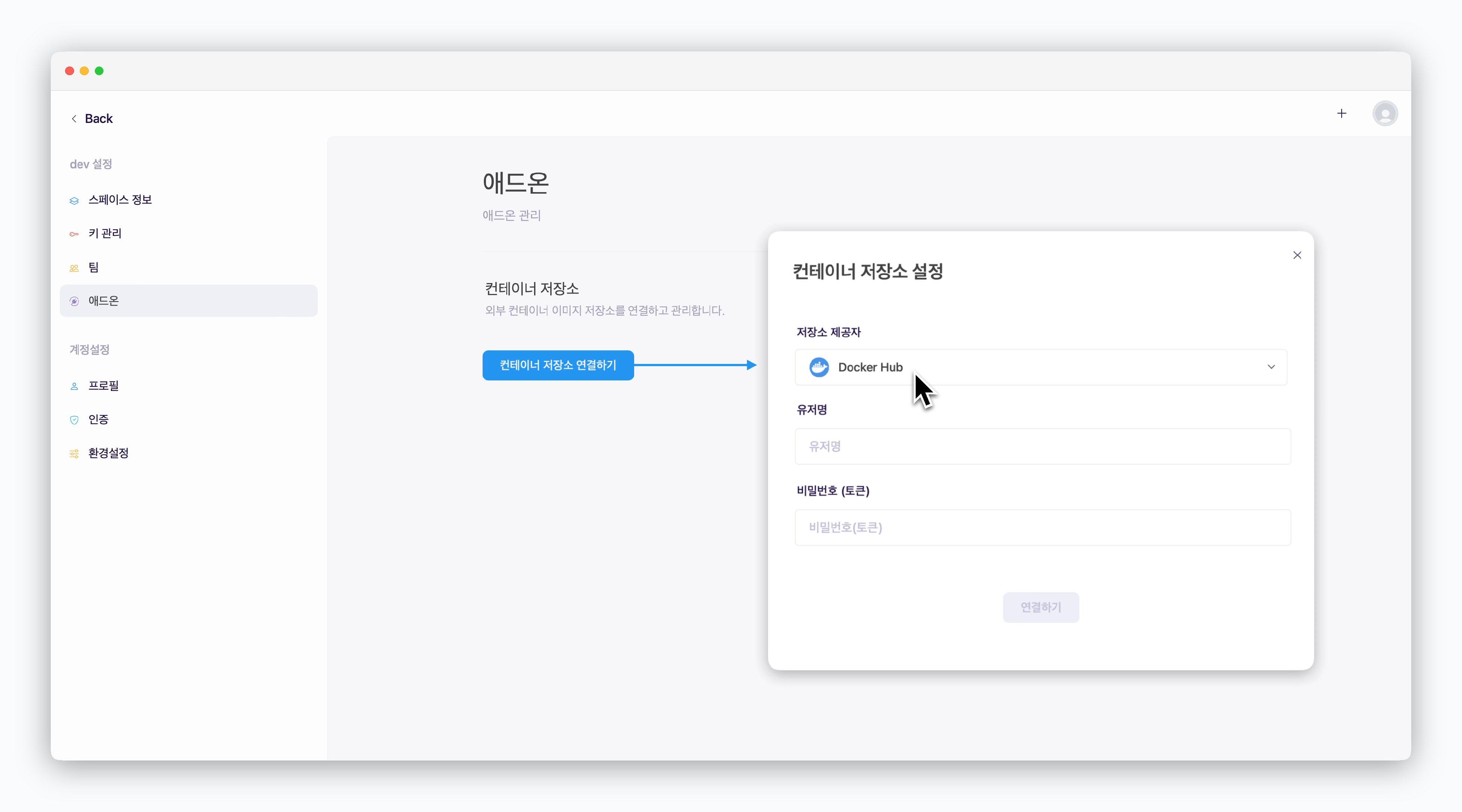 > In the space settings' add-on page, click `Connect Container Registry`. In the **Container Registry Settings** modal, enter the following values and click `Connect` to establish connection with **Docker Hub**:
* **Registry Provider**: Docker Hub
* **Username**: Your Docker Hub ID
* **Password(Token)**: Docker Hub Access Token
## Deploy Images
> In the space settings' add-on page, click `Connect Container Registry`. In the **Container Registry Settings** modal, enter the following values and click `Connect` to establish connection with **Docker Hub**:
* **Registry Provider**: Docker Hub
* **Username**: Your Docker Hub ID
* **Password(Token)**: Docker Hub Access Token
## Deploy Images
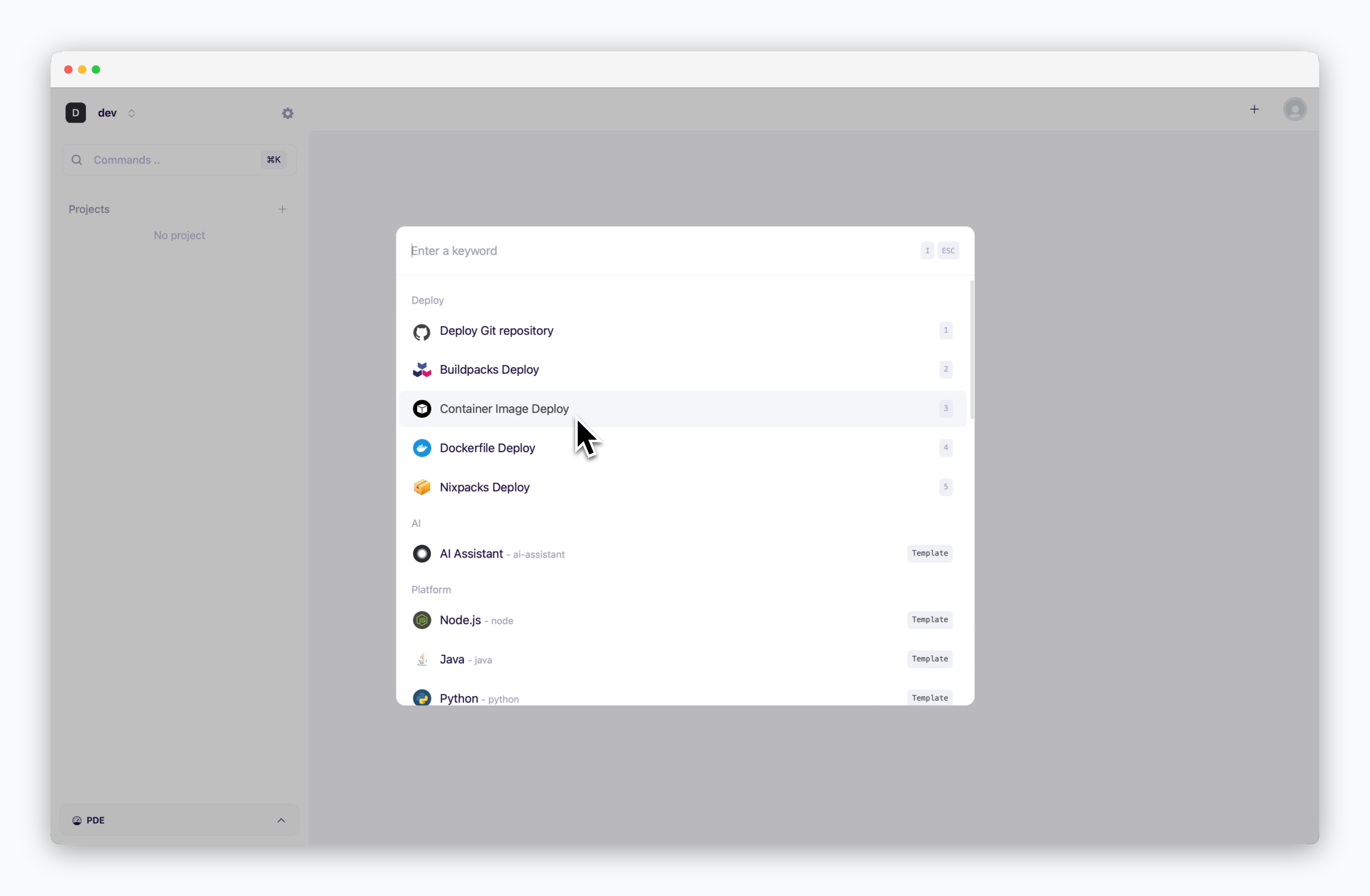 > You can deploy custom images by selecting the Container template in the deployment modal, accessed via or `⌘ + K` in the dashboard, and entering the required configuration values.
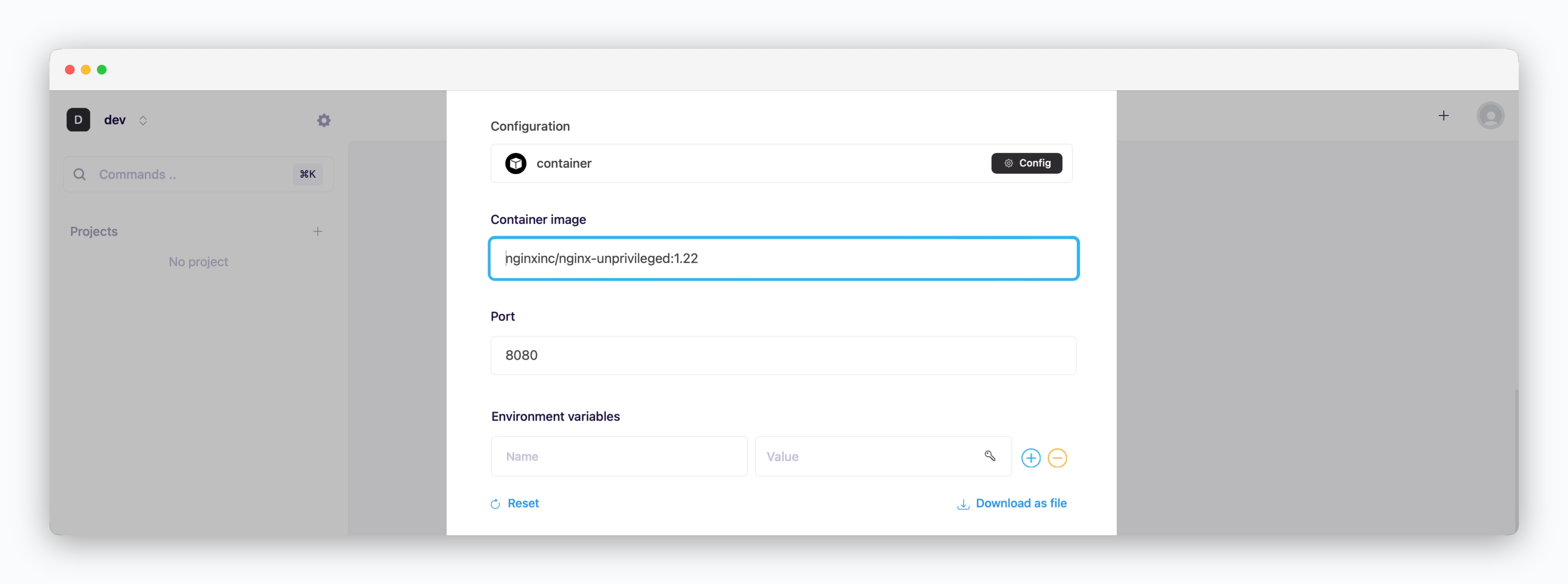 > Enter the image URL and tag of your image from the connected registry.
> Enter the settings for image deployment.
> Enter the image URL and tag of your image from the connected registry.
> Enter the settings for image deployment.
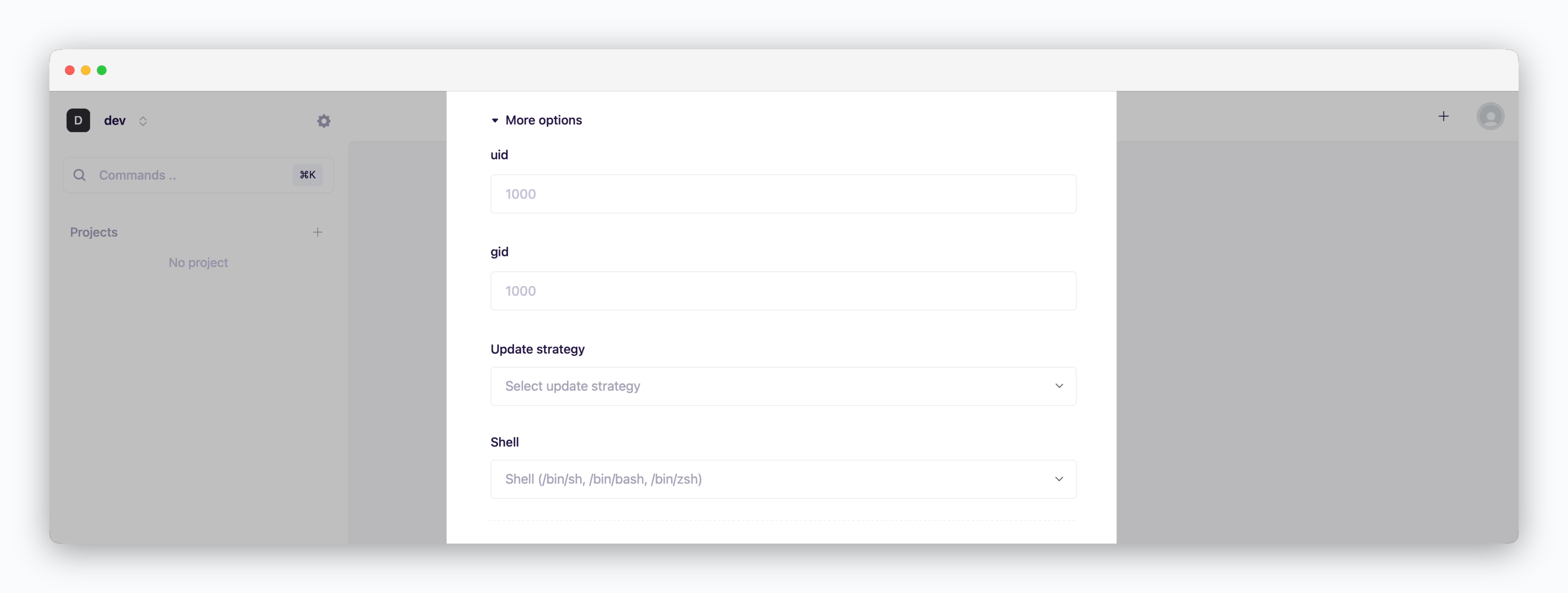 * **uid**: User ID for executing processes within the container (default: 1000)
* **gid**: Group ID for process ownership within the container (default: 1000)
* **Update strategy**
* **Rolling Update**: Deploy new version incrementally while maintaining service availability. Requires sufficient node resources
* **Recreate**: Stop all instances before deploying new version. Results in downtime
* **Shell**: Specify the shell for container runtime execution (sh, bash, zsh, etc.)
* **uid**: User ID for executing processes within the container (default: 1000)
* **gid**: Group ID for process ownership within the container (default: 1000)
* **Update strategy**
* **Rolling Update**: Deploy new version incrementally while maintaining service availability. Requires sufficient node resources
* **Recreate**: Stop all instances before deploying new version. Results in downtime
* **Shell**: Specify the shell for container runtime execution (sh, bash, zsh, etc.)
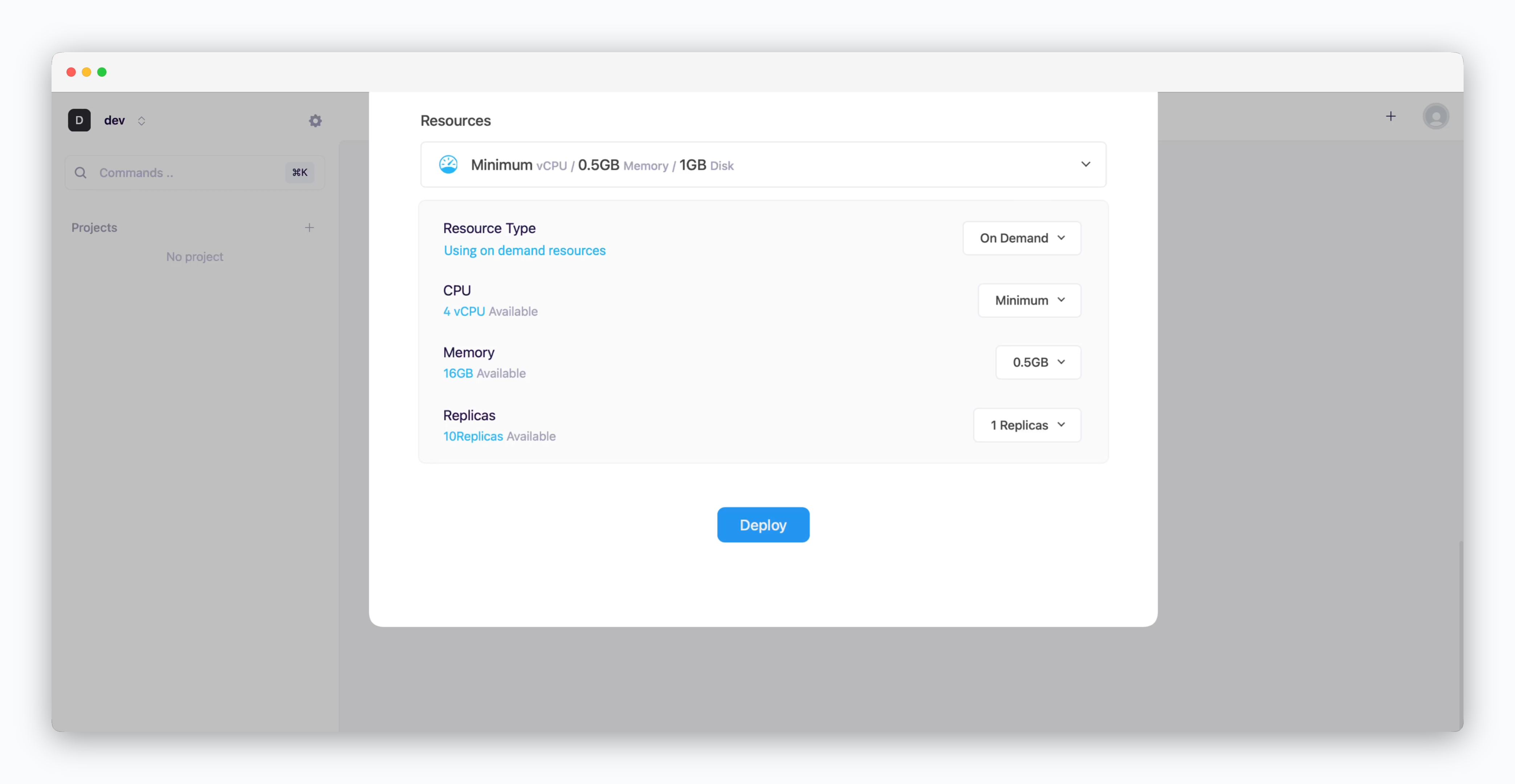 * **Resource Type**: Select between [On-demand or Spot instance types](/en/developers/resource#on-demand-spot)
* **CPU**: Maximum vCPU resource for the service. Minimum vCPU means 0.1 vCPU
* **Memory**: Maximum memory size your service can use
* [Replica](/en/developers/replica): Number of service replicas for high availability and load balancing
* **Deploy**: Click `Deploy`
If deployment fails due to resource limitations, see [the Space and Resource Management page](/en/operations/spaces#allocate-resources) to add resources to your space.
* **Resource Type**: Select between [On-demand or Spot instance types](/en/developers/resource#on-demand-spot)
* **CPU**: Maximum vCPU resource for the service. Minimum vCPU means 0.1 vCPU
* **Memory**: Maximum memory size your service can use
* [Replica](/en/developers/replica): Number of service replicas for high availability and load balancing
* **Deploy**: Click `Deploy`
If deployment fails due to resource limitations, see [the Space and Resource Management page](/en/operations/spaces#allocate-resources) to add resources to your space.