> ## Documentation Index
> Fetch the complete documentation index at: https://docs.ale.run/llms.txt
> Use this file to discover all available pages before exploring further.
# Resources
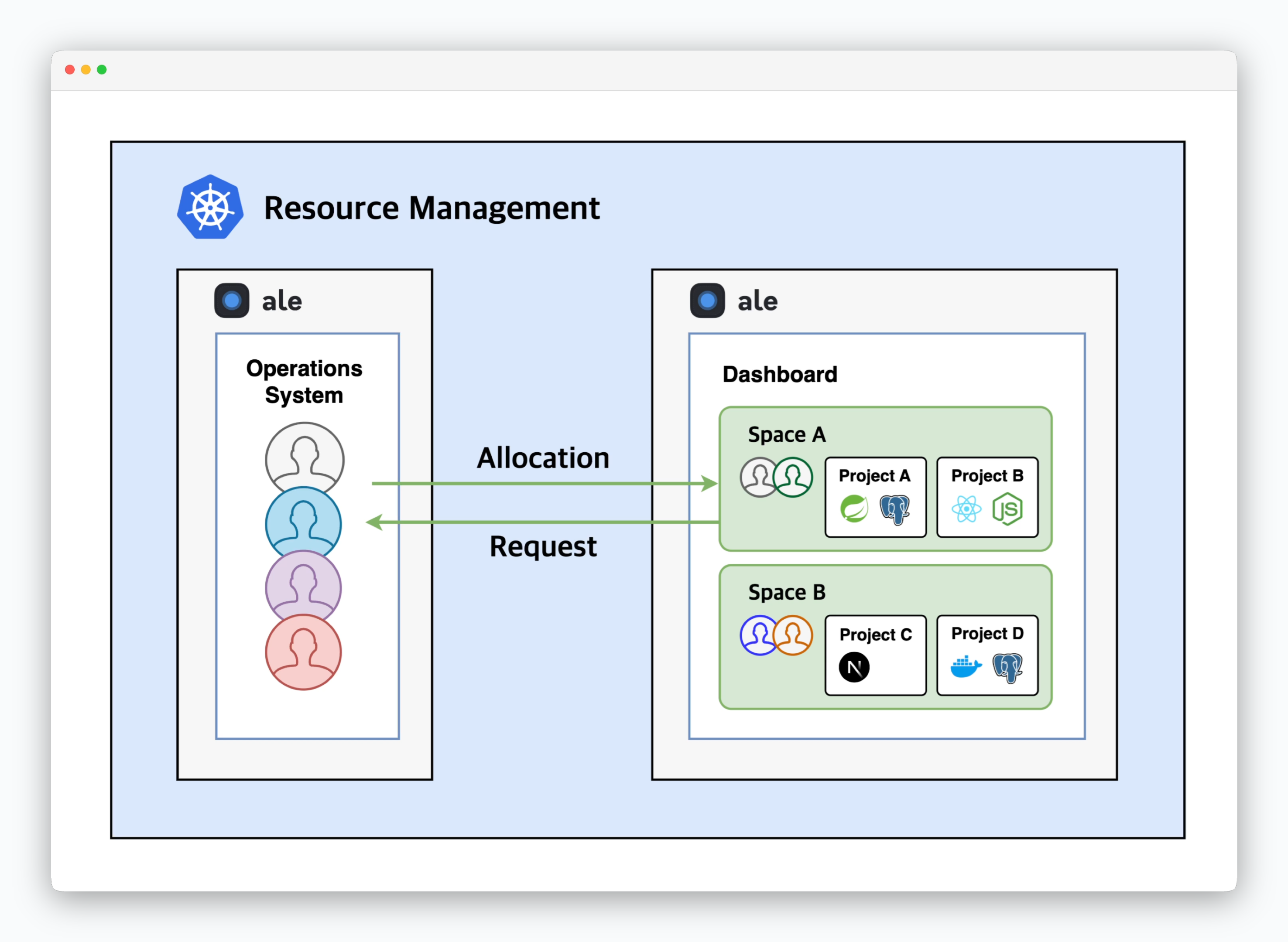
> In `ale`, resources are allocated per space through the operations system and are used for deploying services within that space. Space owners can invite team members and use allocated resources across multiple projects.
Resources allocated to a space represent the total resource limits `resource.limits` assignable to services, not the actual resource consumption. You can monitor real-time resource usage in the workload tab of the service page.
 For more details on resource allocation, see the [Space and Resource Management page.](/en/operations/spaces#allocate-resources)
***
## Resources Overview
For more details on resource allocation, see the [Space and Resource Management page.](/en/operations/spaces#allocate-resources)
***
## Resources Overview
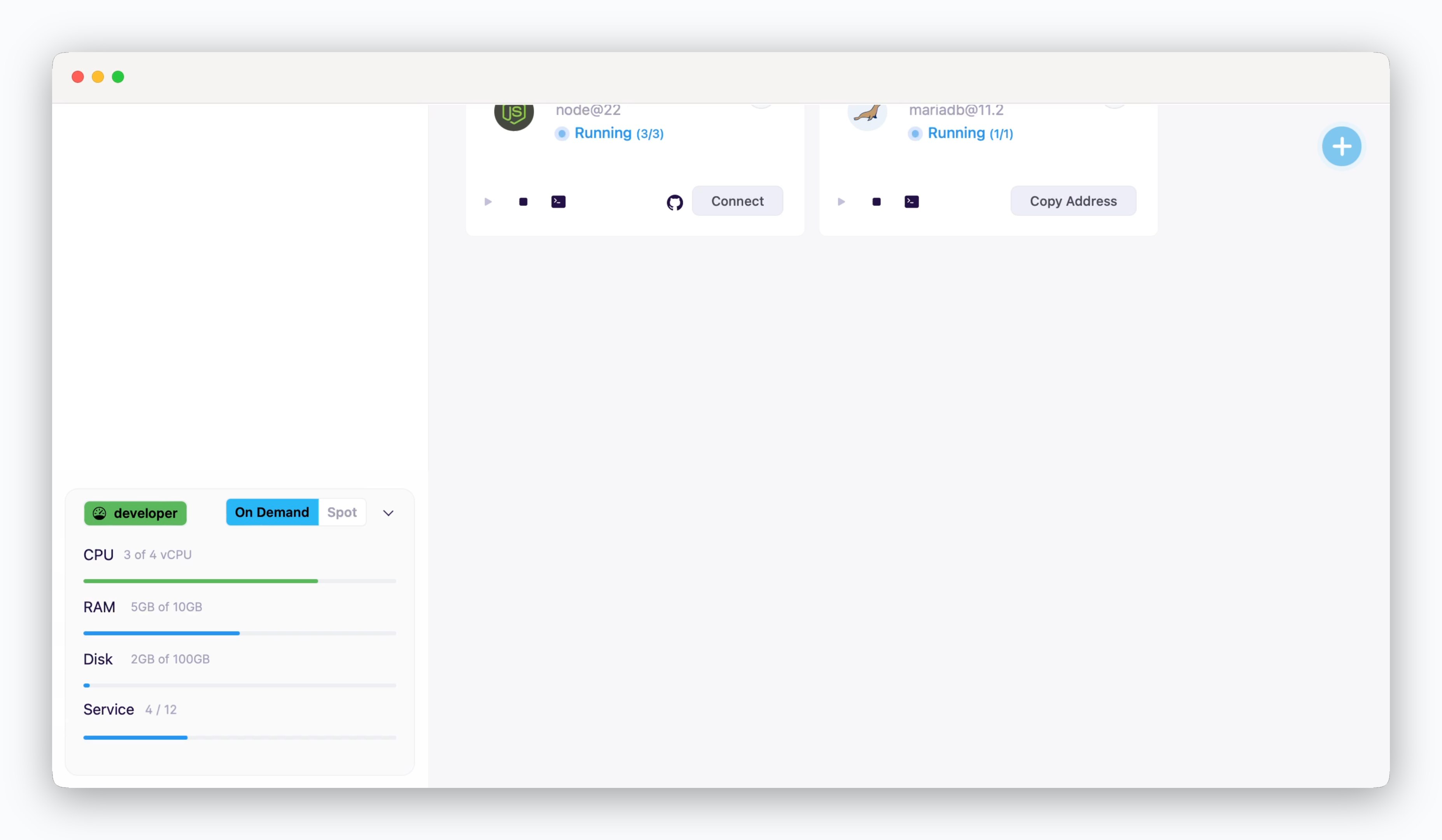 > You can check the `usage / quota` information of resources by VM type for the space in the lower left corner of the dashboard.
* Profiles are predefined names (like `default`, `developer`, etc.) for commonly used resource sets, which are [configured in advance through the operations system.](/en/operations/settings#resource-profile-management)
* During the deployment settings, you can select the type of resources (On-demand / Spot) to deploy your service. [You can remove all services deployed with spot resources through the operations system,](/en/operations/spaces#bulk-remove-spot-resources) enabling cost-effective resource management.
The operations system can [specify the VM type of worker nodes according to the resource type.](/en/operations/spaces#manually-allocate-resources)
* Displays the total resources allocated to all services in the Running state, along with the total CPU/Memory/Disk resources allocated to the space.
* Displays the total number of services in `Running` state and the sum of [replicas](/en/developers/replica).
## Initial Configuration
> You can check the `usage / quota` information of resources by VM type for the space in the lower left corner of the dashboard.
* Profiles are predefined names (like `default`, `developer`, etc.) for commonly used resource sets, which are [configured in advance through the operations system.](/en/operations/settings#resource-profile-management)
* During the deployment settings, you can select the type of resources (On-demand / Spot) to deploy your service. [You can remove all services deployed with spot resources through the operations system,](/en/operations/spaces#bulk-remove-spot-resources) enabling cost-effective resource management.
The operations system can [specify the VM type of worker nodes according to the resource type.](/en/operations/spaces#manually-allocate-resources)
* Displays the total resources allocated to all services in the Running state, along with the total CPU/Memory/Disk resources allocated to the space.
* Displays the total number of services in `Running` state and the sum of [replicas](/en/developers/replica).
## Initial Configuration
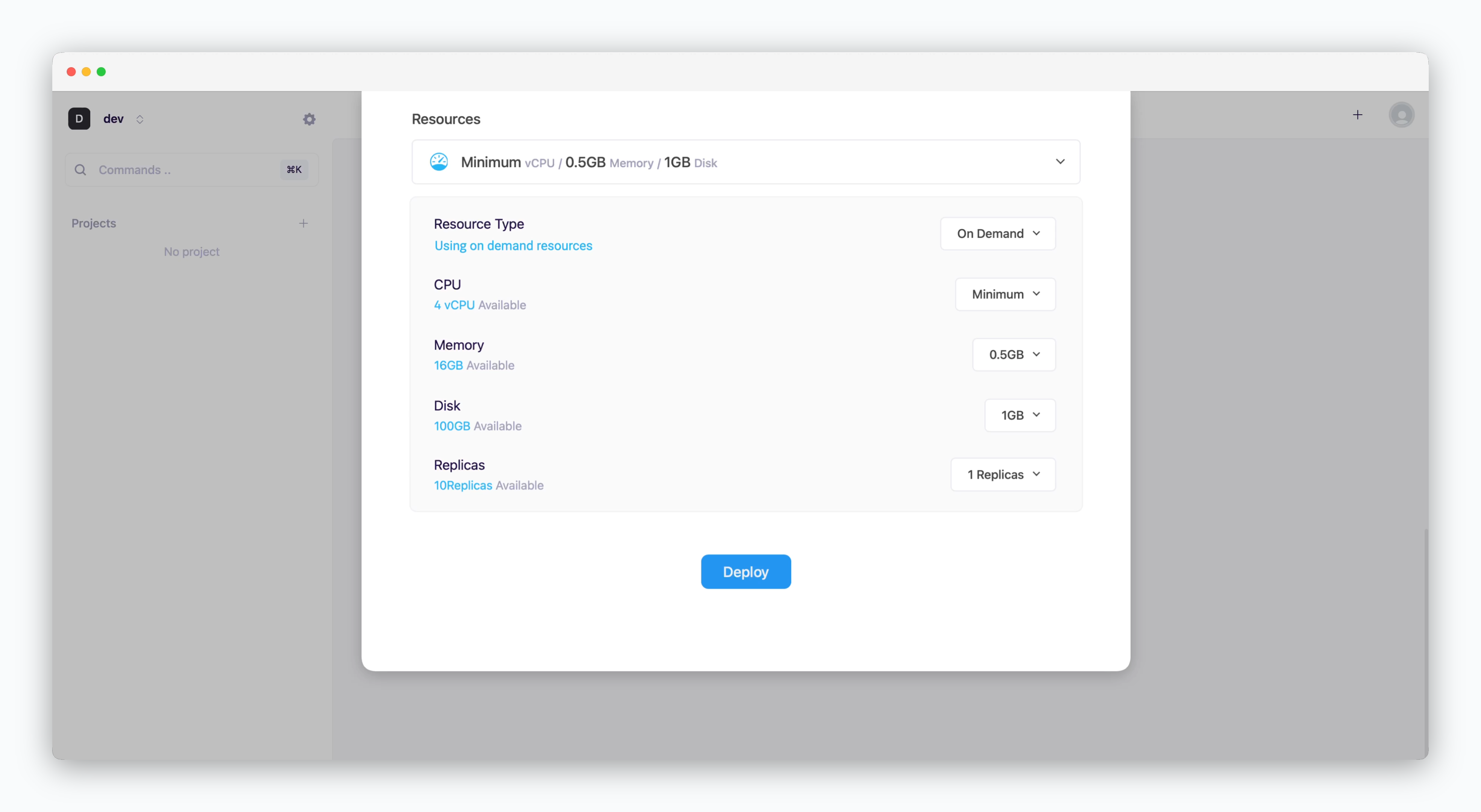 > Resources are configured in the deployment modal during initial service deployment.
* **Resource Type**: Select between [On-demand or Spot instance types](/en/developers/resource#on-demand-spot)
* **CPU**: Maximum vCPU resource for the service. Minimum vCPU means 0.1 vCPU
* **Memory**: Maximum memory size the service can use
* **Disk**: Database disk capacity (Available for database services only)
* [Replica](/en/developers/replica): Number of service replicas for high availability and load balancing
## Resource Scaling
> Resources are configured in the deployment modal during initial service deployment.
* **Resource Type**: Select between [On-demand or Spot instance types](/en/developers/resource#on-demand-spot)
* **CPU**: Maximum vCPU resource for the service. Minimum vCPU means 0.1 vCPU
* **Memory**: Maximum memory size the service can use
* **Disk**: Database disk capacity (Available for database services only)
* [Replica](/en/developers/replica): Number of service replicas for high availability and load balancing
## Resource Scaling
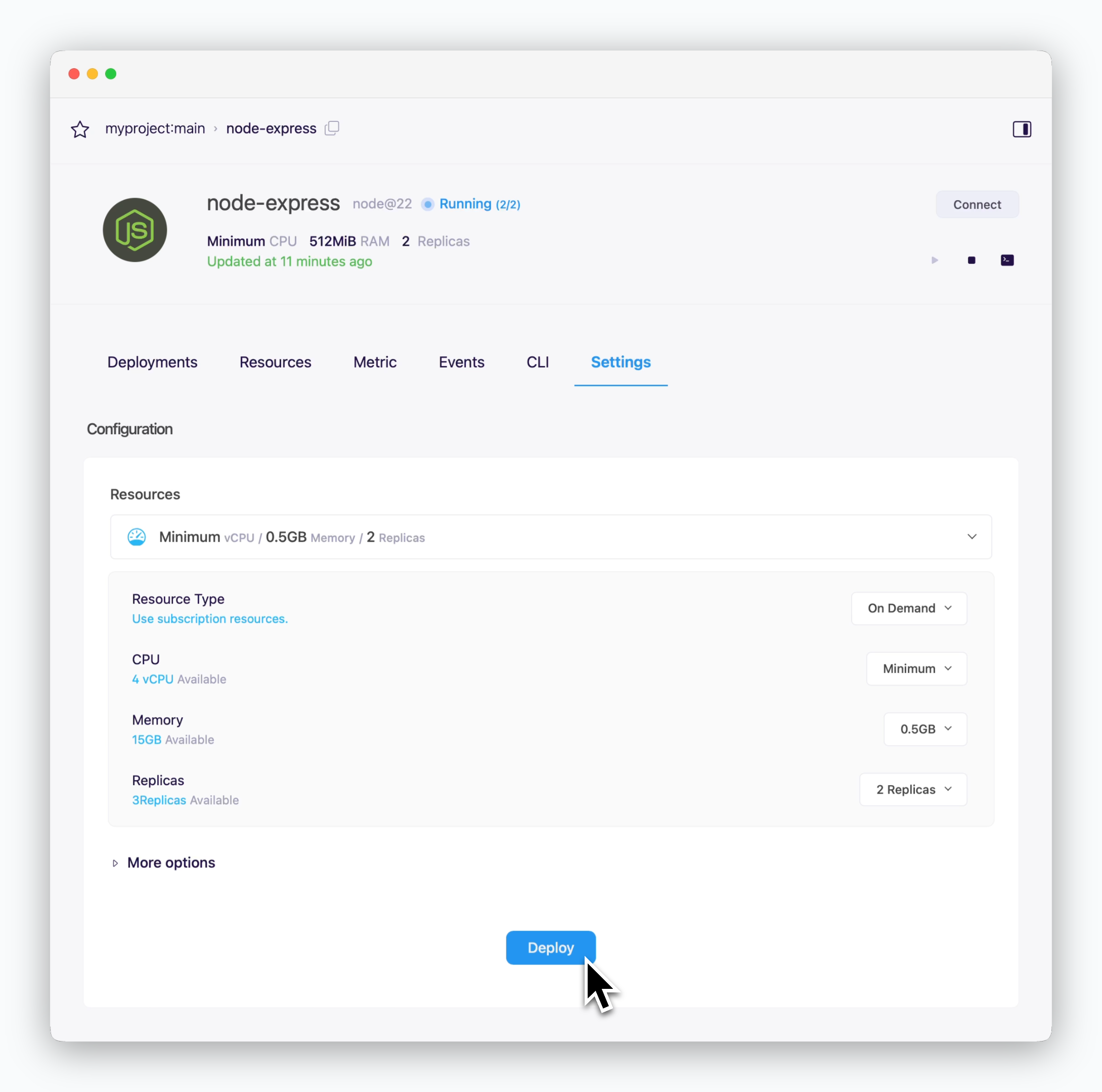 > To adjust resource allocations for a service, update the resource configuration in the settings tab of the service page and click `Deploy`. The service will be deployed with the updated resource configuration.