> ## Documentation Index
> Fetch the complete documentation index at: https://docs.ale.run/llms.txt
> Use this file to discover all available pages before exploring further.
# Spring Boot (JVM)
> Guide for Spring Boot applications written in Java/Kotlin.
***
## Prerequisites
| Spring Boot Version | Supported JDK Version |
| ------------------- | --------------------- |
| Spring Boot 3.x | JDK 17 or higher |
| Spring Boot 2.x | JDK 8 or higher |
Ensure that the JDK version specified in your project configuration files (e.g., pom.xml, build.gradle) matches the version selected during deployment. A mismatch may cause build errors.
By default, JAR artifacts and scripts are supported. For WAR files, only Executable WAR is supported.
## Select Template and Repository
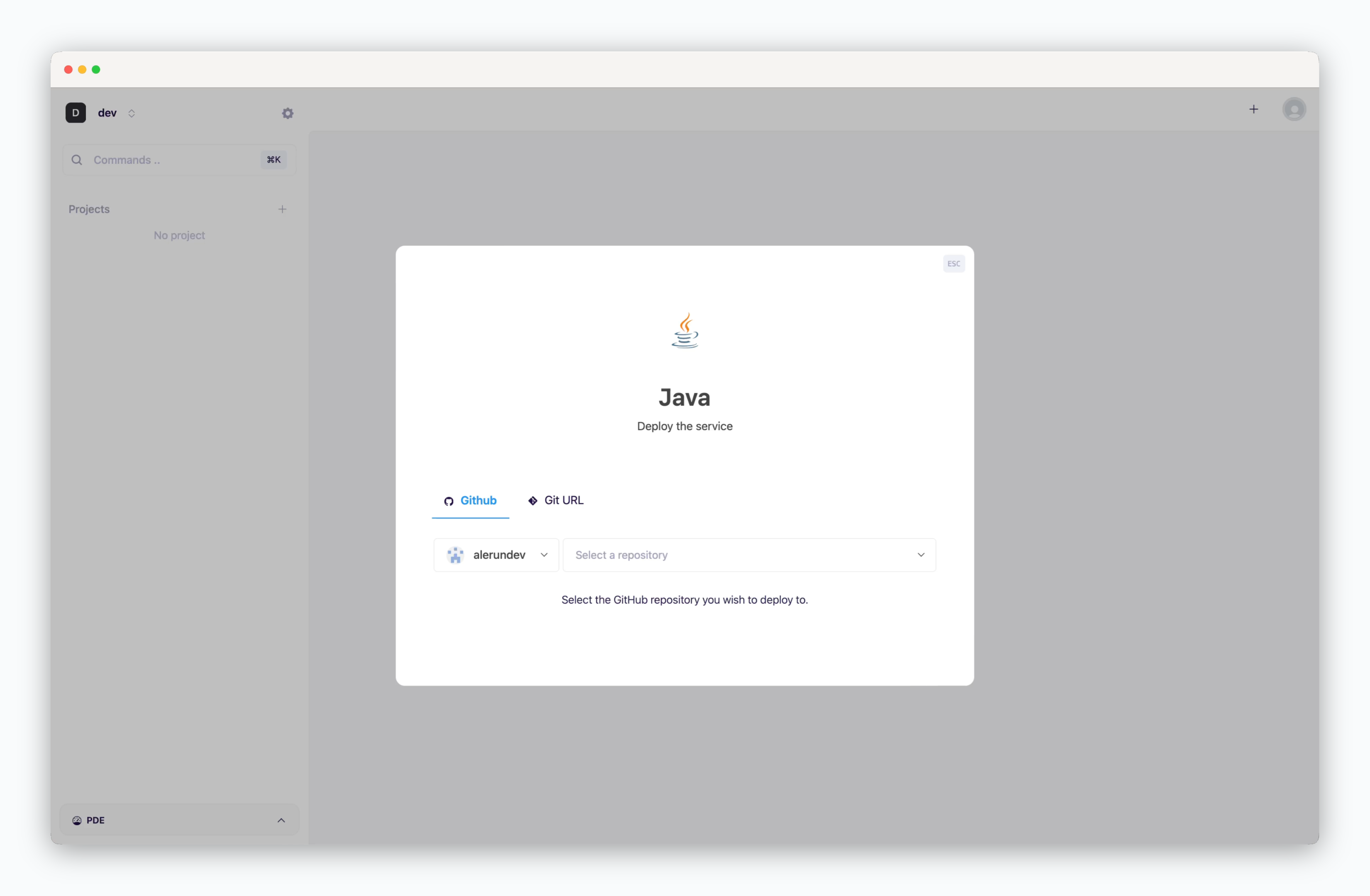
> On the dashboard, click or `⌘ + K` to open the deployment modal and select the Java template. Then choose a GitHub repository from the dropdown or [input a Git repository URL in the Git URL tab](/en/developers/private-repo).
## Deployment Settings
> Apply the following settings to ensure your service runs seamlessly.
* **Version**
* [Environment Variables](/en/developers/env)
* [Port Number](/en/developers/port)
* **Start Command**
* [Health Check](/en/developers/zero-downtime-deployment)
* **Build Variables**: Variables to include during container image builds
* **Embedded Node.js**: Node.js version required for builds within the project
* **Pre-built jar file path**: Path to a pre-built jar file already present in the repository
* **Build Command**: Gradle/Maven build command
* **Include files in build**: Files or directories to include during the build
* **Update strategy**
* **Rolling Update**: Deploy new version incrementally while maintaining service availability. Requires sufficient node resources
* **Recreate**: Stop all instances before deploying new version. Results in downtime
## Set Resources and Deploy
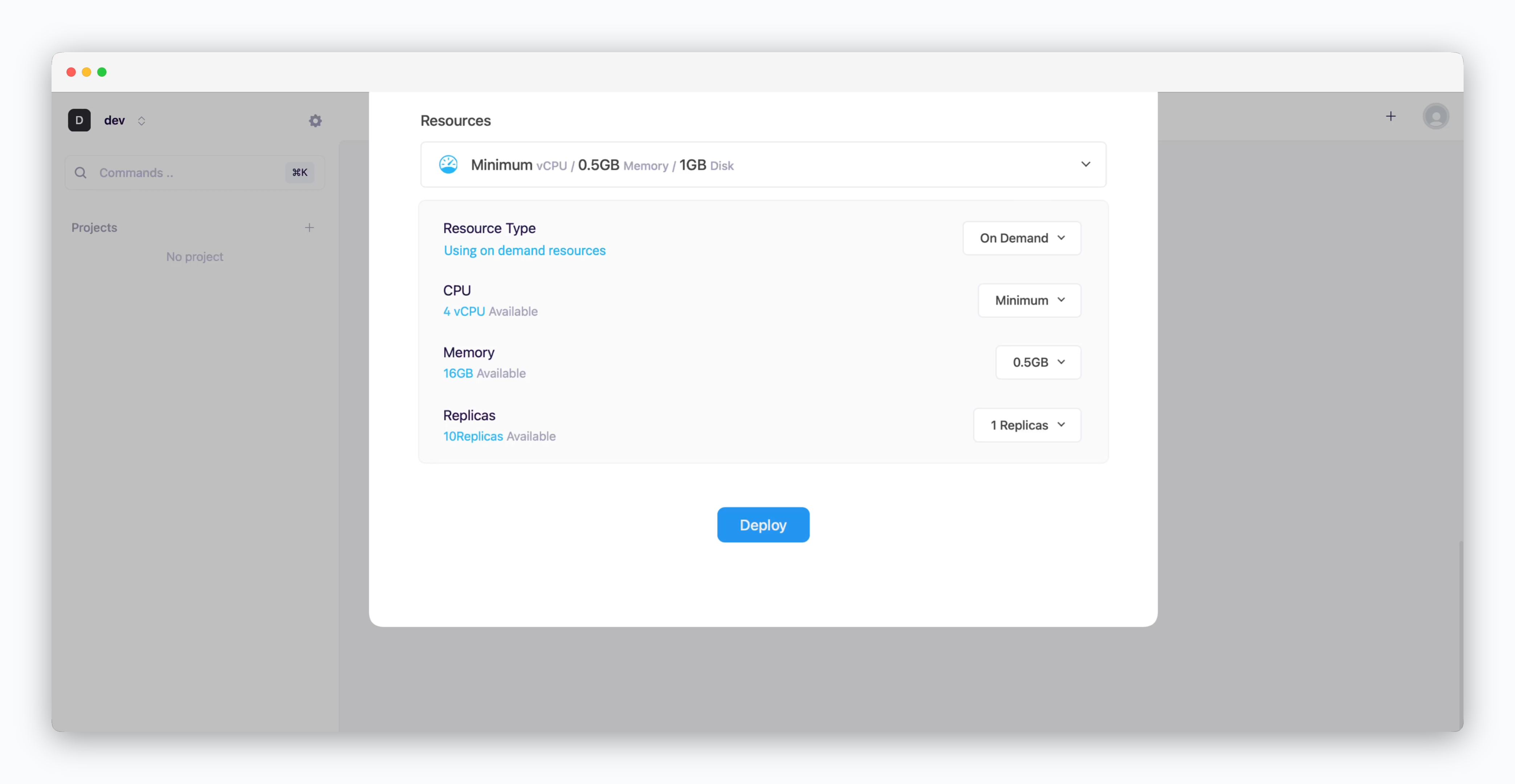
* **Resource Type**: Select between [On-demand or Spot instance types](/en/developers/resource#on-demand-spot)
* **CPU**: Maximum vCPU resource for the service. Minimum vCPU means 0.1 vCPU
* **Memory**: Maximum memory size your service can use
* [Replica](/en/developers/replica): Number of service replicas for high availability and load balancing
* **Deploy**: Click `Deploy`
Once deployment is complete, you can access the web page via the preview domain or send requests using an API tool.
If deployment fails due to resource limitations, see [the Space and Resource Management page](/en/operations/spaces#allocate-resources) to add resources to your space.
## Advanced Settings
### Deploy Jar Files from the Repository
* When deploying a Spring Boot jar file reflected in the repository, specify the jar file path in the **Pre-built jar file path** field of the deployment settings, as per your build tool:
* **Gradle**: `build/libs/[project-name].jar`
* **Maven**: `target/[project-name].jar`
### Include Specific Resource Paths in the Build Process
* When deploying a Spring Boot project via `ale`, files in the `src` directory, except for those defined in `WebProperties.Resources` (e.g., `/static`), are excluded from the build.
If your project references resources from specific paths, include those directories in the **Include files in build** field of the deployment settings. Use commas (`,`) to specify multiple directories.
### Deploy Multi-Module Applications
* Deploying a Spring Boot application composed of multiple modules requires specific configurations. The following example outlines the process:
```plain theme={null}
project-root/
├── build.gradle.kts
├── settings.gradle.kts
├── api/
│ ├── build.gradle.kts
│ └── src/
│ └── main/
│ ├── kotlin/
│ └── resources/
├── core/
│ ├── build.gradle.kts
│ └── src/
│ └── main/
│ ├── kotlin/
│ └── resources/
└── gradle/
└── wrapper/
├── gradle-wrapper.jar
└── gradle-wrapper.properties
```
* Configure the `api` module as the main class and structure as shown.
* After selecting the Spring Boot template, apply the following settings:
* **Start Command**: `java -jar api/build/libs/api-0.0.1-SNAPSHOT.jar`
* Replace `` with the actual module name.
* **Include files in build**: `core,api`
* Separate module directory names with commas.
***
[Spring Boot Docs](https://docs.spring.io/spring-boot/docs/current/reference/html/index.html)
 > On the dashboard, click
  * **Resource Type**: Select between [On-demand or Spot instance types](/en/developers/resource#on-demand-spot)
* **CPU**: Maximum vCPU resource for the service. Minimum vCPU means 0.1 vCPU
* **Memory**: Maximum memory size your service can use
* [Replica](/en/developers/replica): Number of service replicas for high availability and load balancing
* **Deploy**: Click `Deploy`
* **Resource Type**: Select between [On-demand or Spot instance types](/en/developers/resource#on-demand-spot)
* **CPU**: Maximum vCPU resource for the service. Minimum vCPU means 0.1 vCPU
* **Memory**: Maximum memory size your service can use
* [Replica](/en/developers/replica): Number of service replicas for high availability and load balancing
* **Deploy**: Click `Deploy`