> ## Documentation Index
> Fetch the complete documentation index at: https://docs.ale.run/llms.txt
> Use this file to discover all available pages before exploring further.
# Services
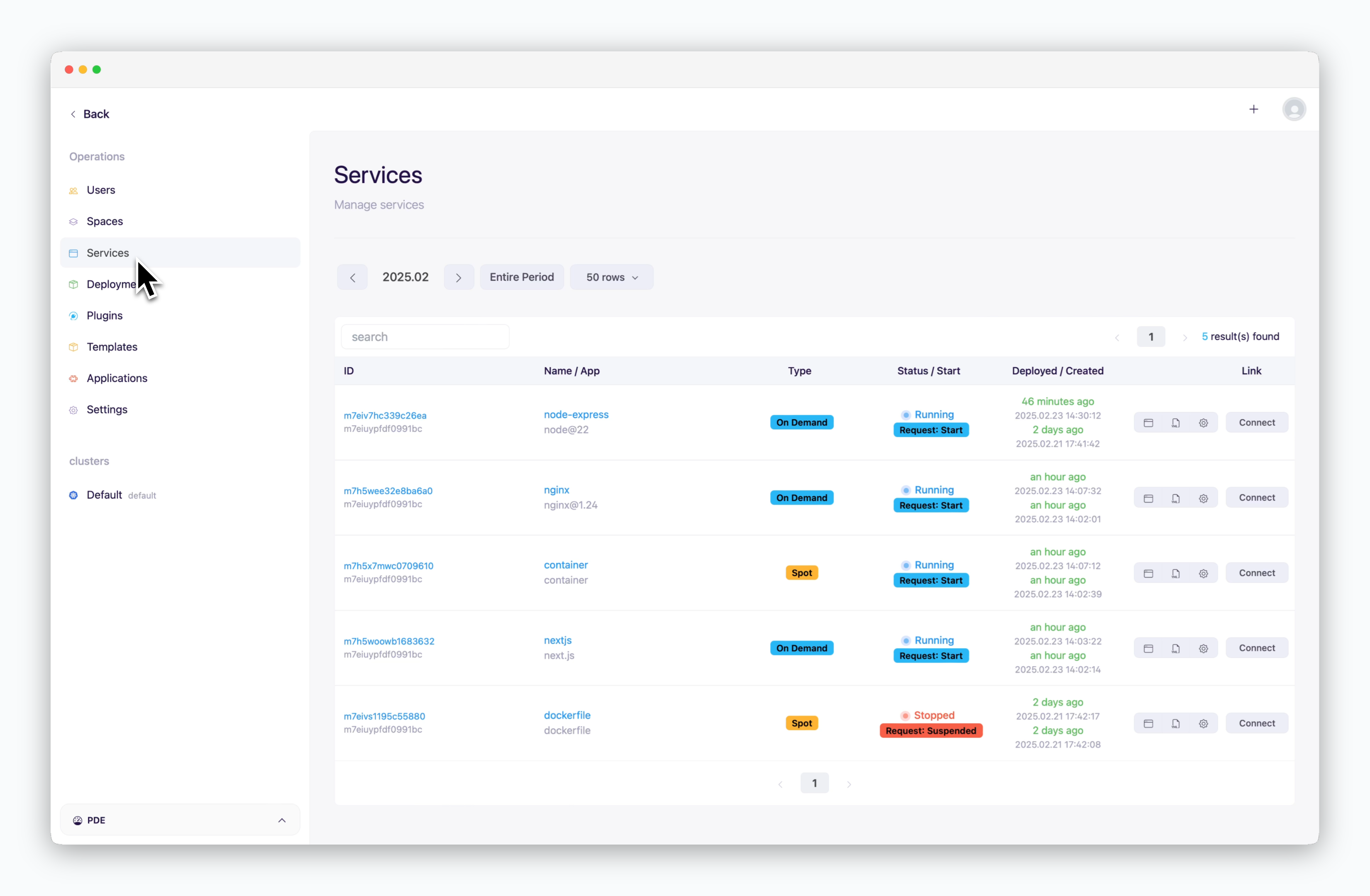
> Services page allows you to view and manage all services deployed through the dashboard.
 ***
## Service Information
***
## Service Information
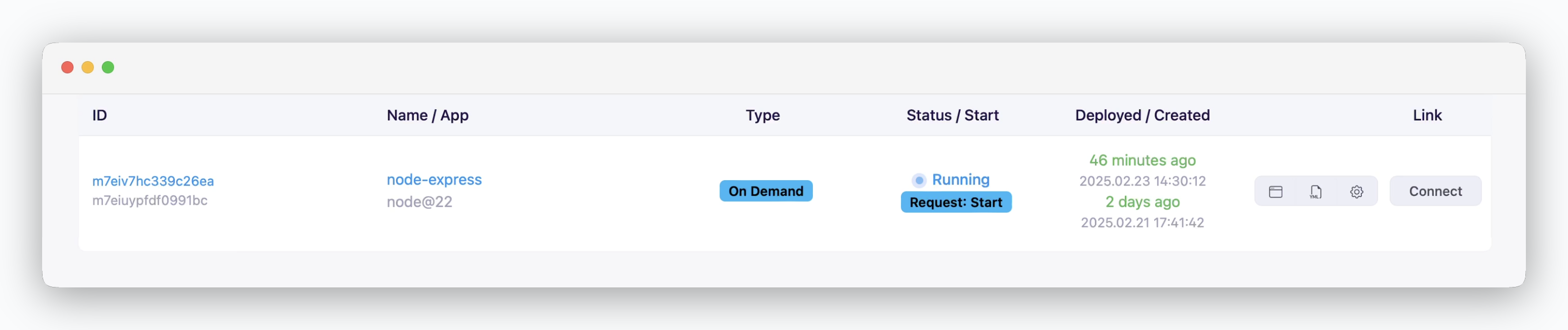 * **ID**: Unique identifier for the service.
* **Service Name / App**: User-defined service name and the language or platform used.
* **Type**: VM type (on-demand or spot).
* **Status**: Current state of the service (e.g., Running, Starting, Stopping, Stopped).
* **Deployed, Created**: Timestamps for when the service was deployed and created.
## Logs and Terminal
* **ID**: Unique identifier for the service.
* **Service Name / App**: User-defined service name and the language or platform used.
* **Type**: VM type (on-demand or spot).
* **Status**: Current state of the service (e.g., Running, Starting, Stopping, Stopped).
* **Deployed, Created**: Timestamps for when the service was deployed and created.
## Logs and Terminal
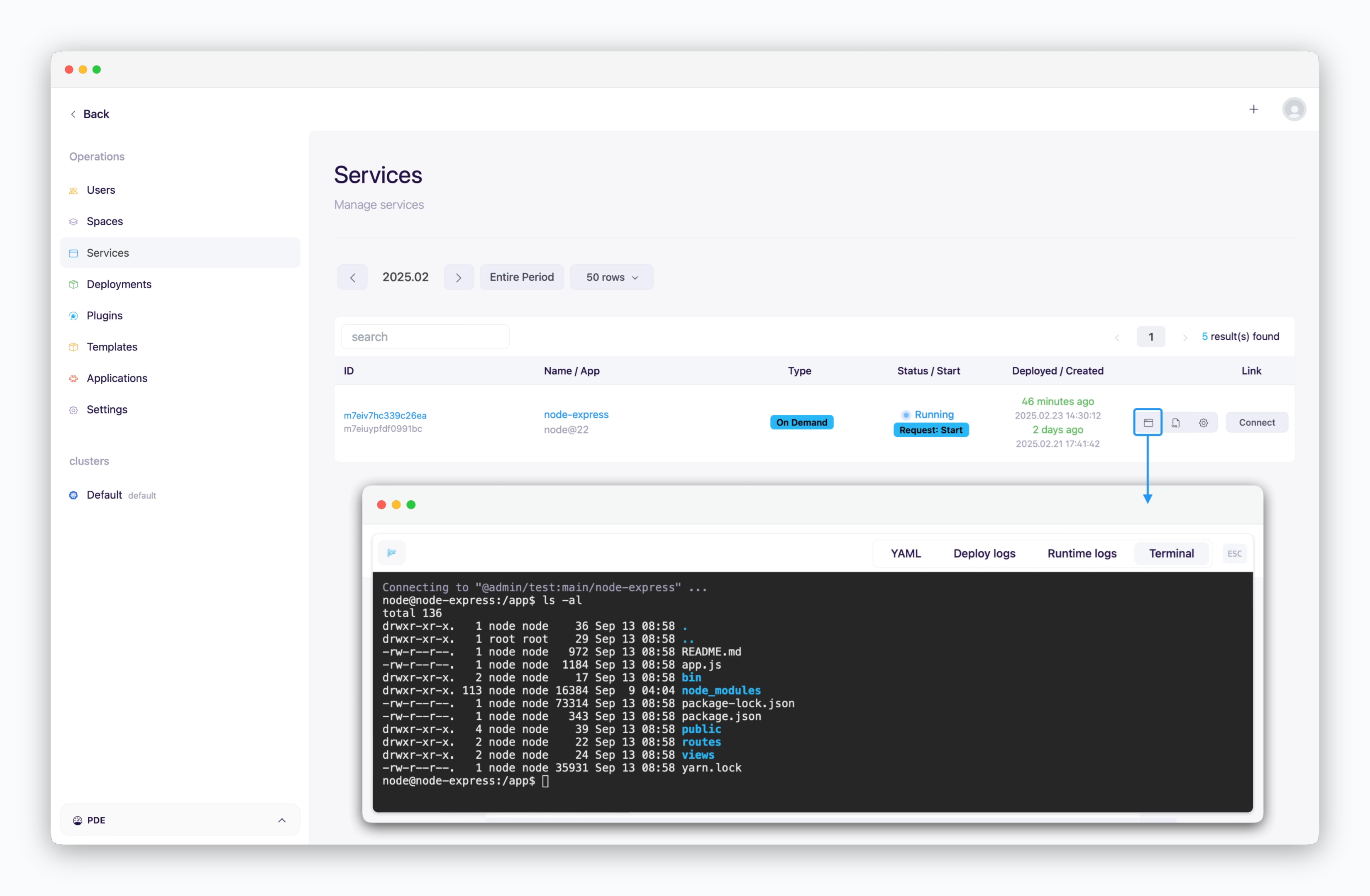 > Click the icon on the right side of the service list to check deploy logs, runtime logs, or access the terminal.
## Dashboard Access
> Click the icon on the right side of the service list to check deploy logs, runtime logs, or access the terminal.
## Dashboard Access
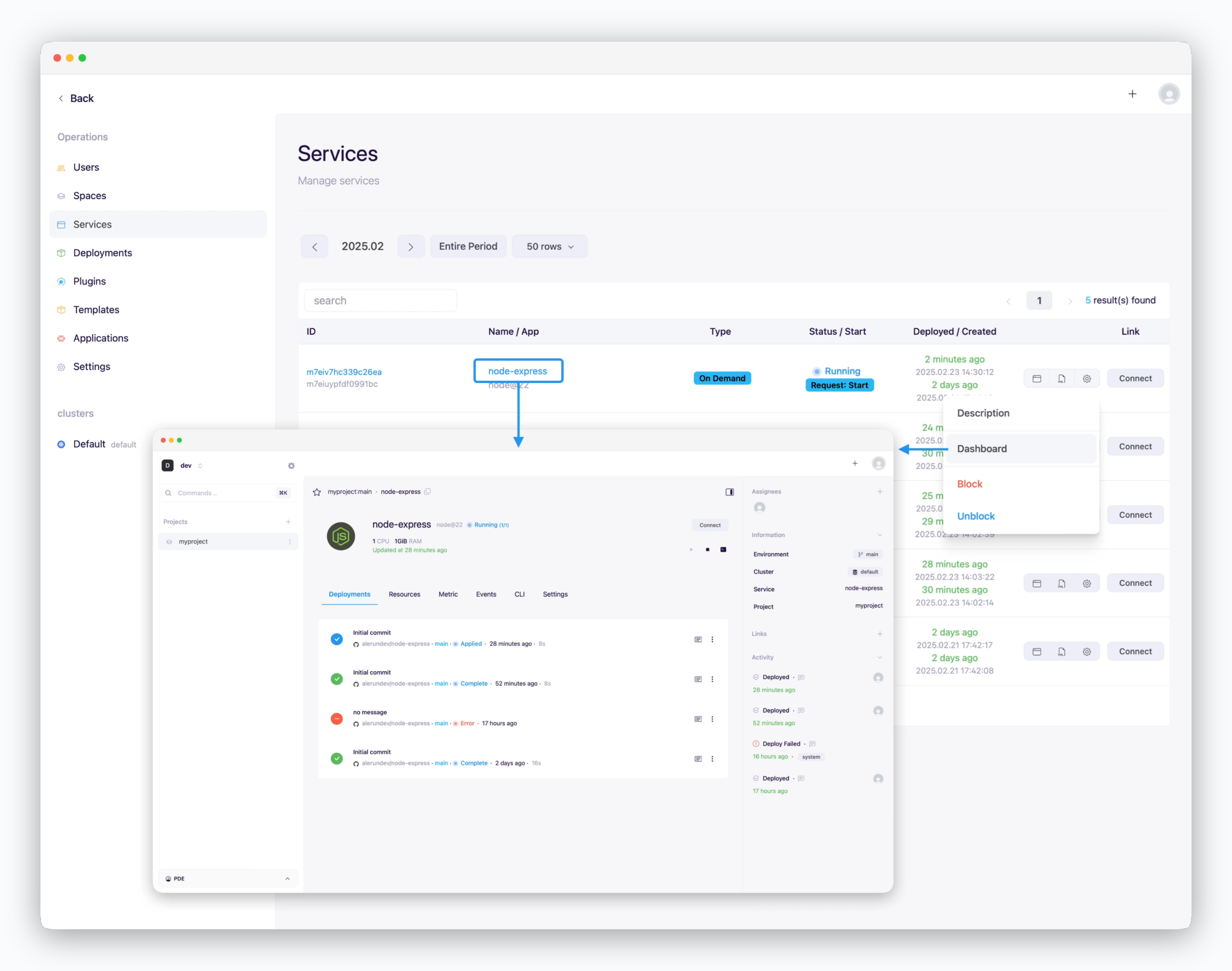 > Click the service name or the icon on the right and select **Dashboard** to access the service's dashboard.
For databases, you can copy the connection information (hostname:port) required to communicate with other services.
## Preview URL Access
> Click the service name or the icon on the right and select **Dashboard** to access the service's dashboard.
For databases, you can copy the connection information (hostname:port) required to communicate with other services.
## Preview URL Access
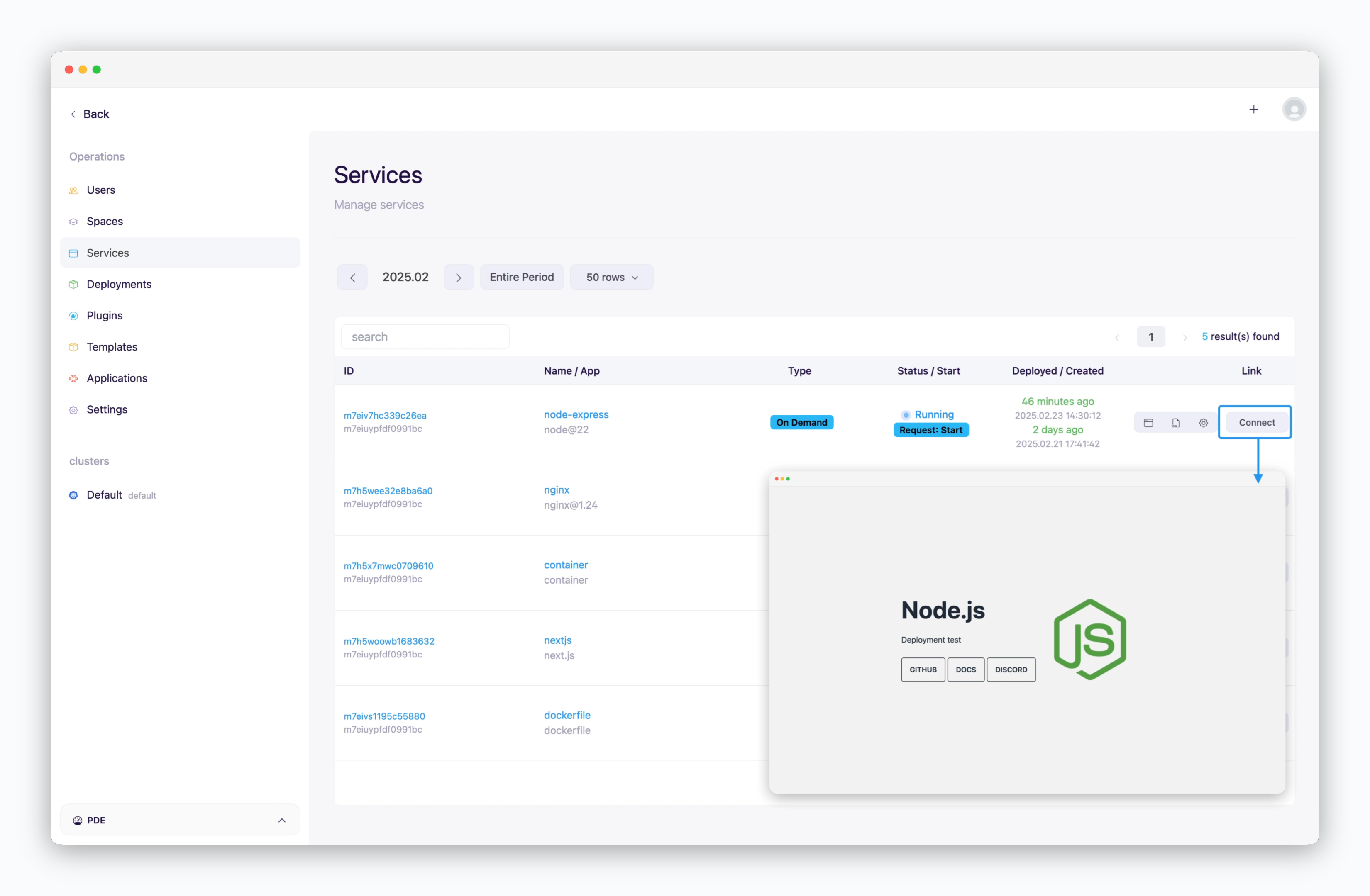 > Click `Connect` on the right to access the service's preview domain in your browser.
## Service Block
> Click `Connect` on the right to access the service's preview domain in your browser.
## Service Block
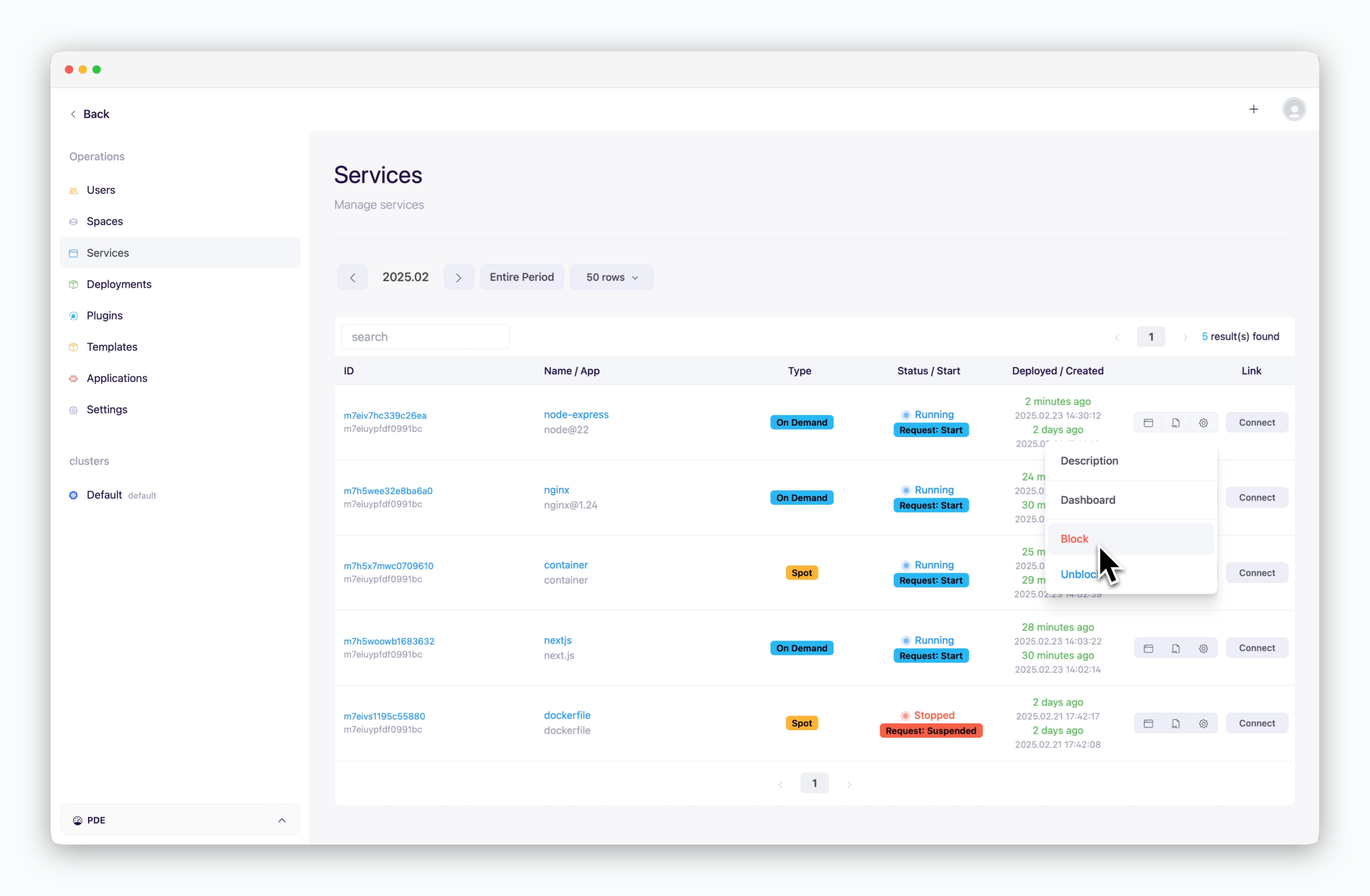 > Click the icon on the right of the target service and select **Block** to block the service.
Blocked services are immediately stopped and cannot be restarted from the dashboard. You need to unblock them to restart.
> Click the icon on the right of the target service and select **Block** to block the service.
Blocked services are immediately stopped and cannot be restarted from the dashboard. You need to unblock them to restart.