> ## Documentation Index
> Fetch the complete documentation index at: https://docs.ale.run/llms.txt
> Use this file to discover all available pages before exploring further.
# Spaces and Resources
 > A space is the top-level unit of the workspace hierarchy. [Space owners can invite team members](/en/developers/space#team-management) to collaborate on projects within the resources allocated by the operations system. Members can create and manage projects in a self-service manner. For details about each workspace unit that makes up a space, see below.

> A space is the top-level unit of the workspace hierarchy. [Space owners can invite team members](/en/developers/space#team-management) to collaborate on projects within the resources allocated by the operations system. Members can create and manage projects in a self-service manner.
> **A project is a display name that represents a collection of environments.** It is designed for the management convenience of dashboard users, allowing them to manage one or more work-related environments (Dev, QA, Staging, Prod, and others) within a single project.
> **An environment corresponds to a namespace in a Kubernetes cluster.** Network isolation is configured on a per-namespace basis, and [services within the same environment (namespace) can communicate by referencing service names as hostnames.](/en/developers/connect#internal-service-connection) Frequently used [environment variables can be stored as secrets at the environment level](/en/developers/env) for management and application.
> **A service corresponds to a Deployment in Kubernetes.** Each service can be [accessed via terminal](/en/developers/log) and [connected to custom domains.](/en/developers/domain) For more details on deploying services, see the [Deploying with ale page.](/en/developers/deploy)
***
## View Space Details
 * **Space Name**: The @space name linked to the dashboard and the unique ID of the space.
* **Members**: Space owner and team members.
* [**Profile**: The name of the resource set allocated to the space](/en/operations/settings#resource-profile-management).
* **Resources**: Allocated to on-demand and spot VMs, along with usage.
* **Creation Date**: The timestamp when the space was created.
* **Last Updated**: The timestamp the space was last updated.
## Allocate Resources
* **Space Name**: The @space name linked to the dashboard and the unique ID of the space.
* **Members**: Space owner and team members.
* [**Profile**: The name of the resource set allocated to the space](/en/operations/settings#resource-profile-management).
* **Resources**: Allocated to on-demand and spot VMs, along with usage.
* **Creation Date**: The timestamp when the space was created.
* **Last Updated**: The timestamp the space was last updated.
## Allocate Resources
 > On the **Spaces page in the operations system**, click the Resources section or the icon on the right to manage resources. You can allocate resources to a space in two ways:
* **Apply a pre-configured resource profile**
* **Manually input individual resource values**
When a space is created, the `Default` profile is applied by default.
### Apply a Resource Profile
> On the **Spaces page in the operations system**, click the Resources section or the icon on the right to manage resources. You can allocate resources to a space in two ways:
* **Apply a pre-configured resource profile**
* **Manually input individual resource values**
When a space is created, the `Default` profile is applied by default.
### Apply a Resource Profile
 > Select a **resource profile** with pre-configured resource sets to allocate to the space and click `Apply` at the bottom to apply all resources in the profile at once.
Resource profiles streamline the resource allocation process by pre-configuring not only CPU and memory but also various other settings. This enables more efficient and consistent resource management.
See below for resource profile management.
### Manually Allocate Resources
#### Configure by Resource Type
> Select a **resource profile** with pre-configured resource sets to allocate to the space and click `Apply` at the bottom to apply all resources in the profile at once.
Resource profiles streamline the resource allocation process by pre-configuring not only CPU and memory but also various other settings. This enables more efficient and consistent resource management.
See below for resource profile management.
### Manually Allocate Resources
#### Configure by Resource Type
 > Configure resource values for On-demand and Spot resource types. You can use only one type or mix both. **If no value is entered, the placeholder value will be applied.** Key fields include:
* **vCPU / Memory / Disk**: Total resources allocated to the space
* **Max vCPU / Memory / Disk**: Maximum resources per service
* **Max Running**: Maximum number of services that can be deployed
* **Max Replica**: Maximum number of replicas per service
* **Node Group**: Specify `on-demand` or `spot`. See details below.
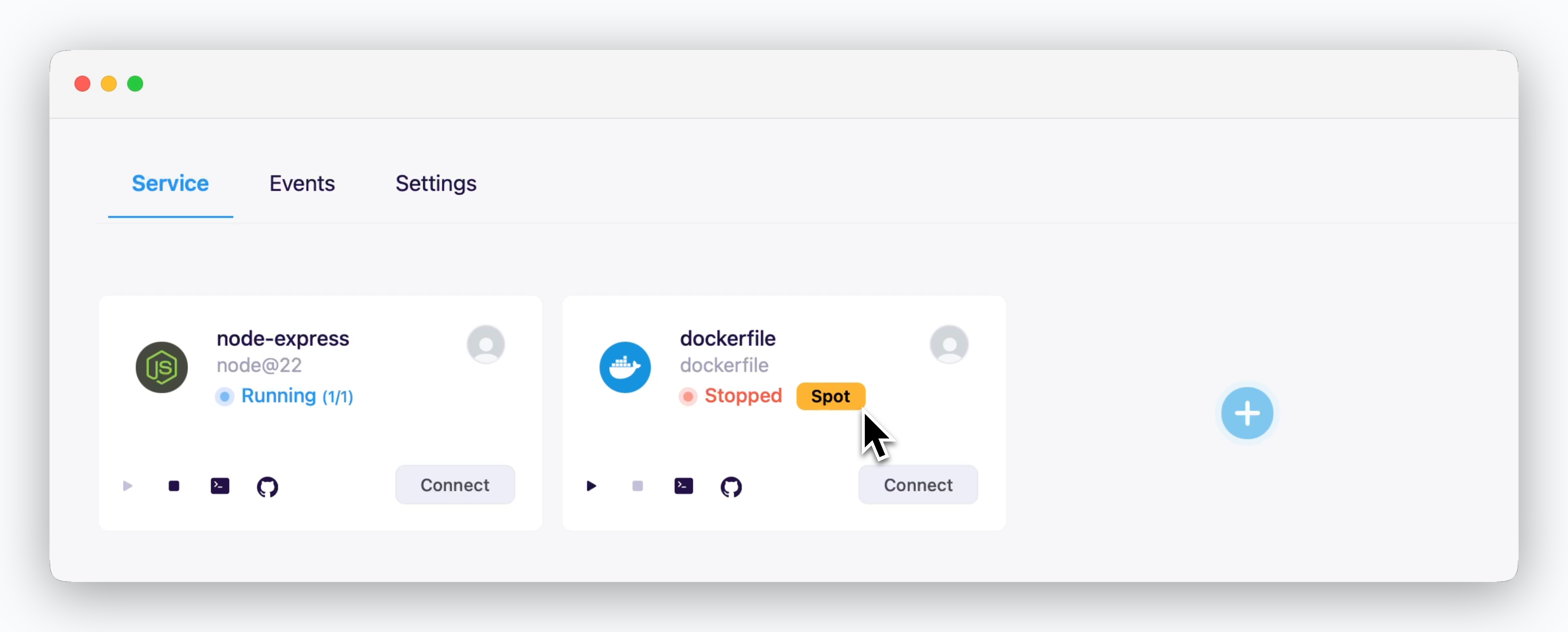
> `ale` supports resource allocation based on instance types for efficient resource management. Specify `on-demand` or `spot` in the Node Group field to allocate resources accordingly.
Even if the cluster's worker nodes consist only of on-demand instances or if spot resources are unavailable, `ale` can still deploy services labeled as spot. These services will run on on-demand instances but will retain the spot label.
Services deployed with spot resources can be removed at once using the [Bulk Remove Spot Resources](/en/operations/spaces#bulk-remove-spot-resources) feature. For temporary services, deploying with spot resources can help manage cloud costs efficiently by using this feature.
> Configure resource values for On-demand and Spot resource types. You can use only one type or mix both. **If no value is entered, the placeholder value will be applied.** Key fields include:
* **vCPU / Memory / Disk**: Total resources allocated to the space
* **Max vCPU / Memory / Disk**: Maximum resources per service
* **Max Running**: Maximum number of services that can be deployed
* **Max Replica**: Maximum number of replicas per service
* **Node Group**: Specify `on-demand` or `spot`. See details below.
> `ale` supports resource allocation based on instance types for efficient resource management. Specify `on-demand` or `spot` in the Node Group field to allocate resources accordingly.
Even if the cluster's worker nodes consist only of on-demand instances or if spot resources are unavailable, `ale` can still deploy services labeled as spot. These services will run on on-demand instances but will retain the spot label.
Services deployed with spot resources can be removed at once using the [Bulk Remove Spot Resources](/en/operations/spaces#bulk-remove-spot-resources) feature. For temporary services, deploying with spot resources can help manage cloud costs efficiently by using this feature.
 The availability and pricing policies for on-demand and spot instances differ by CSP. Refer to the following links for more information:
* [Amazon EC2 Spot](https://aws.amazon.com/ec2/spot/details/)
* [GCP Spot VM](https://cloud.google.com/compute/docs/instances/spot)
* [Azure Spot VM](https://learn.microsoft.com/azure/virtual-machines/spot-vms)
#### General Settings (Domain Connections, Team Size, etc.)
The availability and pricing policies for on-demand and spot instances differ by CSP. Refer to the following links for more information:
* [Amazon EC2 Spot](https://aws.amazon.com/ec2/spot/details/)
* [GCP Spot VM](https://cloud.google.com/compute/docs/instances/spot)
* [Azure Spot VM](https://learn.microsoft.com/azure/virtual-machines/spot-vms)
#### General Settings (Domain Connections, Team Size, etc.)
 * **Domain**: Number of allowed custom domains (set to 0 to disable)
* **Max Services**: Maximum number of deployable services (including on-demand and spot)
* **Max Members**: Maximum number of team members allowed in the space
* **Max Projects**: Maximum number of projects in the space
* **Services per Environment**: Maximum services per environment(namespace)
* **Others**: If the placeholder value is 0, it will be applied as unlimited.
## Bulk Remove Spot Resources
* **Domain**: Number of allowed custom domains (set to 0 to disable)
* **Max Services**: Maximum number of deployable services (including on-demand and spot)
* **Max Members**: Maximum number of team members allowed in the space
* **Max Projects**: Maximum number of projects in the space
* **Services per Environment**: Maximum services per environment(namespace)
* **Others**: If the placeholder value is 0, it will be applied as unlimited.
## Bulk Remove Spot Resources
 > By clicking the icon on the right side of the space, you can remove services in the selected space based on the resource type at once.
* Remove Spot Resources: Only services with Spot resources will be removed.
* Remove All Resources: All services will be removed.
By deploying services for testing or temporary use with spot resources, you can manage your cloud infrastructure cost-effectively with this feature.
Click the `Sync` in the top-right corner and choose Remove Spot Resources to remove all services using spot resources across all spaces in the cluster.
> By clicking the icon on the right side of the space, you can remove services in the selected space based on the resource type at once.
* Remove Spot Resources: Only services with Spot resources will be removed.
* Remove All Resources: All services will be removed.
By deploying services for testing or temporary use with spot resources, you can manage your cloud infrastructure cost-effectively with this feature.
Click the `Sync` in the top-right corner and choose Remove Spot Resources to remove all services using spot resources across all spaces in the cluster.