> ## Documentation Index
> Fetch the complete documentation index at: https://docs.ale.run/llms.txt
> Use this file to discover all available pages before exploring further.
# User Access Management
>
Register manually within the operations system or via the dashboard signup
Activate users registered in the operations system to grant dashboard access
Grant menu-specific permissions to **activated users**
For managing permissions within the dashboard, see the [Team Management page](/en/developers/space#team-management) in the Developer Guide.
***
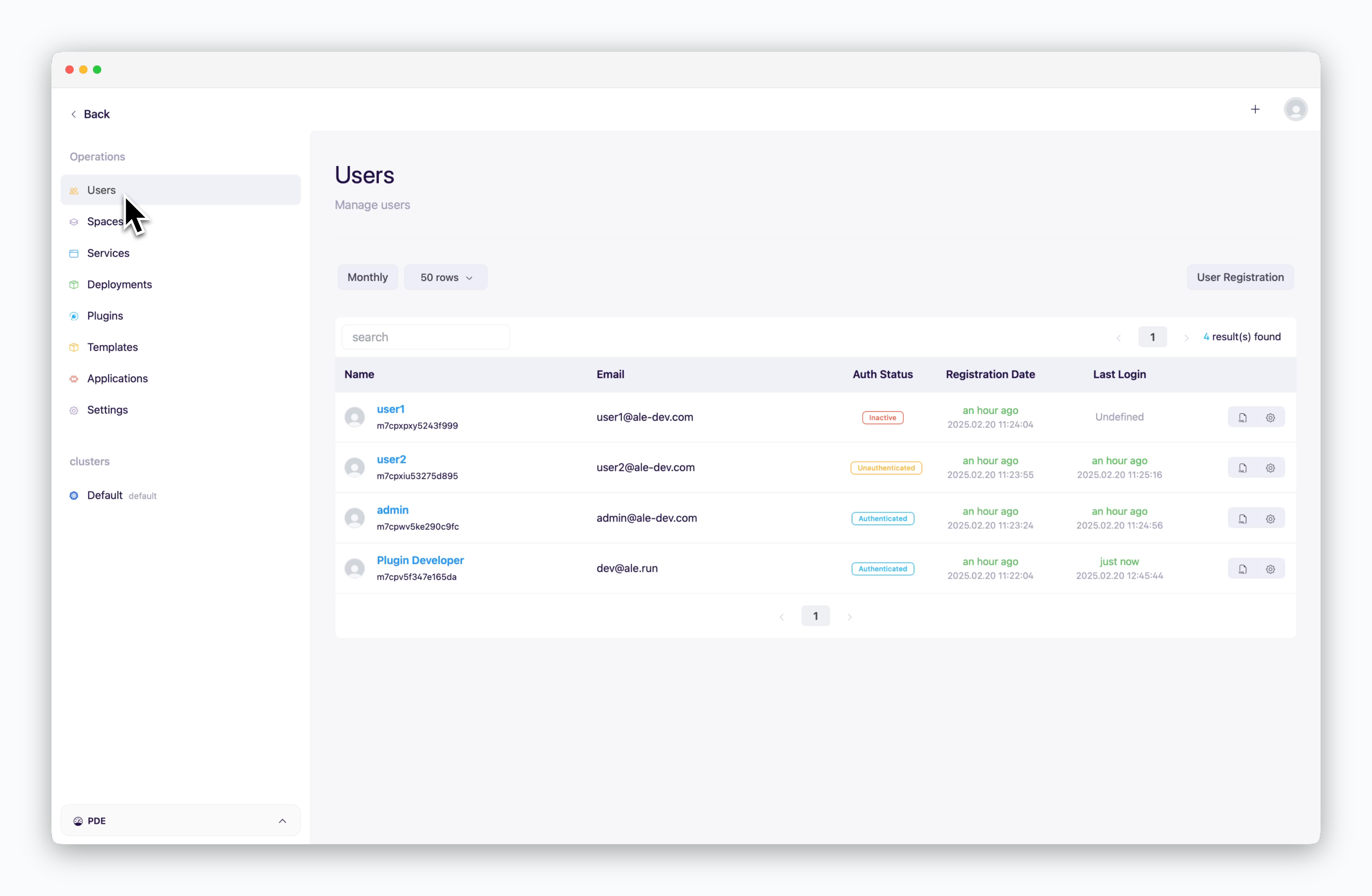 > The following information is available on the **Users** page of the operations system:
* Email verification is required to use `ale`.
* Users who register through OAuth authentication don't need the verification.
* **User Info**: Manage user information and [grant permissions for operations system.](/en/operations/user-management#administrator-access)
* **Email Verification**: Verify a user's email address with admin privileges.
* **Send Password Reset Email**: Send a password reset email to the user.
* **Activate/Deactivate**: [Enable or disable dashboard access for selected users.](/en/operations/user-management#activation)
* **Delete User**: Permanently remove a user from the system.
***
## Registration
> The following information is available on the **Users** page of the operations system:
* Email verification is required to use `ale`.
* Users who register through OAuth authentication don't need the verification.
* **User Info**: Manage user information and [grant permissions for operations system.](/en/operations/user-management#administrator-access)
* **Email Verification**: Verify a user's email address with admin privileges.
* **Send Password Reset Email**: Send a password reset email to the user.
* **Activate/Deactivate**: [Enable or disable dashboard access for selected users.](/en/operations/user-management#activation)
* **Delete User**: Permanently remove a user from the system.
***
## Registration
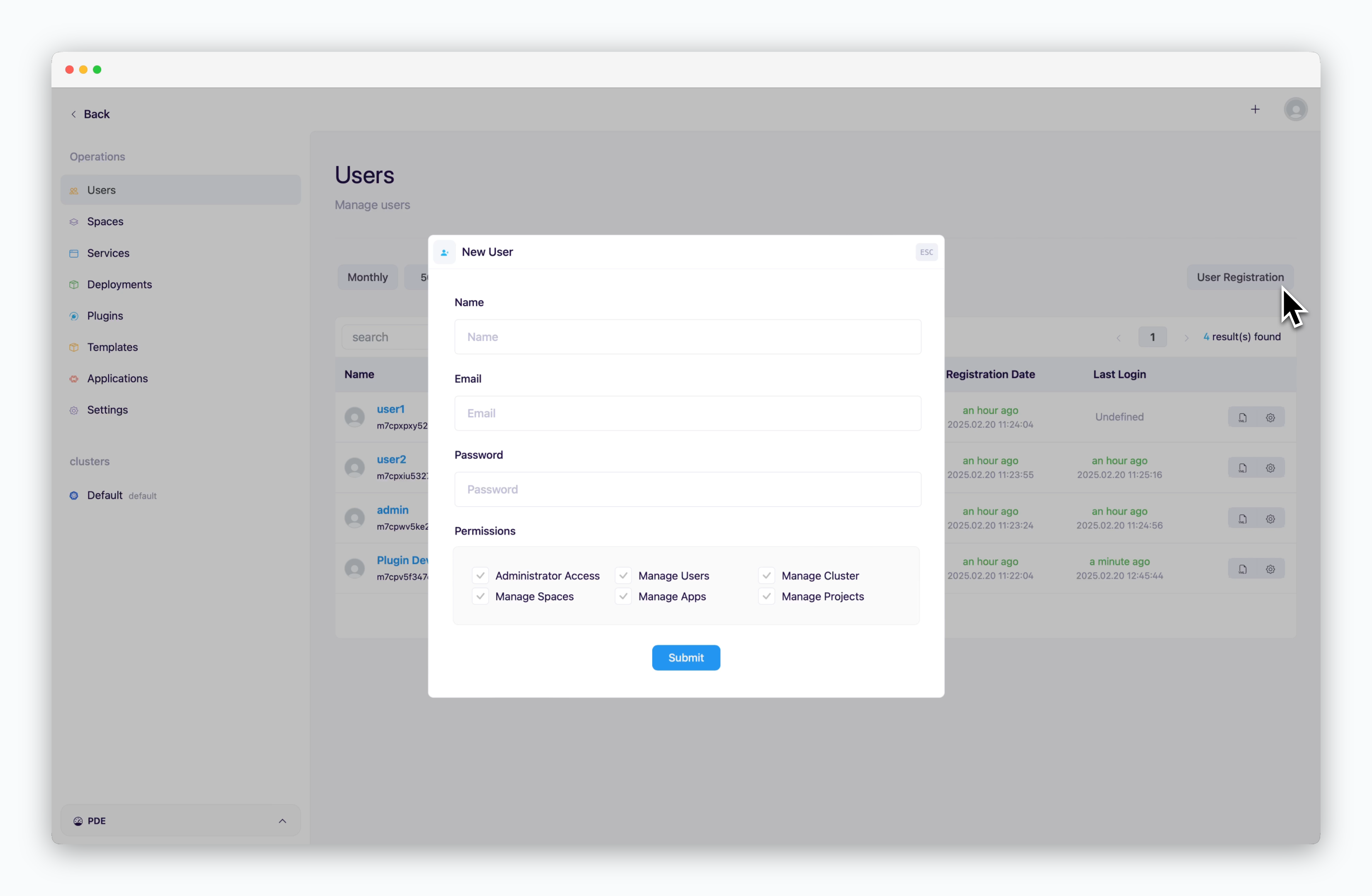 > Click `Add User` on the right side of the Users page to manually register a user.
Users can also register through sign-up using [GitHub OAuth](/en/authentication/github), [Google OAuth](/en/authentication/google), or **Email**.
You can [disable the sign-up feature](/en/operations/settings#authentication-%2F-access-control) to restrict access to only manually registered users.
Check the permissions option at the bottom of the registration modal to assign administrator rights for the operations system. For details, see the [Administrator Access](/en/operations/user-management#administrator-access) section.
## Activation
Users who are registered need to be activated before they can log in to the operations system or dashboard.
> Click `Add User` on the right side of the Users page to manually register a user.
Users can also register through sign-up using [GitHub OAuth](/en/authentication/github), [Google OAuth](/en/authentication/google), or **Email**.
You can [disable the sign-up feature](/en/operations/settings#authentication-%2F-access-control) to restrict access to only manually registered users.
Check the permissions option at the bottom of the registration modal to assign administrator rights for the operations system. For details, see the [Administrator Access](/en/operations/user-management#administrator-access) section.
## Activation
Users who are registered need to be activated before they can log in to the operations system or dashboard.
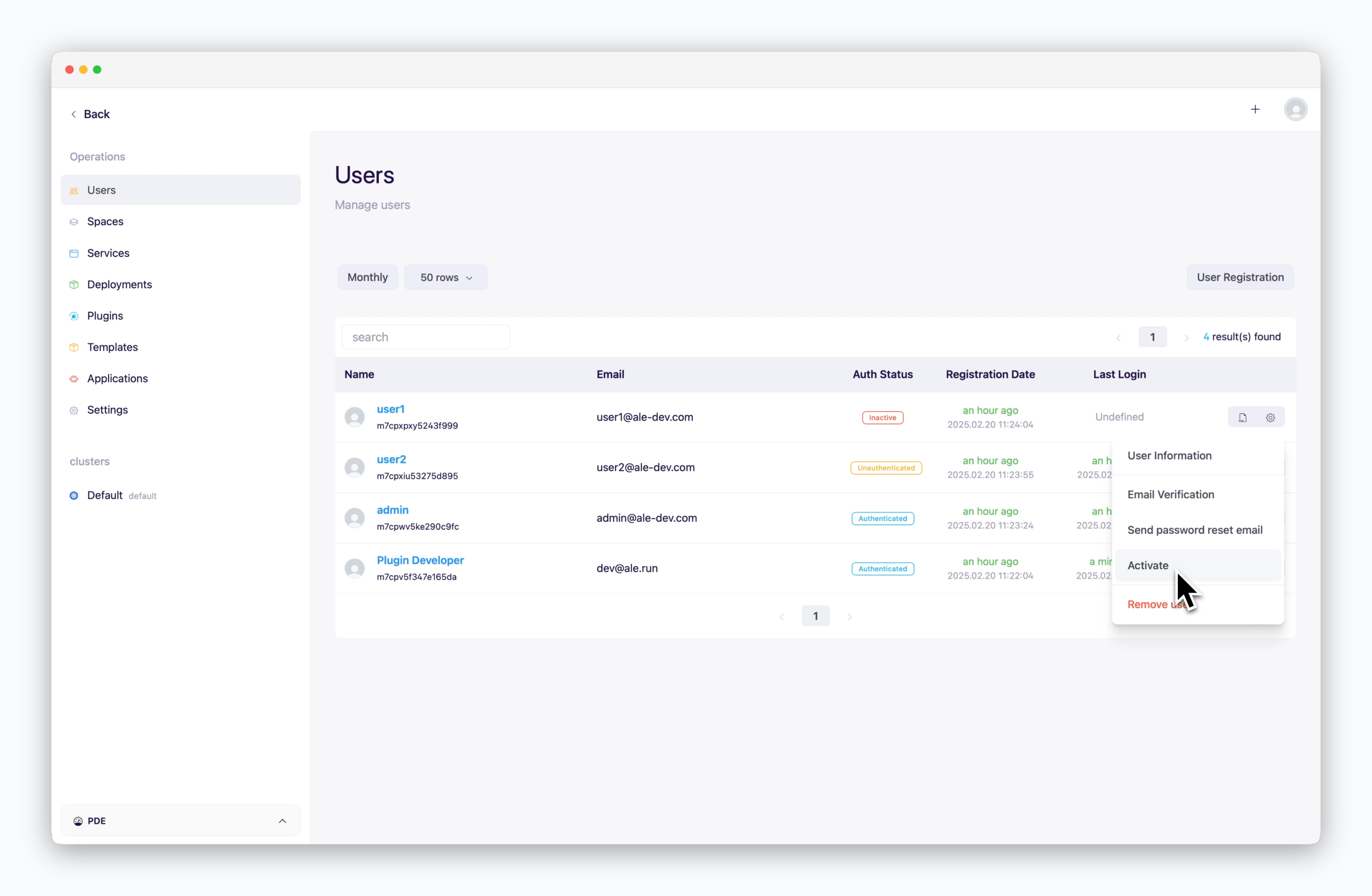 > Click the icon next to the target user and select **Activate**.
> Only activated users can log in to the dashboard.
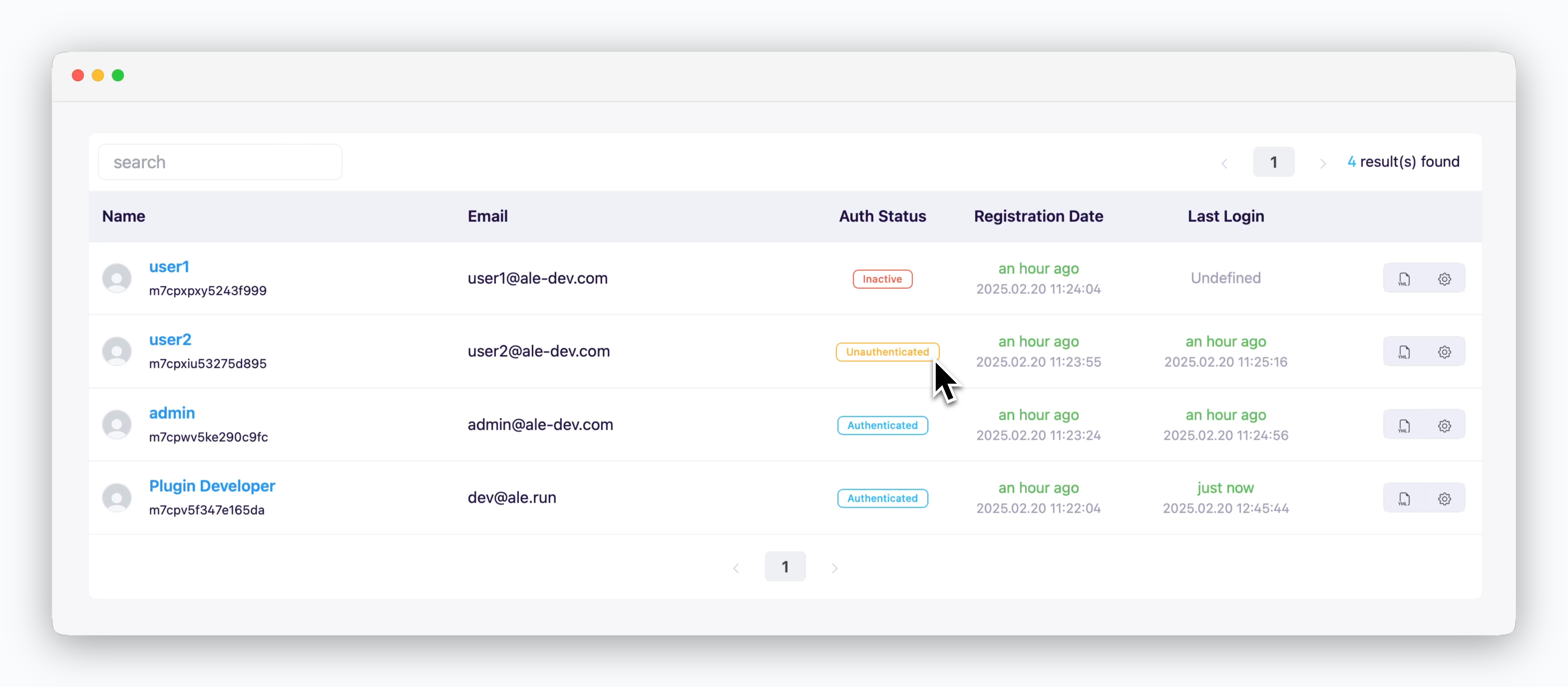
In addition to account activation, **email authentication is required.** Only users with authenticated email addresses can access the full range of services. For the mailer configuration required to send authentication emails, see the [Mailer Setup page](/en/operations/settings#mailer-setup). Authentication can also be completed directly within the operations system.
> Click the icon next to the target user and select **Activate**.
> Only activated users can log in to the dashboard.
In addition to account activation, **email authentication is required.** Only users with authenticated email addresses can access the full range of services. For the mailer configuration required to send authentication emails, see the [Mailer Setup page](/en/operations/settings#mailer-setup). Authentication can also be completed directly within the operations system.
 ## Administrator Access
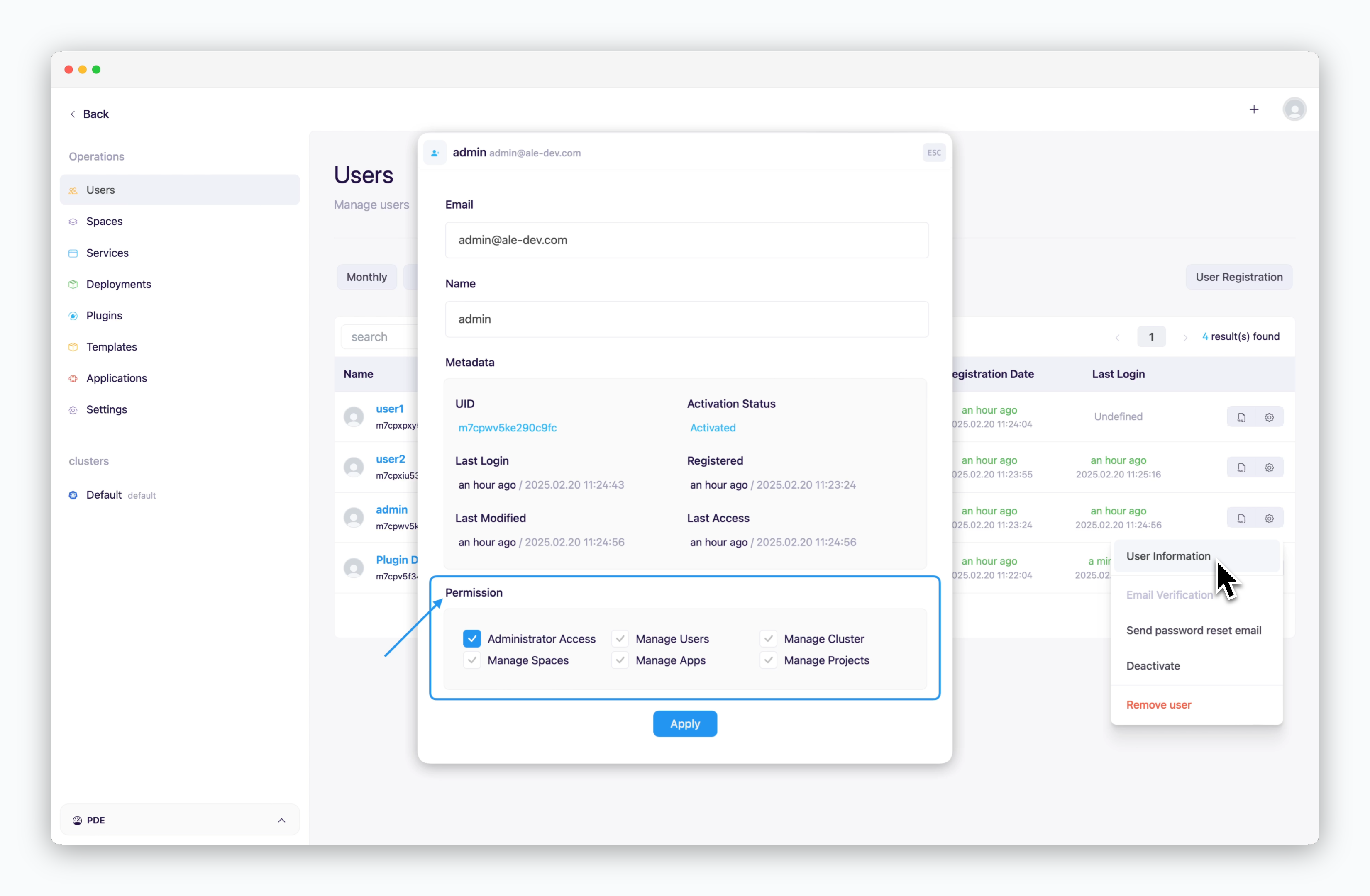 > In the permissions section at the bottom of the user information modal, you can selectively grant access to manageable menus within the operations system.
* Displays the **Settings menu** in the operations system and grants permissions to manage `ale` access URLs, OAuth authentication methods, cluster connections/disconnections, and more. For details, see the [Settings page](/en/operations/settings).
Users with 'Admin Access' permissions can significantly impact operations. Please exercise caution when granting this permission.
* Displays the **Users menu** in the operations system and grants permissions for user registration, activation, and related tasks.
* Displays the **Clusters menu** in the operations system and grants permissions for connecting container registries to clusters, configuring network settings, and more. For details, see the [Cluster Management page](/en/operations/clusters).
* Displays the **Spaces menu** in the operations system and grants permissions to view user-created spaces in the dashboard and allocate resources. For details, see the [Space and Resource Management page](/en/operations/spaces).
* Displays the **Templates**, **Applications**, and **Plugins** menus in the operations system and allows management of templates, applications, and plugins available in the dashboard.
* Displays the **Services menu** and **Deployment History menu** in the operations system and grants permissions to view deployment histories of all services deployed from the dashboard and block services. For details, see the [Service Management page](/en/operations/services) and [Deployment History page](/en/operations/deployment-history).
Users granted even a single permission can access the operations system. Please manage permissions carefully.
## User Deletion
> In the permissions section at the bottom of the user information modal, you can selectively grant access to manageable menus within the operations system.
* Displays the **Settings menu** in the operations system and grants permissions to manage `ale` access URLs, OAuth authentication methods, cluster connections/disconnections, and more. For details, see the [Settings page](/en/operations/settings).
Users with 'Admin Access' permissions can significantly impact operations. Please exercise caution when granting this permission.
* Displays the **Users menu** in the operations system and grants permissions for user registration, activation, and related tasks.
* Displays the **Clusters menu** in the operations system and grants permissions for connecting container registries to clusters, configuring network settings, and more. For details, see the [Cluster Management page](/en/operations/clusters).
* Displays the **Spaces menu** in the operations system and grants permissions to view user-created spaces in the dashboard and allocate resources. For details, see the [Space and Resource Management page](/en/operations/spaces).
* Displays the **Templates**, **Applications**, and **Plugins** menus in the operations system and allows management of templates, applications, and plugins available in the dashboard.
* Displays the **Services menu** and **Deployment History menu** in the operations system and grants permissions to view deployment histories of all services deployed from the dashboard and block services. For details, see the [Service Management page](/en/operations/services) and [Deployment History page](/en/operations/deployment-history).
Users granted even a single permission can access the operations system. Please manage permissions carefully.
## User Deletion
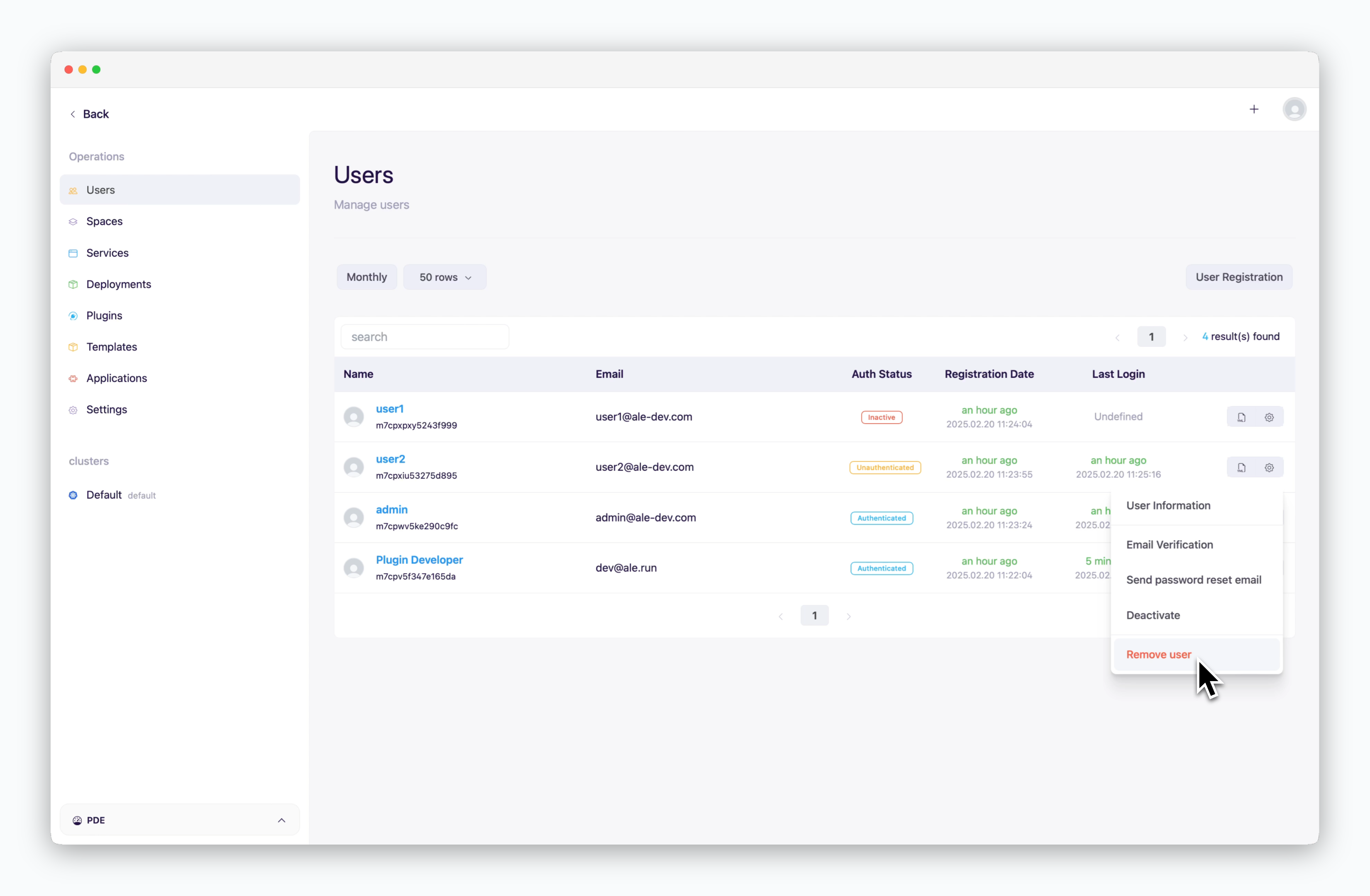 > Click the icon next to the user you want to delete and select **Delete User**.