> ## Documentation Index
> Fetch the complete documentation index at: https://docs.ale.run/llms.txt
> Use this file to discover all available pages before exploring further.
# GCP Artifact Registry
> You can configure **GCP Artifact Registry** as the repository for storing images built in `ale` and for use during deployment.
***
## Create a GCP Artifact Registry
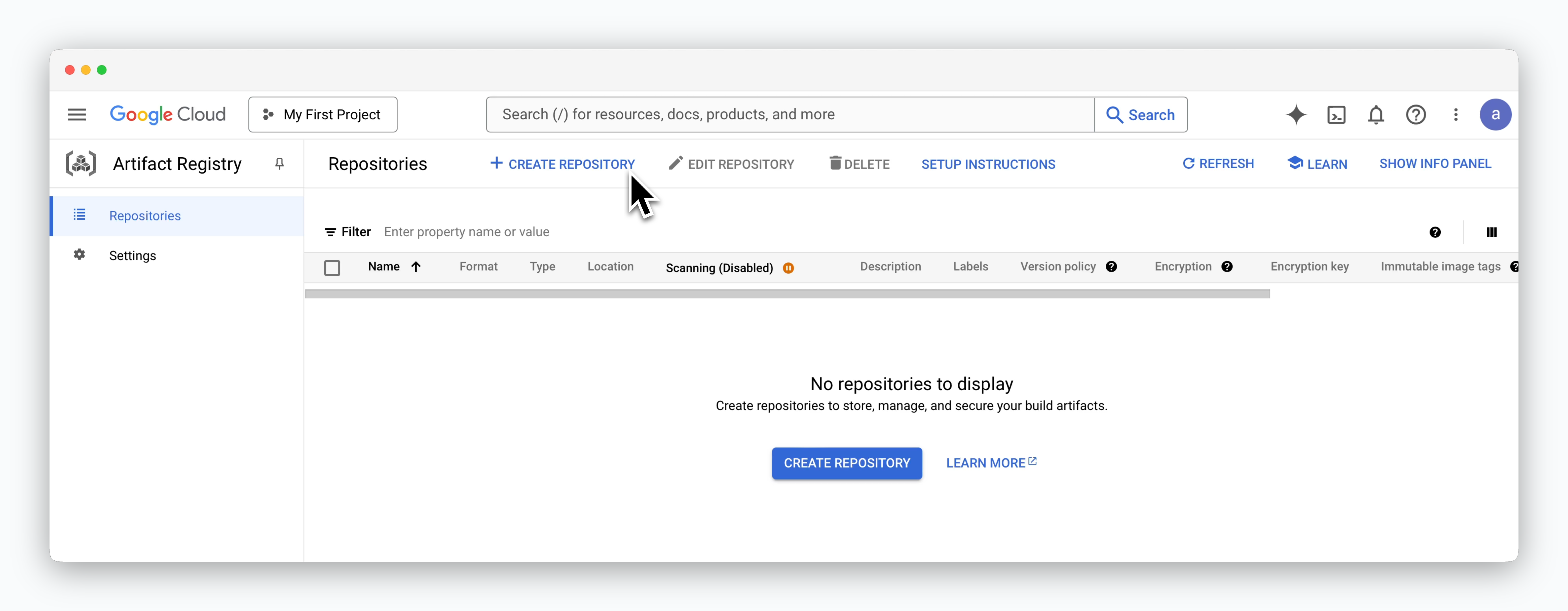 > Access the **Artifact Registry** service in the Google Cloud Console and click `CREATE REPOSITORY`.
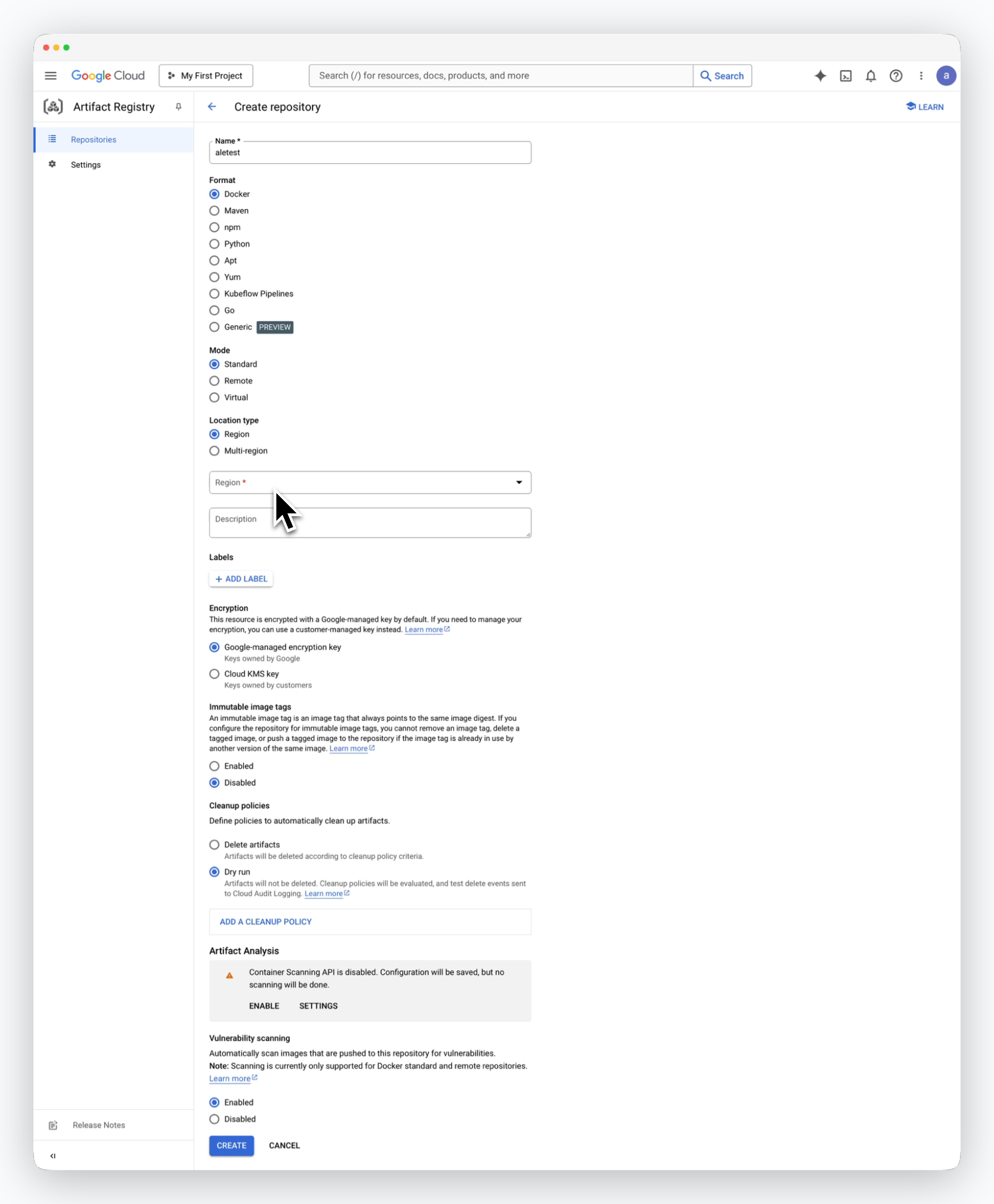 > Enter a name for the repository and fill in the following values, then click `CREATE` to create the repository.
Use the default values except for the Region.
* **Format** : Docker
* **Mode** : Standard
* **Location type** : Region
* **Region** : Select a region that suits your needs
* **Encryption** : Google-managed encryption key
## Retrieve the Repository Access URL
> Enter a name for the repository and fill in the following values, then click `CREATE` to create the repository.
Use the default values except for the Region.
* **Format** : Docker
* **Mode** : Standard
* **Location type** : Region
* **Region** : Select a region that suits your needs
* **Encryption** : Google-managed encryption key
## Retrieve the Repository Access URL
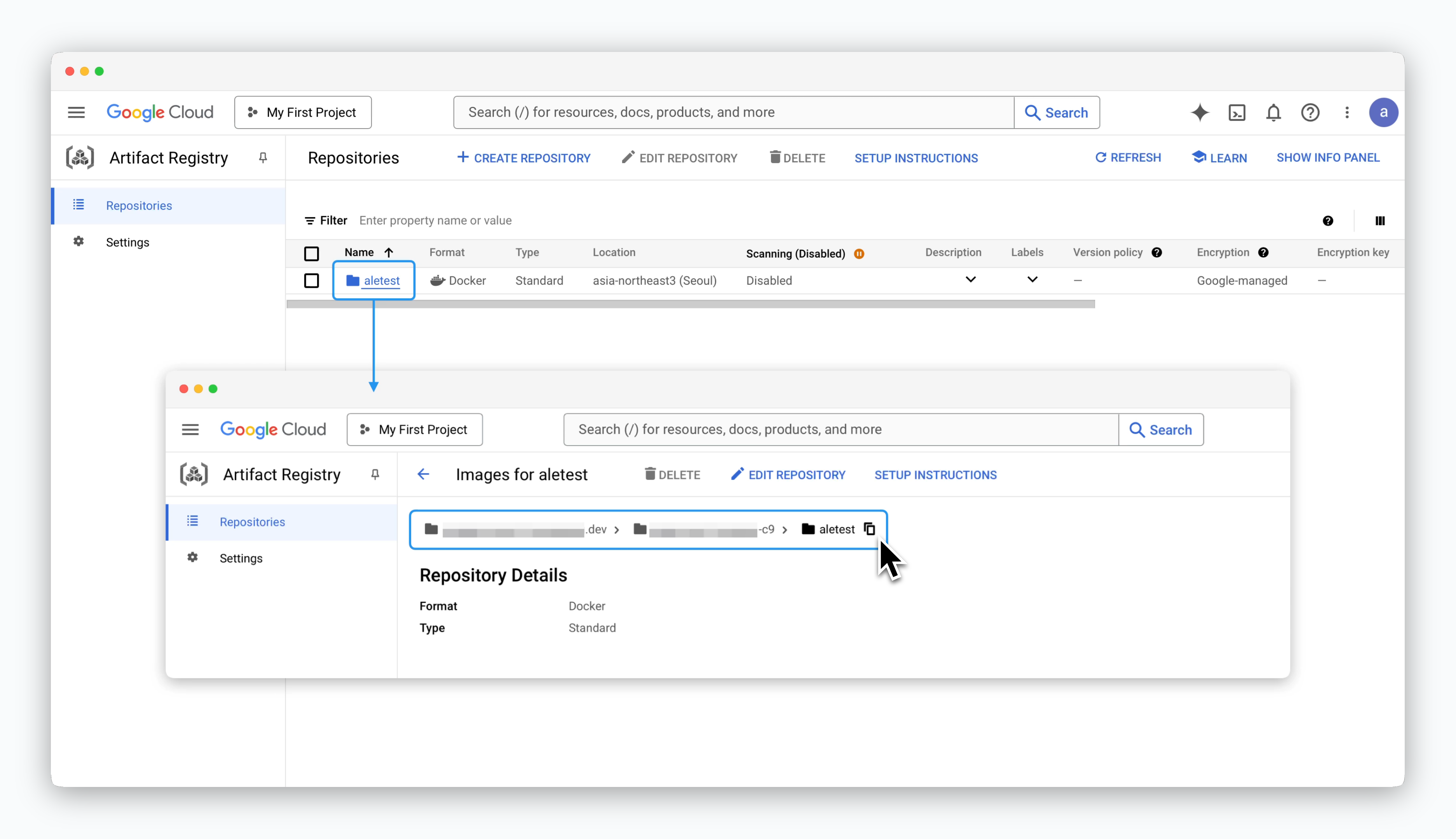 > Click on the created repository to retrieve the access URL in the format `[region]-docker.pkg.dev/[GCP Project ID]/[Repository Name]`.
This access URL will be used to connect the repository to `ale`.
## Service Account and Permissions
> Click on the created repository to retrieve the access URL in the format `[region]-docker.pkg.dev/[GCP Project ID]/[Repository Name]`.
This access URL will be used to connect the repository to `ale`.
## Service Account and Permissions
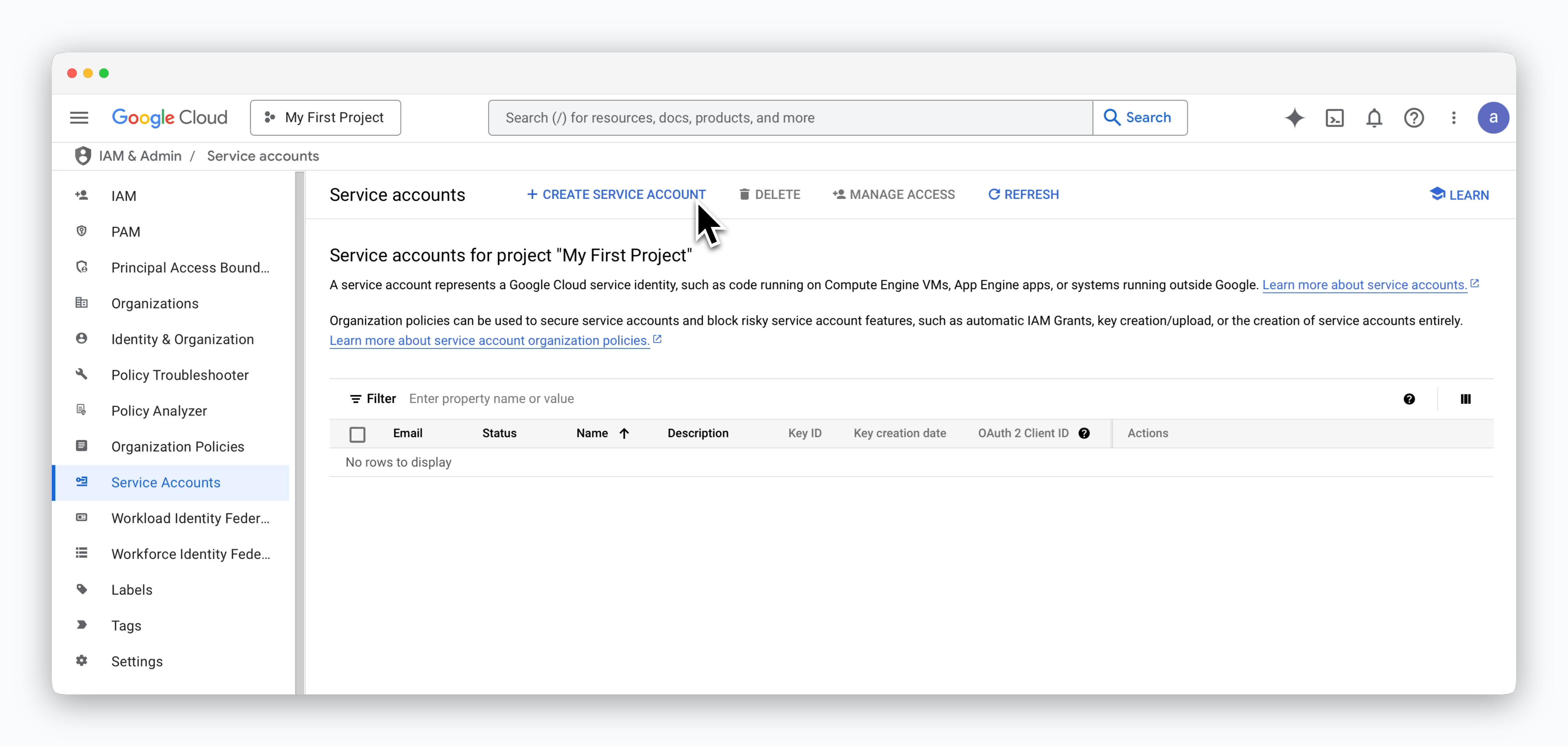 > Go to the **IAM & Admin > Service Accounts** page and click `CREATE SERVICE ACCOUNT`.
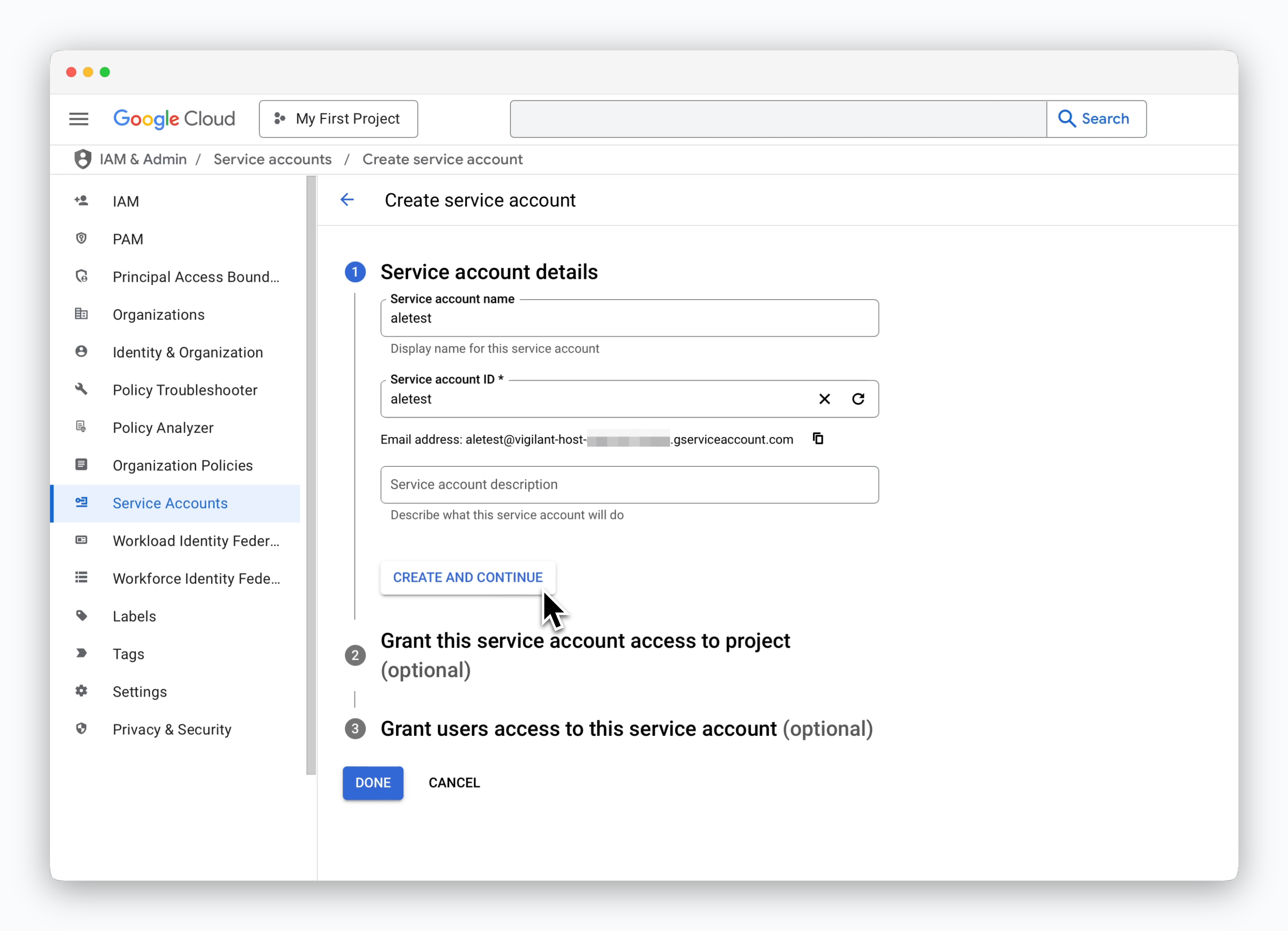 > Enter a recognizable **Service Account Name** and click `CREATE AND CONTINUE`.
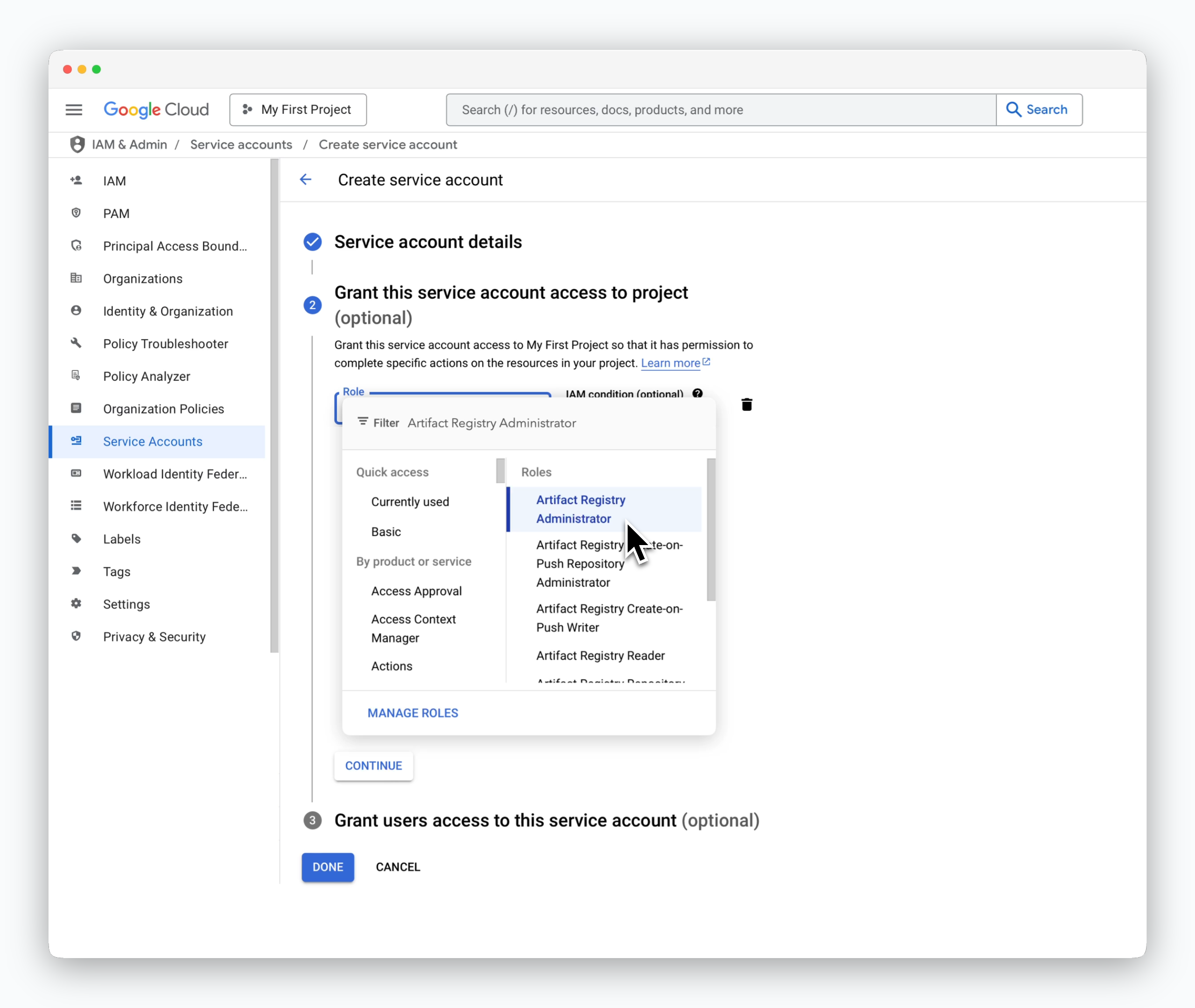 > In the role selector, choose **Artifact Registry Administrator** and click `DONE` to create the service account.
## Create a JSON Key
> In the role selector, choose **Artifact Registry Administrator** and click `DONE` to create the service account.
## Create a JSON Key
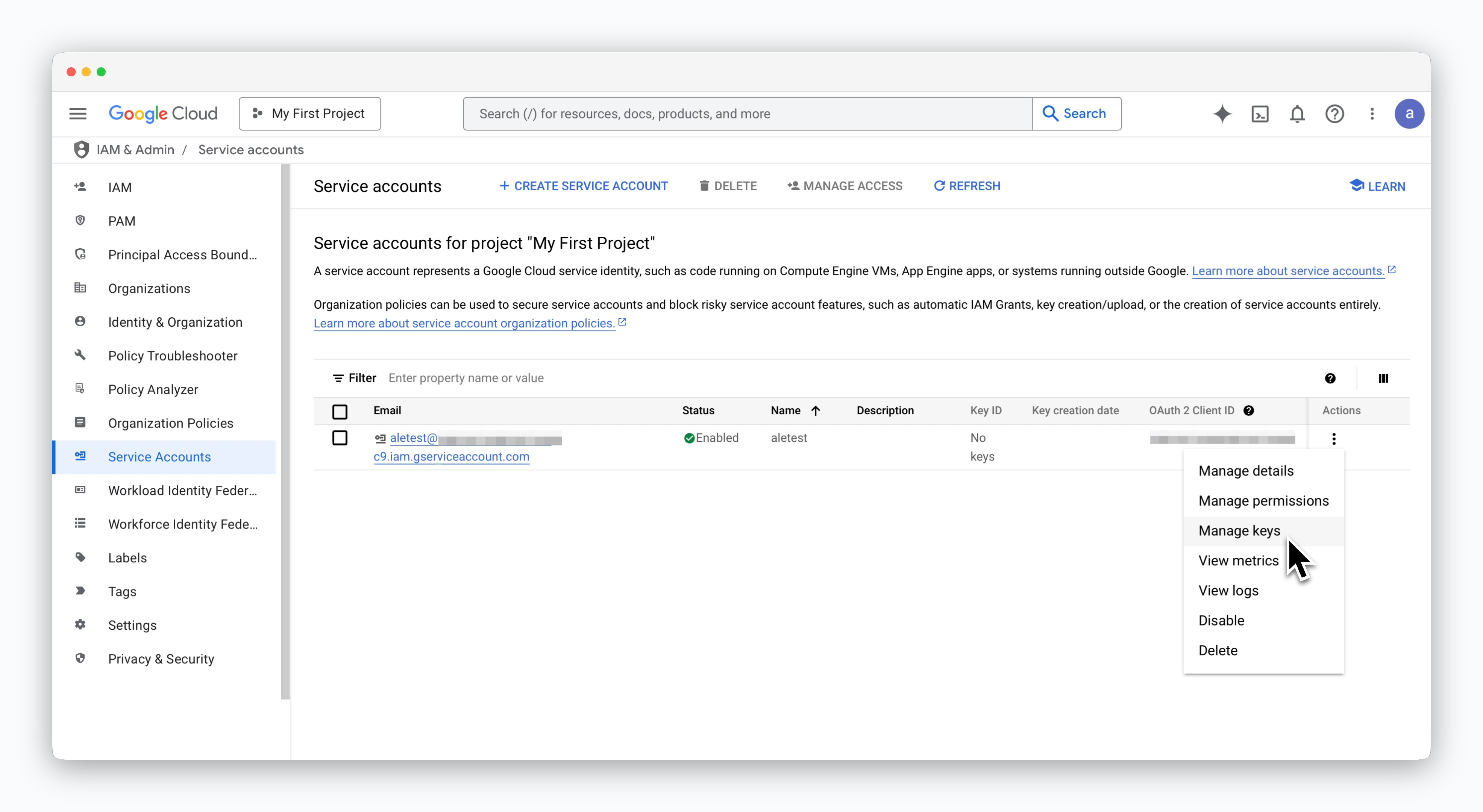 > Click the icon on the right side of the service account and select **Manage keys**.
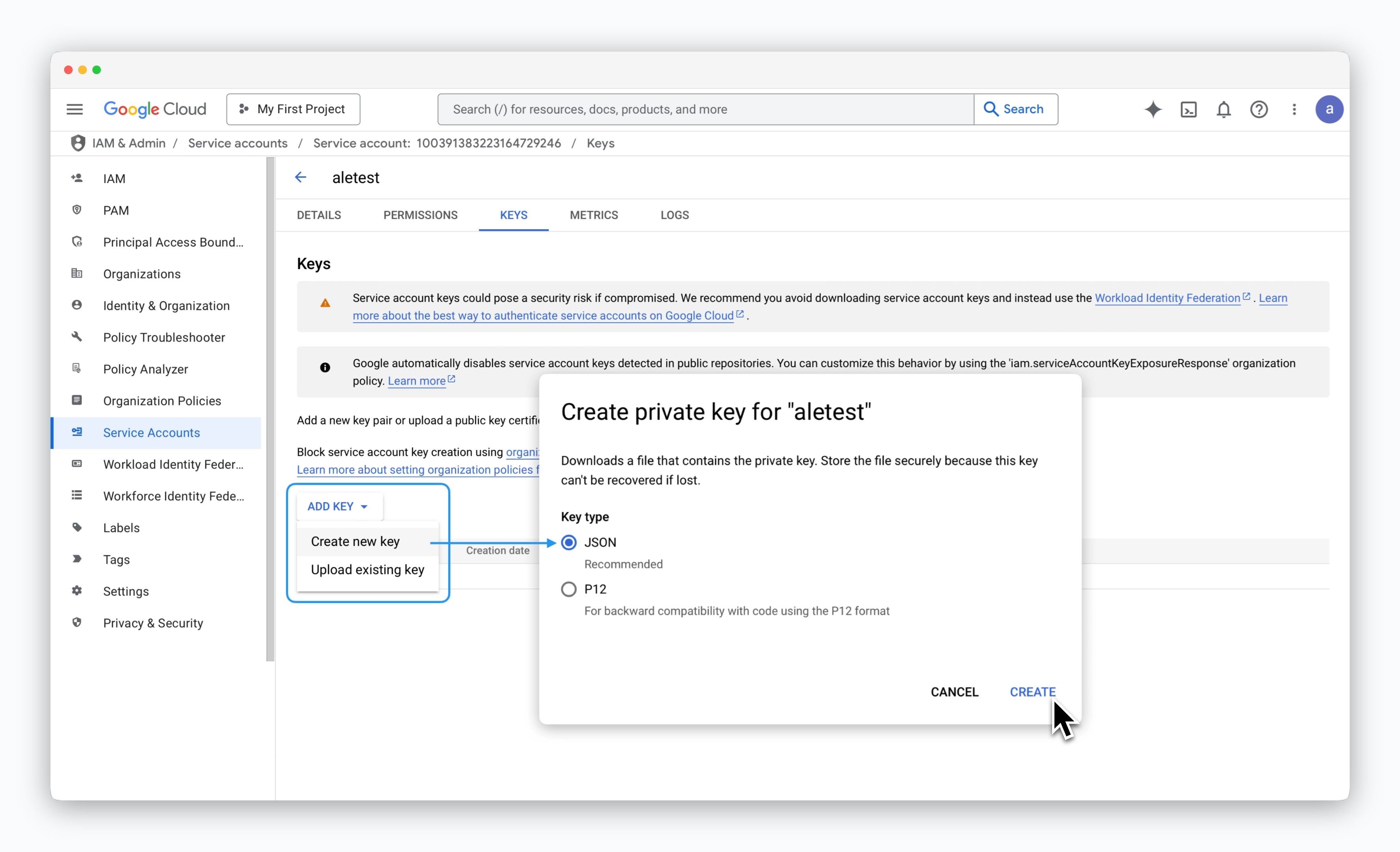 > On the service account key management page, click **ADD KEY > Create new key**. In the modal, select **JSON** as the key type and click `CREATE` to download the JSON key file.
## Connect to ale
> On the service account key management page, click **ADD KEY > Create new key**. In the modal, select **JSON** as the key type and click `CREATE` to download the JSON key file.
## Connect to ale
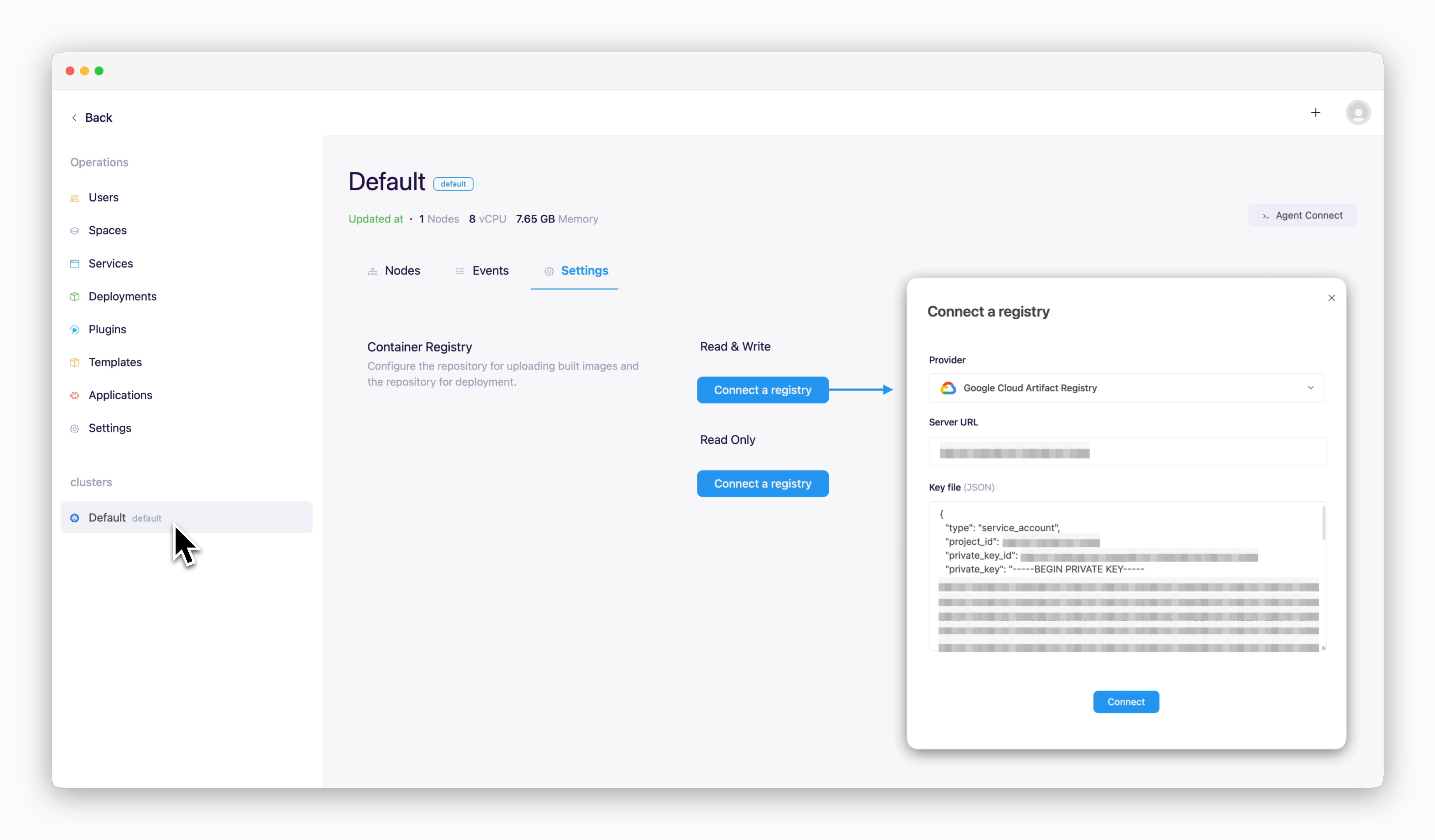 > In the operations system, go to the Settings tab on the cluster page and click `Connect Container Repository`. In the modal that appears, enter the following values and click `Connect`.
* **Repository Provider** : Google Cloud Artifact Registry
* **Access URL** : [Access URL retrieved after creating the repository](/en/registry/gcp-ar#retrieve-the-repository-access-url)
* **Key File (JSON)** : Contents of the JSON key file
> In the operations system, go to the Settings tab on the cluster page and click `Connect Container Repository`. In the modal that appears, enter the following values and click `Connect`.
* **Repository Provider** : Google Cloud Artifact Registry
* **Access URL** : [Access URL retrieved after creating the repository](/en/registry/gcp-ar#retrieve-the-repository-access-url)
* **Key File (JSON)** : Contents of the JSON key file