> ## Documentation Index
> Fetch the complete documentation index at: https://docs.ale.run/llms.txt
> Use this file to discover all available pages before exploring further.
# AWS EC2 Setup
> Guide for setting up AWS EC2 to install ale.
For optimal performance of `ale`, we recommend:
* Instance type **t3.large(2vCPU, 8GiB)** or higher
* **amd64(x86\_64)** architecture OS
* **60GiB** or more storage
***
## Launch EC2 Instance
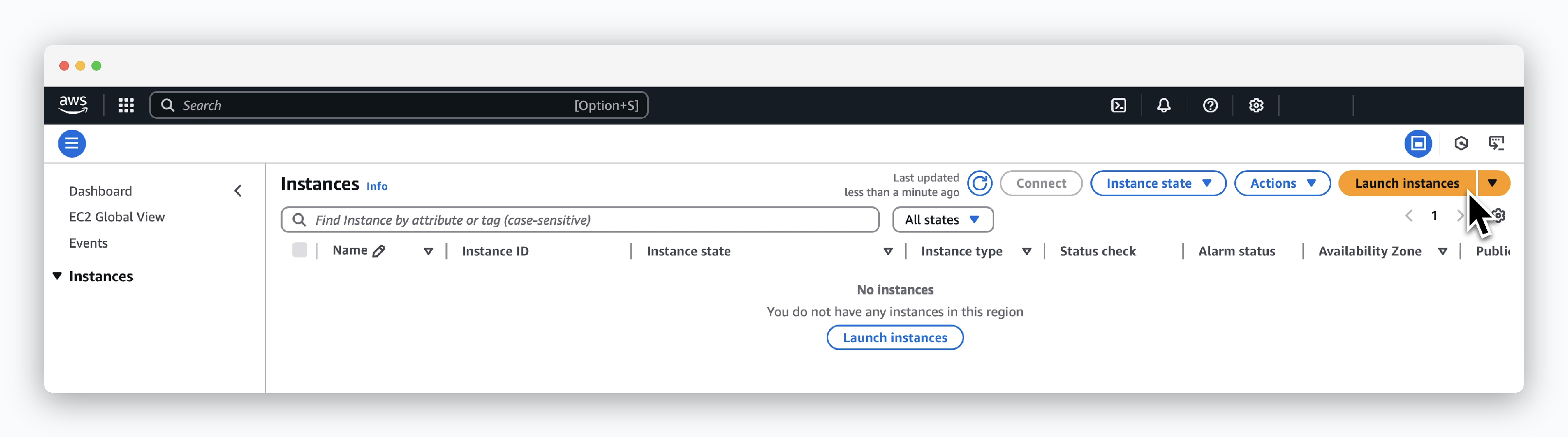 > Click `Launch instances` in `EC2 > Instances`.
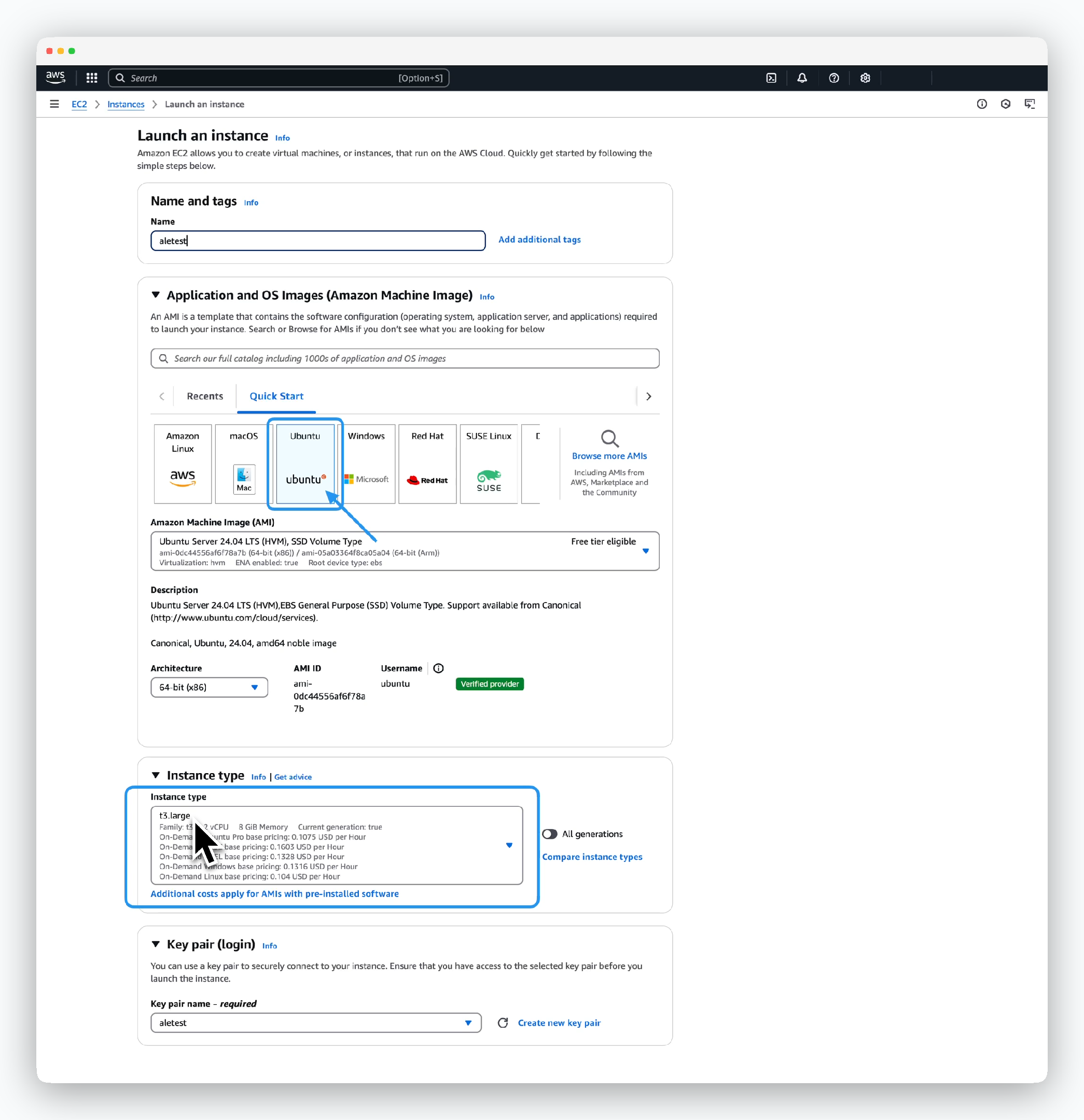 > Enter or select the instance information as follows:
* Name and tags
* Name: Instance name
* Application and OS Images (Amazon Machine Image)
* Amazon Machine Image (AMI): Ubuntu Server 24.04 LTS (amd64)
* Instance type
* Select type t3.large or higher specification
* Key pair (login)
* Select the key pair created in the previous step
> Enter or select the instance information as follows:
* Name and tags
* Name: Instance name
* Application and OS Images (Amazon Machine Image)
* Amazon Machine Image (AMI): Ubuntu Server 24.04 LTS (amd64)
* Instance type
* Select type t3.large or higher specification
* Key pair (login)
* Select the key pair created in the previous step
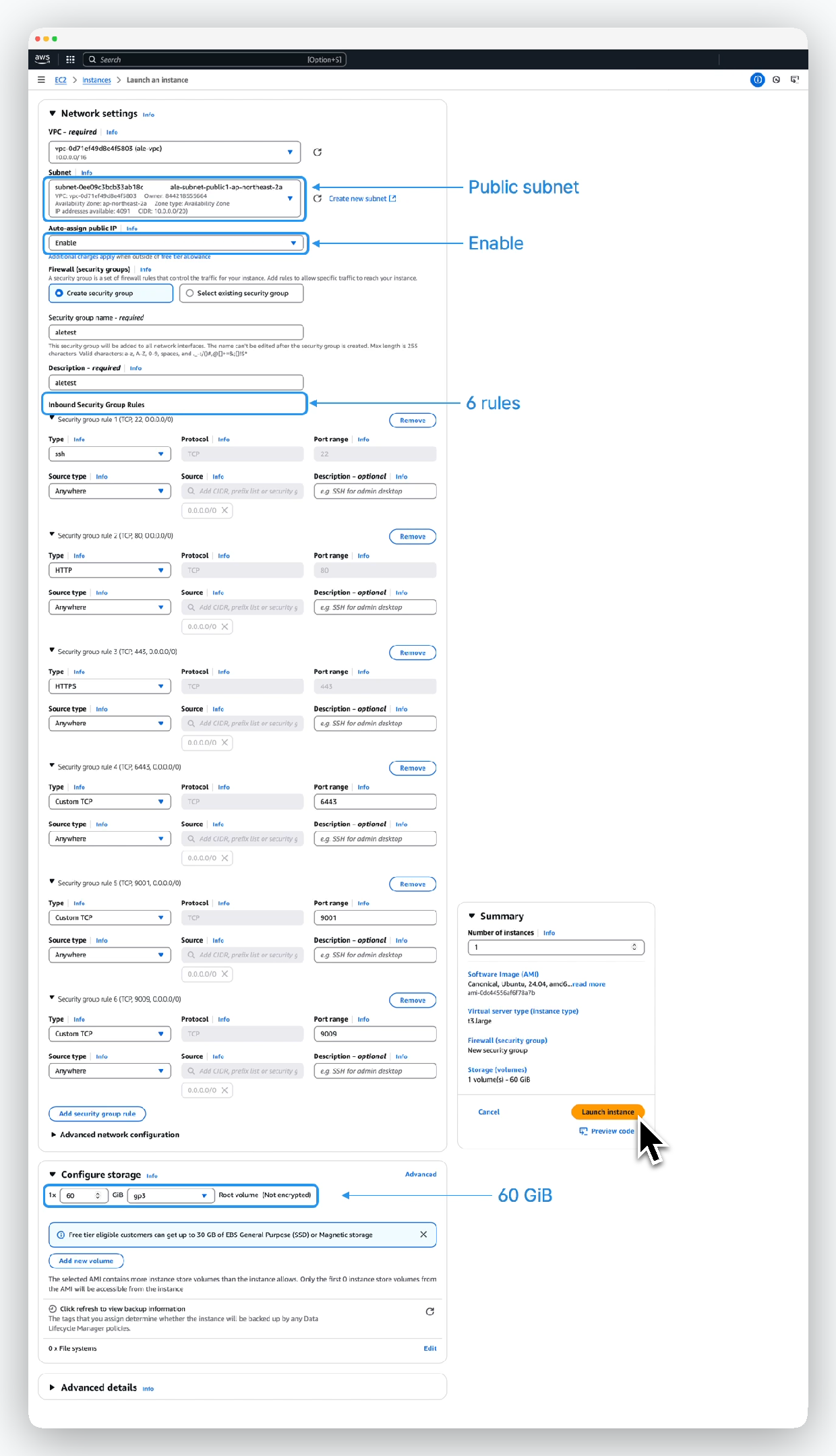 > Configure **6 Security group rules** and storage settings as follows:
* Network settings
* VPC: Target VPC for EC2 provisioning. Must be able to communicate with the internet
* Subnet: Select public subnet with internet gateway connected
* Auto-assign public IP: Enable
* Firewall (security groups)
* Select Create security group and enter appropriate security group name
* Security group name: Name for security group
* Description: Security group description
* Add security group rules
- Type: SSH
- Protocol: TCP
- Port range: 22
- Source: 0.0.0.0/0
* Type: HTTP
* Protocol: TCP
* Port range: 80
* Source: 0.0.0.0/0
* Type: HTTPS
* Protocol: TCP
* Port range: 443
* Source: 0.0.0.0/0
* Type: Custom TCP
* Protocol: TCP
* Port range: 6443
* Source: 0.0.0.0/0
* Type: Custom TCP
* Protocol: TCP
* Port range: 9001
* Source: 0.0.0.0/0
* Type: Custom TCP
* Protocol: TCP
* Port range: 9009
* Source: 0.0.0.0/0
* Configure storage
* 1 x 60GiB, select gp3
## Associate Elastic IP Address
> Configure **6 Security group rules** and storage settings as follows:
* Network settings
* VPC: Target VPC for EC2 provisioning. Must be able to communicate with the internet
* Subnet: Select public subnet with internet gateway connected
* Auto-assign public IP: Enable
* Firewall (security groups)
* Select Create security group and enter appropriate security group name
* Security group name: Name for security group
* Description: Security group description
* Add security group rules
- Type: SSH
- Protocol: TCP
- Port range: 22
- Source: 0.0.0.0/0
* Type: HTTP
* Protocol: TCP
* Port range: 80
* Source: 0.0.0.0/0
* Type: HTTPS
* Protocol: TCP
* Port range: 443
* Source: 0.0.0.0/0
* Type: Custom TCP
* Protocol: TCP
* Port range: 6443
* Source: 0.0.0.0/0
* Type: Custom TCP
* Protocol: TCP
* Port range: 9001
* Source: 0.0.0.0/0
* Type: Custom TCP
* Protocol: TCP
* Port range: 9009
* Source: 0.0.0.0/0
* Configure storage
* 1 x 60GiB, select gp3
## Associate Elastic IP Address
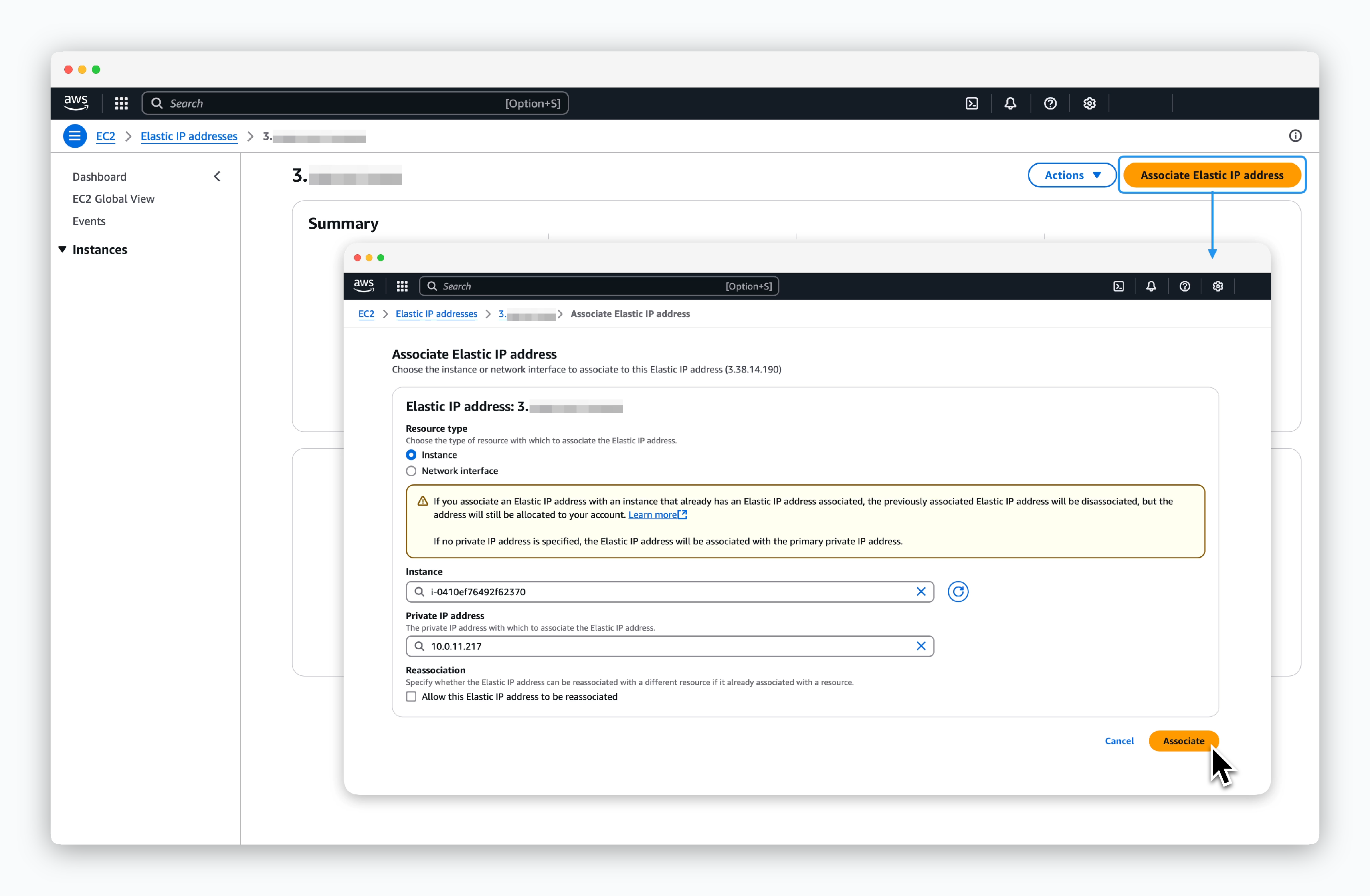 > Go to `EC2 > Network & Security > Elastic IPs`, click the IP allocated in the previous step, then click `Associate Elastic IP address`. Enter the following information to associate:
* Resource type: Instance
* Instance: Select the EC2 instance created in the previous step
* Private IP: Private IP address of the EC2 instance
## Connect to EC2 and Install Packages
> Go to `EC2 > Network & Security > Elastic IPs`, click the IP allocated in the previous step, then click `Associate Elastic IP address`. Enter the following information to associate:
* Resource type: Instance
* Instance: Select the EC2 instance created in the previous step
* Private IP: Private IP address of the EC2 instance
## Connect to EC2 and Install Packages
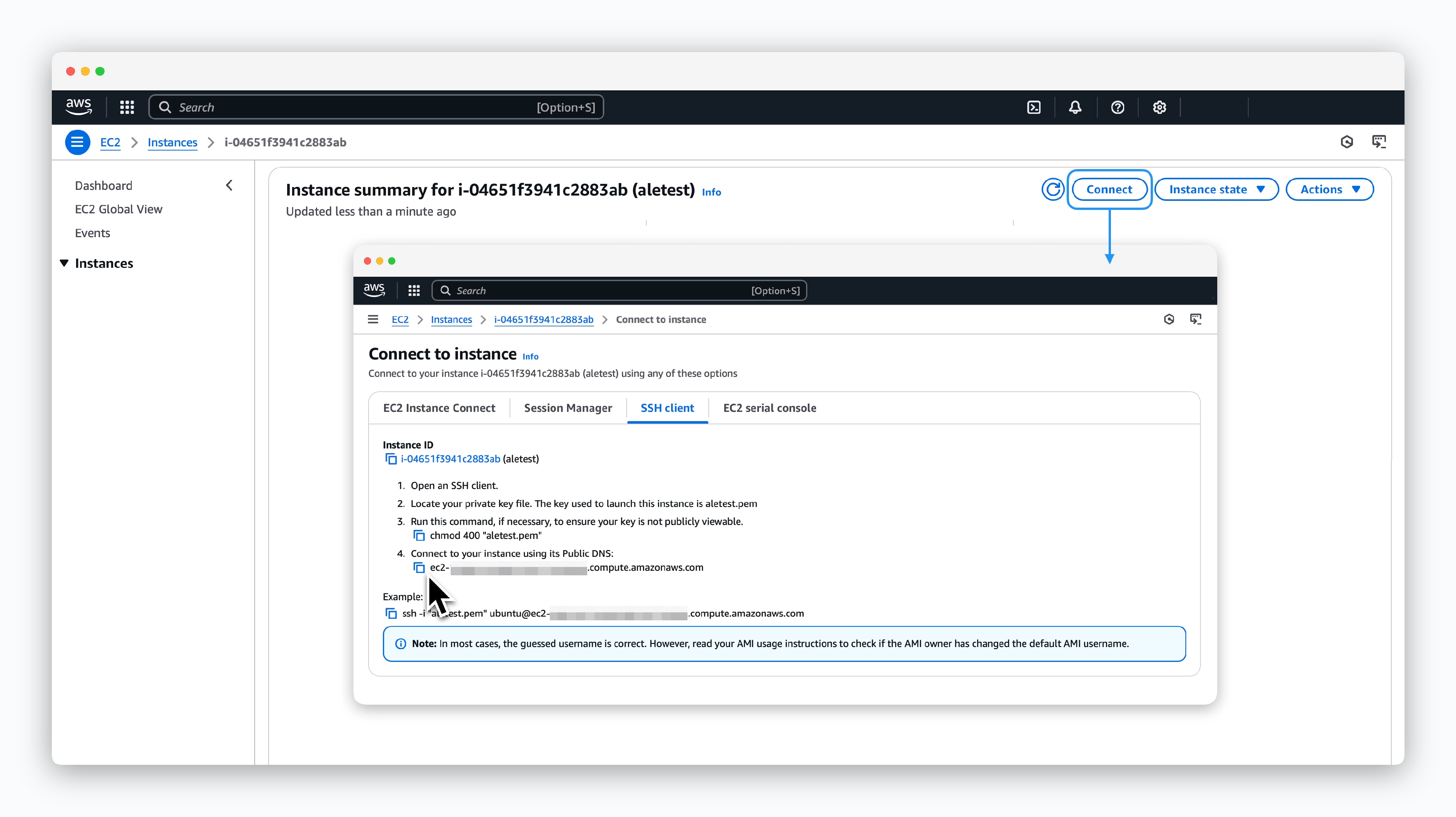 > Click the `Connect` button on the EC2 details page and check the SSH connection command in the SSH Client tab. Then, run the command in your terminal to connect to the EC2 instance, and follow the instructions below to install the packages.
```bash theme={null}
sudo ufw disable
```
```bash theme={null}
curl -o- https://raw.githubusercontent.com/nvm-sh/nvm/v0.40.1/install.sh | bash
```
```bash theme={null}
source ~/.bashrc
nvm install 16
nvm alias default 16
node -v
```
```bash theme={null}
npm install pm2@latest -g
```
```bash theme={null}
sudo apt-get update
sudo apt-get install ca-certificates curl
sudo install -m 0755 -d /etc/apt/keyrings
sudo curl -fsSL https://download.docker.com/linux/ubuntu/gpg -o /etc/apt/keyrings/docker.asc
sudo chmod a+r /etc/apt/keyrings/docker.asc
```
```bash theme={null}
echo \
"deb [arch=$(dpkg --print-architecture) signed-by=/etc/apt/keyrings/docker.asc] https://download.docker.com/linux/ubuntu \
$(. /etc/os-release && echo "$VERSION_CODENAME") stable" | \
sudo tee /etc/apt/sources.list.d/docker.list > /dev/null
```
```bash theme={null}
sudo apt-get update
sudo apt-get install docker-ce docker-ce-cli containerd.io docker-buildx-plugin docker-compose-plugin
```
```bash theme={null}
curl -fsSL -o get_helm.sh https://raw.githubusercontent.com/helm/helm/main/scripts/get-helm-3
```
```bash theme={null}
chmod 700 get_helm.sh
./get_helm.sh
```
## Export Environment Variables
```bash theme={null}
export AWS_ACCESS_KEY_ID=
export AWS_SECRET_ACCESS_KEY=
export AWS_REGION=
export AWS_HOSTED_ZONE_ID=
export AWS_DOMAIN=
export ACME_EMAIL=
```
> Click the `Connect` button on the EC2 details page and check the SSH connection command in the SSH Client tab. Then, run the command in your terminal to connect to the EC2 instance, and follow the instructions below to install the packages.
```bash theme={null}
sudo ufw disable
```
```bash theme={null}
curl -o- https://raw.githubusercontent.com/nvm-sh/nvm/v0.40.1/install.sh | bash
```
```bash theme={null}
source ~/.bashrc
nvm install 16
nvm alias default 16
node -v
```
```bash theme={null}
npm install pm2@latest -g
```
```bash theme={null}
sudo apt-get update
sudo apt-get install ca-certificates curl
sudo install -m 0755 -d /etc/apt/keyrings
sudo curl -fsSL https://download.docker.com/linux/ubuntu/gpg -o /etc/apt/keyrings/docker.asc
sudo chmod a+r /etc/apt/keyrings/docker.asc
```
```bash theme={null}
echo \
"deb [arch=$(dpkg --print-architecture) signed-by=/etc/apt/keyrings/docker.asc] https://download.docker.com/linux/ubuntu \
$(. /etc/os-release && echo "$VERSION_CODENAME") stable" | \
sudo tee /etc/apt/sources.list.d/docker.list > /dev/null
```
```bash theme={null}
sudo apt-get update
sudo apt-get install docker-ce docker-ce-cli containerd.io docker-buildx-plugin docker-compose-plugin
```
```bash theme={null}
curl -fsSL -o get_helm.sh https://raw.githubusercontent.com/helm/helm/main/scripts/get-helm-3
```
```bash theme={null}
chmod 700 get_helm.sh
./get_helm.sh
```
## Export Environment Variables
```bash theme={null}
export AWS_ACCESS_KEY_ID=
export AWS_SECRET_ACCESS_KEY=
export AWS_REGION=
export AWS_HOSTED_ZONE_ID=
export AWS_DOMAIN=
export ACME_EMAIL=
```
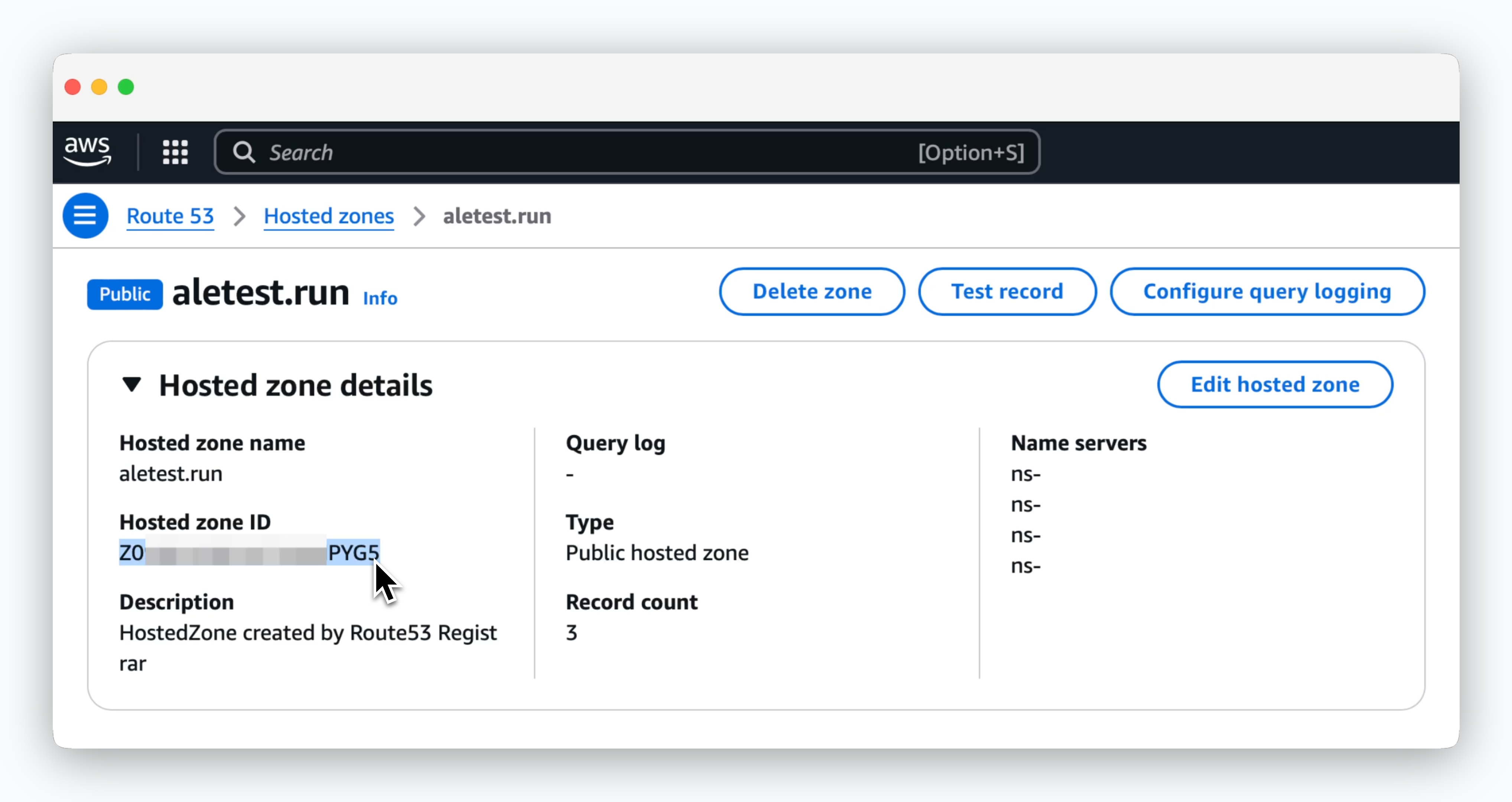 > You can find the **Hosted Zone ID** in **Route53 > Hosted Zones > Hosted Zone Details**.