> ## Documentation Index
> Fetch the complete documentation index at: https://docs.ale.run/llms.txt
> Use this file to discover all available pages before exploring further.
# Ingress Setup & Login
## Create DNS Record for preview URL
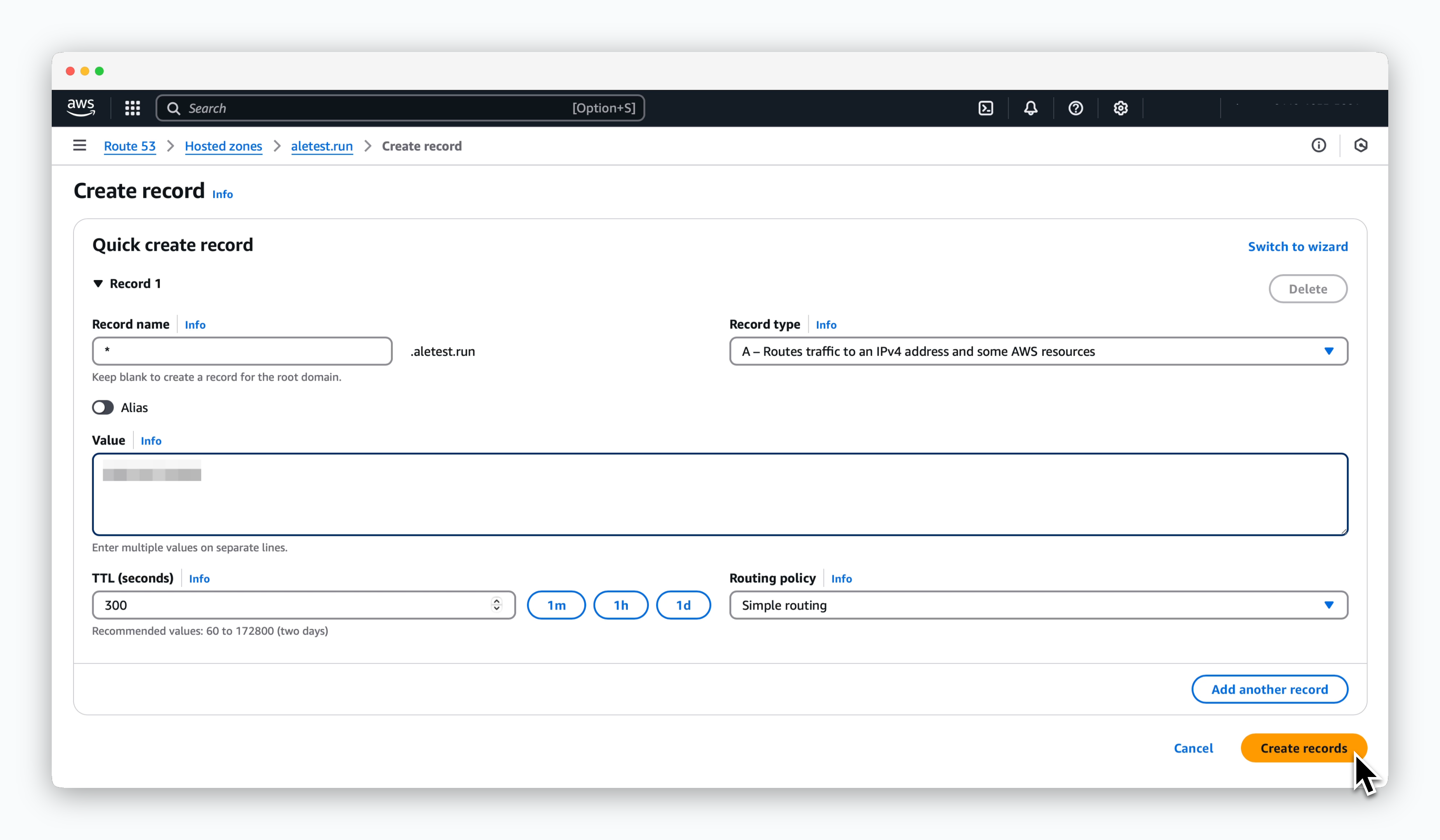 > Click `Create record` on the target domain page in the Route53 dashboard and create a record with the following values:
* **Record name**: \*
* **Record type**: A
* **Value**: Public IP address of EC2 instance
Through this process, the root domain with the registered record is assigned as a preview URL for the service deployed on the dashboard.
You can verify if the record has been propagated to the nameserver using the following command:
```bash theme={null}
dig ""
```
## Install Cert Manager
> Run the following commands to install **Cert Manager**:
```bash theme={null}
helm repo add jetstack https://charts.jetstack.io
helm repo update
```
```bash theme={null}
helm install \
cert-manager jetstack/cert-manager \
--namespace cert-manager \
--create-namespace \
--version v1.15.3 \
--set crds.enabled=true
```
## ClusterIssuer & TLS Certificates
> Use the following command to create the ClusterIssuer and TLS certificate:
```bash theme={null}
cat <
> Click `Create record` on the target domain page in the Route53 dashboard and create a record with the following values:
* **Record name**: \*
* **Record type**: A
* **Value**: Public IP address of EC2 instance
Through this process, the root domain with the registered record is assigned as a preview URL for the service deployed on the dashboard.
You can verify if the record has been propagated to the nameserver using the following command:
```bash theme={null}
dig ""
```
## Install Cert Manager
> Run the following commands to install **Cert Manager**:
```bash theme={null}
helm repo add jetstack https://charts.jetstack.io
helm repo update
```
```bash theme={null}
helm install \
cert-manager jetstack/cert-manager \
--namespace cert-manager \
--create-namespace \
--version v1.15.3 \
--set crds.enabled=true
```
## ClusterIssuer & TLS Certificates
> Use the following command to create the ClusterIssuer and TLS certificate:
```bash theme={null}
cat <
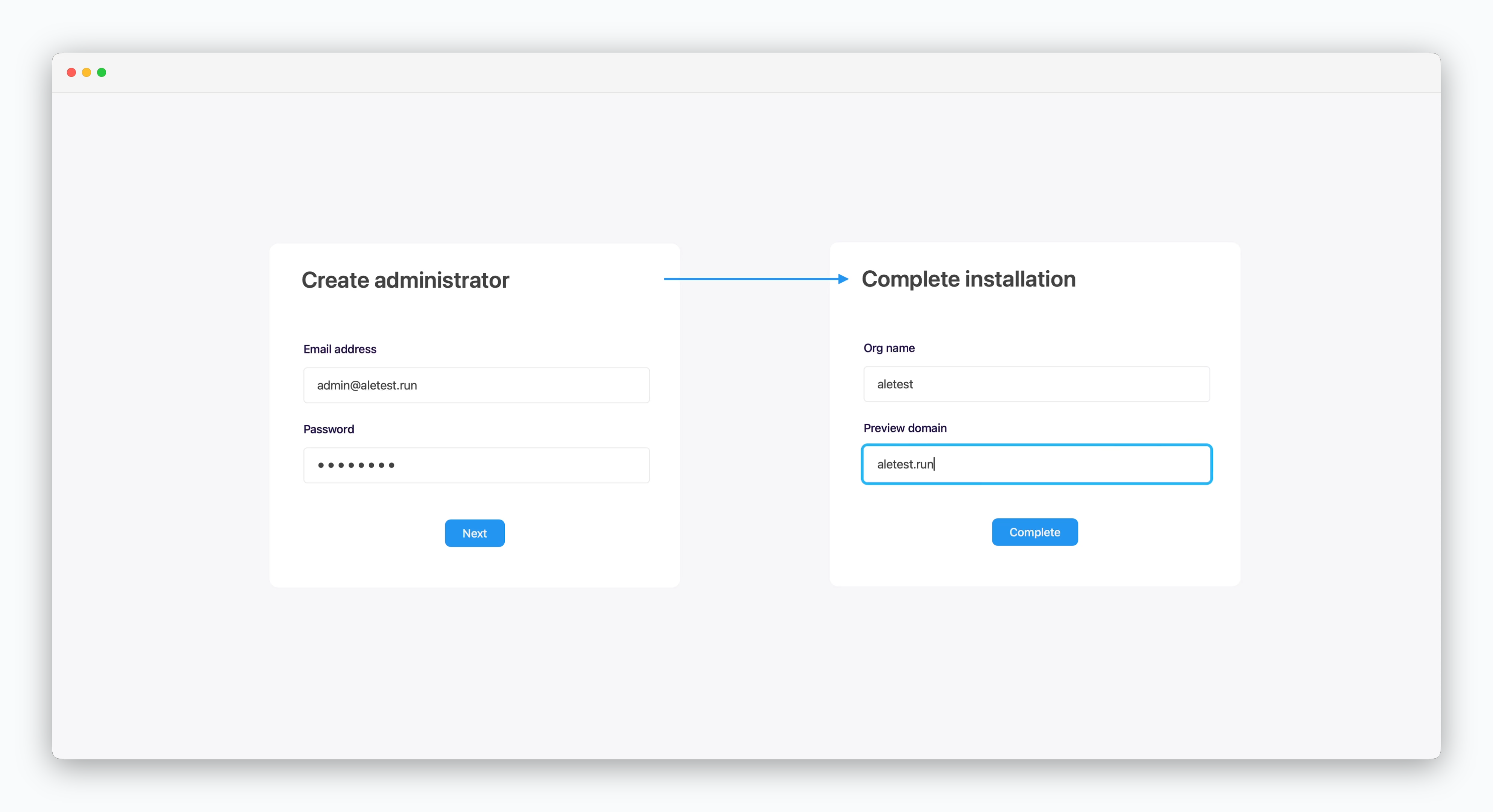 > Access `ale` at `https://app.[domain]`, create an administrator, and complete the installation.
Enter the root domain in the preview domain field.
> Access `ale` at `https://app.[domain]`, create an administrator, and complete the installation.
Enter the root domain in the preview domain field.
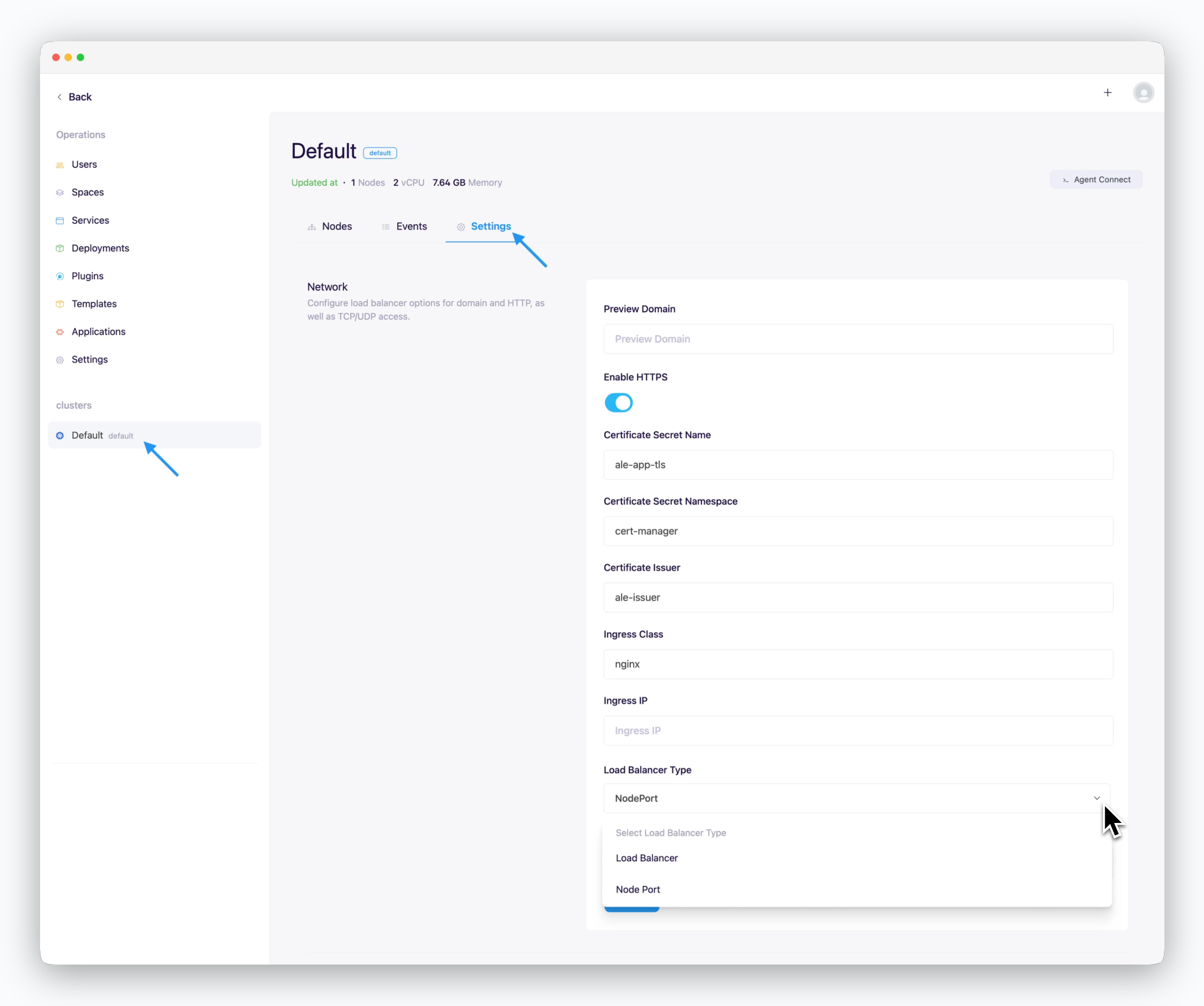 > Enter the following values in the network section of the settings tab in the cluster page and click `Apply`.
* **Preview domain**: Connected root domain
* **Use HTTPS**
* **Activate**: Internet environment
* **Inactivate**: Intranet/closed network environment
* **Certificate secret name**: ale-app-tls
* **Certificate secret namespace**: cert-manager
* **Certificate issuer**: ale-issuer
* **Ingress class**: nginx
* **Load balancer type**: NodePort
You can access the operations system by clicking the space name in the dashboard.
> Enter the following values in the network section of the settings tab in the cluster page and click `Apply`.
* **Preview domain**: Connected root domain
* **Use HTTPS**
* **Activate**: Internet environment
* **Inactivate**: Intranet/closed network environment
* **Certificate secret name**: ale-app-tls
* **Certificate secret namespace**: cert-manager
* **Certificate issuer**: ale-issuer
* **Ingress class**: nginx
* **Load balancer type**: NodePort
You can access the operations system by clicking the space name in the dashboard.
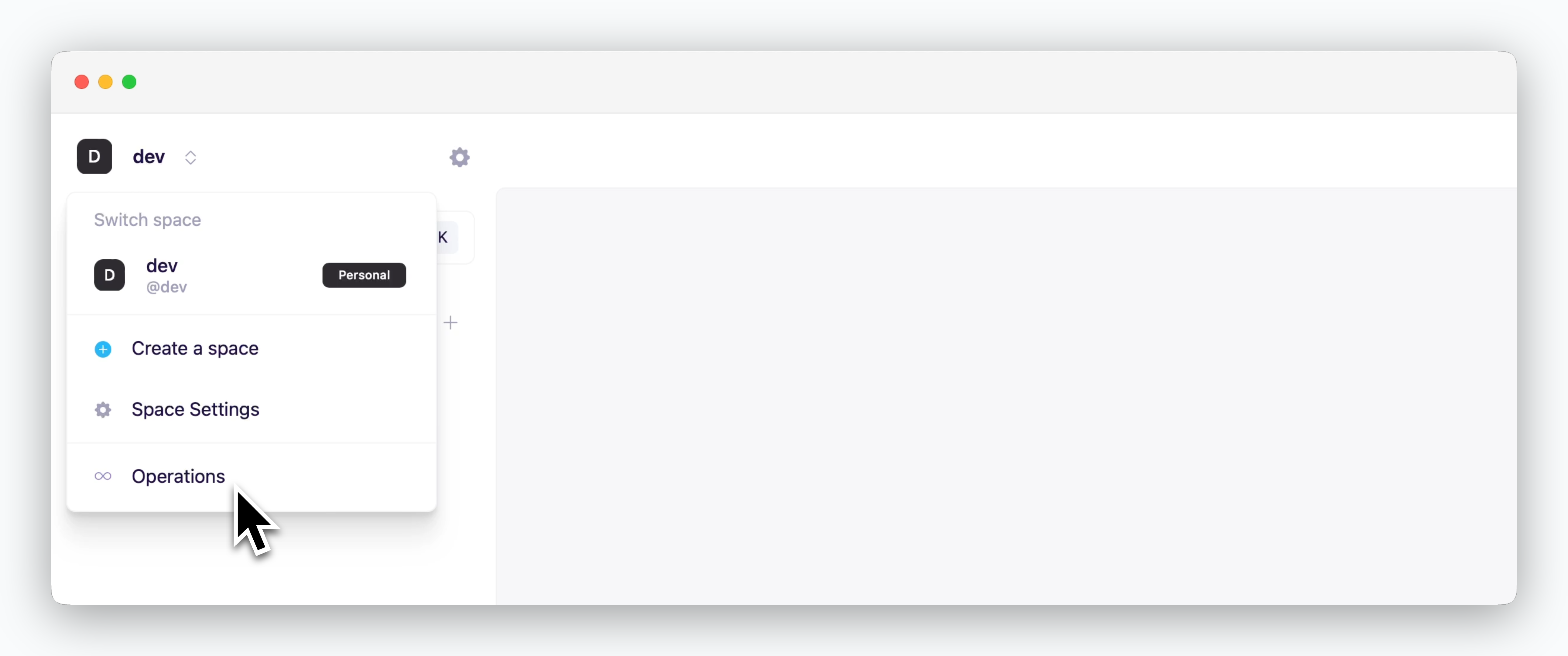 The operations system menu is only displayed for accounts with access permissions to the operations system.
## Access ale Dashboard
The operations system menu is only displayed for accounts with access permissions to the operations system.
## Access ale Dashboard
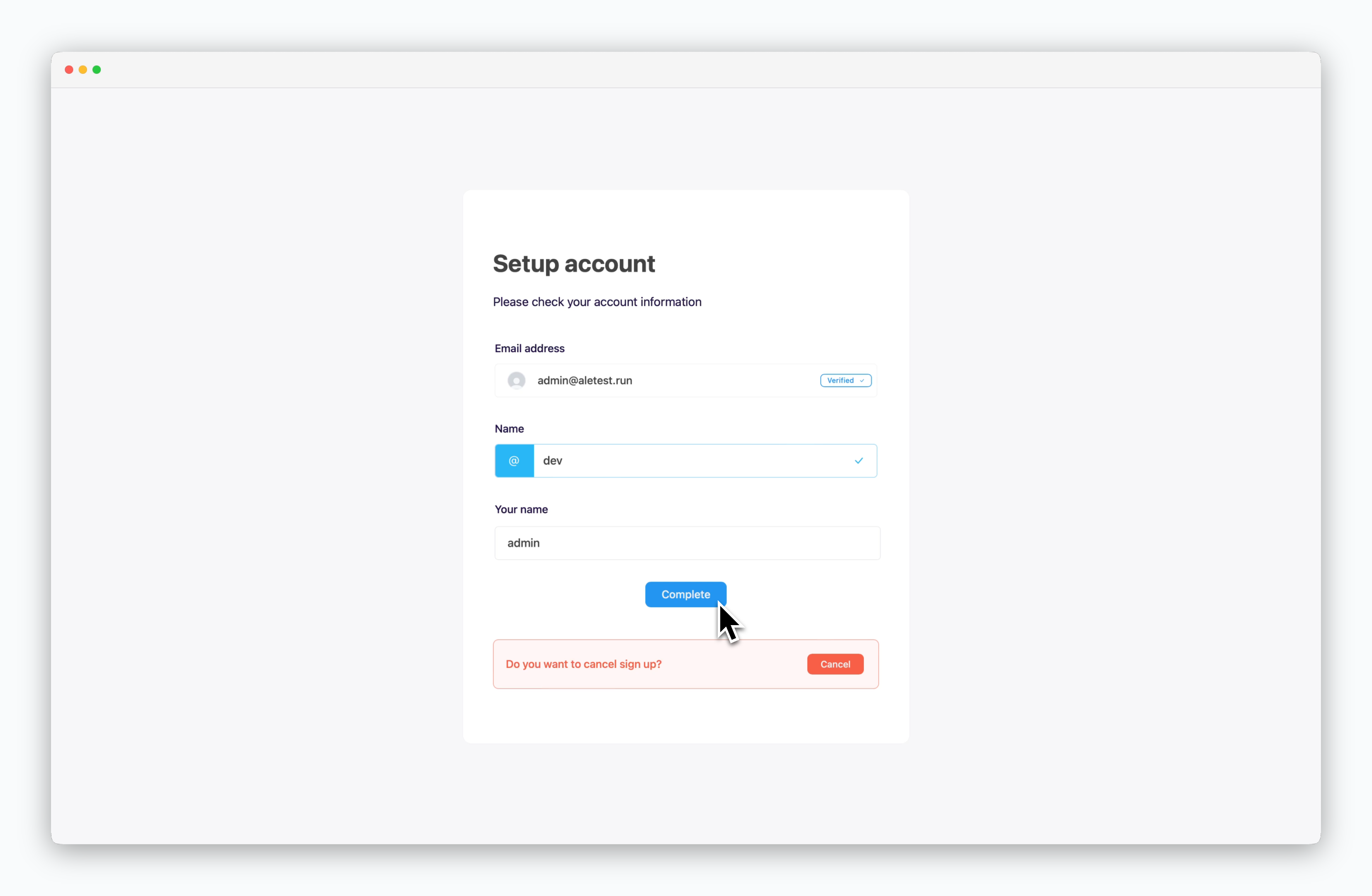 > Click `Back` in the top left of the operations system or access `ale` at `https://app.[domain]` and complete the signup process to use the developer dashboard.
[You can use managed container registries, such as AWS ECR, as the repository for built images.](/en/registry/aws-ecr) If no container registry is connected, images are managed using the Docker Engine running in the local environment.
Refer to the cards below for instructions on using the operations system and developer dashboard.
> Click `Back` in the top left of the operations system or access `ale` at `https://app.[domain]` and complete the signup process to use the developer dashboard.
[You can use managed container registries, such as AWS ECR, as the repository for built images.](/en/registry/aws-ecr) If no container registry is connected, images are managed using the Docker Engine running in the local environment.
Refer to the cards below for instructions on using the operations system and developer dashboard.