> ## Documentation Index
> Fetch the complete documentation index at: https://docs.ale.run/llms.txt
> Use this file to discover all available pages before exploring further.
# TLS & Ingress Configuration
> Guide for applying SSL/TLS certificates using Cert Manager.
TLS certificates are automatically applied to the preview URLs and custom domains of services deployed with `ale`.
***
## Cert Generator Install & Issue
```bash theme={null}
export AWS_REGION=
export AWS_DOMAIN=
export AWS_HOSTED_ZONE_ID=
export ACME_EMAIL=
```
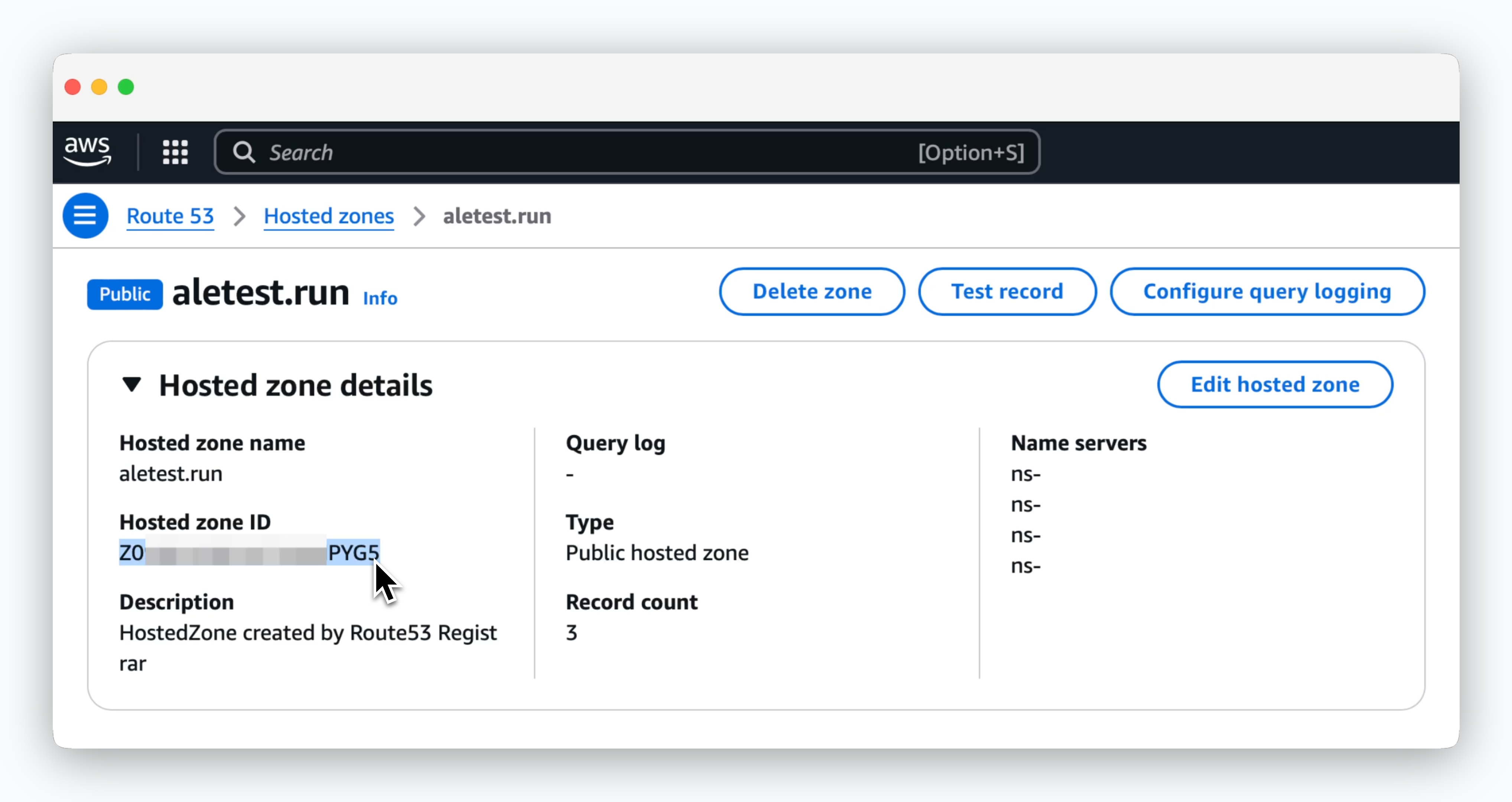 > You can find the **Hosted Zone ID** in **Route53 > Hosted Zones > Hosted Zone Details**.
```bash theme={null}
cat <
```bash theme={null}
cat <
## Ingress Setup
```bash theme={null}
cat <
```bash theme={null}
kubectl get order -n ale \
| awk '/ale-/{print $1}' \
| xargs kubectl get order -n ale
```
```bash theme={null}
NAME STATE AGE
ale-controller-tls-1-1997619857 valid 103s
```
```bash theme={null}
https://app.[Route53_Domain]
```
> You can find the **Hosted Zone ID** in **Route53 > Hosted Zones > Hosted Zone Details**.
```bash theme={null}
cat <
```bash theme={null}
cat <
## Ingress Setup
```bash theme={null}
cat <
```bash theme={null}
kubectl get order -n ale \
| awk '/ale-/{print $1}' \
| xargs kubectl get order -n ale
```
```bash theme={null}
NAME STATE AGE
ale-controller-tls-1-1997619857 valid 103s
```
```bash theme={null}
https://app.[Route53_Domain]
```
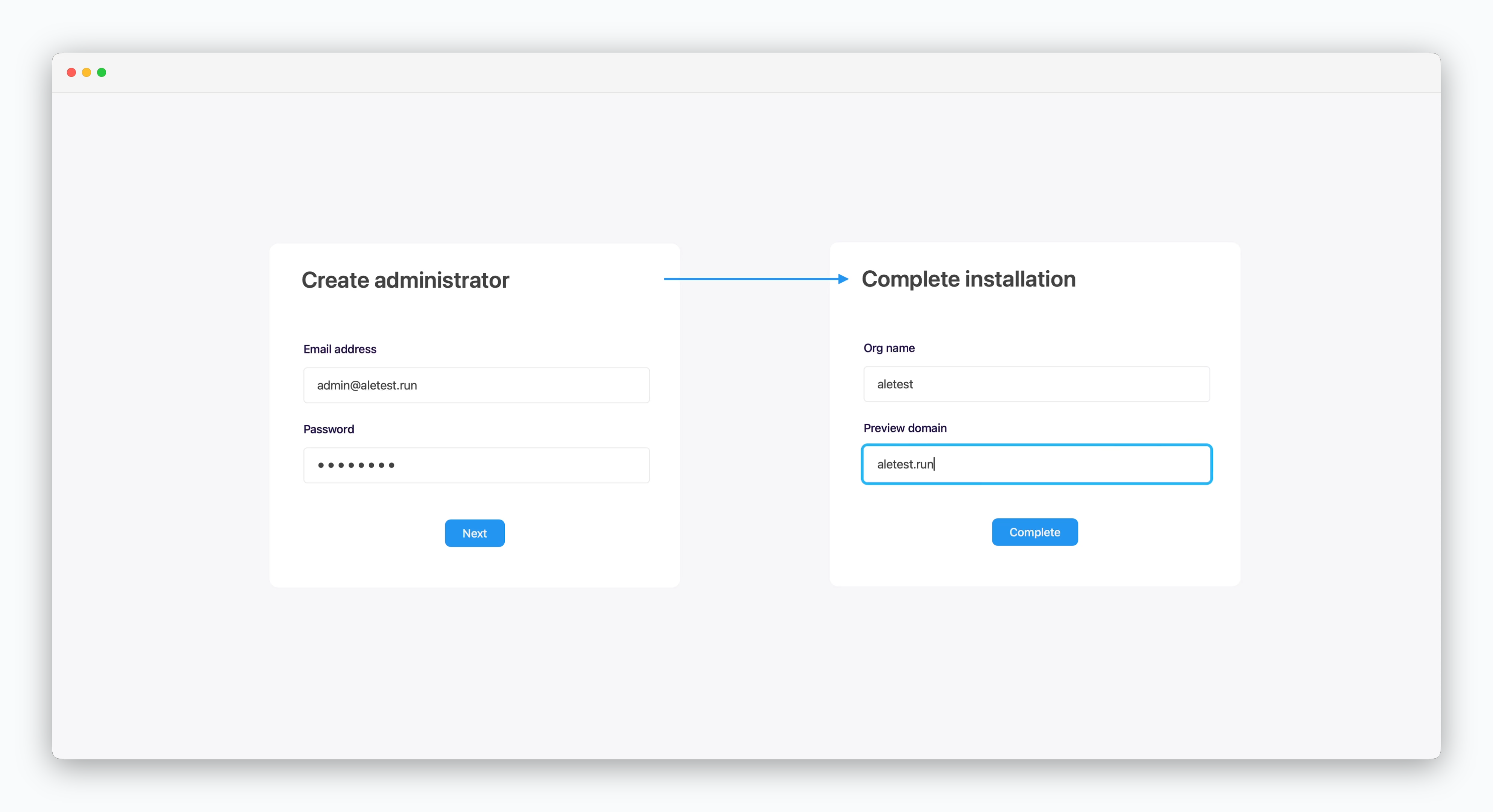 Enter the root domain in the preview domain field.
## Cluster Network Configuration
Enter the root domain in the preview domain field.
## Cluster Network Configuration
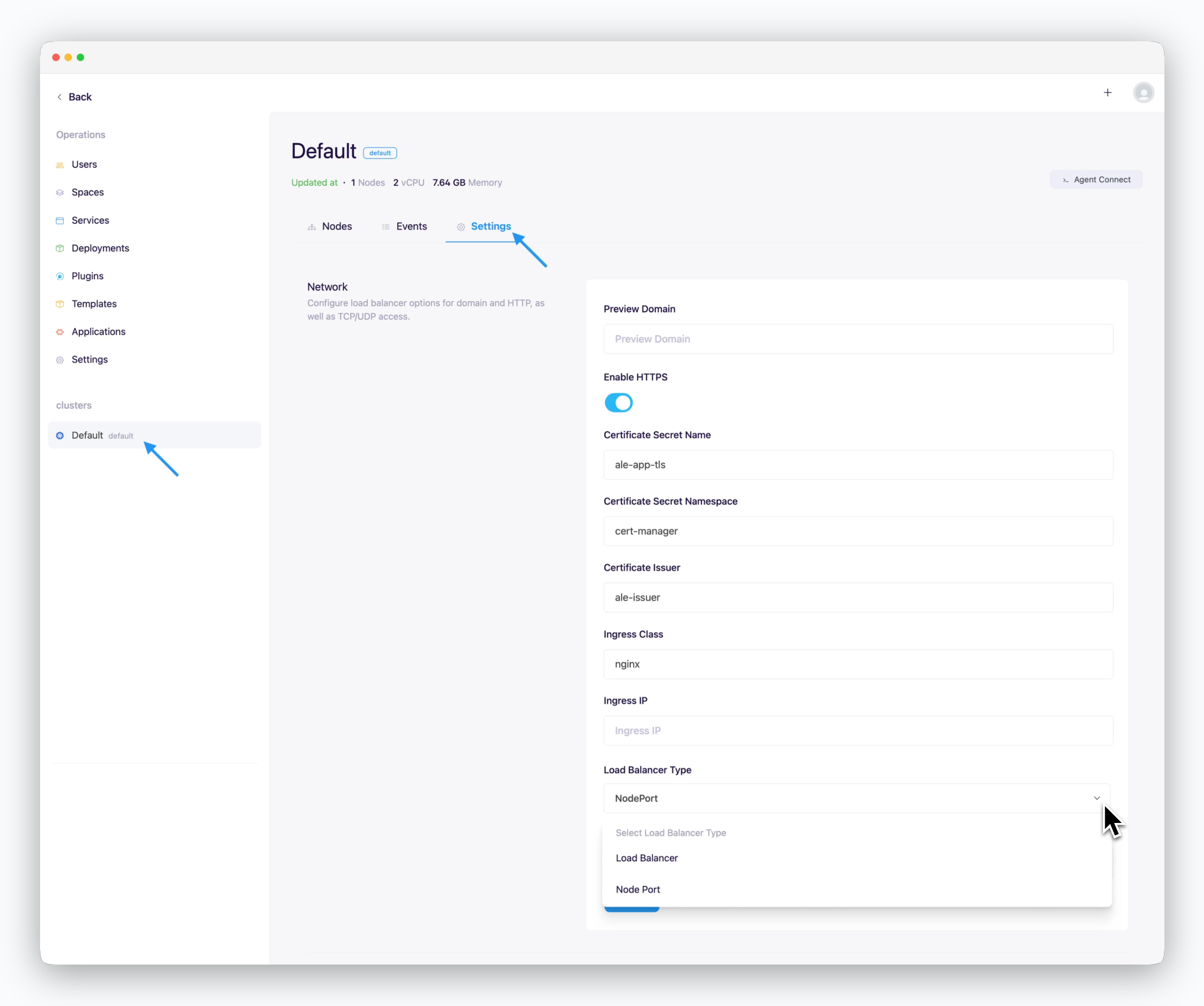 > On the cluster page in the Operations System, navigate to the **Settings** tab and enter the following values in the **Network** section.
* **Preview Domain**: Root domain of Route53
* **Use HTTPS**
* **Checked**: Internet environment
* **Unchecked**: Intranet/closed network environment
* **Certificate Secret Name**: ale-app-tls
* **Certificate Secret Namespace**: cert-manager
* **Certificate Issuer**: ale-issuer
* **Ingress Class**: nginx
* **Ingress IP**: Blank (Auto-detected)
* **Load Balancer Type**
* Load Balancer
* NodePort
* **Ingress/Egress Bandwidth**: Enter in Mbps
You can access the operations system by clicking the space name in the dashboard.
> On the cluster page in the Operations System, navigate to the **Settings** tab and enter the following values in the **Network** section.
* **Preview Domain**: Root domain of Route53
* **Use HTTPS**
* **Checked**: Internet environment
* **Unchecked**: Intranet/closed network environment
* **Certificate Secret Name**: ale-app-tls
* **Certificate Secret Namespace**: cert-manager
* **Certificate Issuer**: ale-issuer
* **Ingress Class**: nginx
* **Ingress IP**: Blank (Auto-detected)
* **Load Balancer Type**
* Load Balancer
* NodePort
* **Ingress/Egress Bandwidth**: Enter in Mbps
You can access the operations system by clicking the space name in the dashboard.
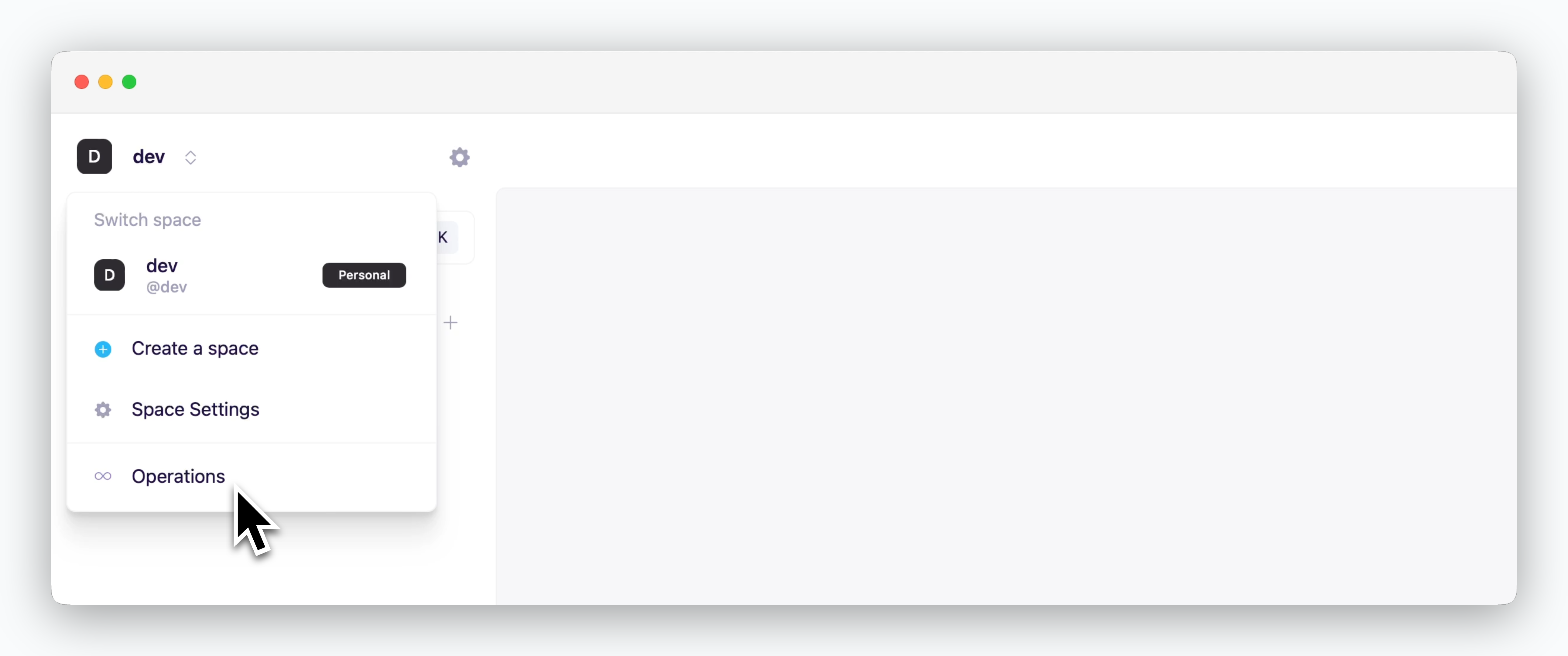 The operations system menu is only displayed for accounts with access permissions to the operations system.