> ## Documentation Index
> Fetch the complete documentation index at: https://docs.ale.run/llms.txt
> Use this file to discover all available pages before exploring further.
# GCP Artifact Registry連携
> aleとGCP Artifact Registryを連携するためのガイドです。
***
## GCP Artifact Registry の作成
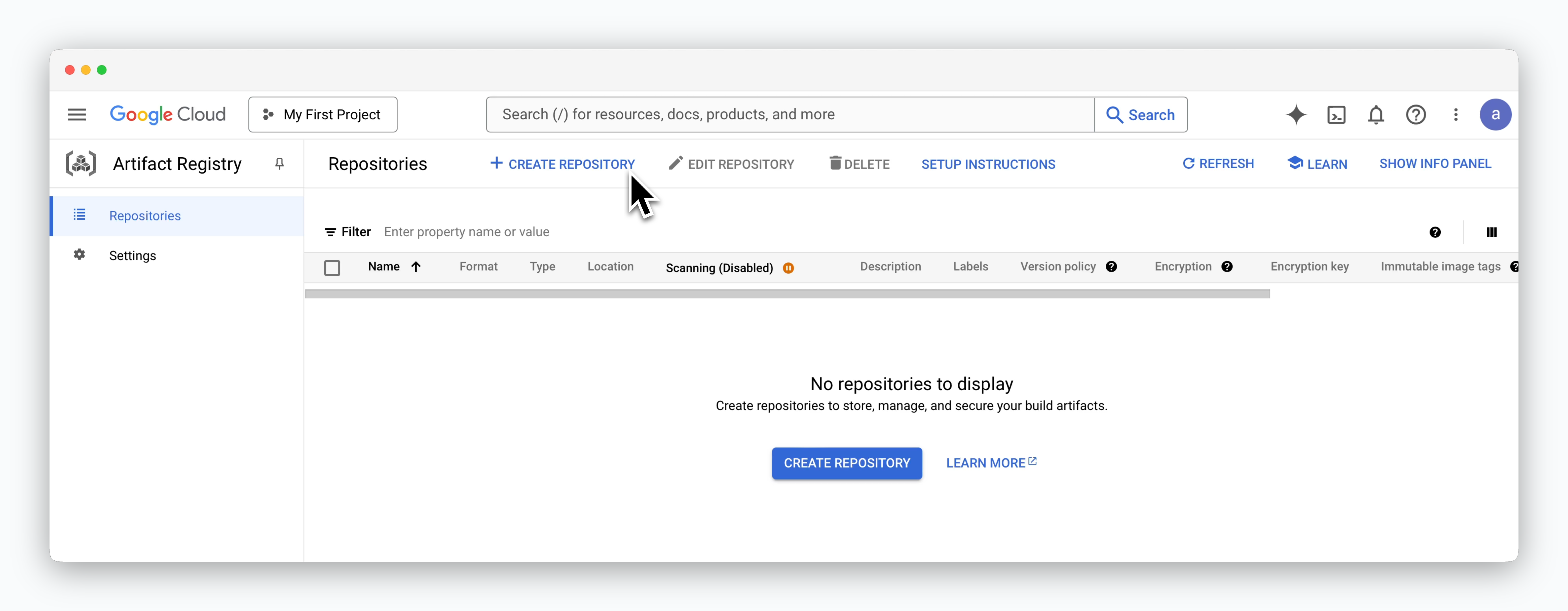 > Google Cloud コンソールで **Artifact Registry** サービスにアクセスし、`CREATE REPOSITORY` をクリックします。
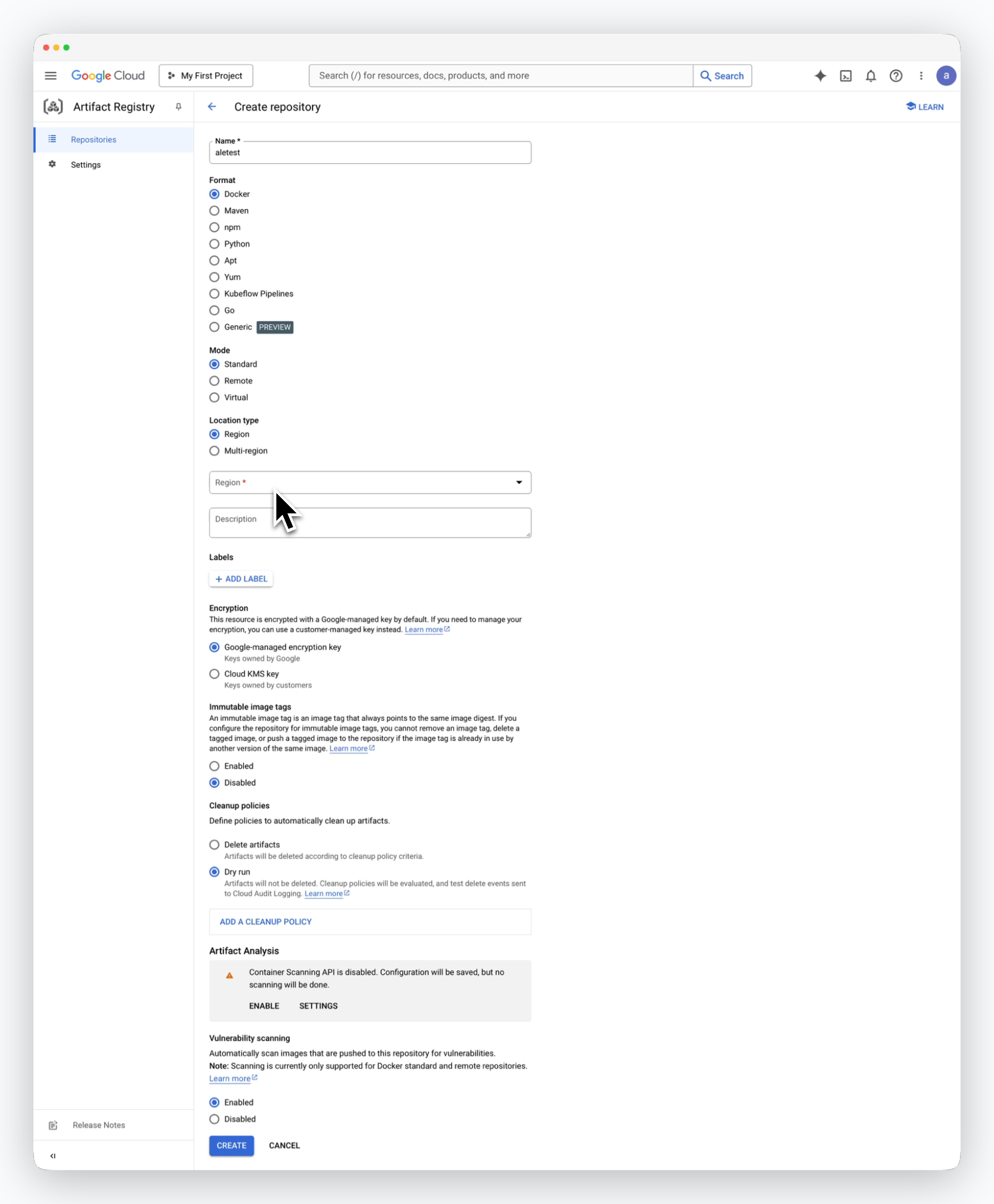 > リポジトリの名前を入力し、以下の値を設定して `CREATE` をクリックし、リポジトリを作成します。
Region 以外はデフォルト値を使用してください。
* **Format** : Docker
* **Mode** : Standard
* **Location type** : Region
* **Region** : 適切なリージョンを選択
* **Encryption** : Google-managed encryption key
## リポジトリのアクセスURLを取得
> リポジトリの名前を入力し、以下の値を設定して `CREATE` をクリックし、リポジトリを作成します。
Region 以外はデフォルト値を使用してください。
* **Format** : Docker
* **Mode** : Standard
* **Location type** : Region
* **Region** : 適切なリージョンを選択
* **Encryption** : Google-managed encryption key
## リポジトリのアクセスURLを取得
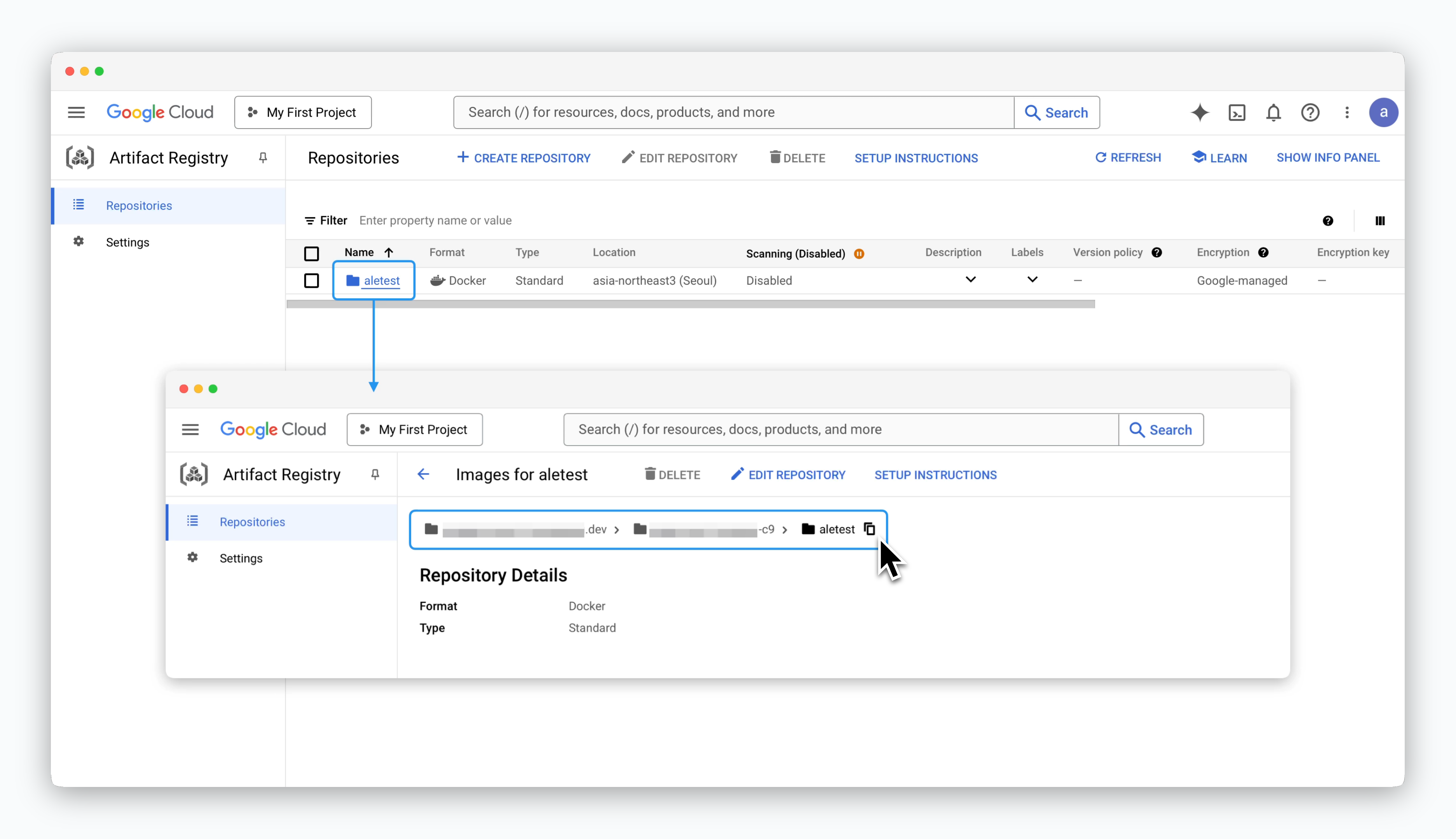 > 作成されたリポジトリをクリックし、`[リージョン]-docker.pkg.dev/[GCP プロジェクト ID]/[リポジトリ名]` 形式のアクセスURLを取得します。
このアクセスURLは、`ale` にリポジトリを接続する際に使用されます。
## サービスアカウントと権限の設定
> 作成されたリポジトリをクリックし、`[リージョン]-docker.pkg.dev/[GCP プロジェクト ID]/[リポジトリ名]` 形式のアクセスURLを取得します。
このアクセスURLは、`ale` にリポジトリを接続する際に使用されます。
## サービスアカウントと権限の設定
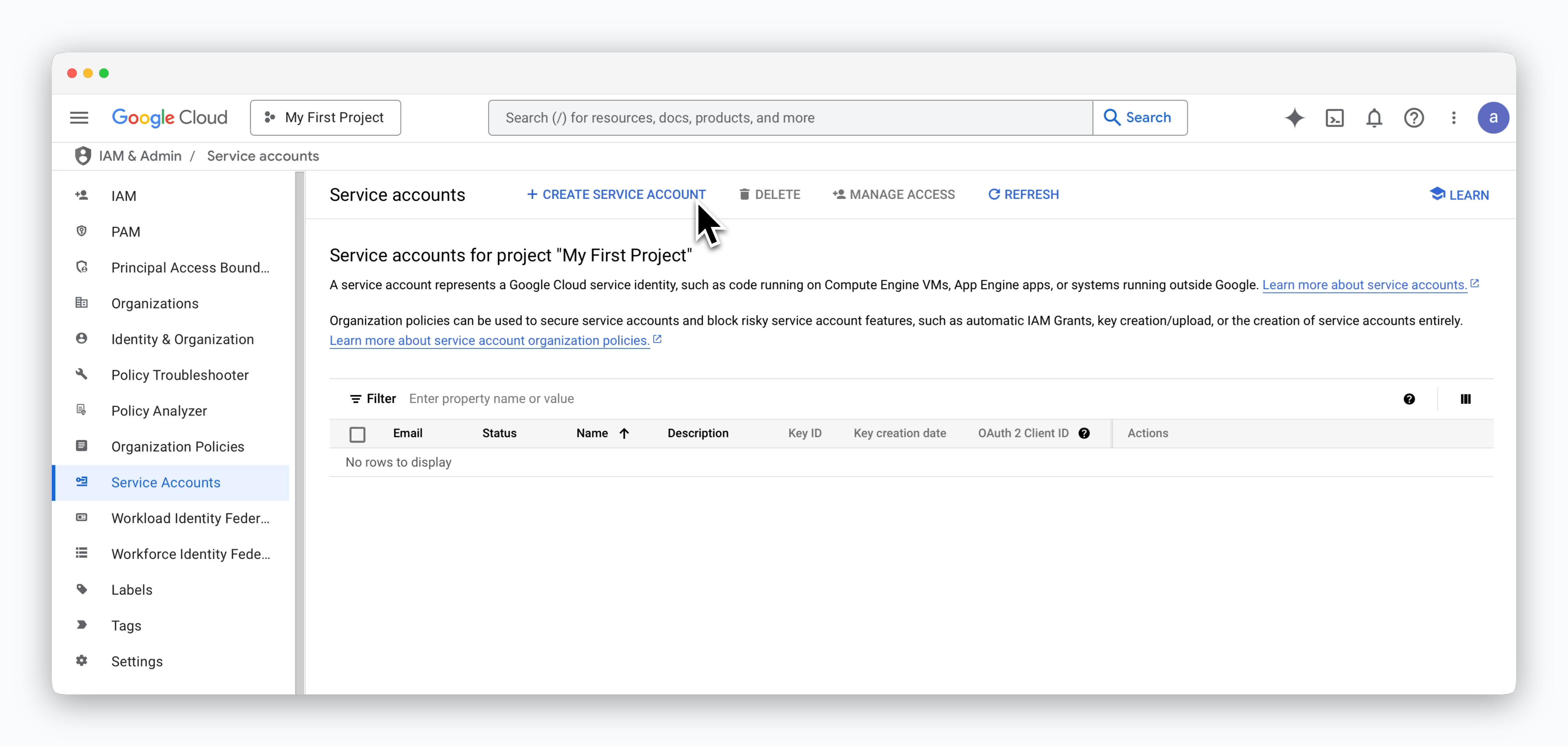 > **IAM & Admin > Service Accounts** ページに移動し、`CREATE SERVICE ACCOUNT` をクリックします。
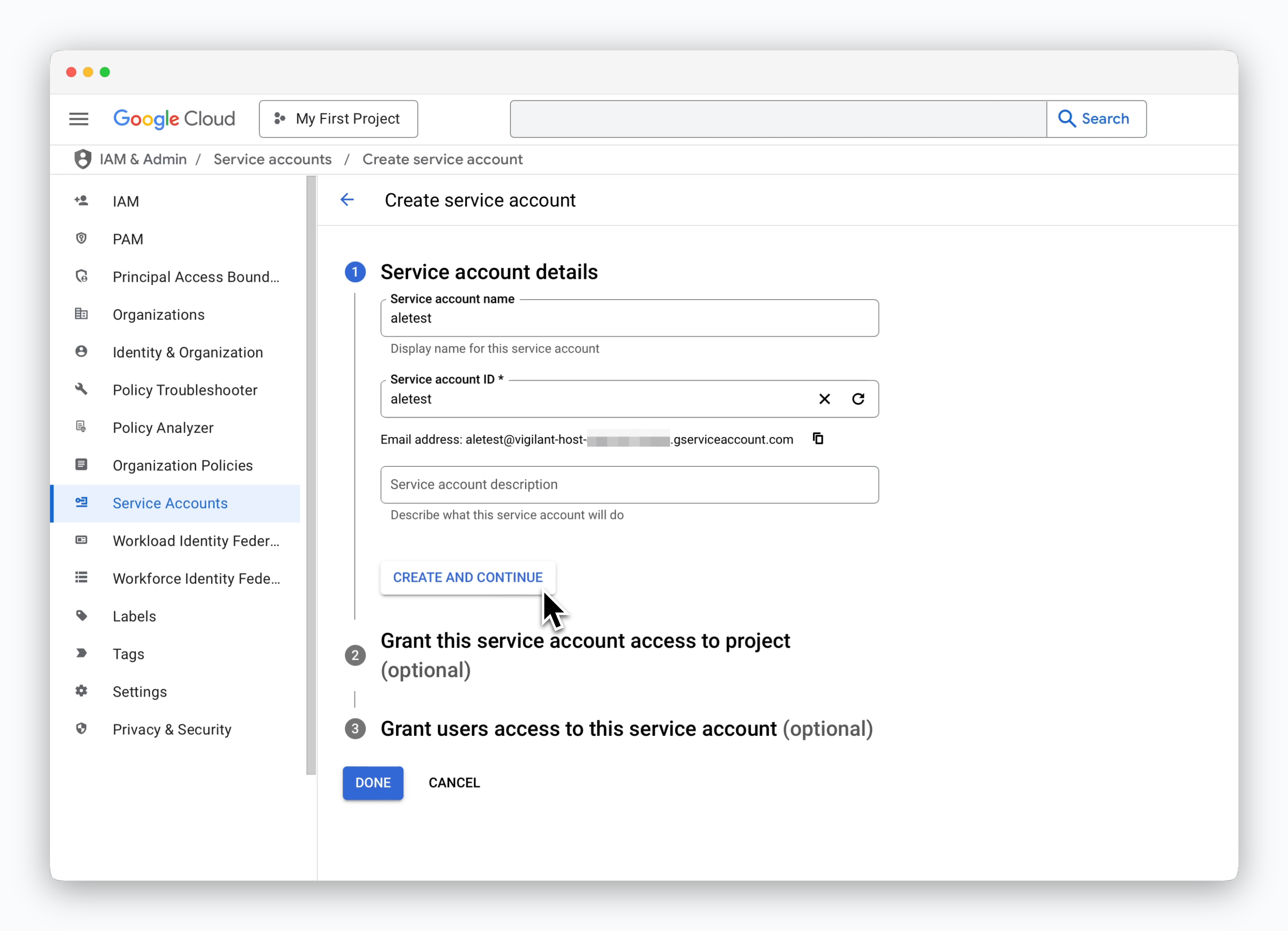 > 識別可能な **サービスアカウント名** を入力し、`CREATE AND CONTINUE` をクリックします。
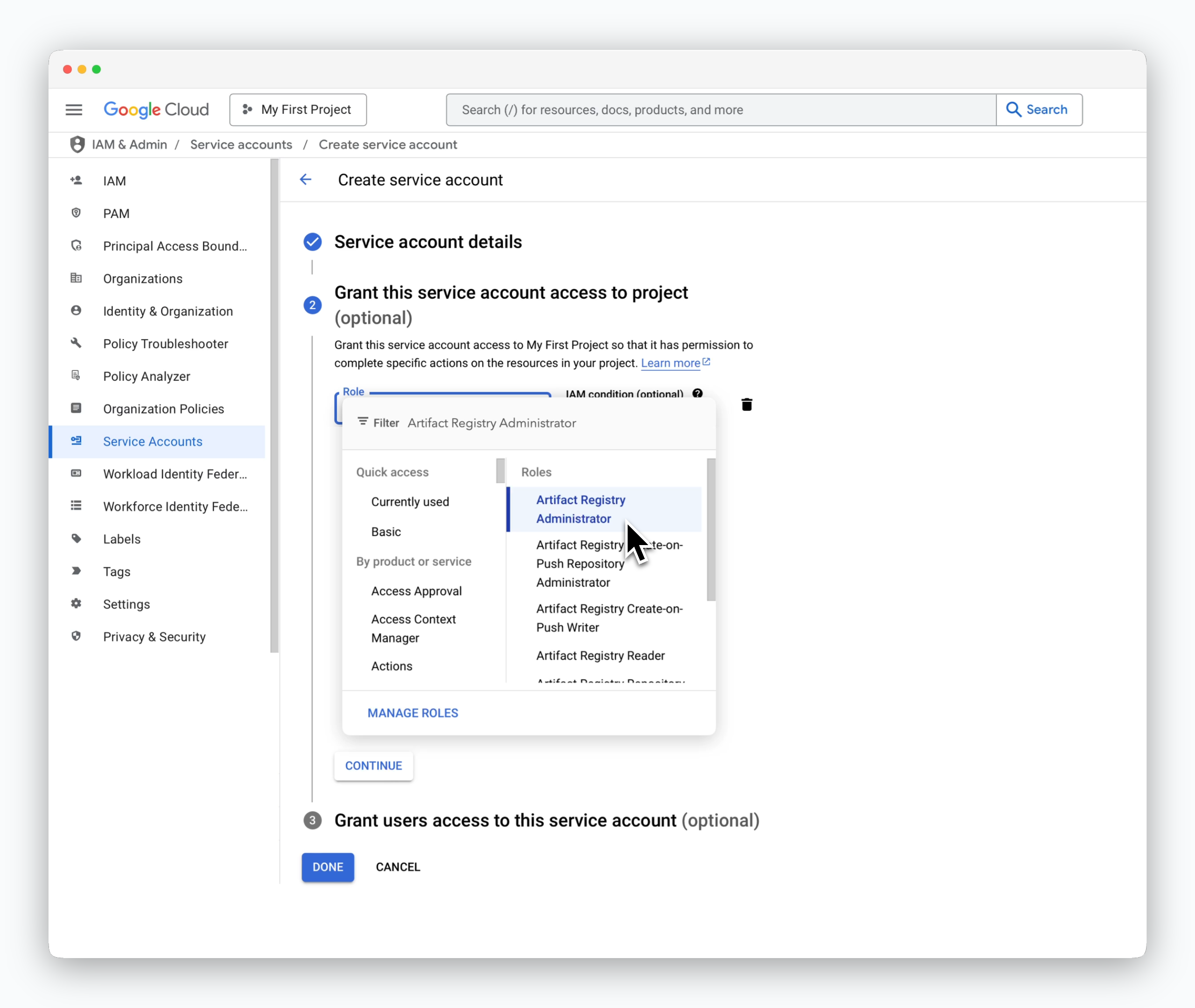 > ロール選択画面で **Artifact Registry Administrator** を選択し、`DONE` をクリックしてサービスアカウントを作成します。
## JSON キーの作成
> ロール選択画面で **Artifact Registry Administrator** を選択し、`DONE` をクリックしてサービスアカウントを作成します。
## JSON キーの作成
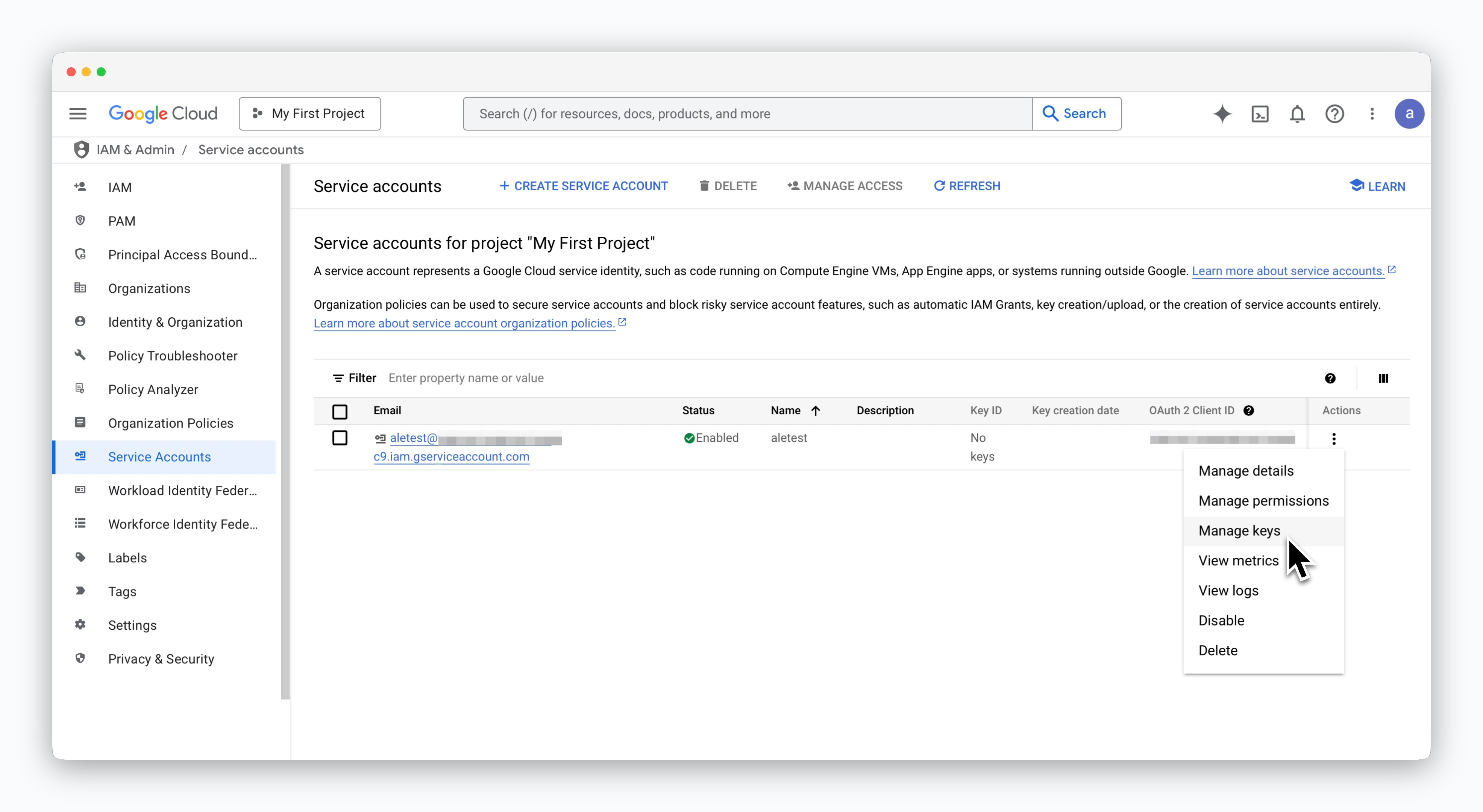 > サービスアカウントの右側にある アイコンをクリックし、**Manage keys** を選択します。
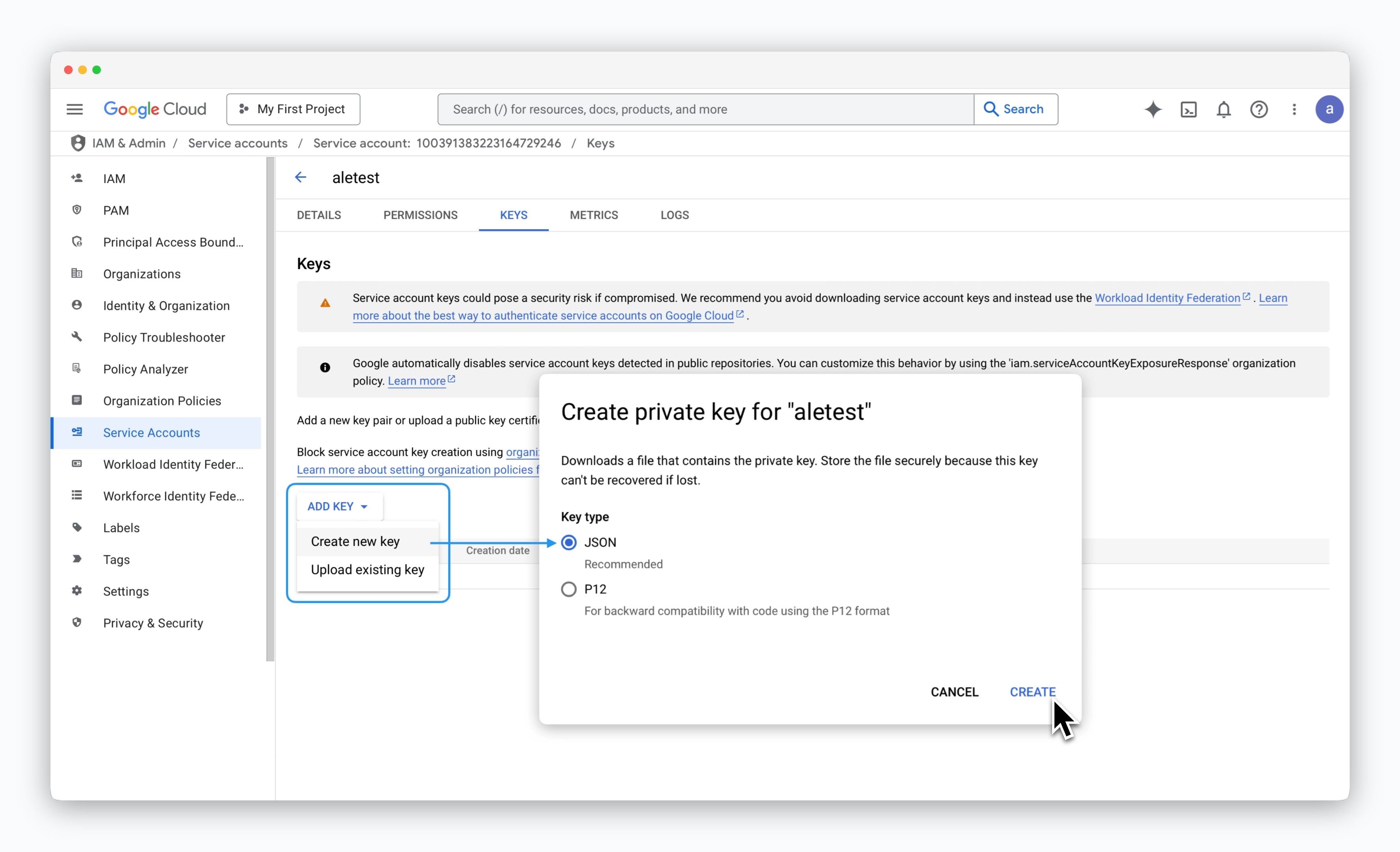 > サービスアカウントキー管理ページで、**ADD KEY > Create new key** をクリックします。表示されるモーダルで、キータイプとして **JSON** を選択し、`CREATE` をクリックして JSON キーファイルをダウンロードします。
## ale への接続
> サービスアカウントキー管理ページで、**ADD KEY > Create new key** をクリックします。表示されるモーダルで、キータイプとして **JSON** を選択し、`CREATE` をクリックして JSON キーファイルをダウンロードします。
## ale への接続
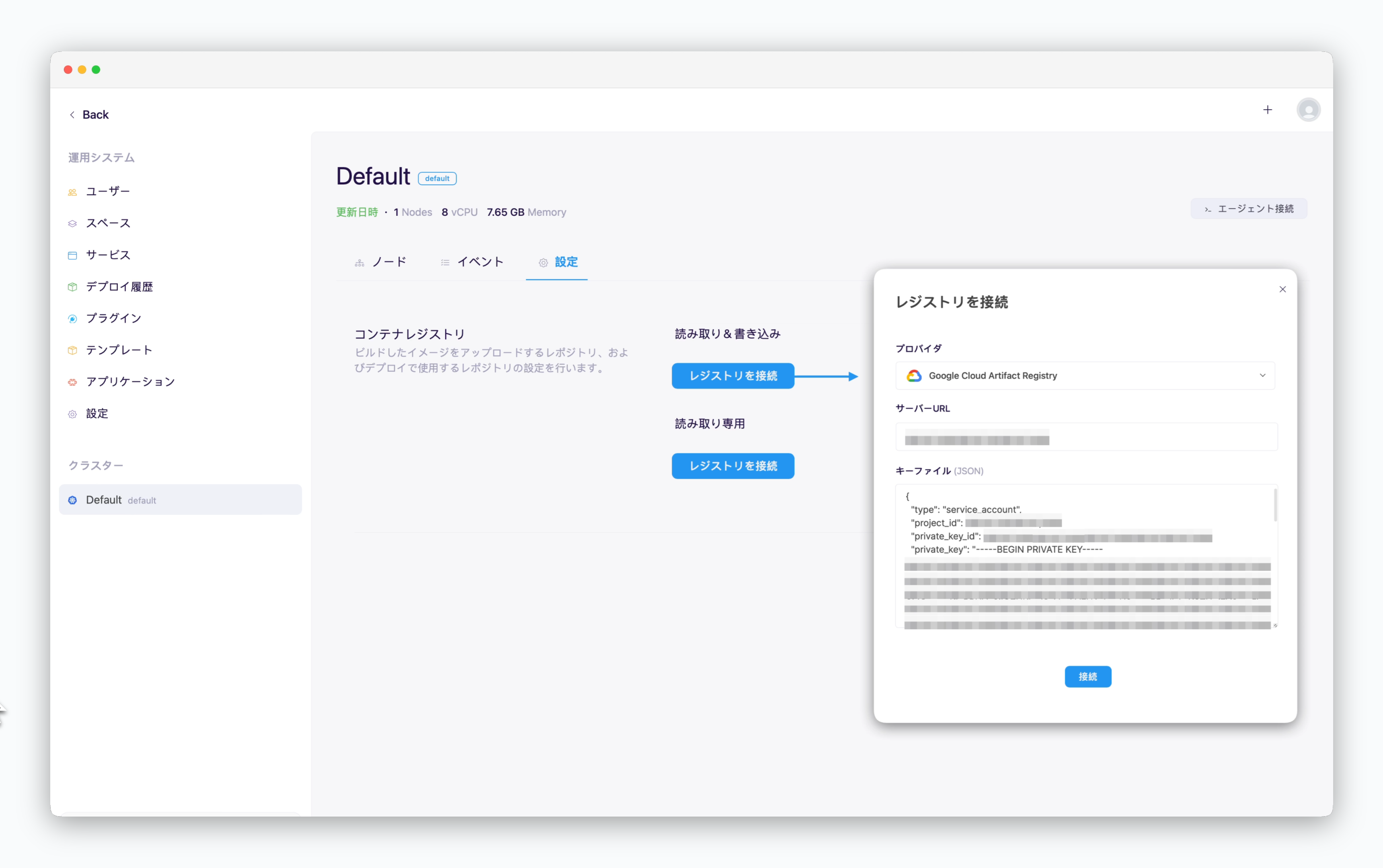 > `ale` 運用システムで、クラスターページの **設定** タブに移動し、`コンテナリポジトリを接続` をクリックします。表示されるモーダルで、以下の値を入力し、`Connect` をクリックします。
* **リポジトリプロバイダー** : Google Cloud Artifact Registry
* **アクセスURL** : [リポジトリ作成後に取得したアクセスURL](/ja/registry/gcp-ar#%E3%83%AA%E3%83%9D%E3%82%B8%E3%83%88%E3%83%AA%E3%81%AE%E3%82%A2%E3%82%AF%E3%82%BB%E3%82%B9url%E3%82%92%E5%8F%96%E5%BE%97)
* **キーファイル (JSON)** : JSON キーファイルの内容
> `ale` 運用システムで、クラスターページの **設定** タブに移動し、`コンテナリポジトリを接続` をクリックします。表示されるモーダルで、以下の値を入力し、`Connect` をクリックします。
* **リポジトリプロバイダー** : Google Cloud Artifact Registry
* **アクセスURL** : [リポジトリ作成後に取得したアクセスURL](/ja/registry/gcp-ar#%E3%83%AA%E3%83%9D%E3%82%B8%E3%83%88%E3%83%AA%E3%81%AE%E3%82%A2%E3%82%AF%E3%82%BB%E3%82%B9url%E3%82%92%E5%8F%96%E5%BE%97)
* **キーファイル (JSON)** : JSON キーファイルの内容