> ## Documentation Index
> Fetch the complete documentation index at: https://docs.ale.run/llms.txt
> Use this file to discover all available pages before exploring further.
# GitHub Actions
> 서비스 배포 시 [자동으로 생성되는 Github Actions의 workflow](/ko/developers/githubactions#github-actions-%EC%A0%81%EC%9A%A9)를 적용해 간편하게 배포자동화할 수 있습니다.
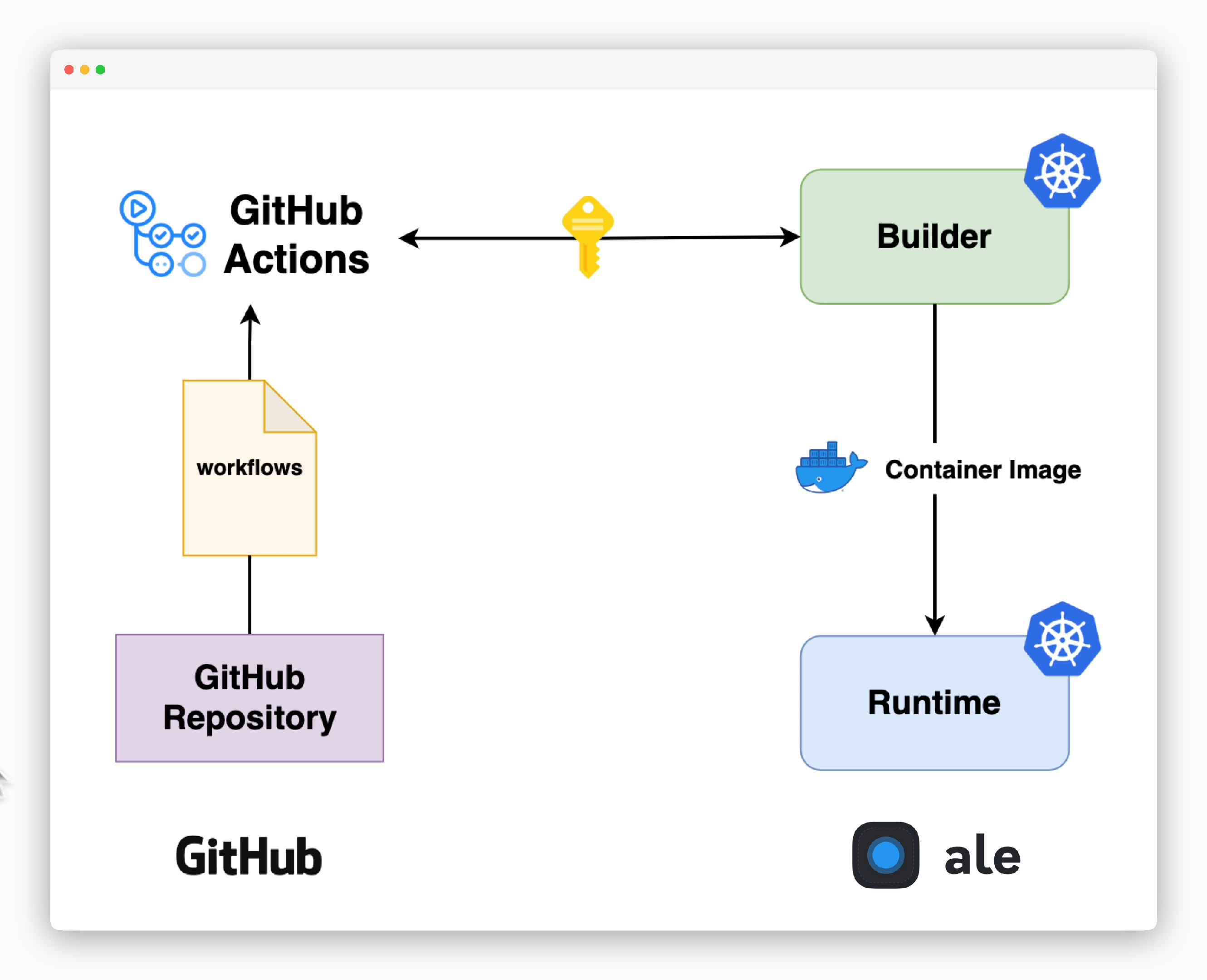 >
***
## 시크릿 설정
> `ale` 과 **GitHub**의 통신을 위한 시크릿 설정이 필요합니다.
>
***
## 시크릿 설정
> `ale` 과 **GitHub**의 통신을 위한 시크릿 설정이 필요합니다.
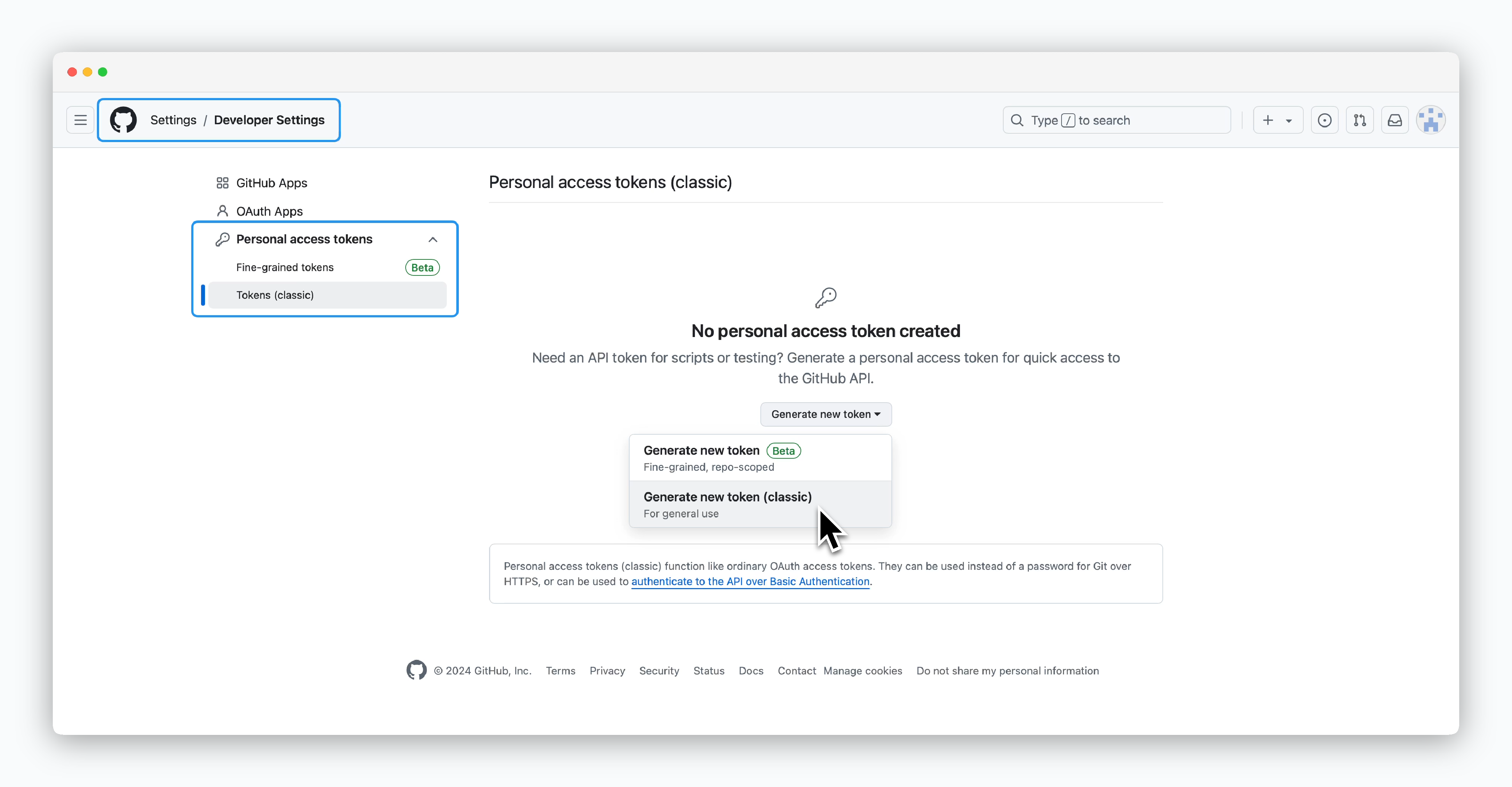 > GitHub 계정 Settings의 Developer settings 화면에서 Personal access tokens 메뉴의 `Generate new token(classic)`을 클릭하세요.
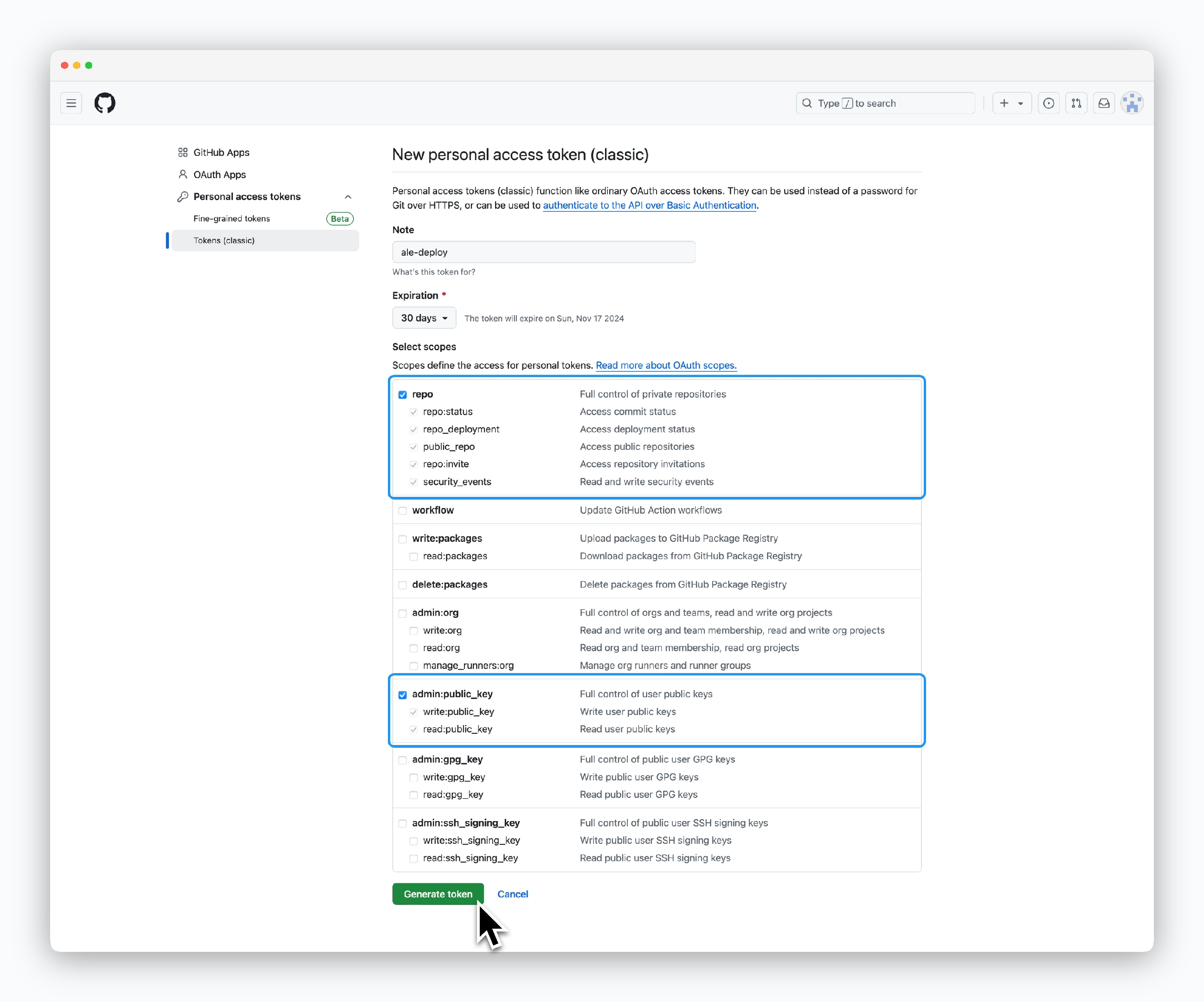 > 이어지는 화면에서 **`repo`, `admin:public_key`** 권한을 부여하고 토큰을 생성하세요.
Expiration 설정 기간 만료시 workflow가 작동하지 않게됩니다.
> 이어지는 화면에서 **`repo`, `admin:public_key`** 권한을 부여하고 토큰을 생성하세요.
Expiration 설정 기간 만료시 workflow가 작동하지 않게됩니다.
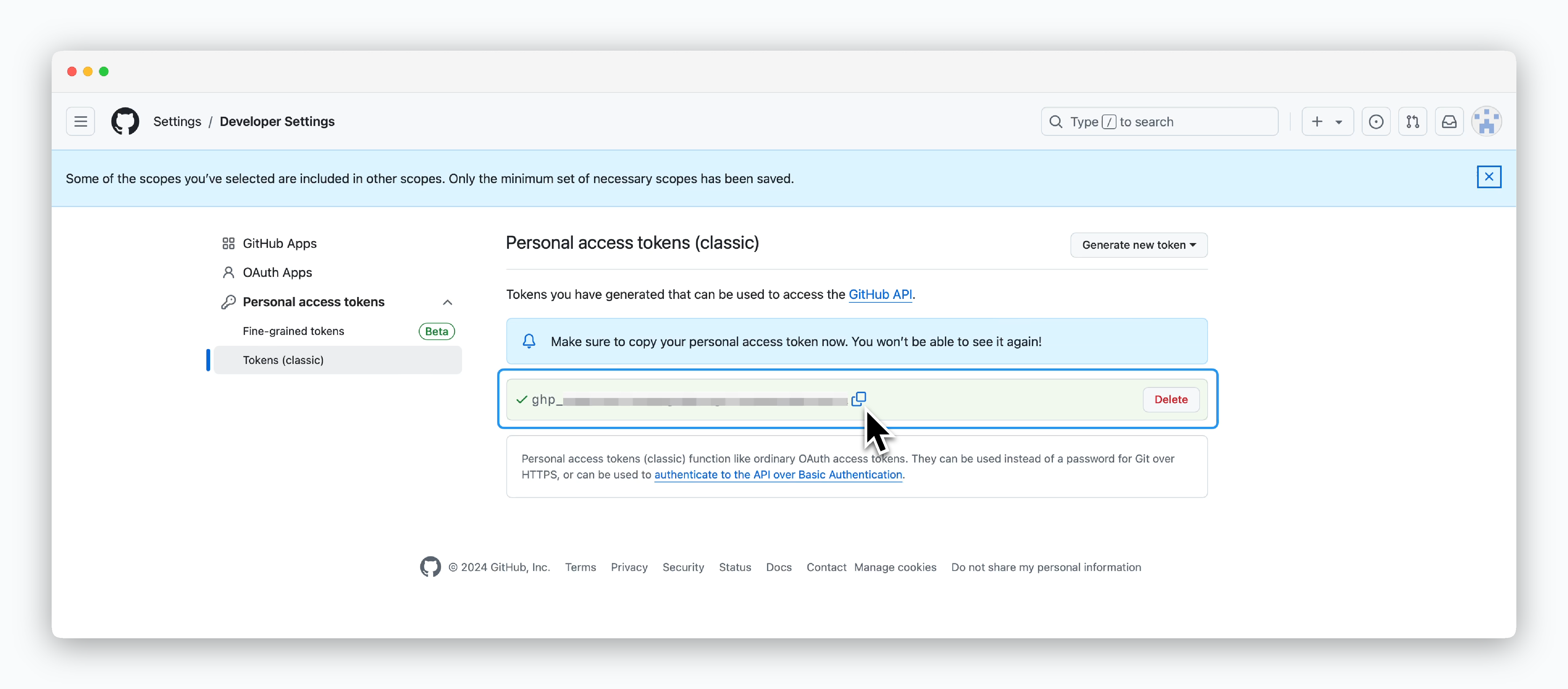 > 생성된 토큰값을 보관하세요.
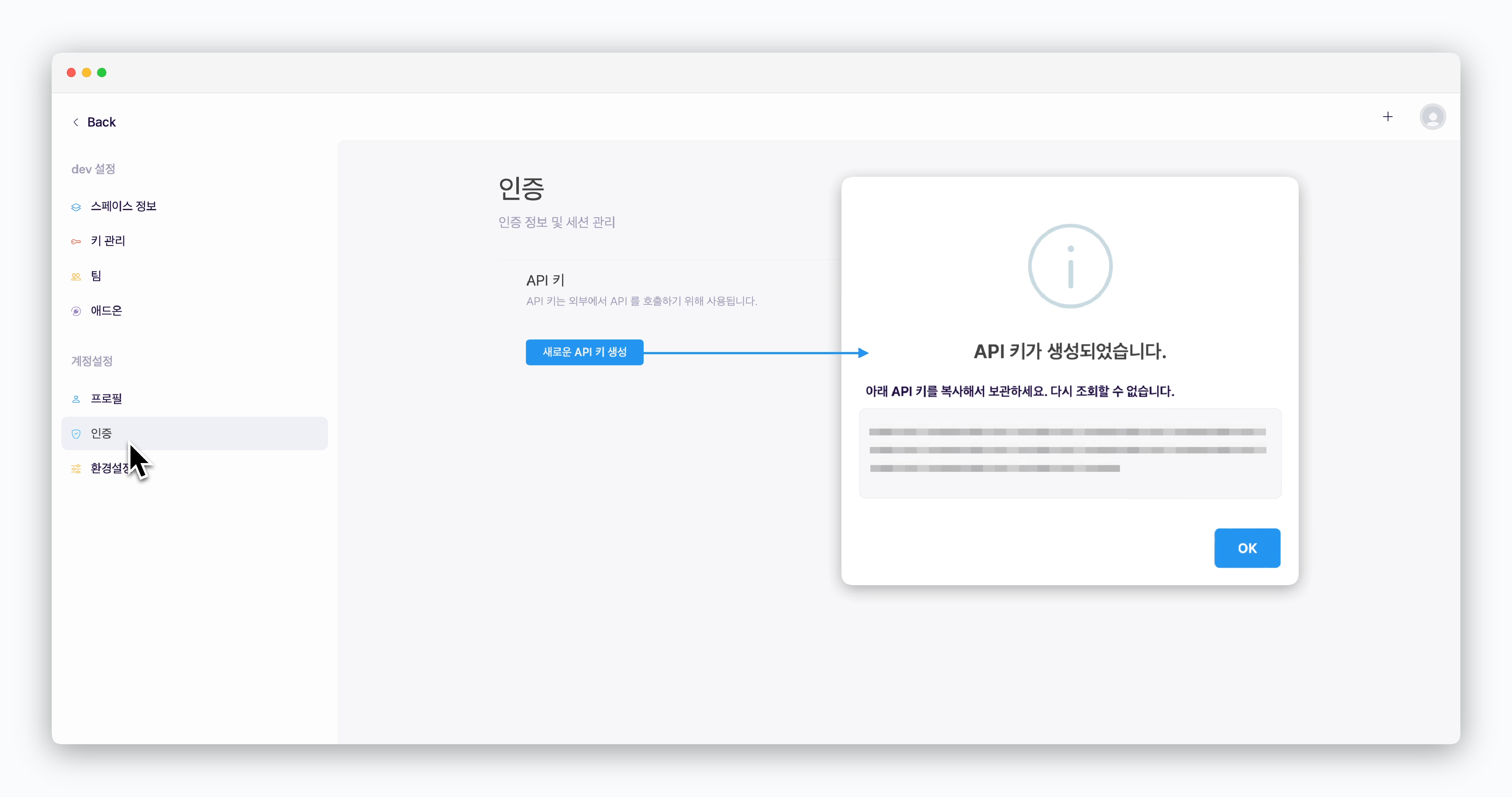 > 스페이스 설정화면의 **인증** 메뉴에서 `새로운 API 키 생성`을 클릭해 키를 생성하고 보관하세요.
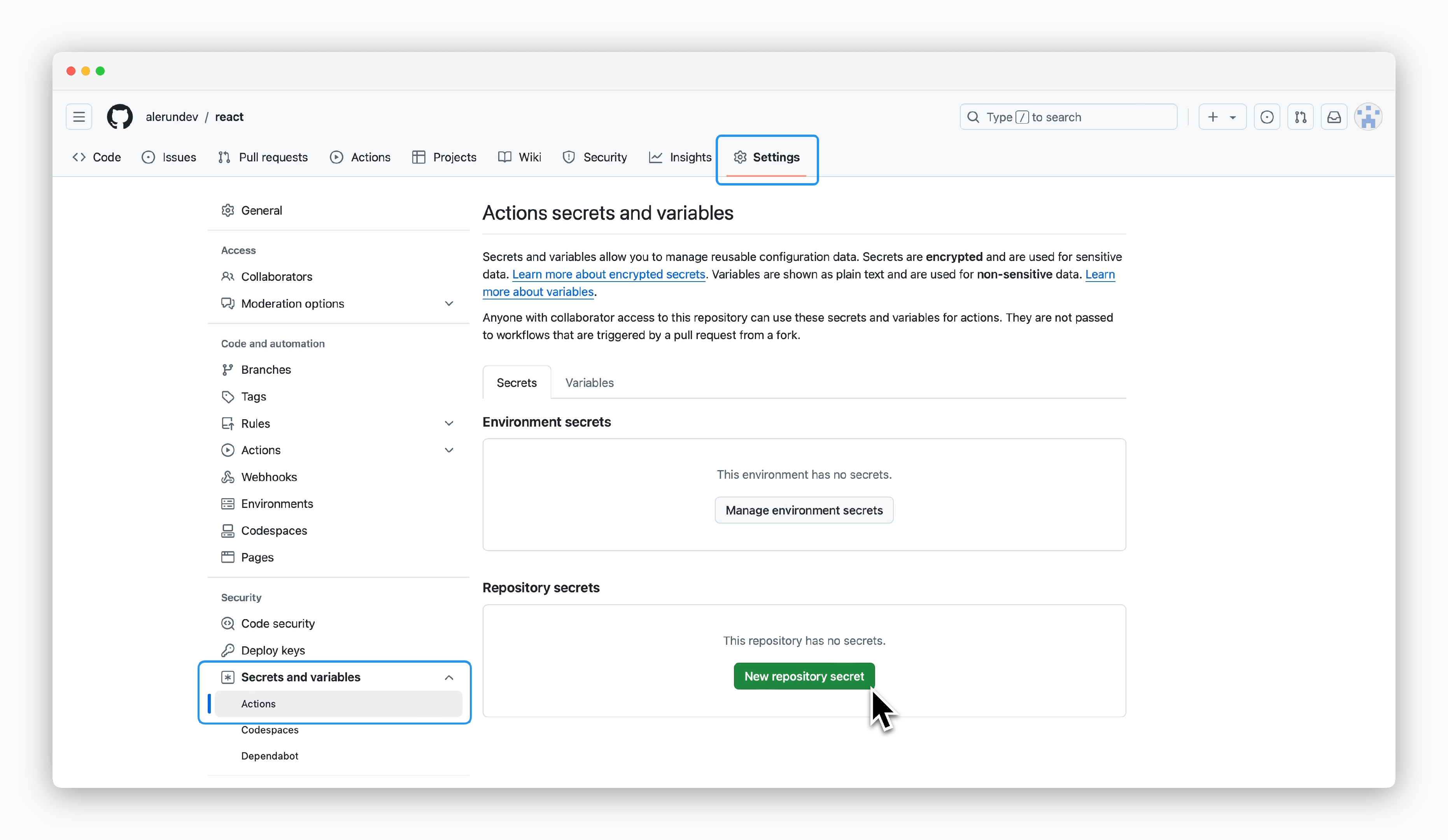 > GitHub 저장소의 **Settings**화면 **Secrets and variables의 Actions**항목에서 `New repository secret`을 클릭하세요.
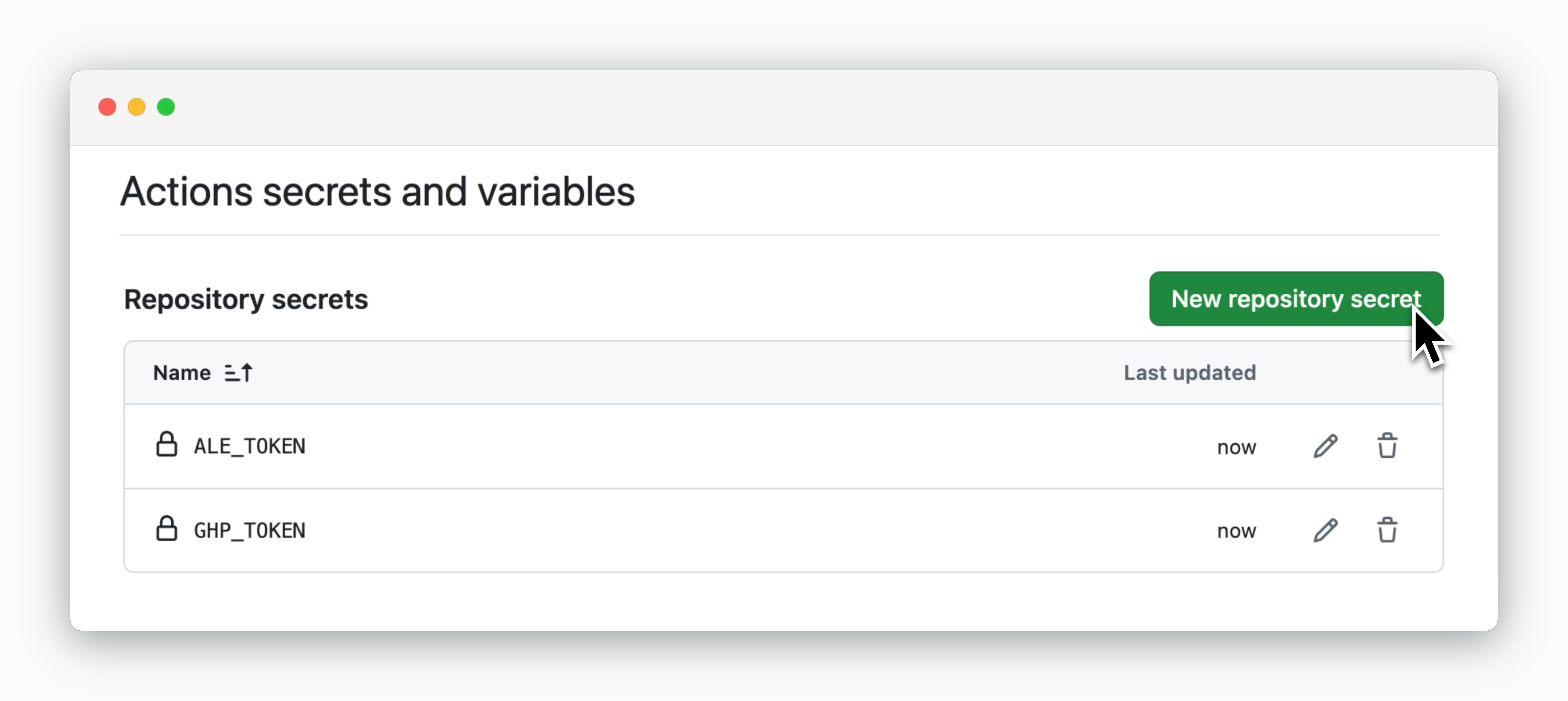 > **Name값에 주의**하며 2개의 Repository secret을 생성하세요.
| Name | Secret |
| ---------- | ------------------------------------- |
| ALE\_TOKEN | **ale** API key |
| GHP\_TOKEN | GitHub Personal Access Token |
## GitHub Actions 적용
### Workflow 파일 내용 조회
> **Name값에 주의**하며 2개의 Repository secret을 생성하세요.
| Name | Secret |
| ---------- | ------------------------------------- |
| ALE\_TOKEN | **ale** API key |
| GHP\_TOKEN | GitHub Personal Access Token |
## GitHub Actions 적용
### Workflow 파일 내용 조회
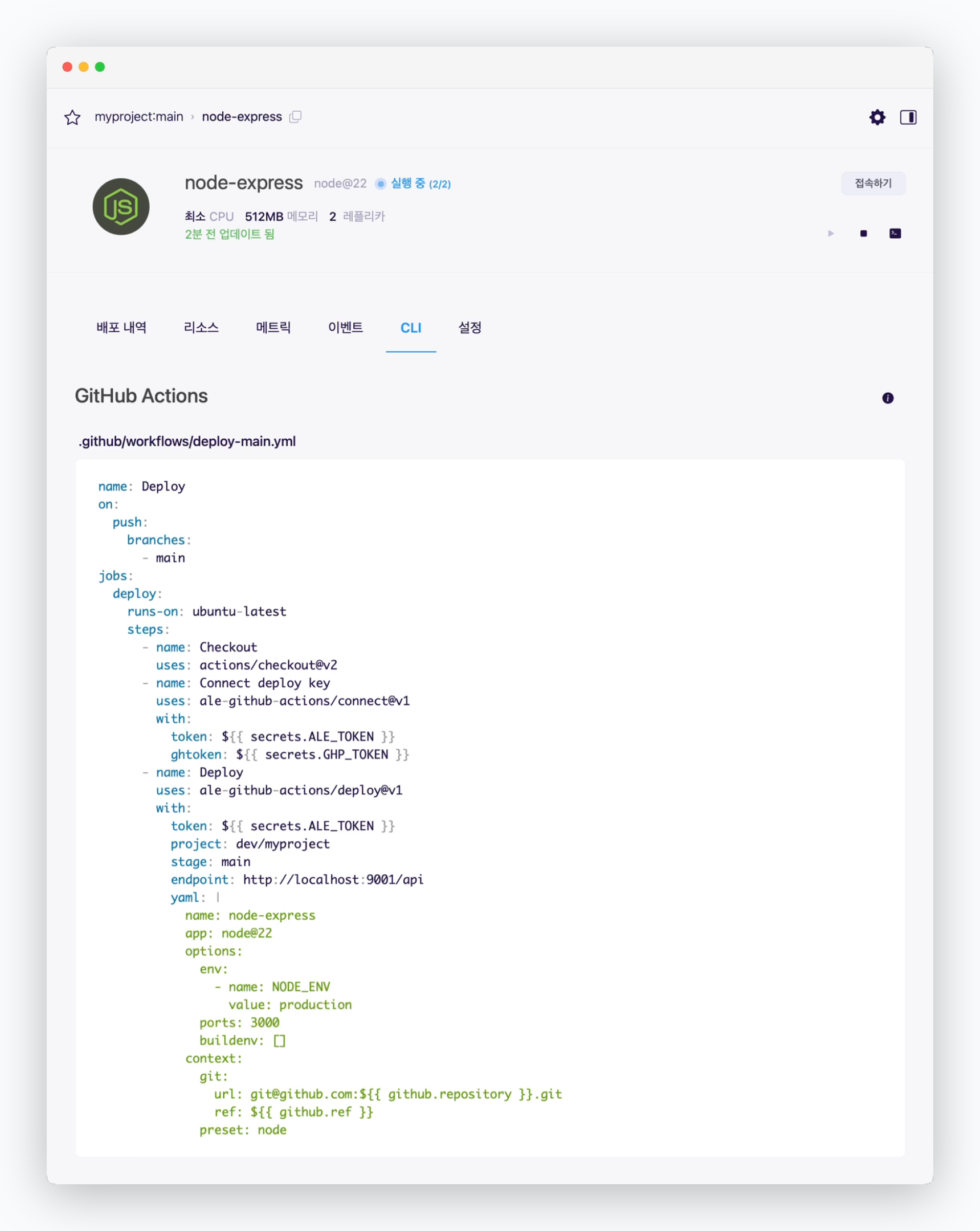 > Github Actions를 적용하려는 서비스 상세페이지의 **CLI**탭에서 Github Actions 항목의 코드를 복사하세요.
endpoint는 `ale`이 설치된 환경에 따라 자동으로 변경됩니다.
### Workflow 파일 생성
> 프로젝트의 루트 디렉토리에 **.github/workflows** 디렉토리를 생성하고 `ale`에서 복사한 코드를 내용으로 하는 yaml 파일을 만들어주세요.
**.github/workflows**폴더는 약속된 경로이기 때문에 변경할 수 없지만 파일명은 자유롭게 설정할 수 있습니다.
## 액션 별 입력값
> GitHub Actions는 `ale` 에서 저장소를 Pull 할 수 있도록 GitHub 저장소 Deploy Key 를 설정하는 **connect** 액션과 배포 설정을 `ale` 에 전송하고 배포를 요청하는 **deploy** 액션으로 작동합니다
| 입력값(Inputs) | | 필수 / 기본값 |
| -------------------- | -------------------------------------- | ------------------------------------- |
| **token** | ale API Key | 필수 |
| **ghtoken** | GitHub Personal Token | 필수 |
| **endpoint** | ale API Endpoint | 필수 (https\://
> Github Actions를 적용하려는 서비스 상세페이지의 **CLI**탭에서 Github Actions 항목의 코드를 복사하세요.
endpoint는 `ale`이 설치된 환경에 따라 자동으로 변경됩니다.
### Workflow 파일 생성
> 프로젝트의 루트 디렉토리에 **.github/workflows** 디렉토리를 생성하고 `ale`에서 복사한 코드를 내용으로 하는 yaml 파일을 만들어주세요.
**.github/workflows**폴더는 약속된 경로이기 때문에 변경할 수 없지만 파일명은 자유롭게 설정할 수 있습니다.
## 액션 별 입력값
> GitHub Actions는 `ale` 에서 저장소를 Pull 할 수 있도록 GitHub 저장소 Deploy Key 를 설정하는 **connect** 액션과 배포 설정을 `ale` 에 전송하고 배포를 요청하는 **deploy** 액션으로 작동합니다
| 입력값(Inputs) | | 필수 / 기본값 |
| -------------------- | -------------------------------------- | ------------------------------------- |
| **token** | ale API Key | 필수 |
| **ghtoken** | GitHub Personal Token | 필수 |
| **endpoint** | ale API Endpoint | 필수 (https\://app.\[도메인]/api) |
| **scope** | 연결하려는 스페이스 이름 | 기본값 : API Key 사용자의 스페이스명 |
| **repo** | GitHub 저장소(형식 user/repo) | 기본값 : 현재 액션이 실행중인 저장소 |
| **readOnly** | 'true'로 설정 시 읽기전용 배포키 생성 | 기본값 : false |
| 입력값(Inputs) | | 필수 / 기본값 |
| ------------- | ------------------------ | ------------------------------------- |
| **token** | ale API Key | 필수 |
| **endpoint** | ale API Endpoint | 필수 (https\://app.\[도메인]/api) |
| **project** | 배포할 프로젝트 이름 | 필수 (스페이스/프로젝트) |
| **stage** | 배포할 배포환경 이름 | 기본값 : 프로젝트 내 기본 배포환경 |
| **allStages** | 'true'로 설정 시 모든 배포환경에 배포 | 기본값 : false |
| **repo** | GitHub 저장소(형식 user/repo) | 현재 액션이 실행중인 저장소 |
| **file** | 배포 설정파일의 저장소 위치 | 기본값 : .ale/app.yaml |
| **json** | 배포 설정 JSON 텍스트 | - |
| **yaml** | 배포 설정 yaml 텍스트 | - |
**file, json, yaml** 입력값 중 1가지의 설정은 반드시 필요합니다.
## 활용
> 자동으로 생성된 workflow 파일을 서비스 설정에 맞게 수정해서 활용할 수 있습니다.
> **path**에 배포할 디렉토리를 설정할 수 있습니다.
```bash theme={null}
context:
git:
...
path: /pathname
```
> yaml 파일에 리소스에 관한 내용이 없는 경우, [대시보드에서 설정한 리소스 쿼터](/ko/developers/resource#2)를 반영합니다. yaml 파일로 리소스를 관리하려는 경우 **resources**에 `spot`, `cpu`, `memory`, `disk`, `replicas`를 설정해 적용할 수 있습니다.
```bash theme={null}
...
yaml: |
name: springboot-crud-example
app: java@17
resources:
spot: false
cpu: 1
memory: 1.5
replicas: 2
...
```
> [대시보드에서 환경 변수를 설정해서 배포](/ko/developers/env)한 경우, CLI탭의 workflow 파일 내용에 자동으로 반영됩니다. yaml 파일에 수동으로 적용하려는 경우 **options.env** 에 name과 value를 배열 형태로 설정해 적용할 수 있습니다.
```bash theme={null}
...
yaml: |
name: springboot-crud-example
app: java@17
options:
ports: 8080
env:
- name: JAVA_OPTS
value: -Xms256m -Xmx512m
- name: SPRING_PROFILES_ACTIVE
value: dev
...
```
프로젝트에 시크릿을 등록해둔 경우, value 값을 시크릿 이름으로 참조할 수 있습니다.
> **options.ports** 에서 콤마(,)로 포트를 구분하여 총 3개의 포트까지 설정 가능합니다.
```bash theme={null}
...
yaml: |
name: springboot-crud-example
app: java@17
options:
ports: 8080, 8081, 8082
...
```