> ## Documentation Index
> Fetch the complete documentation index at: https://docs.ale.run/llms.txt
> Use this file to discover all available pages before exploring further.
# 플러그인 관리
> 플러그인을 추가해서 ale의 기능을 확장하거나 커스터마이징 할 수 있습니다.
ale에서 제공하는 플러그인은 다음의 GitHub 저장소에서 확인할 수 있습니다.
* [https://github.com/ale-run](https://github.com/ale-run)
***
## 플러그인 설치
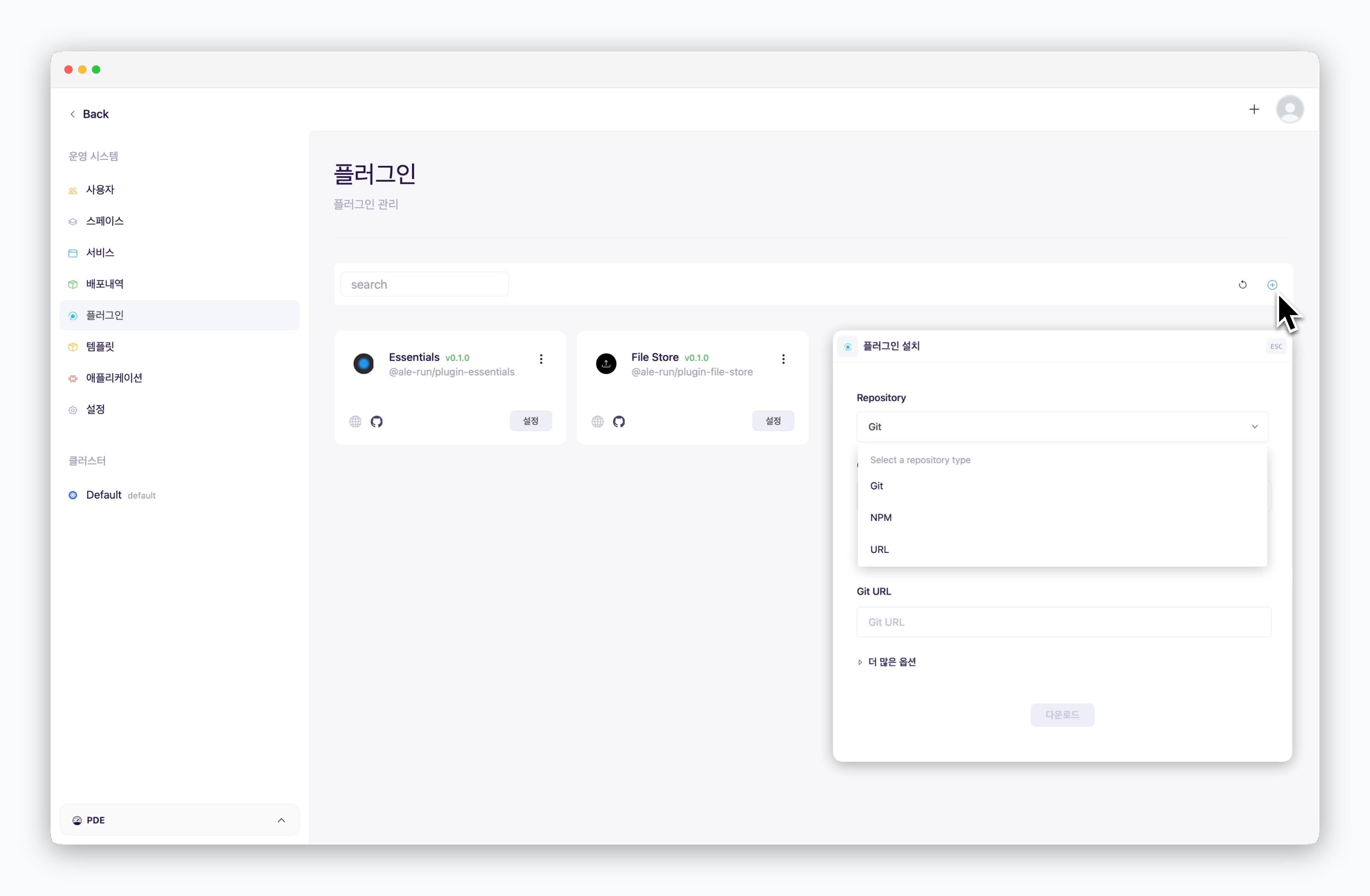 > 운영시스템의 플러그인 페이지에서 우측의 `+` 아이콘을 클릭한 후, 설치 방식에 따른 정보를 입력하면 플러그인을 추가할 수 있습니다.
### GitHub
> GitHub URL 필드에 플러그인이 위치한 저장소 정보를 다음과 같은 형식으로 입력하세요.
```plain theme={null}
# 플러그인 참조 형식
[조직명 혹은 계정명]/[저장소명]
[조직명 혹은 계정명]/[저장소명]#[브랜치명]
# 사용 예시
ale-run/plugin-aws
ale-run/plugin-aws#nightly
```
브랜치를 입력하지 않으면 main/master 가 적용됩니다.
### NPM
> NPM 저장소에 위치한 패키지명을 입력하고, 플러그인이 다운로드되면 필요한 정보를 입력하여 설치할 수 있습니다.
```plain theme={null}
[조직명 혹은 계정명]/[패키지명]
[조직명 혹은 계정명]/[패키지명]@0.1.0-rc.1
```
버전을 명시하지 않으면 latest 버전이 적용됩니다.
### URL
> 패키지가 위치한 URL을 입력하는 방식으로 플러그인을 설치할 수 있습니다.
지원하는 파일유형은 tar, tar.gz, tgz, zip 입니다.
## 플러그인 삭제
> 운영시스템의 플러그인 페이지에서 우측의 `+` 아이콘을 클릭한 후, 설치 방식에 따른 정보를 입력하면 플러그인을 추가할 수 있습니다.
### GitHub
> GitHub URL 필드에 플러그인이 위치한 저장소 정보를 다음과 같은 형식으로 입력하세요.
```plain theme={null}
# 플러그인 참조 형식
[조직명 혹은 계정명]/[저장소명]
[조직명 혹은 계정명]/[저장소명]#[브랜치명]
# 사용 예시
ale-run/plugin-aws
ale-run/plugin-aws#nightly
```
브랜치를 입력하지 않으면 main/master 가 적용됩니다.
### NPM
> NPM 저장소에 위치한 패키지명을 입력하고, 플러그인이 다운로드되면 필요한 정보를 입력하여 설치할 수 있습니다.
```plain theme={null}
[조직명 혹은 계정명]/[패키지명]
[조직명 혹은 계정명]/[패키지명]@0.1.0-rc.1
```
버전을 명시하지 않으면 latest 버전이 적용됩니다.
### URL
> 패키지가 위치한 URL을 입력하는 방식으로 플러그인을 설치할 수 있습니다.
지원하는 파일유형은 tar, tar.gz, tgz, zip 입니다.
## 플러그인 삭제
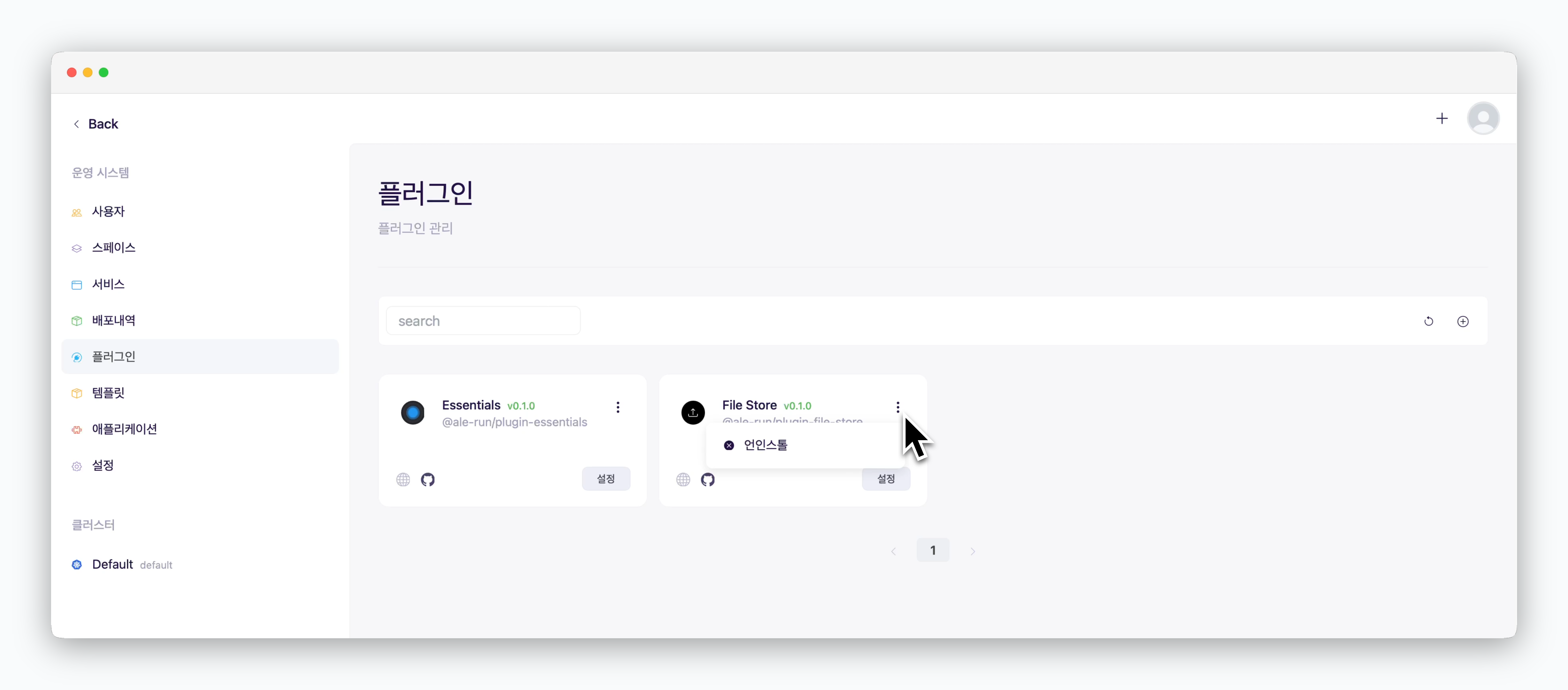 > 삭제하고자 하는 플러그인 카드 우측 상단의 아이콘을 클릭하면 언인스톨 또는 삭제할 수 있습니다.
Essentials와 File Store 플러그인은 디폴트 플러그인으로 삭제할 수 없습니다. 언인스톨된 플러그인은 비활성화 상태로 전환되며 간편하게 다시 인스톨할 수 있습니다.
> 삭제하고자 하는 플러그인 카드 우측 상단의 아이콘을 클릭하면 언인스톨 또는 삭제할 수 있습니다.
Essentials와 File Store 플러그인은 디폴트 플러그인으로 삭제할 수 없습니다. 언인스톨된 플러그인은 비활성화 상태로 전환되며 간편하게 다시 인스톨할 수 있습니다.