> ## Documentation Index
> Fetch the complete documentation index at: https://docs.ale.run/llms.txt
> Use this file to discover all available pages before exploring further.
# 서비스 관리
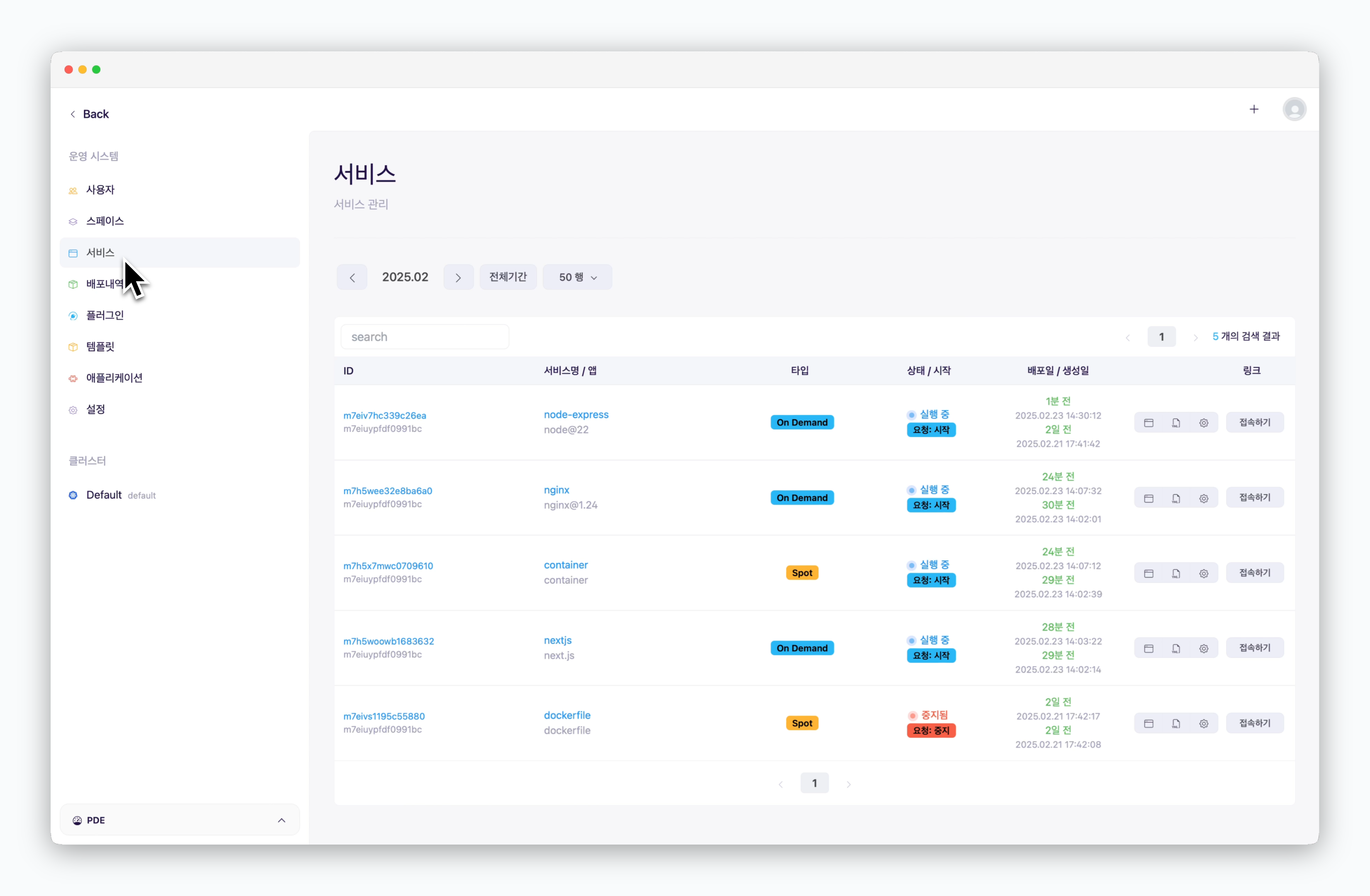
> 대시보드에서 배포된 모든 서비스를 조회하고 관리하는 페이지입니다.
 ***
## 서비스 정보
***
## 서비스 정보
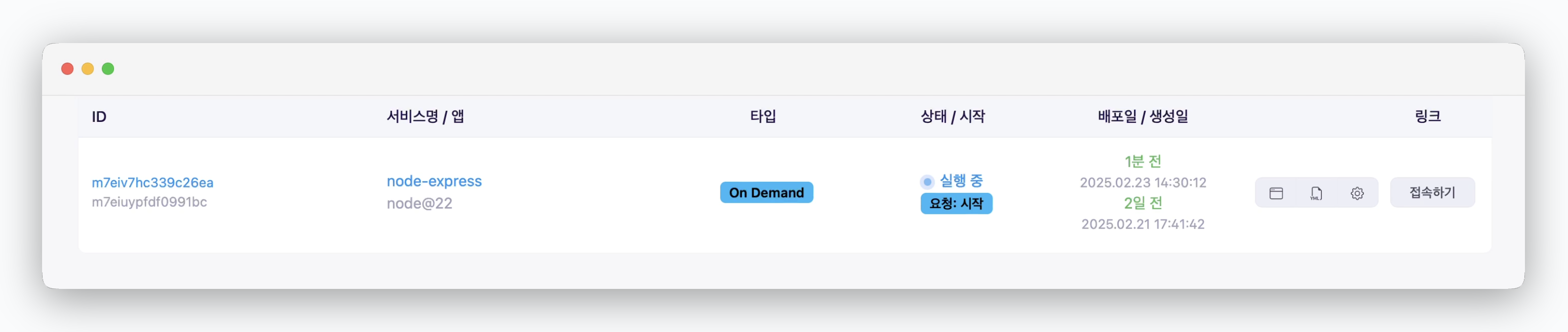 * **ID** : 서비스의 고유한 ID값
* **서비스명 / 앱** : 사용자가 정의한 서비스명 / 언어 혹은 플랫폼
* **종류** : VM 타입(온디맨드/스팟)
* **상태** : 실행 중 / 시작 중 / 중지 중 / 중지됨
* **배포일, 생성일** : 서비스의 배포 / 생성 시간
## 로그와 터미널
* **ID** : 서비스의 고유한 ID값
* **서비스명 / 앱** : 사용자가 정의한 서비스명 / 언어 혹은 플랫폼
* **종류** : VM 타입(온디맨드/스팟)
* **상태** : 실행 중 / 시작 중 / 중지 중 / 중지됨
* **배포일, 생성일** : 서비스의 배포 / 생성 시간
## 로그와 터미널
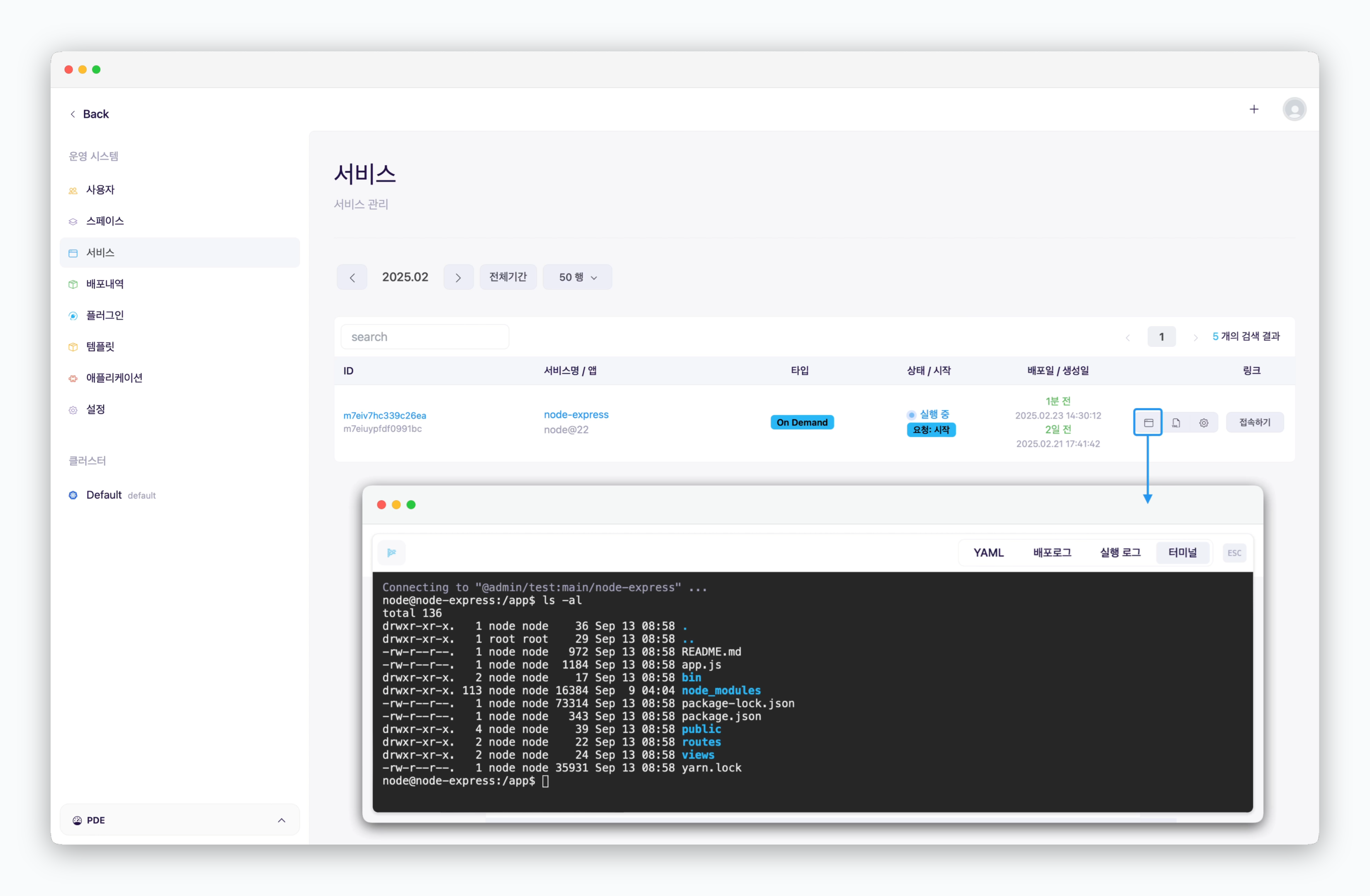 > 서비스 목록 우측의 아이콘을 클릭하면 배포 로그, 실행 로그를 확인하거나 터미널에 접속할 수 있습니다.
## 대시보드 접속
> 서비스 목록 우측의 아이콘을 클릭하면 배포 로그, 실행 로그를 확인하거나 터미널에 접속할 수 있습니다.
## 대시보드 접속
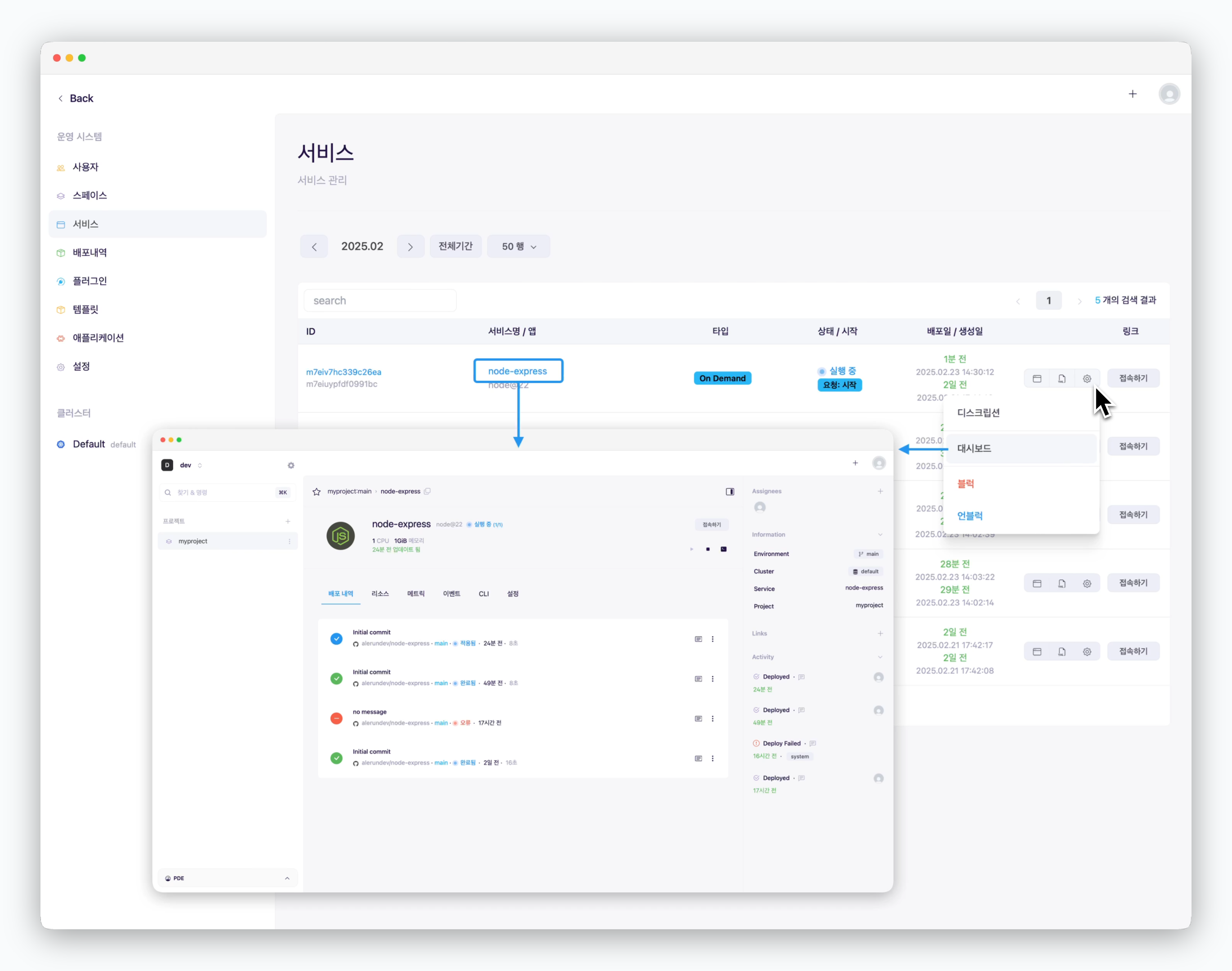 > 서비스 이름을 클릭하거나, 우측에 위치한 아이콘을 클릭하고 이어서 **대시보드** 항목을 클릭하면 해당 서비스의 대시보드로 진입할 수 있습니다.
## 프리뷰 URL 접속
> 서비스 이름을 클릭하거나, 우측에 위치한 아이콘을 클릭하고 이어서 **대시보드** 항목을 클릭하면 해당 서비스의 대시보드로 진입할 수 있습니다.
## 프리뷰 URL 접속
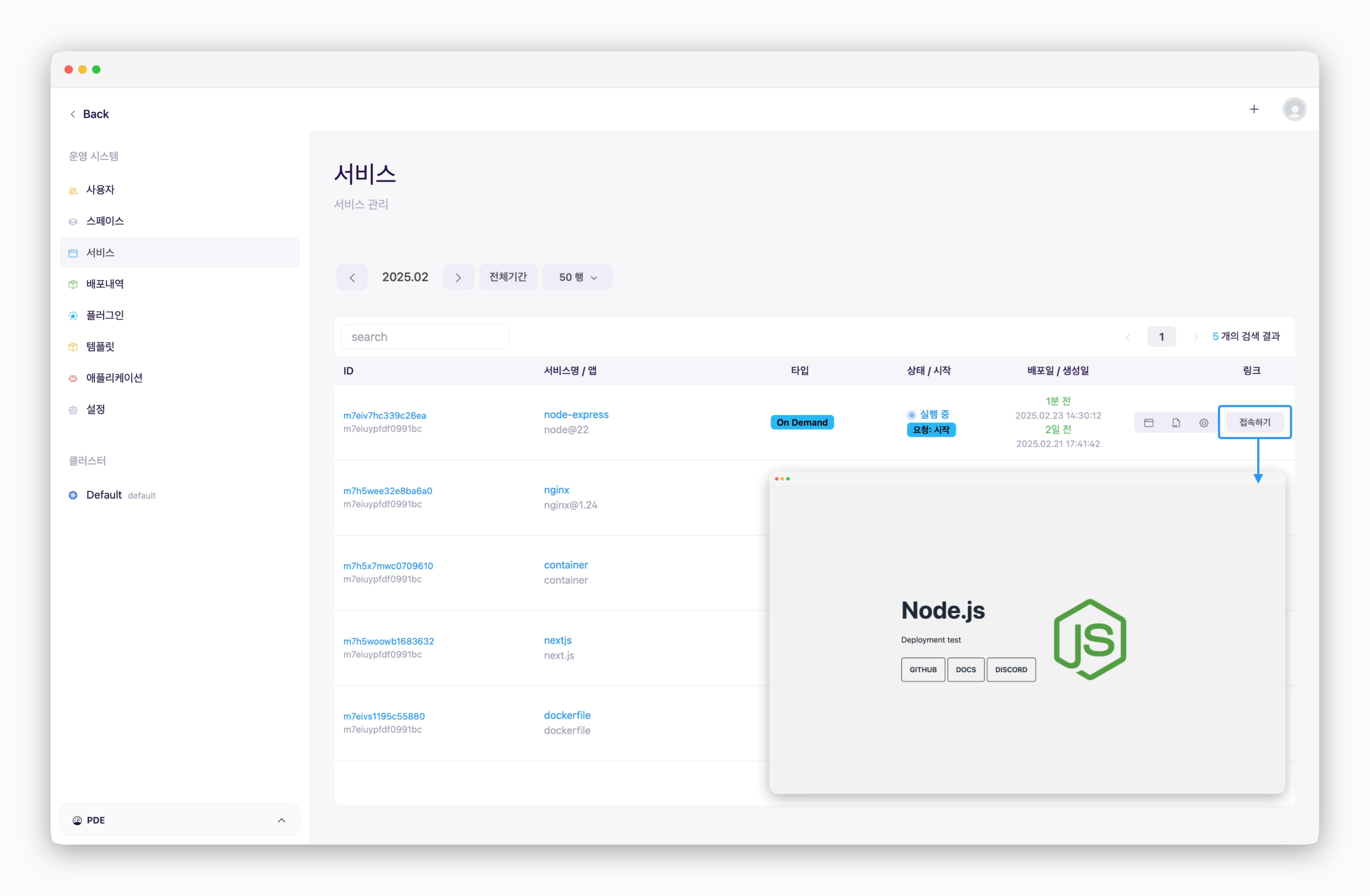 > 우측에 위치한 `접속하기`를 클릭하면 브라우저에서 해당 서비스의 프리뷰 도메인에 접속할 수 있습니다.
데이터 베이스의 경우 다른 서비스와 통신하기 위한 접속정보(호스트 네임 : 포트번호)를 복사할 수 있습니다.
## 서비스 블럭
> 우측에 위치한 `접속하기`를 클릭하면 브라우저에서 해당 서비스의 프리뷰 도메인에 접속할 수 있습니다.
데이터 베이스의 경우 다른 서비스와 통신하기 위한 접속정보(호스트 네임 : 포트번호)를 복사할 수 있습니다.
## 서비스 블럭
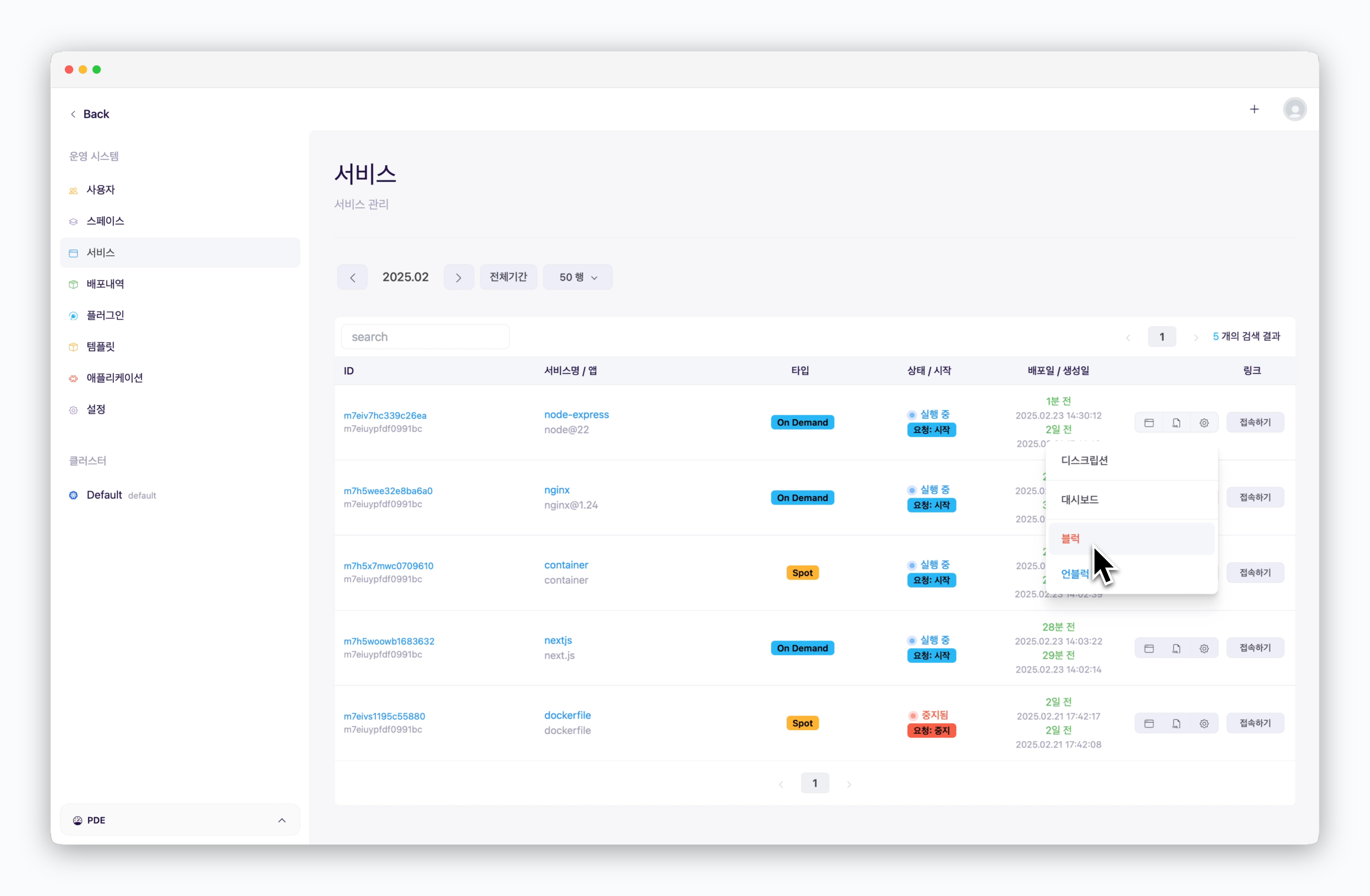 > 블럭처리 대상 서비스 우측에 위치한 아이콘을 클릭하고 이어서 **블럭**을 선택하면 해당 서비스가 블럭됩니다.
블럭된 서비스는 즉시 중지되며 대시보드에서 재시작할 수 없습니다. 블럭을 해제해야 재시작할 수 있습니다.
> 블럭처리 대상 서비스 우측에 위치한 아이콘을 클릭하고 이어서 **블럭**을 선택하면 해당 서비스가 블럭됩니다.
블럭된 서비스는 즉시 중지되며 대시보드에서 재시작할 수 없습니다. 블럭을 해제해야 재시작할 수 있습니다.