> ## Documentation Index
> Fetch the complete documentation index at: https://docs.ale.run/llms.txt
> Use this file to discover all available pages before exploring further.
# 스케줄러로 업무 자동화
> 스케줄러로 정해진 시간에 반복 업무를 자동으로 실행할 수 있습니다.
스케줄러는 자연어로 실행 시간과 반복 주기를 지정해 업무를 자동으로 수행하는 기능입니다. 기본 도구뿐만 아니라 연결한 업무 시스템과 지식베이스를 활용해 정기적인 조회·분석·공유 작업을 자동화할 수 있습니다.
스케줄러는 채팅창에서 입력한 명령에 의해 설정되며, 채팅창에서 활성화한 도구를 활용하여 지정된 시간에 자동으로 실행됩니다. 따라서 스케줄을 설정했던 스레드가 삭제되면 스케줄도 힘께 삭제됩니다.
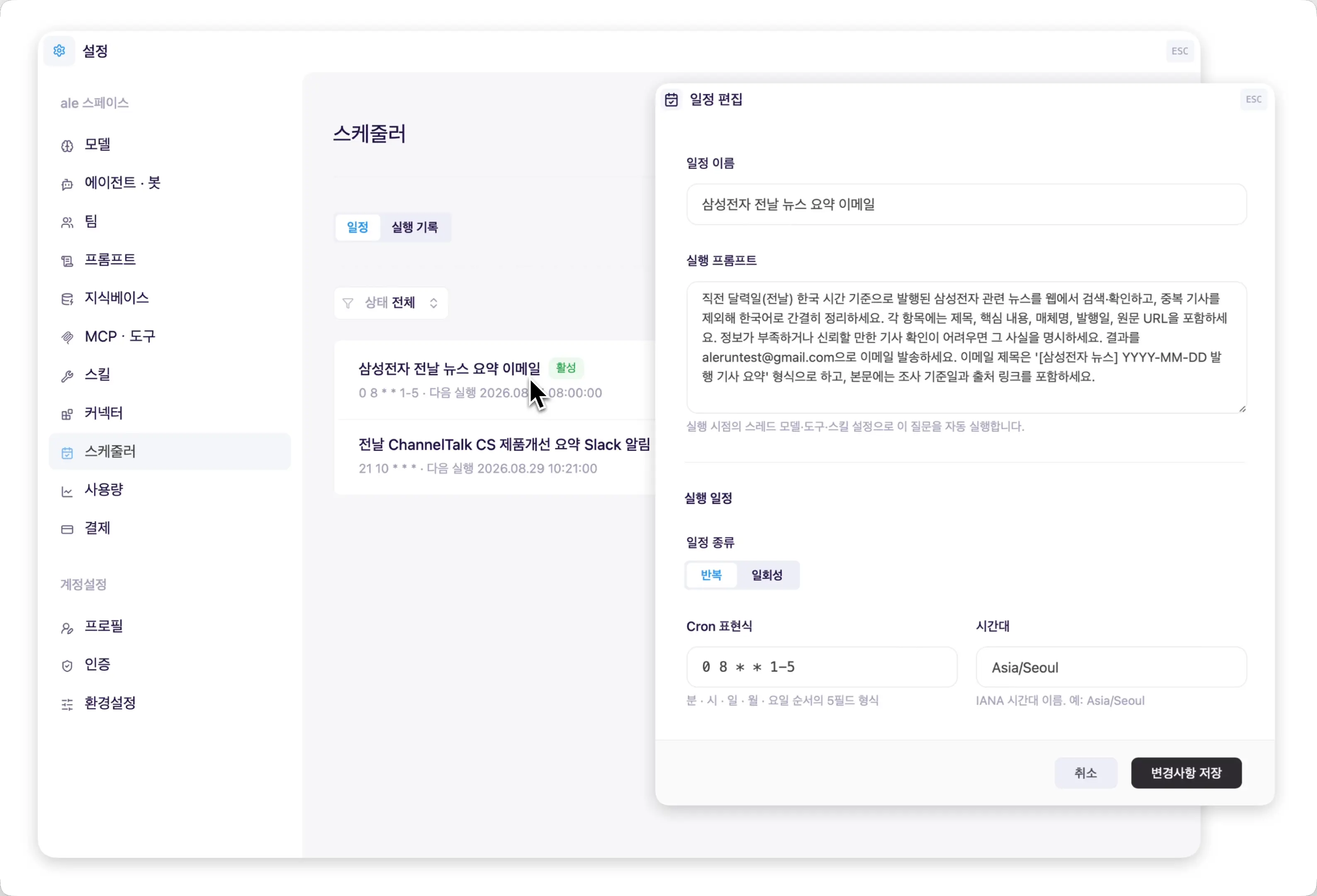
생성된 스케줄은 `스페이스 설정 > 스케줄러` 메뉴에서 확인할 수 있습니다.
## 평일 아침 뉴스레터 발송
```text title="예시 질문" wrap theme={null}
평일 오전 8시에 전날 밸행된 삼성전자에 관한 뉴스를 정리하고 출처를 포함해서 test@test.com 으로 보내줘
```
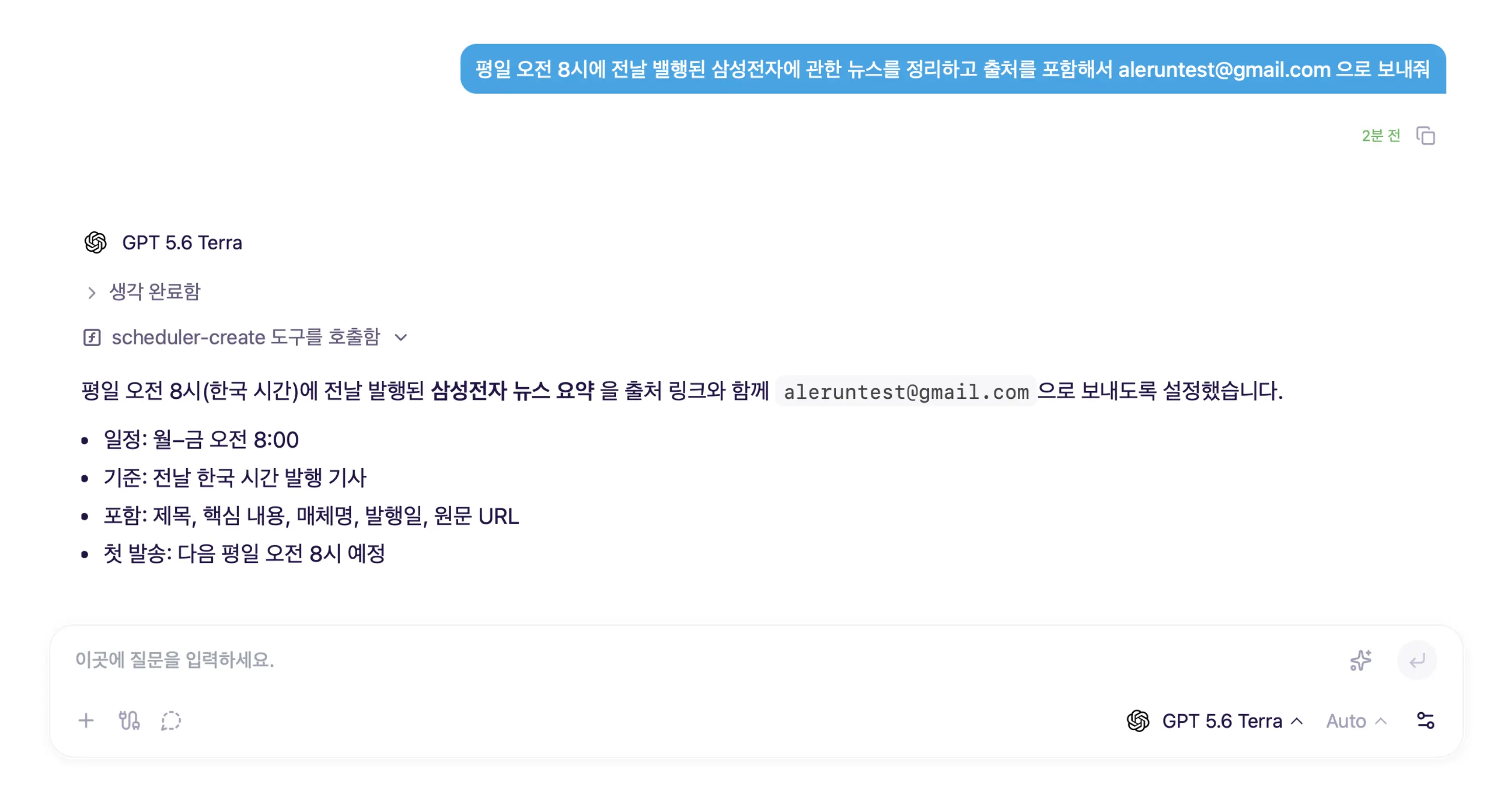 > 스케줄에 의한 결과를 이메일로 받아볼 수 있으며, `스페이스 설정 > 스케줄러` 메뉴에서 생성된 스케줄을 확인하고 편집할 수 있습니다.
 ## 매주 월요일 주간 업무 일정 정리
```text title="예시 질문" wrap theme={null}
매주 월요일 오전 9시에 Google Calendar에서 주간 일정을 확인하고, 날짜별 주요 일정과 준비사항을 Slack의 test@test.com에게 DM으로 보내줘
```
## 매주 월요일 주간 업무 일정 정리
```text title="예시 질문" wrap theme={null}
매주 월요일 오전 9시에 Google Calendar에서 주간 일정을 확인하고, 날짜별 주요 일정과 준비사항을 Slack의 test@test.com에게 DM으로 보내줘
```
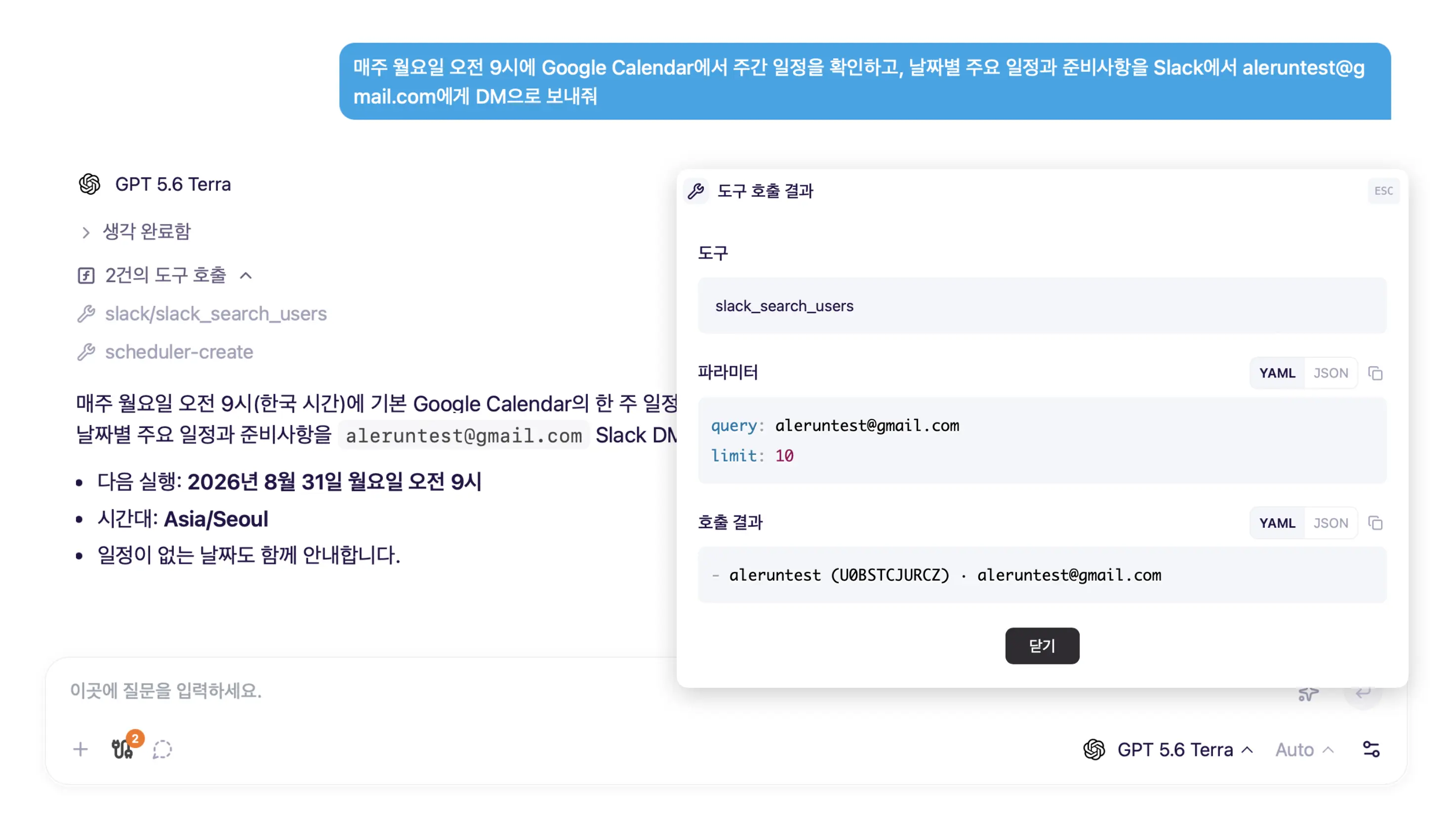 > Google Calendar와 Slack 커넥터를 연동하면, 주간 일정을 매주 월요일에 Slack에서 DM으로 받을 수 있습니다.
단순히 Slack DM으로 보내달라고 요청하면, AI가 Slack의 누구에게 보내야하는지 되묻습니다. 스크린샷처럼 이메일을 알려주면, AI가 해당 이메일의 Slack ID를 조회하여 DM을 보냅니다.
개인 계정으로 Slack을 연동하면, 스케줄링 결과를 Slack으로 보낼 수 있습니다.
## Google Analytics 데이터 분석 자동화
```text title="예시 질문" wrap theme={null}
매일 오전 9시에 지난24시간 동안 Google Analytics로 특이한 이벤트를 분석해서 Slack #이벤트요약_ga 채널에 알려줘
```
> Google Calendar와 Slack 커넥터를 연동하면, 주간 일정을 매주 월요일에 Slack에서 DM으로 받을 수 있습니다.
단순히 Slack DM으로 보내달라고 요청하면, AI가 Slack의 누구에게 보내야하는지 되묻습니다. 스크린샷처럼 이메일을 알려주면, AI가 해당 이메일의 Slack ID를 조회하여 DM을 보냅니다.
개인 계정으로 Slack을 연동하면, 스케줄링 결과를 Slack으로 보낼 수 있습니다.
## Google Analytics 데이터 분석 자동화
```text title="예시 질문" wrap theme={null}
매일 오전 9시에 지난24시간 동안 Google Analytics로 특이한 이벤트를 분석해서 Slack #이벤트요약_ga 채널에 알려줘
```
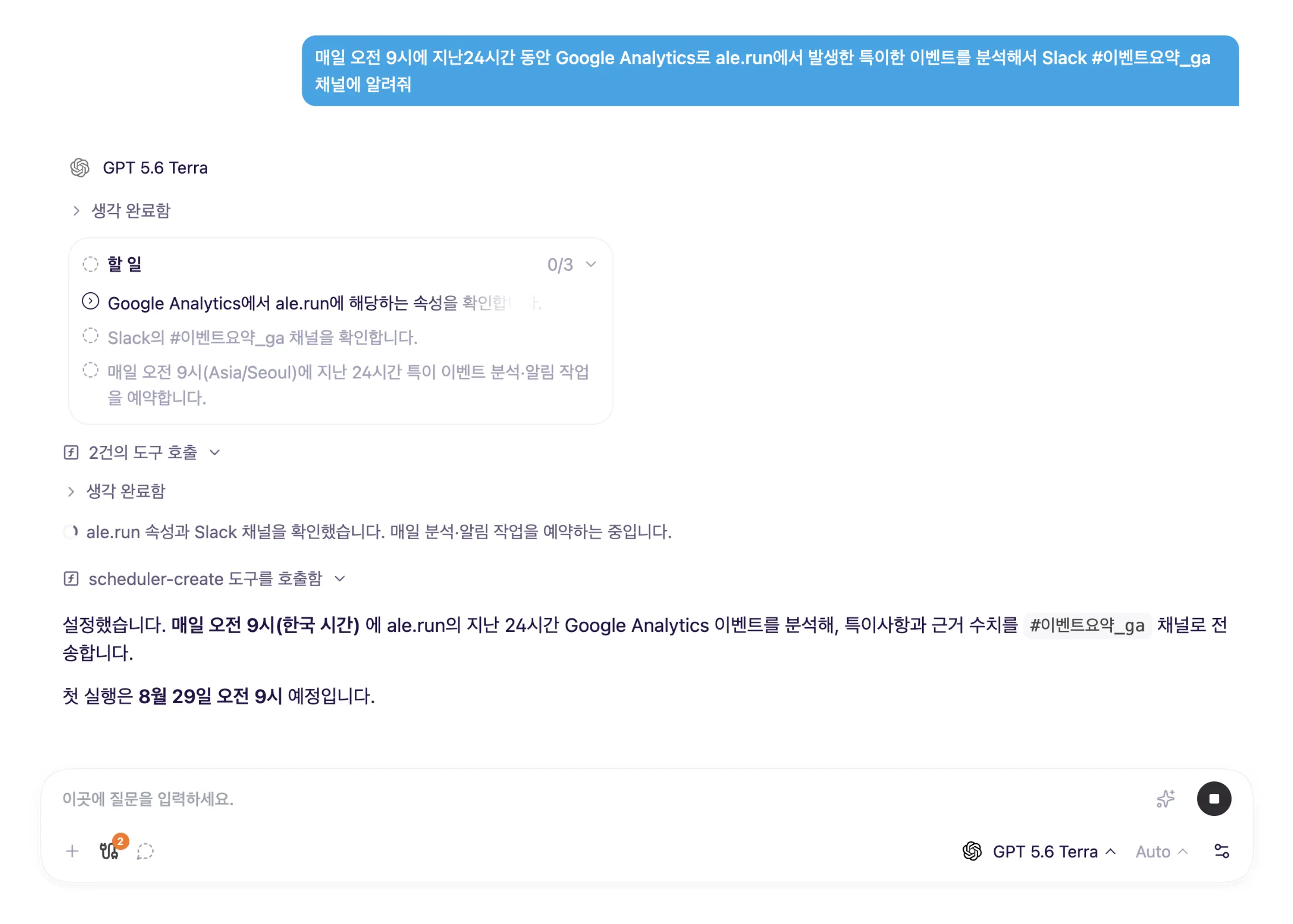 > Google Analytics 등
스케줄을 설정할 때 사용하는 도구와 같은 도구를 Slack 채널에서 답변할 에이전트에게 추가하면, 답변에 관하여 후속 질문을 할 수 있습니다.
## 다양한 채널의 CS 내용을 Notion에 자동 정리
```text title="예시 질문" wrap theme={null}
매일 오전 9시에 전날 하루동안 채널톡, test@test.com 이메일로 온 고객 문의 내용을 Notion 고객문의CS 페이지에 데이터베이스 형식으로 저장해줘
```
> Google Analytics 등
스케줄을 설정할 때 사용하는 도구와 같은 도구를 Slack 채널에서 답변할 에이전트에게 추가하면, 답변에 관하여 후속 질문을 할 수 있습니다.
## 다양한 채널의 CS 내용을 Notion에 자동 정리
```text title="예시 질문" wrap theme={null}
매일 오전 9시에 전날 하루동안 채널톡, test@test.com 이메일로 온 고객 문의 내용을 Notion 고객문의CS 페이지에 데이터베이스 형식으로 저장해줘
```
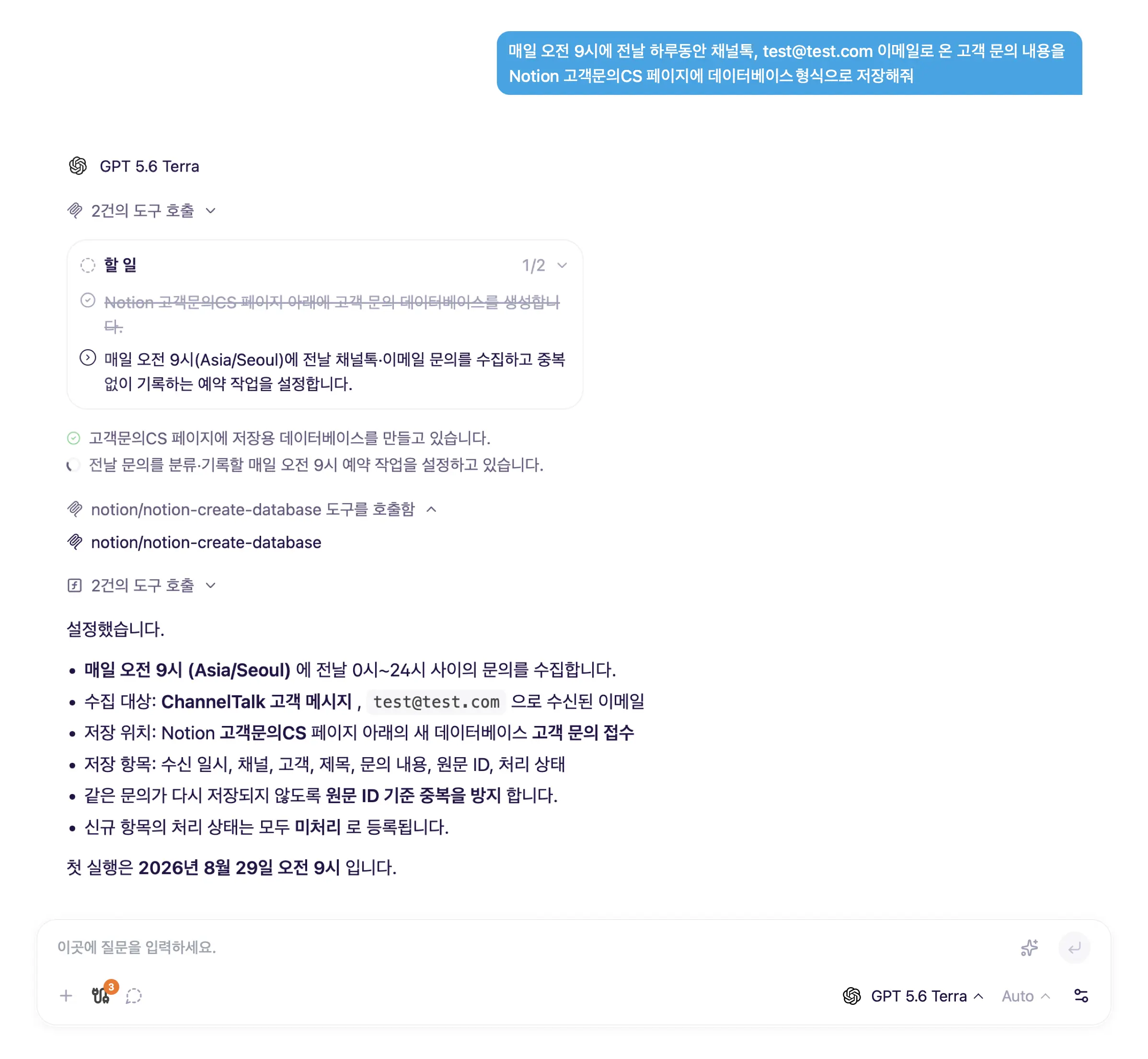 > 이메일, 채널톡, Discord 등 다양한 채널에서 들어오는 문의 사항을 한군데로 통합하는 업무를 자동화할 수 있습니다.